PDF Page Numbers Don't Match? Fix the Navigation
You type 42 into the PDF viewer, press Enter, and land on a page with 36 printed at the bottom. The contents page insists the section starts on 42. Your colleague says it starts on 48. Somehow, all three numbers might describe the same document correctly.
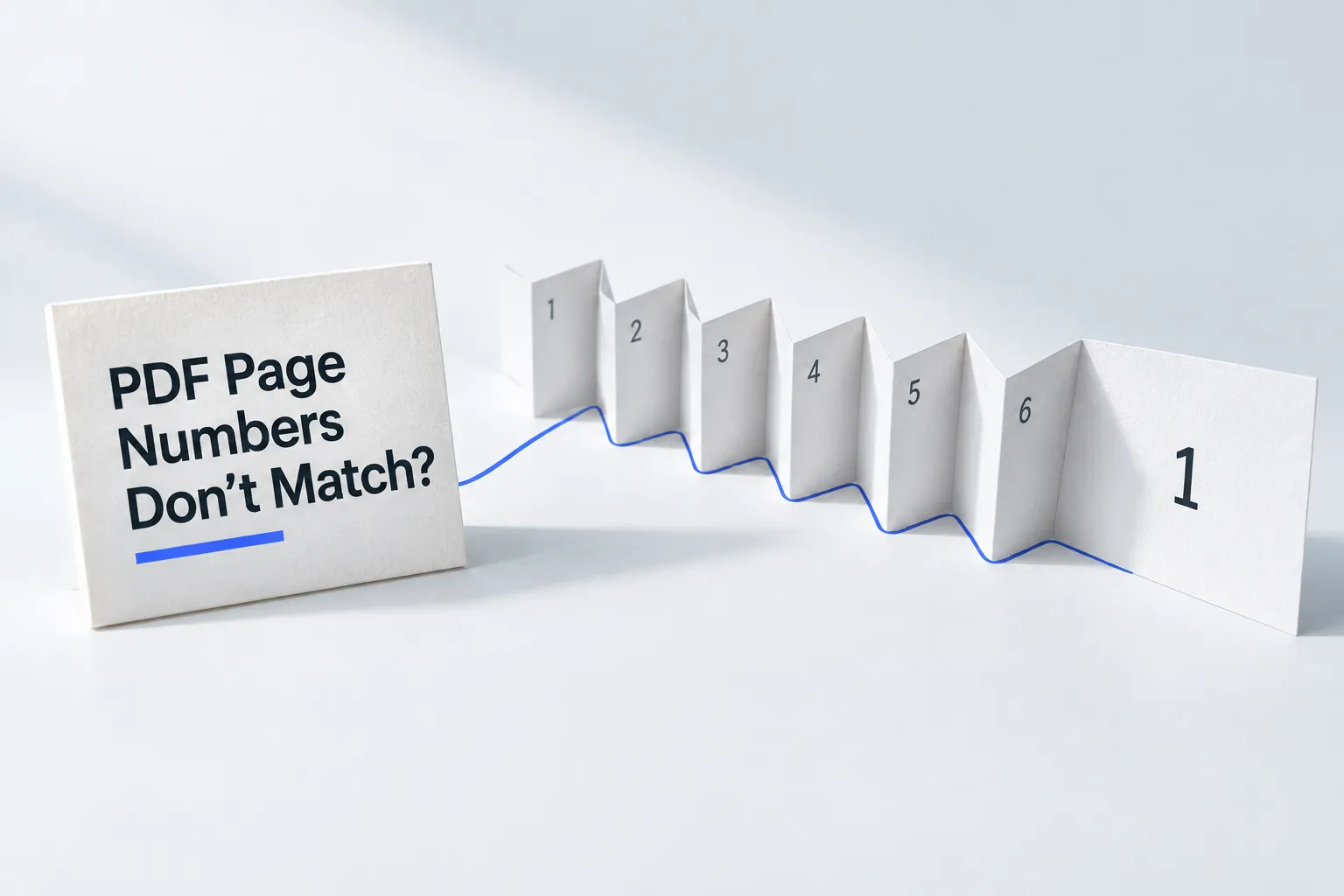
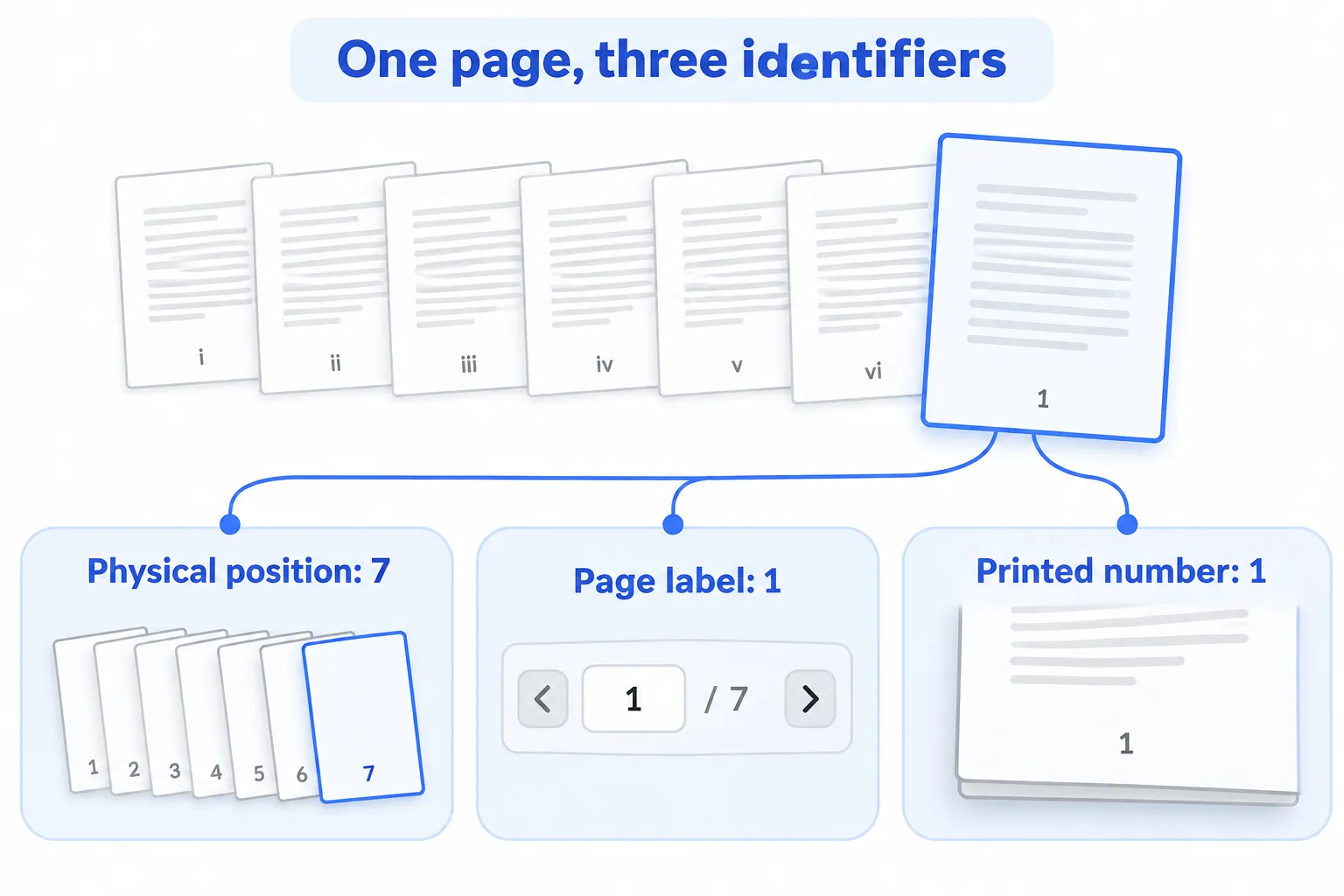
PDF page numbers can disagree because a document has three separate numbering systems: its physical page position, its navigation label, and the number printed on the page. A cover and five introductory pages put printed page 1 at physical position 7. If the file has no matching navigation labels, entering 1 may take you to the cover instead.
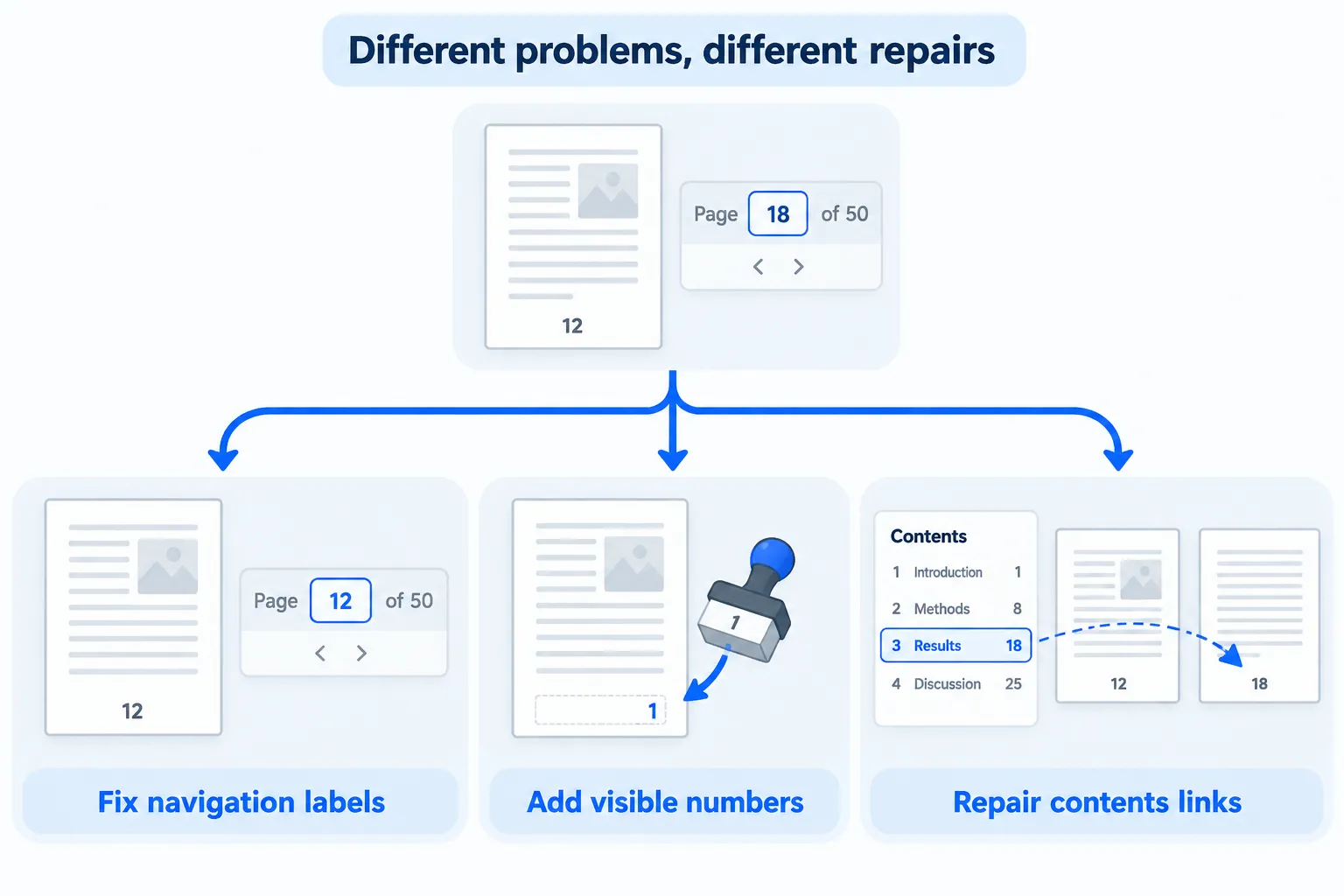
The fix depends on which system is wrong. Change navigation labels when the document's printed numbering is already correct. Add or replace visible numbers when the pages themselves need numbering. Repair contents entries and links when the references are wrong. Those are different jobs, and doing the wrong one can make the confusion worse.
Here's how to identify the mismatch, choose the least disruptive repair, and check that the result works for the people receiving it.
Three numbers, one page
Think of a PDF as an ordered stack of pages with optional navigation information and artwork on each sheet. Those layers usually agree in a short document. They often diverge in books, reports, legal bundles, and assembled course readings.
| Numbering system | What it means | Example | What changes it |
|---|---|---|---|
| Physical position | Where the page sits in the file | The seventh page out of 120 | Inserting, deleting, or moving pages |
| Navigation label | The page identifier a supporting viewer displays | vii, 1, or A-3 | Editing the PDF's page-label settings |
| Printed number | Text or artwork visibly placed on the page | A footer reading 1 | Editing page content or adding a header or footer |
The physical position is unavoidable: every page occupies a place in the file. Many everyday interfaces count positions from 1. Programming libraries commonly index pages from 0, so the seventh page may be identified as index 6 in code.
A navigation label is optional. It can tell a viewer that the seventh physical page should be called 1, while earlier pages use Roman numerals. However, not every viewer displays or accepts those labels in the same way.
The printed number is simply part of the page's appearance. It might be editable text, a vector outline, or pixels inside a scan. A PDF viewer generally does not inspect that footer and automatically adopt it as the navigation number.
A page label is navigation information stored in the PDF. It does not print a number on the page, and changing it does not change the page's physical position.
This distinction explains why adding a neat new footer can leave the navigation problem completely untouched. It also explains why a file can navigate correctly while looking unnumbered when printed.
Before repairing anything, identify which number the reader actually needs. A researcher citing a published book usually needs the printed number. A colleague extracting pages from an attachment may need the physical positions. Someone reading an appendix may benefit most from labels such as A-1 and A-2.
Diagnose the offset before editing
Open the file and compare three things on the same page: its position in the file, the viewer's displayed label, and its printed footer. Don't start by changing the contents page. First establish whether the disagreement is consistent.
Suppose printed page 1 appears at physical position 7. Check printed page 10 and printed page 50. If they appear at positions 16 and 56, you have a constant offset of six pages. That usually means preliminary material precedes the main text.
For that uninterrupted section, the relationship is:
Physical position = printed number + number of preceding pages.
This is useful for diagnosis, not a promise that the whole file follows one formula. An unnumbered divider inserted halfway through changes the offset. A missing scanned page changes it again. An appendix that restarts at 1 creates a new numbering sequence entirely.
Use a small audit table rather than remembering the differences:
| Checkpoint | Physical position | Printed number | What it tells you |
|---|---|---|---|
| Cover | 1 | None | Preliminary material starts here |
| First main-text page | 7 | 1 | Initial offset is six |
| Later main-text page | 26 | 20 | Offset is still six |
| Page after inserted divider | 48 | 41 | Offset has increased to seven |
| First appendix page | 88 | A-1 | A separate sequence begins |
Choose checkpoints at section boundaries, not just every ten pages. Check the first and last pages of the introduction, main text, and appendices. If there are scanned inserts, check immediately before and after each one.
Search can help you reach chapter headings, but it is not a substitute for inspecting the page footer. A search result for “42” could be a price, a footnote, or a reference elsewhere in the document.
Also check whether pages are missing or duplicated. If the printed sequence jumps from 18 to 20, relabeling the next page as 19 hides the symptom without restoring the missing content. If two successive sheets both say 18, they might be duplicates—or an intentional continuation page. Compare the actual text before deleting anything.
Your diagnosis should end with a plain sentence: “The content is complete, the printed numbers are correct, and the viewer is counting six preliminary pages.” That sentence tells you exactly what to repair.
Choose the repair that matches the problem
A numbering mismatch does not always mean the PDF is defective. Books commonly separate front matter from the main text. Appendices may use their own numbering. The problem is often that navigation information was never added—or was lost when the file was assembled.
The W3C's PDF page-numbering technique describes using page labels to make navigation numbering consistent with the numbers shown in a document. This matters for accessibility as well as convenience: someone using assistive technology should not have to solve an offset puzzle to locate a referenced page.
Match the intervention to the failure:
| What is wrong | Appropriate repair | What not to do |
|---|---|---|
| Printed numbers are right, navigation is wrong | Set page-label ranges | Add a second visible numbering sequence |
| Pages have no visible numbers | Add headers or footers | Assume labels will appear in print |
| Printed numbers are incorrect | Correct visible numbering and align labels | Relabel navigation while leaving contradictory footers |
| Contents text names the wrong pages | Update contents entries | Assume page labels rewrite the contents |
| A clickable contents entry opens the wrong page | Repair its link destination | Change only the text of the entry |
| Pages are missing or duplicated | Repair the document's page sequence first | Disguise the gap by renumbering |
For a published book or externally issued report, preserve the original printed numbering unless you have a clear reason and authority to change it. Changing those numbers can break citations, indexes, and references made by other people.
For an internal packet you're assembling yourself, continuous visible numbering may be more practical. The packet can have its own sequence while the source documents retain their original footers, provided the two are clearly distinguished.
Adding page numbers is not the same as fixing navigation labels. A new footer reading 1 can coexist with a viewer that still calls that page 7. Decide which layer needs repair before applying a numbering tool.
If you only need to help one colleague find a passage today, a clear reference may be enough: “Printed page 42; physical page 48 of the attachment.” That is a sensible temporary workaround, not a durable replacement for fixing a file that hundreds of people will use.
Fix navigation without changing the pages
When the visible numbering is correct, page labels are usually the least disruptive repair. They change how supporting viewers identify pages without rewriting the content.
You'll need an editor that explicitly supports page labels, logical page numbering, or a renumber pages command that changes navigation. Read the command description carefully: a tool named “page numbering” may only add footers.
Adobe explains page-label controls in its documentation on page thumbnails and bookmarks. Other editors expose similar settings through their page-management panels, though the wording varies.
Follow this procedure:
- Save a working copy. Keep the received original unchanged. Use a clear name such as
report_navigation_checked.pdf, especially if the file is part of a formal handoff. - Record the physical boundaries. Write down where front matter ends, where the main text begins, and where each appendix starts. Use file positions, not ambiguous printed numbers.
- Open the page-label controls. Confirm that they alter navigation labels rather than stamping numbers onto the page artwork.
- Define the preliminary range. If the first six pages visibly use i through vi, assign lower-case Roman labels beginning at i. If some pages are unnumbered, decide how those pages should be identified rather than pretending they have printed numbers.
- Define the main-text range. Select the physical page where printed 1 begins. Set the style to Arabic numerals and the starting number to 1.
- Define separate appendix ranges. Where appropriate, use a prefix such as A- with a numeric sequence starting at 1. Repeat for B- or other separately numbered sections.
- Save, close, and reopen. Check the first and last labels of every range, then test several references in the viewer your recipient is likely to use.
Range boundaries are the common failure point. If the introduction ends at physical page 6, the main-text range begins at physical page 7—not at the page currently displayed as 7 after earlier changes.
Some editors let you label an unnumbered cover with a descriptive prefix and no numeric style. Others offer fewer options. Don't force an elaborate labeling scheme that your software cannot represent reliably. Simple, accurate labels are better than clever ones that confuse the receiving viewer.
For repeatable batch work, a programming library may be appropriate. The pypdf documentation covers PDF manipulation, including page-label support. The important practical warning is that a script's page indexes may start at zero. Confirm its range conventions before applying it to a 400-page report.
When visible numbering needs changing
Some documents have no useful printed sequence at all: exported slide decks, scanned receipts, assembled application packets, or reports with pages added after layout. In those cases, navigation labels alone won't help someone holding a printed copy.
Decide what the new visible sequence represents. Are you numbering the whole packet, only the report body, or each appendix separately? Write that rule down before applying anything. “Skip the cover, start at 1 on the contents page, continue through attachments” is a rule. “Make the numbers look right” is not.
Choose a consistent location with enough empty space. On an A4 page, a footer close to the edge can be clipped by a printer's non-printable margins. Inspect the smallest page size in a mixed packet, and keep numbers clear of existing text, signatures, and scan shadows.
For adding a visible sequence, an AI PDF editor such as MojoPDF can apply page numbers to the document. That addresses the printed numbering layer; still check navigation labels separately rather than assuming the two now match.
Replacing an existing footer is more delicate than adding one. A white rectangle over an old number may only hide it visually while leaving the underlying text searchable or extractable. It may also stand out on a grey scanned page. Use a method that actually edits the relevant content, then inspect the exported result.
There is also a document-integrity question. Editing a digitally signed PDF can invalidate its signature or be reported as an alteration, depending on the signature's permissions and the changes made. Keep the signed original intact and create a clearly identified working copy when numbering is necessary.
Avoid rewriting source pagination in a legal exhibit, published paper, or official record merely to make your viewer's counter convenient. A separately labeled bundle number can be useful, but it should not masquerade as the source's original page number.
The aim is a page someone can identify unambiguously—not just a footer that looks tidy.
A worked example: an 84-page report
Imagine you've received an 84-page research report. Its first six pages are front matter, visibly numbered i through vi. The next 60 pages are the main report, numbered 1 through 60. The final 18 pages are an appendix, numbered A-1 through A-18.
The viewer shows only physical positions. Entering 12 opens the sheet printed as page 6. A colleague's reference to A-4 is impossible to enter directly in that viewer.
Here's the structure you want:
| Physical range | Visible numbering | Intended navigation labels |
|---|---|---|
| 1–6 | i–vi | i–vi |
| 7–66 | 1–60 | 1–60 |
| 67–84 | A-1–A-18 | A-1–A-18 |
There is no need to add any visible numbers. They are already correct. Set three label ranges, save the copy, and inspect physical pages 1, 6, 7, 66, 67, and 84. These six checks catch the most likely boundary errors.
Then inspect the contents. Suppose it lists “Methods — 12” and “Supporting tables — A-4.” Methods should appear at physical position 18. Supporting tables should appear at physical position 70. The displayed labels should match 12 and A-4 in a viewer that supports them.
Now click those contents entries. If Methods still opens the right page, leave the link alone. If Supporting tables opens A-3, repair its destination. Changing labels did not necessarily cause or fix that link error; it simply made the discrepancy easier to notice.
Finally, open the copy in the recipient's likely reader. If its navigation field ignores appendix labels, include a brief note: “Appendix A begins at file page 67.” The PDF can contain correct labels even when a particular interface doesn't expose them well.
This is the practical outcome: the source pages stay untouched, references remain valid, and supported navigation becomes more useful. You've corrected the mismatch without redesigning an 84-page document.
Check links, printing, and merged files
A repaired file needs more than a quick glance at the new counter. Navigation, extraction, and printing may interpret a requested number differently, even within the same application.
Some print dialogs accept logical labels; others use physical positions or offer a separate option. Before printing a 30-page section, try a single unmistakable page. If you request page 12, does the preview show the footer 12 or the twelfth sheet in the file? Trust the preview, not your assumption.
Apply the same caution to extraction. A page-range field asking for 7–12 may mean the seventh through twelfth physical pages, regardless of their labels. Check the first and last pages of the extracted result before sending it.
Test one distinctive page before printing or extracting a long range. A chapter opener with a large heading is easier to recognize than two nearly identical pages of tables.
Clickable contents entries and bookmarks need separate checks because they often use destinations pointing to particular pages or locations. Correct page labels do not rewrite a visible contents entry or guarantee that an old destination remains valid after editing.
Merged files deserve special attention. Two source PDFs may each begin at page 1, producing repeated labels in the combined document. A merging process may preserve, alter, or discard label information. Inspect the result rather than assuming the source files' behavior survived.
For a packet containing several independent reports, you have a choice: retain each report's internal numbering with descriptive prefixes, or establish a continuous packet sequence. If references must remain tied to the originals, preserve their visible numbers and clearly distinguish the packet's identifiers.
Also remember that page labels do not control how many physical sheets duplex printing uses. An intentionally blank page still occupies a position in the PDF and may be necessary to keep a chapter opening on a right-hand page. Removing it to simplify the count can change the printed layout.
Your final validation should cover the opening page, every numbering transition, a sample contents link, a bookmark, an extracted range, and one print preview. For a long document, these targeted checks are much more effective than casually scrolling through hundreds of pages.
Make future references unambiguous
Once you've fixed the file, make the handoff clear. A recipient should not have to discover your numbering scheme by trial and error.
Use references that name the relevant system when confusion is likely. “Report page 12” is better than “page 12” in a mixed packet. “Appendix A, page A-4” is better still. When sending someone an unchanged PDF with poor navigation, include both the printed number and physical position.
Settle the page order before the final numbering pass. Adding a cover, moving an appendix, or deleting a blank divider after validation can alter positions and introduce new problems. Recheck the labels and destinations whenever the page structure changes.
Keep one authoritative copy for distribution. If several people independently repair the numbering, their versions may look identical but behave differently. A dated filename and a short change note—“Navigation labels aligned with printed numbering; page content unchanged”—help the next person understand what happened.
The simplest reliable fix is the one that changes the correct layer and leaves the others alone. Preserve valid source numbering, align navigation where supported, and repair references only when they are actually wrong. You don't need every counter to display the same number in every interface. You need readers to reach the intended page without guessing.
- Physical position, navigation labels, and printed numbers are separate systems.
- Diagnose offsets and missing pages before changing anything.
- Use page labels when printed numbering is already correct; use visible numbering when the pages need it.
- Check contents links, extraction ranges, and print previews independently.
- Preserve originals and make ambiguous references explicit.

MojoPDF
Taj
A professional SaaS founder offering great value to it's customers.
Frequently Asked Questions
Only if that browser's PDF viewer supports displaying those labels. There is no universal file setting that forces every interface to use them. Test the actual browser version, and provide a physical-page reference when label support is limited.
Usually not. A label such as Cover is clearer where your editor supports it. If a publisher or filing authority specifies a numbering convention, follow that convention instead of inventing a zero page.
Follow the citation style required for your work. Depending on the style and source, use a section heading, paragraph number, or another permitted locator. Do not present your PDF viewer's counter as the publication's original page number without clarification.
Do not rely on that. Word repaginates content according to its layout settings, fonts, and section breaks, while PDF labels are navigation metadata. After conversion, check the new pagination and regenerate contents fields where appropriate.
One PDF page then contains two printed page numbers, so a single label cannot map neatly to both. You can use a descriptive range label where supported, or split the scans into individual pages on a working copy and validate their order.
That depends on the document's editing permissions and your authorization. If changes are restricted, obtain an editable copy or permission from the owner. A numbering mismatch is not a reason to bypass document protections.