How to Remove Metadata From a PDF Before Sharing It
Imagine emailing a finalized client proposal or an anonymized whistleblower report, only for the recipient to open Document Properties and see your former contractor’s full legal name, your internal company server path, and the exact Word template filename you copied from a rival bid. Knowing how to remove metadata from a PDF solves that exact leak: you purge both the legacy Document Information Dictionary (/Info) and the embedded XML Extensible Metadata Platform (/Metadata XMP stream), strip hidden revision histories and embedded thumbnails, and re-serialize the PDF structure so zero background author or software fingerprints survive.
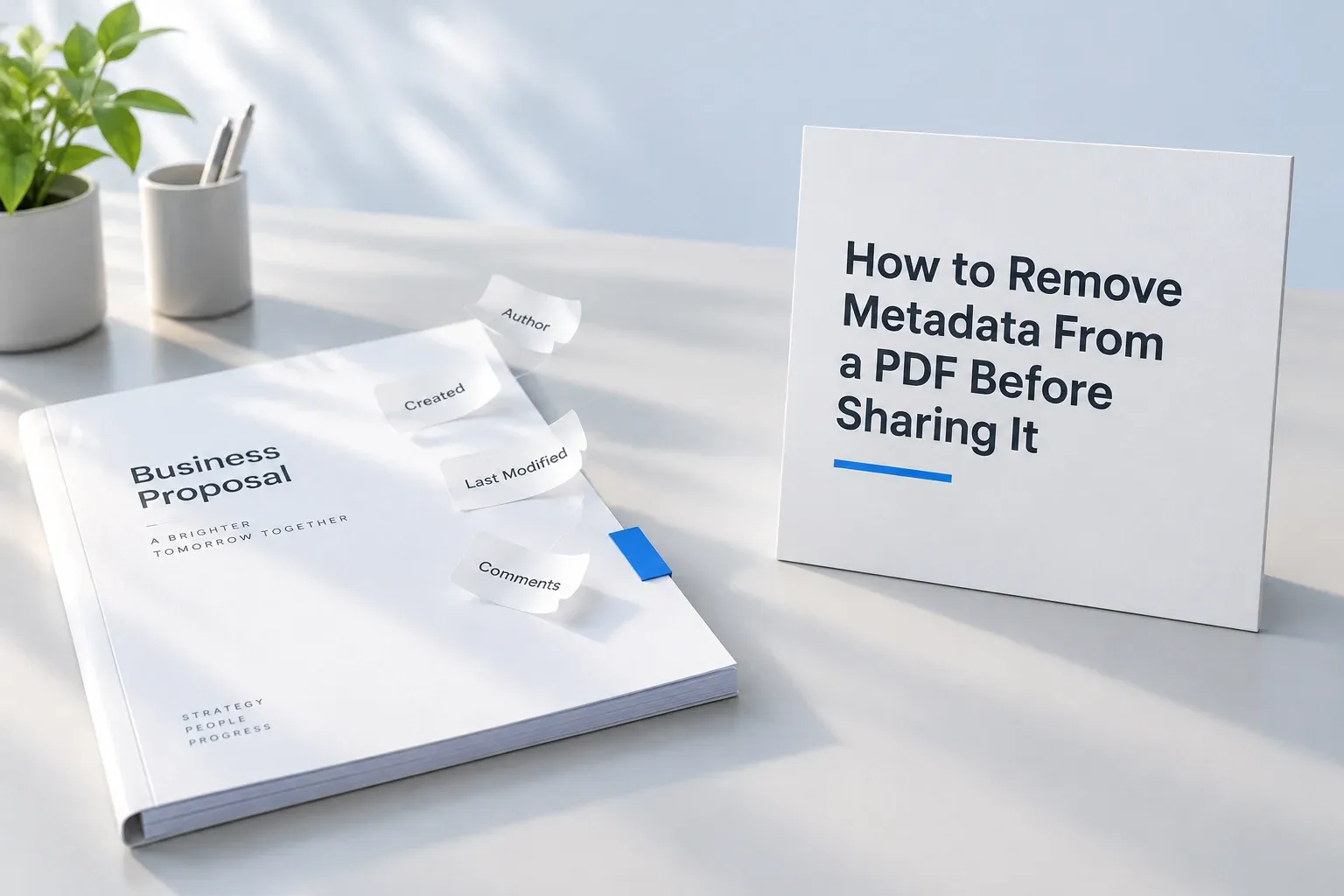
Simply deleting the “Author” field in a basic file viewer rarely finishes the job. Modern PDFs store metadata in at least two separate internal structures simultaneously—plus inside embedded images and incremental save histories—meaning clearing one box often leaves identical identifying strings sitting untouched inside the raw file stream.
What Hidden Data Actually Lives Inside a PDF File
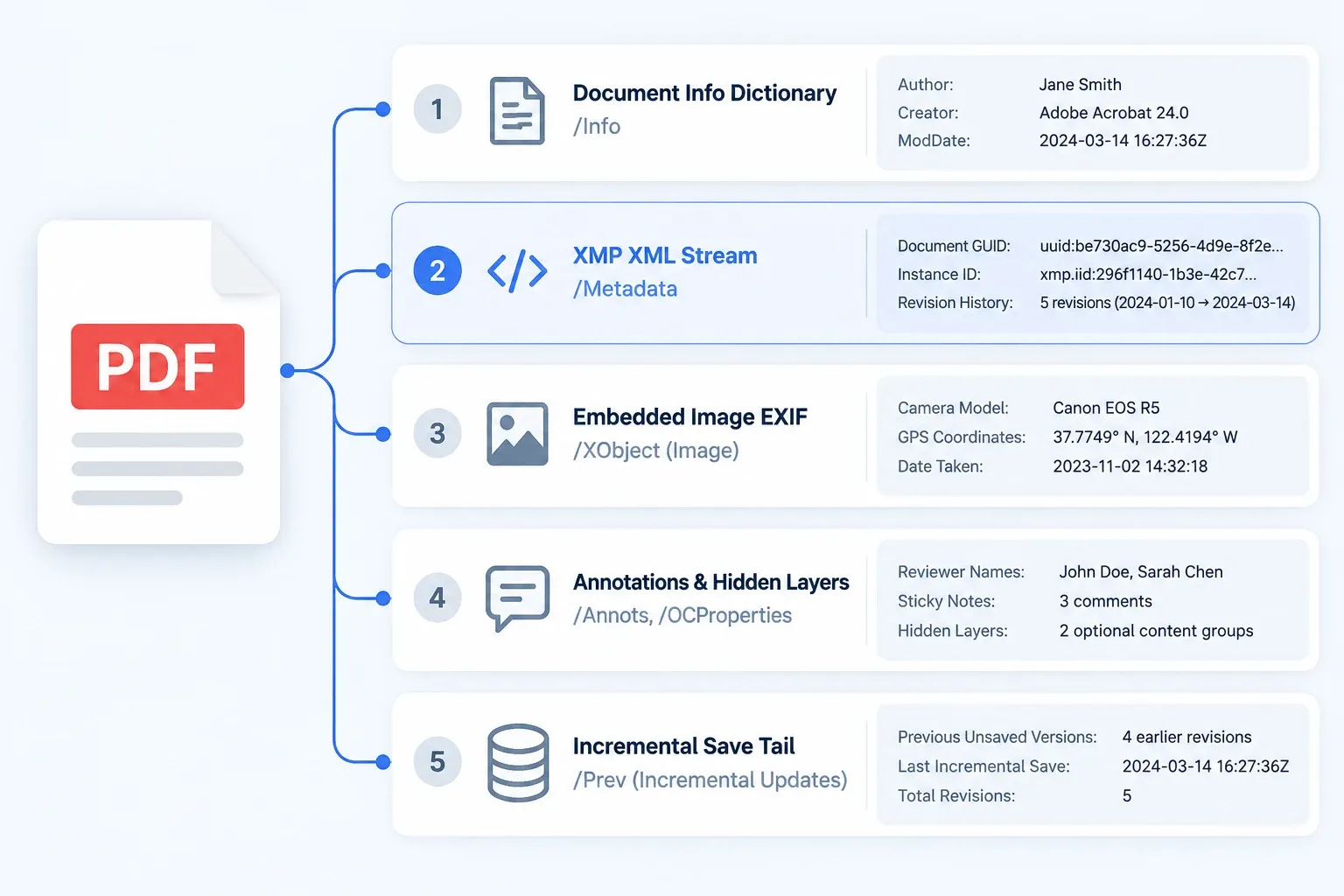
When you export a document from Microsoft Word, Google Docs, Adobe InDesign, or a scanner utility, the software quietly packs a surprising amount of background telemetry into the PDF container. Under the ISO 32000 PDF specification, that background data lives in several distinct places:
- The Document Information Dictionary (
/Info): The classic key-value metadata block present since PDF 1.0. It storesTitle,Author,Subject,Keywords,Creator(the application that originally authored the file, such as Microsoft® Word for Microsoft 365),Producer(the engine that generated the PDF, such as Acrobat Distiller or macOS Quartz PDFContext),CreationDate, andModDate. - The XMP Metadata Stream (
/Metadata): Introduced in PDF 1.4 and governed by the ISO 16684-1 Extensible Metadata Platform standard, XMP embeds a raw, uncompressed XML packet inside the PDF. It duplicates the/Infofields while adding custom application namespaces, document GUIDs, edit revision counts, font lists, and color-profile histories. - Embedded Image EXIF and IPTC Data: If you dragged a smartphone photo or scanned receipt into your document before exporting to PDF, the embedded JPEG stream often retains its original camera serial number, lens model, capture timestamp, and exact GPS latitude and longitude coordinates.
- Comments, Form Fields, and Hidden Layers: Reviewer sticky notes, tracked-change balloons, hidden CAD/Illustrator layers (
OCGs), and unflattened form fields carry individual reviewer usernames and timestamps. - Incremental Save History: Whenever a PDF editor saves changes incrementally rather than rewriting the entire file, older versions of deleted paragraphs and previous metadata blocks remain appended inside earlier byte offsets of the file.
`/Info` Dictionary vs. XMP Stream: The `/Info` dictionary is a small legacy metadata table at the trailer of a PDF, whereas XMP (`/Metadata`) is a full XML packet embedded inside the document catalog. Because modern PDF viewers display XMP fields first, deleting only the `/Info` dictionary leaves the XMP XML stream completely intact—and vice versa.
Why “Clear Properties” in Windows File Explorer Often Fails
Many Windows users right-click a PDF, open Properties > Details, and click Remove Properties and Personal Information, assuming the file is now sanitized. In practice, Windows Shell property handlers only understand standard /Info keys and frequently leave the embedded XMP XML stream, custom application tags, embedded photo EXIF data, and incremental save tails untouched. Worse, if the PDF was created on macOS or Linux with custom XMP namespaces, Windows Explorer displays blank property fields on screen while the raw XML strings remain plainly readable inside the file.
Five Real-World Situations Where PDF Metadata Leaks Sensitive Details
Metadata hygiene is not paranoia—it prevents concrete operational, legal, and competitive embarrassments across everyday workflows:
- Submitting Blind Resumes, Grant Applications, or Academic Peer Reviews: An applicant or researcher carefully removes their name from page one, exports to PDF, and leaves their full legal name and university workstation username sitting in the
AuthorandCreatorfields. - Sending Competitive Bids, Quotes, and Client Proposals: Agencies frequently duplicate last month’s winning proposal for Client A to draft a quote for Client B. If you forget to strip metadata, Client B can inspect the
Titleor XMPxmpMM:Historylog and see Client A’s company name in the original template filename. - Sharing Legal Discovery, Contracts, and Redacted Exhibits: Opposing counsel routinely inspects PDF metadata to verify who drafted an agreement, when specific clauses were modified, and whether earlier incremental saves still sit inside the file. If you also need to remove visible text or numbers from the page itself, combine metadata scrubbing with true character purging—see our guide on how to flatten a PDF without ruining print quality for locking down interactive layers safely.
- Publishing Public Reports, Whitepapers, and Government Filings: Organizations publishing PDFs on public websites often leak internal network folder paths (such as
C:\Users\j.miller\Desktop\Project_Valkyrie_Confidential\) embedded inside hyperlink base URIs or image source tags. - Whistleblowing, Journalism, and Confidential Disclosures: Scanners and multifunction office printers routinely stamp the machine’s hardware model, serial number, and local timezone into the PDF
Producerstring, allowing an investigator to trace a scanned document back to a specific office floor.
Never assume that printing a PDF to a new PDF or converting it to Word and back automatically strips all metadata. While “Print to PDF” clears the old `Author` and `ModDate` fields, the virtual printer immediately writes new metadata identifying your operating system, printer driver version, and exact local timestamp—and it destroys clickable bookmarks and text searchability in the process.
Four Methods for How to Remove Metadata From a PDF (Compared)
Different tools scrub different depths of a PDF. A lightweight property editor might let you type a new Title, whereas a true sanitization engine rewrites the entire object tree and strips XMP packets, embedded thumbnails, and incremental save history.
| Method | Clears /Info Dictionary? | Clears XMP XML Stream? | Strips Embedded Image EXIF & Save History? | Preserves Vector Text & Bookmarks? | Best For |
|---|---|---|---|---|---|
| Dedicated PDF Metadata & Sanitize Workspace | Yes | Yes | Yes (re-serializes clean object tree) | Yes | Fast browser-based scrubbing of contracts, proposals, and client files |
| ExifTool + QPDF Command-Line Pipeline | Yes (-all=) | Yes (when linearized via QPDF) | Yes (strips incremental save tails) | Yes (100% lossless vector & links) | Developers, journalists, and forensic-grade privacy workflows |
| Adobe Acrobat Pro Sanitize / Remove Hidden Info | Yes | Yes | Yes (removes hidden layers, comments & XMP) | Yes (configurable per category) | Enterprise legal and compliance teams on Windows/Mac |
| macOS Preview / Windows Properties | Partial (only basic fields) | Often leaves XMP intact | No (keeps incremental history & EXIF) | Yes | Quick visual title edits where strict privacy is not required |
Method 1: Cleaning Metadata in a Browser-Based PDF Workspace
For everyday business documents—such as scrubbing author names from a freelance proposal or clearing template histories from an invoice—installing command-line forensic utilities is overkill. A browser-based metadata editor lets you inspect existing /Info and XMP fields side by side, edit or wipe them cleanly, and export a re-indexed PDF.
When the document itself is confidential, where that cleanup runs matters just as much as what it removes. An AI PDF editor like MojoPDF runs its metadata inspection and sanitization directly in your browser on your own device, purging hidden author tags, software fingerprints, and XMP streams locally without uploading your sensitive file to an external server.
Method 2: Forensic-Grade Metadata Removal With ExifTool and QPDF
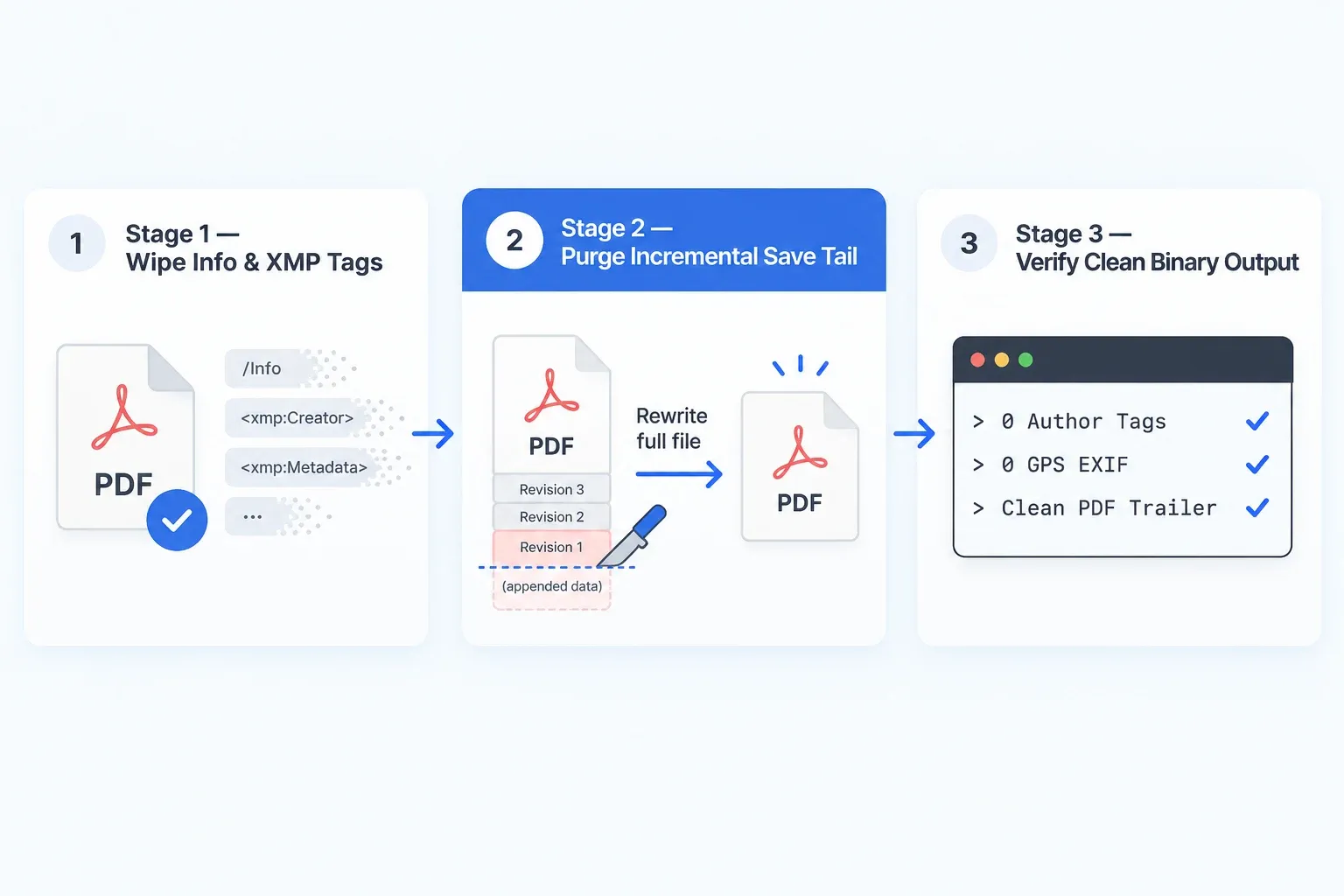
If you are a journalist, security researcher, or paralegal who needs cryptographic-level certainty that zero residual XMP bytes or incremental save histories remain in a PDF, combine ExifTool with QPDF. As Phil Harvey’s official ExifTool PDF tag documentation explains, ExifTool alone appends an incremental update when modifying PDFs—which means the old metadata still sits inside earlier byte offsets until you linearize or rewrite the file with QPDF.
Run this two-step command sequence on a duplicate copy of your PDF:
- Strip all
/Infoand XMP metadata tags with ExifTool:
exiftool -all= -overwrite_original document_copy.pdf
- Rewrite the entire PDF structure with QPDF to purge incremental save history:
qpdf --linearize document_copy.pdf sanitized_final.pdf
Why does that second command matter? Because --linearize forces QPDF to rebuild every single object from byte zero, permanently discarding all old incremental save blocks where ExifTool’s overwritten metadata used to hide.
Method 3: Adobe Acrobat Pro’s “Remove Hidden Information” Tool
If you already license Adobe Acrobat Pro on desktop, skip the basic File > Properties dialog (which only clears /Info fields) and use the deep sanitization inspector instead:
- Open your PDF in Adobe Acrobat Pro.
- Open the All Tools menu on the left and select Redact a PDF > Remove Hidden Information (or Sanitize Document).
- Wait for Acrobat to scan the file; the left-hand results pane will list every hidden category found—including Metadata, Embedded search index, Comments and markups, Hidden text, and Deleted or cropped content.
- Check every category you want purged, click Remove, and save the file under a new name.
Before exporting a Word or Google Docs file to PDF in the first place, strip the document properties at the source. In Microsoft Word, go to File > Info > Check for Issues > Inspect Document and remove Document Properties and Personal Information before clicking Export to PDF—that prevents Word from writing your username and company path into the XMP stream at all.
How to Verify That PDF Metadata Is Actually Gone
Never trust a tool’s “Metadata Removed” confirmation banner at face value. Before sending a sensitive PDF externally, run three quick verification checks to prove the file is clean:
- Check Document Properties (
Ctrl + D/Cmd + D): Open the sanitized PDF in Adobe Reader, Chrome, or Preview and pressCtrl + D(Windows) orCmd + D(Mac). Confirm thatTitle,Author,Subject,Keywords,Application, andPDF Producerare either completely blank or show only generic neutral values. - Inspect the Raw File in a Text Editor or Terminal: Open the sanitized PDF in a plain-text editor (like Notepad, TextEdit, or VS Code) or run
strings sanitized_final.pdf | grep -iE "author|creator|producer|xmp"in your terminal. Because XMP metadata is stored as plain ASCII/UTF-8 XML inside most PDFs, any surviving<dc:creator>or<xmp:CreatorTool>tag will show up immediately in plain text. - Audit Embedded Images With ExifTool: Run
exiftool sanitized_final.pdfin your terminal to verify that no embedded JPEG streams still carryGPSPosition,Make,Model, orSerialNumbertags from a camera or scanner.
Worked Example: Sanitizing a 28-Page Client Proposal Template Before Bidding
Let’s walk through a realistic agency scenario. Suppose a marketing consultancy wins a project for Northstar Logistics, then duplicates that 28-page winning PDF proposal to create a pitch for a competing freight firm, Apex Cargo. Even after updating every visible heading and logo on the pages, the raw PDF still leaks five hidden clues:
/InfoTitle:Northstar_Logistics_Q4_Pitch_v6_FINAL/InfoAuthor:sarah.chen(an account director who left the firm three months earlier)- XMP
xmp:CreatorTool:Adobe InDesign 20.1 (Macintosh)with a document modification count of47 - Embedded Case-Study Photo (Page 14): JPEG EXIF data containing GPS coordinates for Northstar’s warehouse in Newark, New Jersey
- Incremental Save Tail: Two older trailer blocks from earlier drafts still appended at the bottom of the file
The four-minute cleanup sequence:
- Clear
/Infoand XMP fields: Open a duplicate of the Apex Cargo PDF in a metadata sanitizer and wipeTitle,Author,Subject,Keywords, and all custom XMP namespaces (or set a clean publicTitlelikeApex Cargo — 2027 Supply Chain Proposal). - Flatten annotations and strip hidden layers: Merge any remaining review comments into static page content and remove unused InDesign guide layers so no reviewer initials linger in
/Annots. - Re-serialize the PDF structure: Export or linearize the file from scratch so the 47 incremental save revisions collapse into a single clean object tree.
- Run the plain-text grep check: Search the exported PDF in a text editor for
Northstarandsarah—zero matches return.
If you also need to remove sensitive dollar figures or client names visible on the page itself, remember that metadata removal only cleans background properties; for visible text, follow our guide on how to make a PDF editable or use a dedicated redaction tool to purge the visible characters permanently.
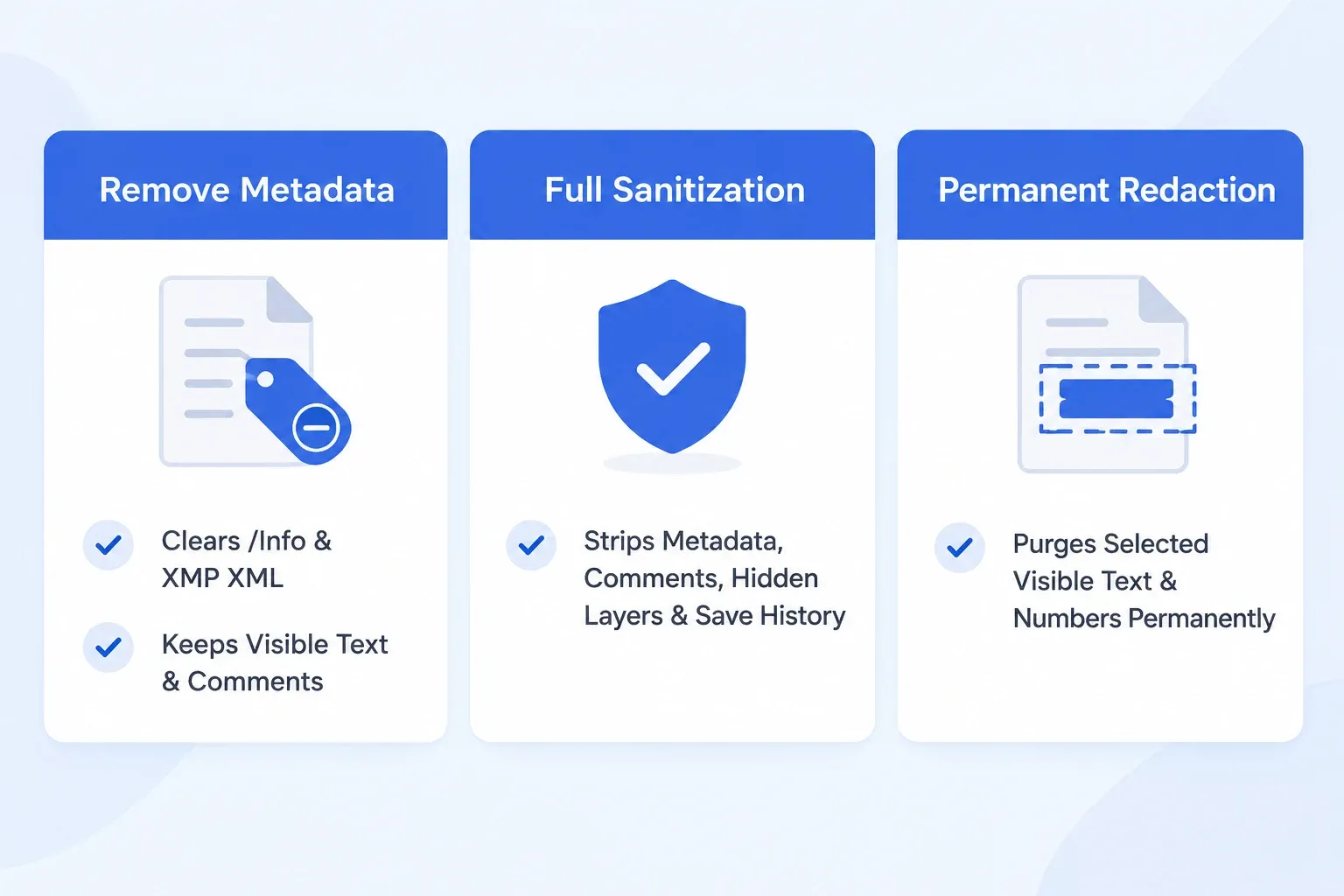
Metadata Removal vs. Sanitization vs. Redaction: What Each One Covers
People frequently search how to remove metadata from a PDF when their document actually contains three different layers of hidden or sensitive information. Use this comparison to make sure you are using the right tool for each layer:
| Privacy Operation | What It Removes | What It Leaves Behind | When to Use It |
|---|---|---|---|
| Edit / Remove PDF Metadata | /Info keys (Author, Title, Creator, Producer, dates) and XMP XML packets | Visible page text, embedded images, comments, and incremental save history | Blind resumes, proposals, academic submissions, and general file sharing |
| Full Document Sanitization | Metadata, XMP, comments, form fields, hidden layers, scripts, embedded search indexes, and save history | Only the visible flat page content | Legal discovery, FOIA/public records releases, and executive board packets |
| Permanent PDF Redaction | Specific visible words, numbers, or image regions (plus underlying character codes) | The rest of the document layout and metadata (unless also sanitized) | Hiding SSNs, bank account numbers, pricing, or witness names on the page |
A municipal public-records officer preparing a 140-page zoning report for public website upload ran a full metadata and sanitization pass before publishing—and caught that an embedded site-inspection photograph on page 88 still contained the inspector’s home GPS coordinates in its EXIF header, which had survived an earlier basic property wipe.
Common Mistakes When Stripping PDF Metadata
Even privacy-conscious professionals make four avoidable mistakes when cleaning PDFs:
- Editing the original file without keeping a master copy: Once you strip
Title,Keywords, and internal version IDs from a PDF, your own desktop search and document management system can no longer index the file by author or project tag. Always keep an internal_MASTER.pdfwith full metadata and distribute a separate_CLEAN.pdfcopy. - Forgetting that cloud drives add new metadata on upload: Uploading a sanitized PDF to SharePoint, Google Drive, or an enterprise CMS does not alter the internal PDF bytes, unless you open and re-export the file inside that cloud viewer—which stamps the cloud platform’s PDF generator into the
Producertag. - Leaving clickable hyperlinks pointing to internal network drives: Word and InDesign occasionally convert local file paths or staging URLs into clickable
/URIlink annotations inside a PDF. Run a quick link audit alongside your metadata check so external readers do not see internal staging links. - Confusing password protection with metadata removal: Encrypting a PDF prevents unauthorized users from opening it, unless you use weak permissions-only encryption—and anyone who does have the open password can still inspect every metadata field immediately. If you are dealing with locked files, see our breakdown of how to remove a password from a PDF to understand how encryption and document dictionaries interact.
Final Thoughts
Mastering how to remove metadata from a PDF takes less than two minutes once you know where PDFs hide background data. Because modern documents store identifying details across both the legacy /Info dictionary and the embedded XMP XML stream—and retain older edits inside incremental save tails—a thorough cleanup means wiping both metadata structures, flattening annotations, and re-serializing the file from byte zero. Keep an internal master copy for your own archive, verify your exported file with Ctrl + D and a quick plain-text search, and send every external PDF with complete confidence.
- PDFs store hidden background data in two separate structures—the `/Info` dictionary and the embedded XMP XML stream—so clearing one without the other leaves identifying data behind.
- Always strip metadata on a duplicate copy (`_CLEAN.pdf`) and keep your original `_MASTER.pdf` intact for internal search and archiving.
- For maximum privacy, re-serialize or linearize the PDF after wiping tags (such as with QPDF or a full sanitization pass) so old incremental save histories are permanently purged.
- Remember that embedded JPEG photos inside a PDF can still carry camera serial numbers and GPS coordinates in their EXIF headers.
- Verify every cleaned file by pressing `Ctrl + D` / `Cmd + D` in your PDF viewer and searching the raw file in a plain-text editor for old author names or template titles.

MojoPDF
Taj
A professional SaaS founder offering great value to it's customers.
Frequently Asked Questions
To remove metadata completely, you must clear both the legacy Document Information Dictionary (/Info) and the embedded XMP XML metadata stream, then re-serialize the PDF so incremental save history is purged. Using a dedicated PDF sanitization tool or running ExifTool followed by QPDF (--linearize) ensures zero residual author or software tags remain inside the file.
PDF metadata typically stores the Author name (often pulled from your Windows or macOS login username), the original document Title, the software used to create and convert the file (Creator and Producer), exact creation and modification timestamps, custom keywords, and occasionally embedded image EXIF data like camera serial numbers and GPS coordinates.
Windows File Explorer only edits the legacy /Info dictionary and often leaves the embedded XMP (Extensible Metadata Platform) XML stream untouched. Because modern PDF readers like Adobe Acrobat and Chrome prioritize XMP tags over /Info tags, your name continues to appear until the XMP stream is also wiped.
Printing to PDF strips the original Author name, Title, and XMP revision history, which makes it a quick workaround for basic privacy. However, the virtual print driver immediately writes new metadata showing your operating system, printer driver, and current timestamp, while also stripping clickable bookmarks, hyperlinks, and sometimes text searchability.
It is safe only if the tool processes the file locally in your browser or encrypts uploads over TLS and deletes files immediately without storing or training on your documents. For highly confidential legal, medical, or whistleblower files, use a client-side browser editor or offline command-line utilities like ExifTool and QPDF.
Open the PDF in Apple’s built-in Preview app, press Command + I to open the Inspector, click the magnifying glass (Keywords) tab to delete any listed tags, and then choose File > Export to save a fresh copy. Keep in mind that Preview still writes macOS Quartz PDFContext into the Producer field, so use ExifTool or a dedicated sanitizer if you need a completely blank Producer string.
Yes, if the PDF was saved using incremental updates, earlier versions of modified objects and previous metadata blocks can remain appended inside the file’s byte stream. Rewriting or linearizing the PDF from scratch removes all incremental save history so only the final visible state exists.
Open the cleaned PDF in Adobe Reader or Chrome and press Ctrl + D (Windows) or Cmd + D (Mac) to inspect Document Properties. For a deeper check, open a copy of the PDF in a plain-text editor like Notepad or TextEdit and search for your name, company name, or the word xmp to confirm no raw XML tags remain.
No. Stripping /Info and XMP metadata only removes non-visual background text dictionaries from the PDF catalog and trailer. Your page dimensions, embedded vector fonts, hyperlinks, and image resolution remain 100% unchanged.
Always remove metadata before applying a cryptographic certificate-based signature. Modifying or stripping metadata after a PDF has been cryptographically signed alters the file’s byte hash and invalidates the digital signature.