Scanned PDF Not Searchable? Why It Happens and the Fix
Picture a freelancer who gets a 40-page lease back from a landlord’s office, scanned on a shared copier. She needs the clause about early termination, so she presses Ctrl+F, types the word “terminate”, and gets nothing. Zero results on a document that obviously contains the word forty times. She tries to highlight a sentence and the cursor draws a blue rectangle over the whole page instead.
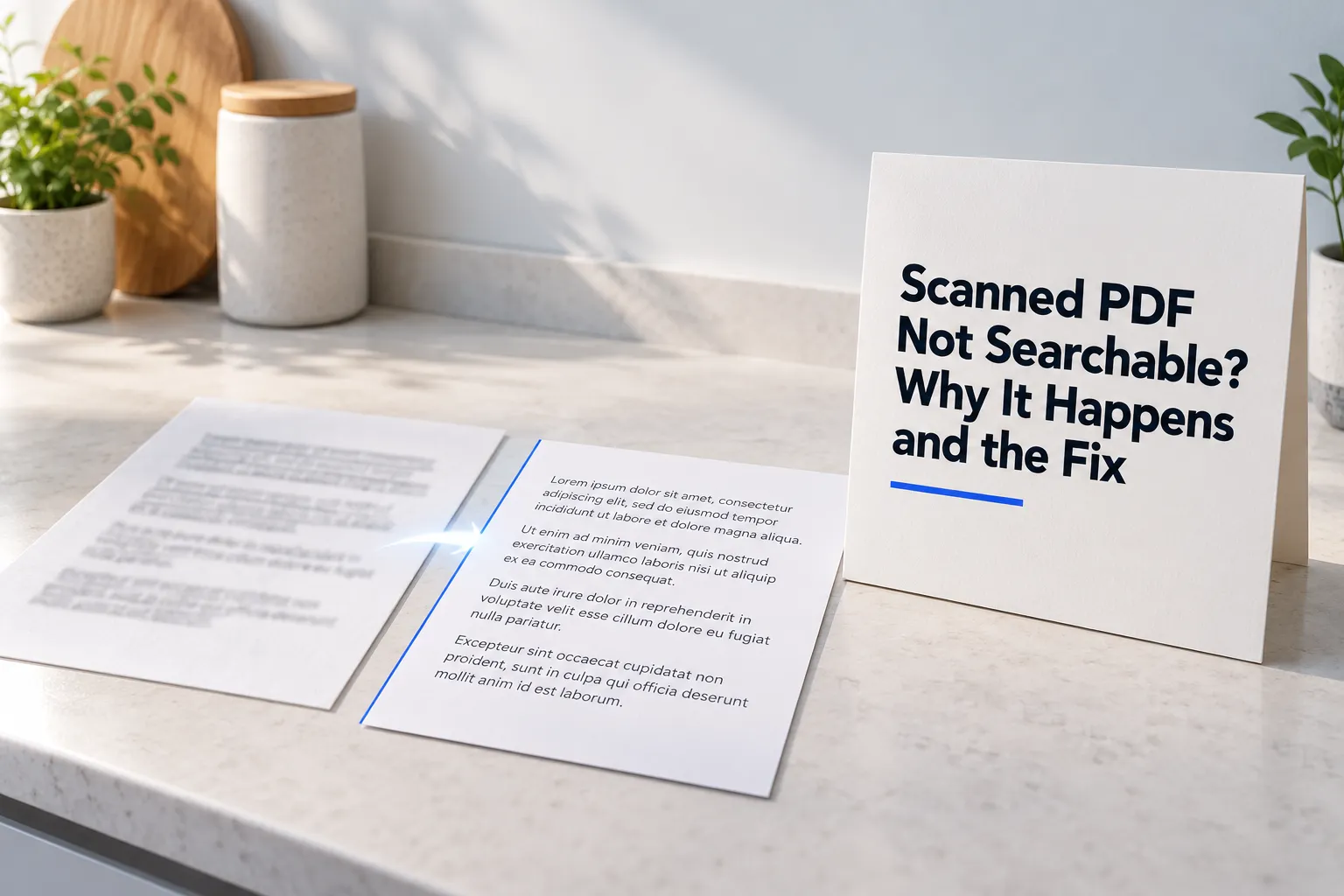
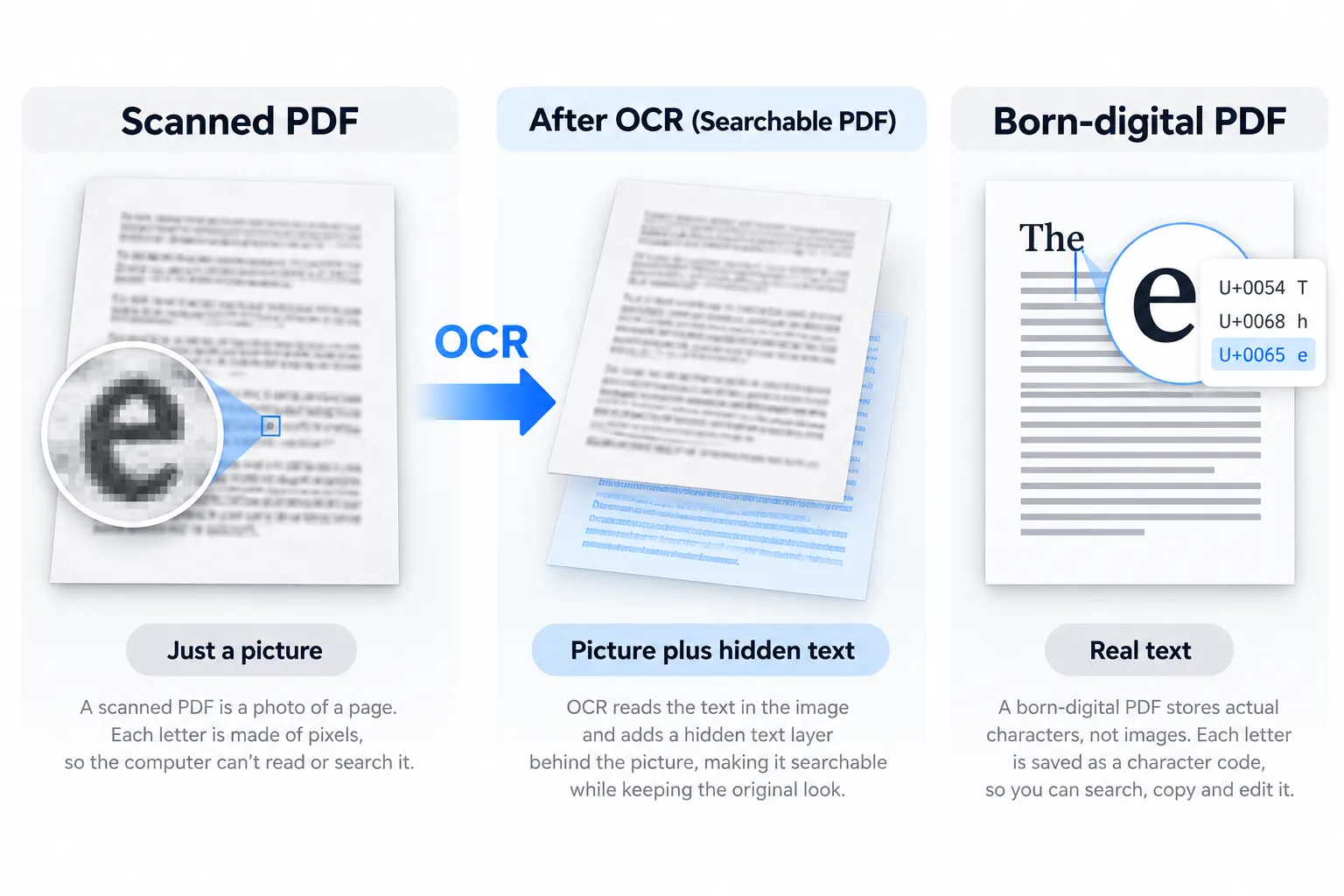
That is a scanned PDF that is not searchable, and the cause is simple: the file contains a photograph of each page, not the letters on it. Your computer cannot search a picture. To make the file searchable, you run optical character recognition (OCR), which reads the image and adds an invisible layer of real text on top of it. After that, search, copy and select all work normally.
Why a Scanned PDF Is Not Searchable in the First Place
A PDF is a container. Inside it, each page can hold text objects, vector shapes, images, or any mix of the three. A PDF exported from Word has text objects: every letter is stored as a character code with a font and a position, which is why you can search it, copy from it and even reflow it.
A scan is different. A scanner, or a phone camera app, captures a grid of pixels and wraps them in a PDF as one big image per page. The file does not know that a cluster of dark pixels is the letter “e”. As far as the software is concerned, your contract is the same kind of object as a holiday photo.
This is why the problem looks inconsistent from the outside. Two PDFs can look identical on screen, both crisp, both black on white, and one is fully searchable while the other is a stack of pictures. The only difference is what is stored underneath.
The three kinds of PDF you will meet
It helps to know which one is on your screen, because the fix differs:
| Type | What is inside | Searchable? | Typical source |
|---|---|---|---|
| Born-digital PDF | Real text objects and fonts | Yes | Word, Google Docs, an invoicing app |
| Image-only scan | One picture per page, no text | No | Copier, scanner, phone photo |
| Scan with OCR layer | Picture plus hidden text | Yes, if the OCR was good | Scanner with OCR switched on, or processed afterwards |
The third row is the one that confuses people. A scan with an OCR layer still looks like a photograph, but the hidden text sits exactly behind each word, so selecting and searching work. That is also why a bad OCR pass can leave you with a file that is technically searchable but returns the wrong results.
How to Tell in 30 Seconds Whether Your File Is Image-Only
You do not need special software to check. Open the PDF and run through these quick tests:
- Press Ctrl+F (Cmd+F on a Mac) and search for a word you can clearly see on the page.
- Try to click and drag across one sentence. Real text highlights line by line; an image highlights as a single block, or not at all.
- Zoom to 400%. Real text stays razor sharp at any size. A scan turns into soft, blocky edges.
- Open the document properties. A producer such as a scanner model, “Scan”, or a phone app name is a strong hint of an image-only file.
If the first two fail, you have image-only pages. If the search works on some pages but not others, the document was assembled from mixed sources, which is common when someone merges a Word-exported cover letter with scanned attachments.
Search for a very common word like “the” or “and”. If a long document returns zero hits for either, the whole file is almost certainly image-only, and you can skip hunting through pages.
What OCR Actually Does to Make a Scan Searchable
OCR sounds like magic, but the process is a fairly mechanical pipeline. Understanding it explains nearly every failure you will hit later.
First, the software cleans the image: it straightens a tilted page (deskewing), turns the picture into pure black and white (binarisation), and removes specks. Then it finds the layout, working out where the columns, headings, tables and photos sit. Next it slices each text line into words and each word into characters, and compares those shapes against what it has learned about letters. Finally it writes out the guessed characters as a transparent text layer, positioned behind the matching pixels on the page.
Open-source engines such as Tesseract do this, and wrappers like OCRmyPDF add the text layer to an existing PDF without changing how the pages look. Commercial and browser-based tools run similar pipelines, now usually with neural networks doing the character recognition instead of simple pattern matching.
Two details matter for you as a user:
- The page image stays. In most workflows OCR does not replace the picture. It adds text underneath. That is good, because the document still looks exactly like the original, including stamps and signatures.
- The text is only a guess. Recognition is probabilistic. A smudged “rn” can become “m”, and a 5 can become an S. The hidden text layer is only as good as those guesses.
Tesseract was originally developed at Hewlett-Packard in the 1980s and was later open-sourced, which is one reason so many free and paid OCR features today share the same ancestry.
A Step-by-Step Way to Make a Scanned PDF Searchable
The exact buttons differ between programs, but the sequence of decisions is the same everywhere. Follow it in this order and you avoid most rework.
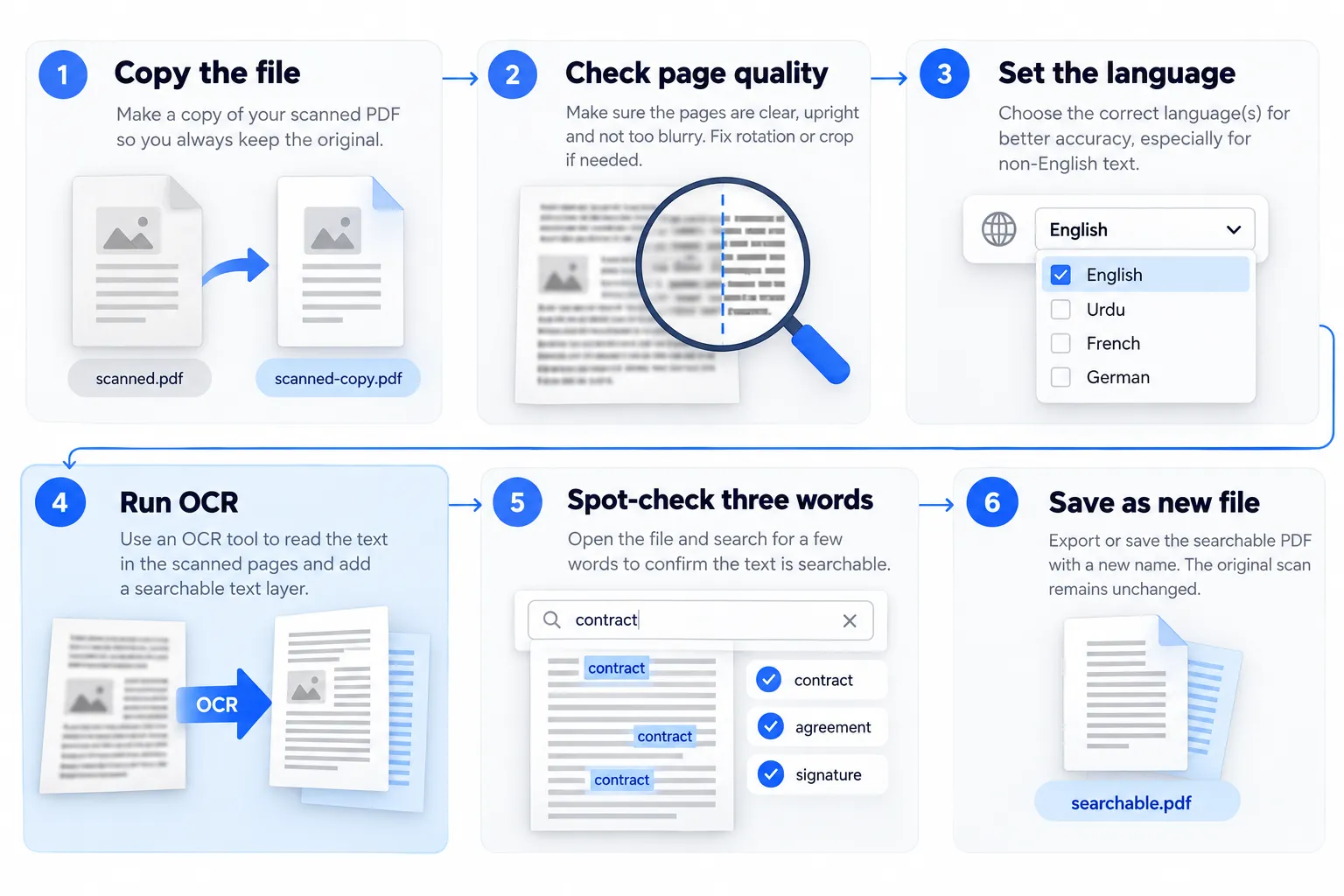
- Work on a copy. OCR can rewrite parts of the file. Keep the original scan untouched in case you need to redo the pass.
- Check the page quality first. Zoom to 100%. If you can read a word comfortably with your own eyes, OCR usually can too. If the scan is crooked, dark or cut off at the edges, rescan that page before going further.
- Set the language. Choose the actual language of the document. A Spanish contract read as English produces text where every accented letter is wrong, and your searches for “cláusula” will find nothing.
- Choose a sensible resolution. Around 300 dpi is the standard sweet spot for text. Below roughly 200 dpi, small characters merge together. Far above 400 dpi, file size balloons with no accuracy gain.
- Run OCR on every page, not just the visible one. Tools that process pages lazily as you scroll are convenient, but for a deliverable you should confirm every page was processed before you export.
- Spot-check the result. Search for three words you know appear on different pages, plus one number such as a date or a total. Numbers are where OCR errors hurt most.
- Fix what the check reveals. If a handful of words are wrong, correct them. If a whole page is wrong, rescan or reprocess it with better settings.
- Save as a new file. Give the searchable version its own name so you can tell it apart from the raw scan.
Treating a successful OCR run as a finished job. The software will happily report success on a page it read badly. Always run a search for a few known words before sending the file to anyone.
Searchable text layer versus editable text
Here is the distinction that trips people up. Making a scan searchable adds hidden text behind a picture. It does not make the visible words editable. If you need to change a figure on the page, you are still changing a picture of a figure, unless the tool also rebuilds the page content as live text. We will come back to that in the editing section below.
Why OCR Still Fails: The Usual Suspects
If your scanned PDF is still not searchable after you ran OCR, or the search finds some words and misses others, the cause is almost always one of the following.
Low resolution and phone shadows
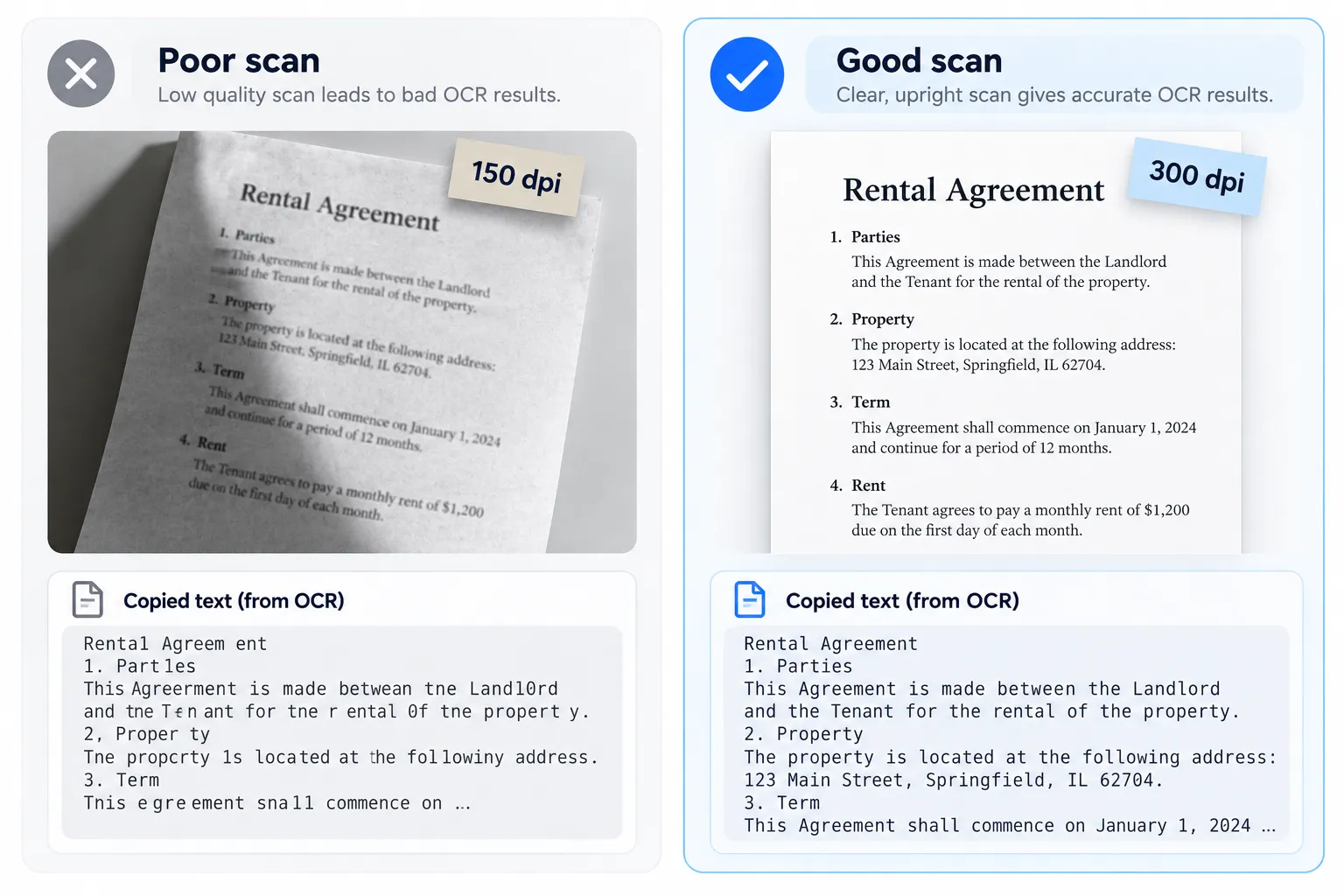
A photo of a document taken at an angle under an overhead light has gradients, shadows and perspective distortion. The engine has to guess where one letter ends and the next begins. Take the photo straight on, in even light, with the page filling the frame. Most phone scanning modes can flatten perspective, so use that mode rather than the plain camera.
Skewed or rotated pages
One page scanned upside down defeats the whole pass for that page. Many engines try automatic rotation detection, but a heavily tilted page, or a page with little text on it, can fool it. Fix orientation before OCR, not after.
The wrong language or a mixed-language page
Engines load a language model along with the character shapes. A bilingual document, say English headings with Urdu or Arabic body text, needs both languages enabled. Right-to-left scripts in particular fail quietly when the wrong model is active.
Handwriting, stamps and tables
Printed body text is the easy case. Handwriting is far harder, and a stamp overlapping a line of text confuses recognition for the words underneath. Tables are a third trap: the engine might read a row correctly but the order of cells comes out jumbled, so the text is searchable but unusable for copying into a spreadsheet.
Low-contrast and faint photocopies
A fourth-generation photocopy with grey text on a grey background has almost no signal for the engine to work from. Raising contrast before OCR, rather than after, often rescues these.
| Symptom | Likely cause | First fix |
|---|---|---|
| Nothing is found at all | Page is still image-only | Run OCR on that page |
| Gibberish when you copy text | Wrong language model | Re-run with the right language |
| One page missing from search | Page rotated or skipped | Rotate it upright, re-run OCR |
| Numbers read wrongly | Small fonts, low dpi | Rescan at 300 dpi |
| Copied table is jumbled | Layout detection failed | Extract the table separately |
A small accounting office scanned a year of supplier invoices on a copier set to 150 dpi to save space. Searching for an invoice number in the combined file returned a handful of hits out of hundreds. Rescanning the same stack at 300 dpi and re-running OCR fixed nearly all of them, and the file size rose only modestly because the pages were mostly white.
Walking Through the 40-Page Lease Example
Back to the freelancer with the lease. She has a 40-page scan, 12 MB, and she needs three things: find the termination clause, copy the rent figure into an email, and correct the unit number on page 2, which the landlord’s clerk typed wrong.
She starts by zooming in. The pages are straight and readable at about 250 dpi, which is fine. She sets the language to English and runs OCR across all 40 pages. Then she searches for “terminate” and gets six hits across pages 9 to 11, which matches what she sees. A number check, searching for the monthly rent, lands on page 3 as expected.
The first two goals are done. The third is where most people get stuck, because a searchable file is not an editable one. The unit number is still just pixels in a picture, with hidden text behind it. Changing the hidden text would not change what anyone sees on the page.
The practical options are to print, correct by hand and rescan, or to use an editor that rebuilds the scanned page as live text so the correction can be typed in place. An AI PDF editor like MojoPDF reads the scan first and then lets you change that one line in the page’s original font, repairing the background behind the old text instead of leaving a white patch. For a lease or any legal document, remember that corrected pages should be agreed with the other party, not changed quietly.
Searchable Is Not the Same as Accessible
There is a separate reason to care about scans beyond Ctrl+F. Screen readers used by blind and low-vision people can only read the text layer. An image-only PDF is, to them, a blank document. If you publish or send documents to the public, to employees or to students, an OCR layer is the minimum, and properly tagged structure with headings is the better standard. Guidance on accessible documents, including PDFs, is collected on Section508.gov, and many institutions treat image-only files as a compliance problem, not a convenience issue.
If a file needs to be both archived and accessible, run OCR first, then check that headings and reading order make sense. A readable hidden text layer in the wrong order will be read aloud in the wrong order.
When the Scanned PDF Is Still Not Searchable After OCR
Sometimes OCR runs, reports success, and the file still behaves like a picture. Check these edge cases before you start over.
The file is protected or restricted
A PDF with an owner password can allow viewing but block copying and modification. Some tools refuse to add a text layer to a restricted file. If you have the right to unlock it, remove the restriction on a copy first, then run OCR.
The document is huge
A 400-page scan can exceed the memory limits of a basic tool, and some web tools time out and quietly process only the first few dozen pages. Test by searching for a word you know is on the last page. If it is not found, split the document into chunks of 50 to 100 pages, OCR each, and merge the results.
The OCR layer exists but is wrong
If a search works in one viewer but fails in another, the hidden text may be in an odd encoding or sit offset from the image. Re-running OCR with the existing text layer replaced, rather than skipped, usually fixes this. Look for a setting named something like “redo OCR” or “force OCR”.
The scan is a mixed document
Files built by merging born-digital pages with scanned ones often cause confusion: search finds hits on pages 1 to 3 and none after. That is not a bug. Pages 4 onward simply need OCR.
The text is too stylised
Decorative fonts, vertical text, dense small print in footnotes and low-contrast watermarks are all known weak spots. For these, expect to correct the output by hand, or accept that a short list of key terms will need manual searching.
Privacy: Where Is Your Scan Being Read?
Scans of IDs, bank statements, medical letters and contracts are exactly the files people OCR. Before using any OCR service, find out whether the file is processed on your own device or uploaded to a server and for how long it is kept. Privacy policies differ widely, so read the part about retention rather than trusting a headline. If the document is sensitive enough that you would not email it to a stranger, prefer an approach where the processing stays local or at least where the provider states plainly that files are deleted after processing.
A Quick Routine That Prevents the Problem
Most of the pain comes from scanning without thinking about the next step. A few habits remove nearly all of it:
- Scan at 300 dpi in black and white or greyscale for text pages. Colour is only needed for photos and stamps.
- Turn on OCR in your scanner or scanning app if it offers it, and pick the right language once.
- Name the file properly, with date and subject, so you can find it even before searching its content.
- Run the three-word spot check after every important scan, then file the searchable version.
When you treat OCR as a step in the process rather than a rescue operation, a scanned PDF that is not searchable stops being a surprise and becomes a thirty-second job.
- A scanned PDF is a set of page pictures, so it cannot be searched or copied until OCR adds a hidden text layer.
- Test with Ctrl+F and a drag-select before assuming the file is the problem.
- Scan at about 300 dpi, upright and evenly lit, and set the correct language before running OCR.
- Spot-check three words and one number on different pages; OCR reports success even on poor reads.
- A searchable scan is not an editable one: changing visible text needs the page rebuilt as live text.
- Check protection, page count and mixed sources if a file still will not search after OCR.

MojoPDF
Taj
A professional SaaS founder offering great value to it's customers.
Frequently Asked Questions
Because the pages are stored as pictures, and a picture has no text for a search to match, however sharp it looks. Running OCR adds a hidden text layer so the same pages can be searched and copied.
Try to select one sentence with your cursor and search for a visible word. If you can only select the whole page as one block, or the search finds nothing, the file is image-only. Zooming to 400% also helps, since real text stays sharp while a scan turns blocky.
Yes. Most OCR workflows keep the original page image and add the text layer underneath, so the page looks identical. Avoid options that recompress the images aggressively, since those can soften the scan.
The usual reasons are the wrong language setting, skewed or very low-resolution pages, a restricted file, or pages that were skipped. Search for a word on the last page to see if all pages were processed, then re-run OCR with the correct language and a forced re-read.
About 300 dpi is the standard for text documents. Below around 200 dpi, small characters begin to merge, and above 400 dpi you mostly add file size without improving accuracy.
Only partly. Clear printed-style handwriting can sometimes be recognised, but cursive and messy notes are unreliable. Treat handwriting results as a rough aid and check the important words by eye.
It depends on where the processing happens. Check whether the file is uploaded to a server, how long it is kept, and whether the provider says it is deleted afterwards. For very sensitive documents, prefer tools that process the file on your own device.
Not by itself. Standard OCR adds a hidden text layer for searching and copying but leaves the visible words as pixels. To change what the page shows, you need an editor that rebuilds the scanned text as live, editable text.
This usually means the wrong language model was used, or the scan quality was too low for reliable recognition. Re-run OCR with the correct language selected, and rescan the page at 300 dpi if the problem remains.
Yes, but large files can time out or exceed memory in simpler tools. Split the file into chunks of 50 to 100 pages, run OCR on each chunk, check a word from each, then merge them back together.
No. A screen reader reads the text layer, so an image-only PDF appears blank to it. Adding OCR is the minimum step, and proper tagging with headings and reading order makes the document genuinely accessible.
Yes. Take the photo straight on in even light, use a scanning mode that flattens perspective, then run OCR. Shadows and angled shots are the most common reason phone scans fail to become searchable.