Remove Password From PDF: Which of the Two Locks Is It?
Imagine you’re the person in the office everyone forwards PDFs to. A supplier emails a statement, the file asks for a password, you type it in, and it opens. A week later your manager asks you to send it to a colleague, the colleague asks what the password is, and you realise the lock has been getting in everyone’s way since day one.
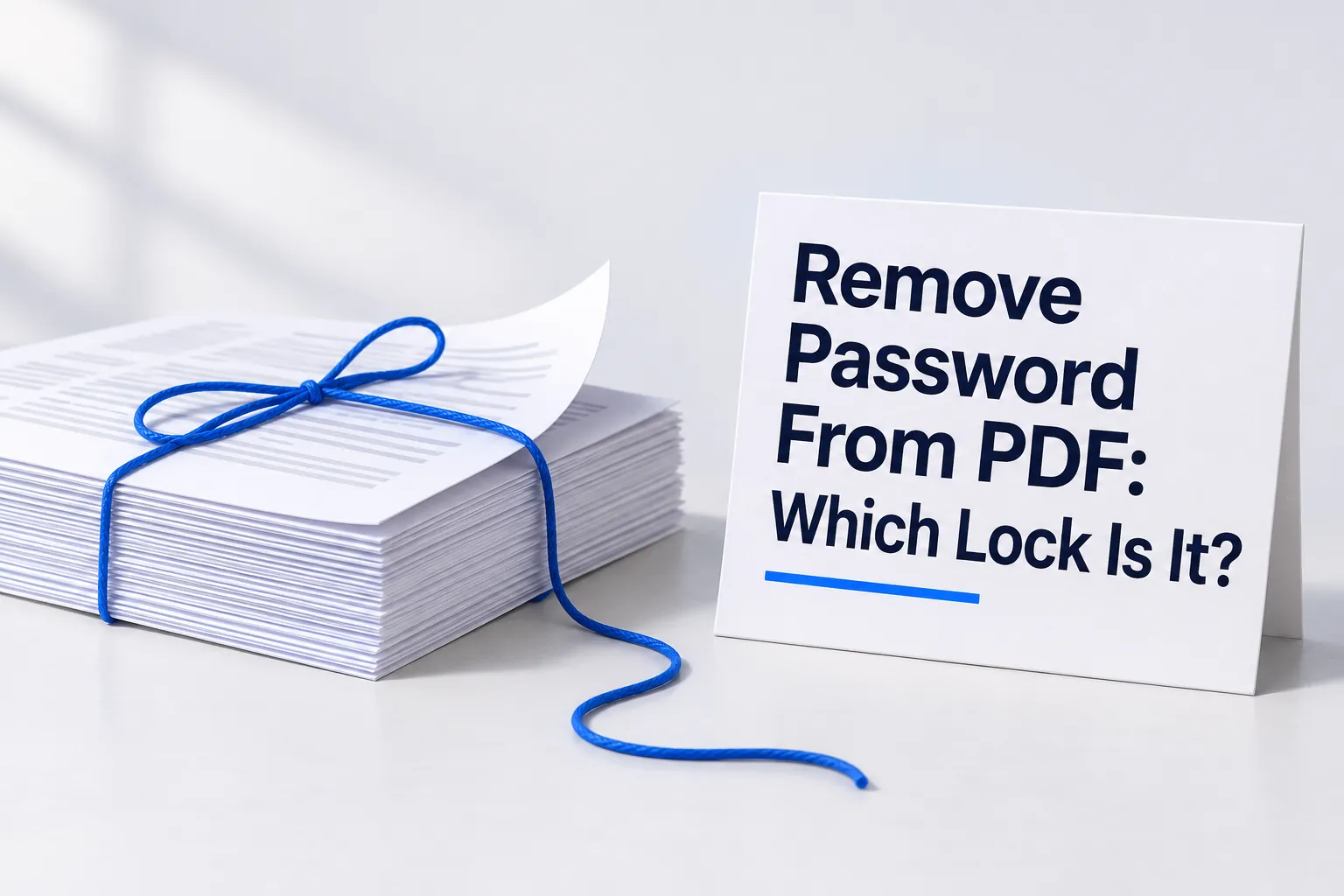
Here is the short answer. To remove password from PDF files, you open the file with the password it already has, then save a fresh copy with encryption switched off. If you can’t open it and nobody can tell you the password, no honest tool can strip a strongly encrypted file for you. The rest is detail, and the detail depends on which of two very different locks you’re dealing with.
That second point is where most advice online goes wrong. It treats “PDF password” as one thing. It isn’t, and the difference decides whether the job takes ten seconds, ten minutes, or can’t be done at all.
Two Different Locks Hide Behind the Word “Password”
A PDF can carry two separate passwords, and the PDF specification, now published as ISO 32000-2, gives them different jobs.
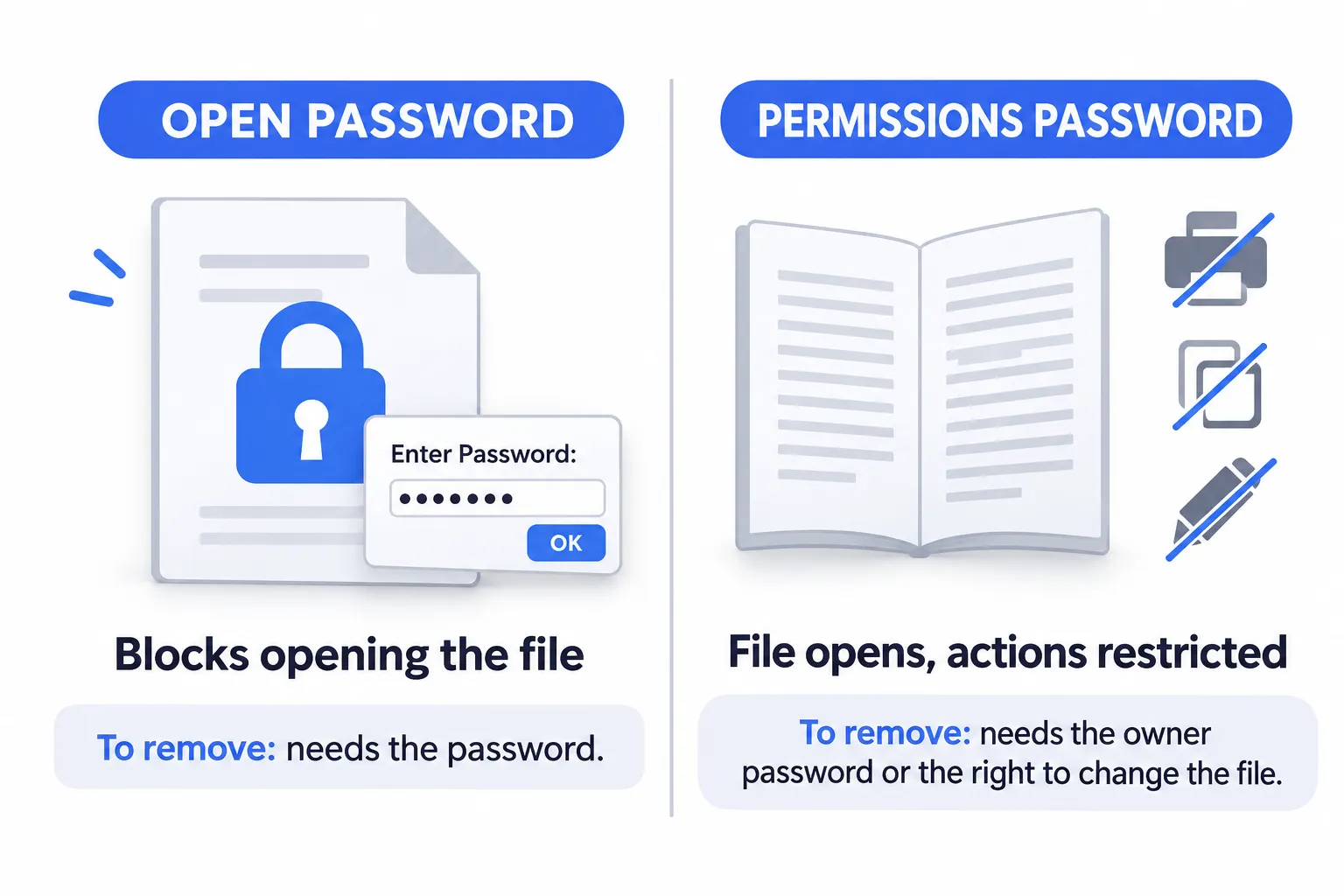
The open password (user password)
This is the one that stops the file from opening. Without it the viewer shows a prompt and nothing else, because the content on disk is encrypted. There is nothing to read, even with a different viewer. Modern files use AES encryption with 128-bit or 256-bit keys; older files from the early 2000s may use RC4, which is weaker, though nobody should plan around that.
The permissions password (owner password)
This one lets anyone open the file but restricts what they can do with it: print, copy text, edit, fill forms, add comments, extract pages. The file is still technically encrypted, but it opens with an empty user password, and the restrictions are flags that well-behaved software agrees to respect. You meet it as a greyed-out Print button, a “Secured” label in the title bar, or text that refuses to copy.
A file can have either lock, both, or neither. A bank statement usually has an open password (a birthdate, the last digits of an account number). A scanned lease or a published report more often has only a permissions password: it opens for everyone, but you can’t copy the clause you need.
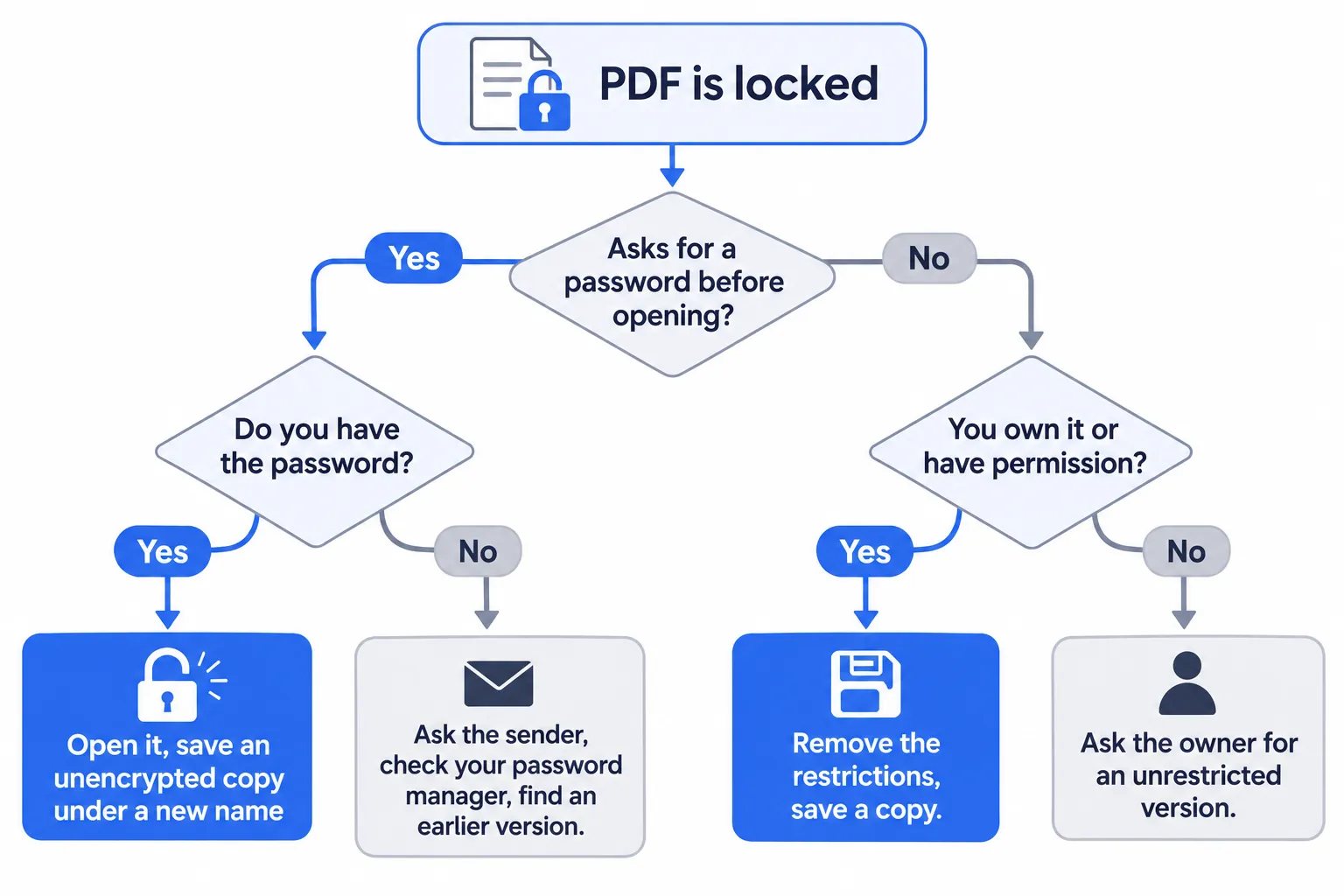
The two behave differently when you try to remove them, so identify yours first. Open the file in any viewer. If it asks for a password before showing a single page, it has an open password. If it opens and some actions are greyed out, check the document’s security properties, which list exactly what is restricted and whether a password is needed to change it. For the technical detail behind these flags, the PDF Association hosts reference material on the format.
Open (user) password: required to view the file at all. Permissions (owner) password: anyone can view the file, but printing, copying, editing and similar actions are restricted. Removing either one means saving a new copy with encryption turned off, which requires the right password or the right to change the file.
Can You Remove a Password From a PDF You Don’t Have the Password For?
This is the question behind most searches, so here is the unglamorous answer, case by case.
You forgot the open password
If the file uses AES-256 and the password is long or random, there is no shortcut. The encryption is doing precisely what it was designed to do, and the number of possible keys is far too large to guess your way through. Any site promising to “unlock any PDF instantly” without the password is either working only on very weak legacy files, being generous with the truth, or hoping you’ll upload something sensitive. You’re not missing a trick.
What does work is boring, and it works more often than people expect:
- Check where the password was likely kept: your password manager, the email that carried the file, the portal where you downloaded it.
- Look for the sender’s pattern. Banks, payroll systems and insurers often build passwords from something you know: a birthdate, the last four digits of an ID, a postcode. The covering email or the portal’s help page usually spells the pattern out.
- Ask the sender to reissue it without a password, or with one you can reset. One email solves it properly.
- Find an earlier version: the original Word or spreadsheet file, a previous export, a copy in cloud storage.
The file opens, but actions are greyed out
A permissions-only file needs no guessing, because it already opens. Since the restrictions are flags rather than a barrier to reading the content, some software ignores them. That is a technical fact, not a licence, and whether you should remove the restriction depends on who owns the document and what you want to do with it.
The clear cases: it’s your own file and you’ve lost the owner password (a contract you drafted, a report you exported years ago); the document belongs to your employer and you’ve been asked to prepare it for archiving; or the restriction blocks something you genuinely need, such as a screen reader that can’t extract text. The grey zone is a publisher’s file with printing disabled, or a client’s report you weren’t given permission to edit. There, removing the flag could breach copyright or the terms you received the file under. Ask the owner for permission or for an unrestricted version, because rules differ by country and a quick email costs less than a dispute.
You have the password, but it keeps being rejected
This is more common than forgetting. A trailing space picked up from copy and paste, caps lock, or a keyboard layout that types a different character will all produce a polite refusal. If the password contains accented letters or symbols such as é or ß, older software encoded them differently, so try the viewer that created the file or the system that generated it.
Before you give up on a password you’re sure is right, paste it into a plain text field first to see exactly what the clipboard holds. A hidden space at the end is the most common reason a correct password gets refused.
How to Remove Password From PDF Files You Can Already Open
If you know the open password, or the file opens and carries restrictions on a document you own, the job is the same everywhere: open it, then save a copy without encryption. This is the procedure in a form that works in any editor or viewer.
- Copy the file first. Duplicate it and work on the duplicate, named something like statement-unlocked.pdf. If anything goes wrong, the original and its password are untouched.
- Open the copy with its password. Type the open password when prompted. A permissions-only file simply opens.
- Find the security setting. It’s usually under Document Properties, Protect or Security. Some tools have an explicit Unlock or Remove security command; others make you export a new copy.
- Choose no encryption or no security. If the tool asks for the owner password to authorise the change, enter it. If you don’t have it, you’re back in the ownership question from the last section.
- Save under a new name. Never overwrite the original until you’ve checked the new file.
- Verify the copy. Close it and reopen it. It should open without a prompt, let you select and copy text, and print. Check the page count, bookmarks and any form fields against the original.
There are three practical ways to run steps 3 to 5, and they are not equal.
The print route
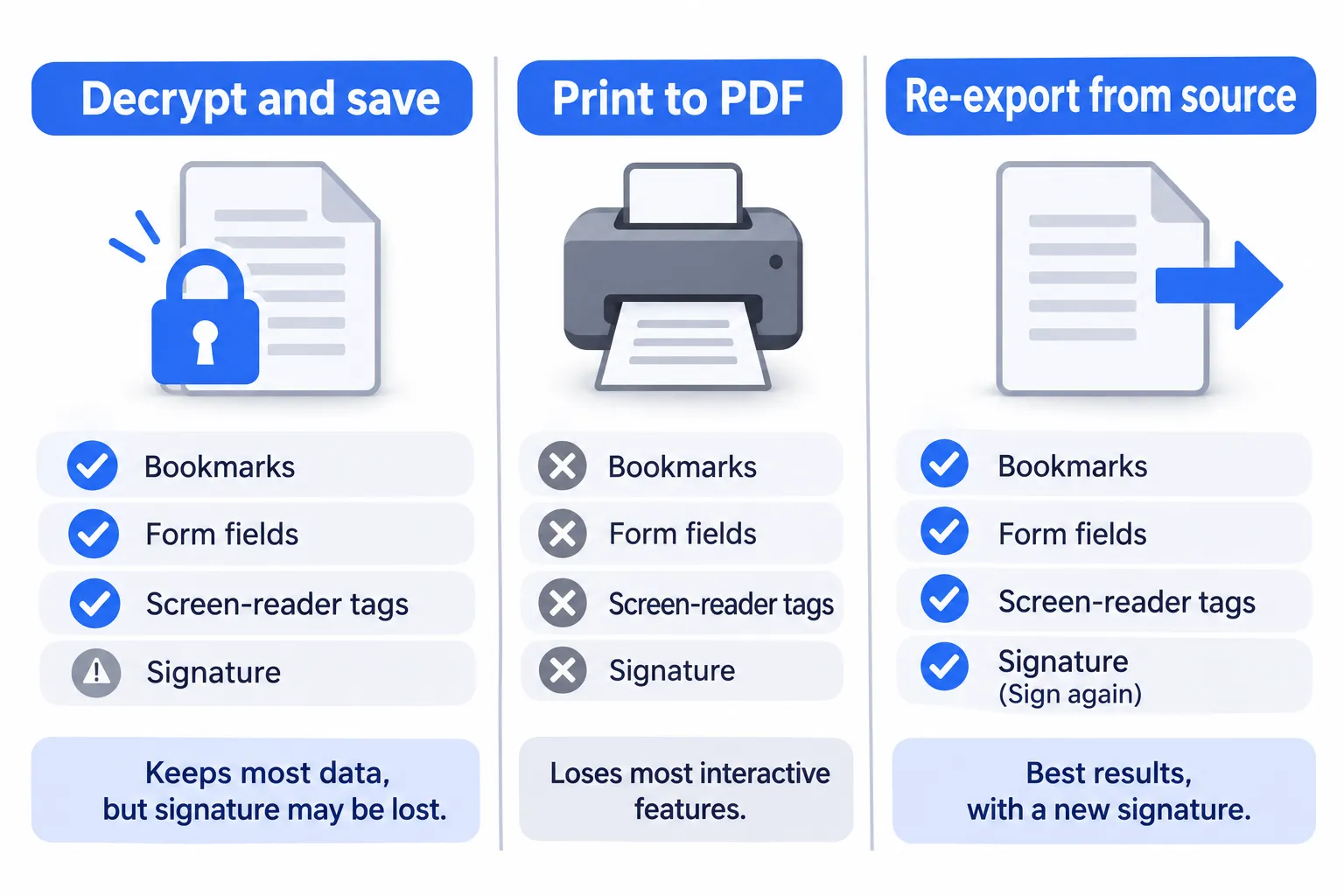
Open the file, print to PDF, and the new file carries no encryption. It’s fast and needs nothing installed, but it rebuilds the file from scratch: bookmarks, fillable fields and the tagged structure screen readers rely on can disappear. If the permissions block printing, the print command is greyed out and this route is closed.
A command-line tool
With the password in hand, qpdf rewrites the file with the encryption stripped and leaves the content alone:
qpdf --password=YOURPASSWORD --decrypt locked.pdf unlocked.pdf
Pages, bookmarks and form fields come through as they were, which makes this the cleanest option if you’re comfortable in a terminal. It’s also easy to run over a whole folder of files that share one password.
A PDF editor
This is the route that makes sense when opening the file isn’t the end of the job. An AI PDF editor such as MojoPDF treats unlocking as a step that hands the result straight to the same editor, so once the password is gone you can correct a figure, redact a name or merge two files without exporting and re-uploading in between, and much of the processing happens in your browser on your own device.
If the file is unlocked and the text still won’t select, you have a different problem: the pages are pictures of text. That is covered in why a scanned PDF isn’t searchable and how to fix it.
What Gets Lost When You Strip the Password
Removing encryption sounds like flipping a switch, but the route you choose decides what survives. Decrypting only unwraps the existing file. Printing to PDF re-renders every page, which is why it loses more.
| Route | Bookmarks and links | Fillable fields | Screen-reader tags | Digital signatures |
|---|---|---|---|---|
| Decrypt and save (command line, editor unlock) | Kept | Kept | Kept | Usually flagged as modified |
| Print to PDF | Often lost | Flattened or lost | Usually lost | Removed |
| Re-export from the source file | Rebuilt as you set them | Rebuilt | Rebuilt | Must be signed again |
Signatures are the one to watch
A digital signature is a record that the file hasn’t changed since it was signed. Stripping encryption rewrites the file, so signature validators will often report the document as modified. If the signed version has to stay legally intact, keep the original untouched as the record and use the unlocked copy only for working.
Large files behave differently
A 400-page report can take a long time to push through the print route, and some print drivers turn text into images on the way, leaving you with a larger file you can no longer search. The decrypt-and-save route reads and rewrites objects without redrawing pages, so a file that size usually finishes in seconds. If the result is much bigger or smaller than the original, open it and check before you trust it, and if size is the real problem, see how to reduce a PDF’s file size without ruining the print.
A Worked Example: Twelve Bank Statements and a Portal That Says No
Here is a hypothetical, but it happens constantly. You’re applying for a mortgage. The lender’s upload portal takes PDFs up to 10 MB each, and it rejects anything password-protected with a vague “invalid document” error. Your bank sends statements as twelve separate PDFs, each locked with the same open password.
To remove password from PDF files in bulk, the approach that works looks like this:
- Copy all twelve files into a new folder called statements-unlocked, so the originals stay locked and untouched.
- Unlock one file first and verify it: it should open without a prompt, show the same page count, and let you select text.
- Repeat for the other eleven, either one by one in an editor or in a single pass with the command-line route.
- Check the count: twelve files in, twelve files out. This is where the catch usually shows up. Statement seven comes from a different system after the bank migrated accounts mid-year, and it has a different password, so a batch run quietly skips it and leaves one file still locked.
- If the lender wants one document, merge the twelve in date order and check the combined size against the 10 MB limit.
- Upload, then delete the unlocked folder.
That last step is the one people skip. The unlocked copies now hold your account numbers and transactions with no protection, sitting in a downloads folder on a laptop that may also sync to cloud storage. The password you removed was doing real work, so when the job is done, either delete the copies or put a new password on them.
The pattern generalises. Removing a password is almost always a means to a next step, such as a portal that rejects encrypted files, a merge, an edit or a screen reader. Treat the unlocked file as temporary working material rather than the new master copy.
Is It Safe to Remove a PDF Password Online?
The password was there to protect something. Uploading the file to a random website to remove it moves the protected content, and often the password too, to a server you know nothing about. For a payslip, a tax form or a contract, that is a bigger risk than the inconvenience you started with.
A few checks separate a reasonable tool from a risky one:
- Where does the processing happen? Tools that work in your browser or on your computer never receive the file. Tools that upload it do, and should say how long they keep it.
- Is there an identifiable company behind it, with a real privacy policy and a stated retention period, rather than a page covered in ads and download buttons?
- Does it ask for the password on a page that doesn’t use HTTPS? If so, leave.
- Would you be comfortable if the file leaked? If the honest answer is no, use software that stays on your device, such as a desktop app, a command-line tool, or a browser-based editor that does the work locally.
The cleanest habit is unlock, use, then re-lock or delete. If you’re sending the file onward, protect the new copy with a new password and share that password through a different channel from the file itself, such as a phone call or a text message rather than the same email thread.
Mistakes That Cost People the File
Saving the unlocked version over the original. If the save is interrupted, or the wrong password was typed, you can end up with one corrupted file and no way back. Always save under a new name and keep the locked original until the copy has been checked.
A few others show up repeatedly:
- Assuming “Secured” means a password is needed to open. It usually means a permissions lock, and the file may already open fine.
- Trusting a tool that says “done.” Some tools output a truncated or blank file without complaint. Compare page counts and open the result in a second viewer.
- Sending the unlocked copy to the people the lock was meant to keep out. Before you attach anything, check which version you are attaching.
- Removing restrictions from files you don’t own. Even if it’s technically easy, it can breach the terms you received the document under.
- Losing the owner password for your own documents. If you protect your files, store both passwords in a password manager at the time you set them.
- Reusing one password across every document. If it leaks once, everything locked with it is exposed.
When to Leave the Password On
The sensible default is to remove password from PDF files only when the lock is blocking a real next step: a portal that rejects encrypted files, a merge, an edit, an accessibility need. If the file is just annoying to open, a better fix is often to change the password to something you’ll remember rather than remove it. And if you’re on the sending end, an open password plus a separate channel for the password gives you most of the protection people actually need.
Everything above comes down to two questions. Which lock is it, and do you have the right to open it? Once you can answer both, the removal itself is the easy part. If you’d like to split the unlocked result afterwards, how to split PDF pages without wrecking the original covers the next step.
- A PDF can have an open password, a permissions password, or both. Identify which before trying anything.
- If you know the open password, remove it by saving an unencrypted copy under a new name.
- A forgotten strong open password can’t be bypassed. Ask the sender or find an earlier version.
- Permissions locks are flags, not walls, so only remove them on files you own or have permission to change.
- Decrypting keeps bookmarks and fields, printing to PDF usually loses them, and signatures will likely show as modified.
- Prefer tools that work on your own device, and delete or re-lock the unprotected copy afterwards.

MojoPDF
Taj
A professional SaaS founder offering great value to it's customers.
Frequently Asked Questions
Removing a password from your own file, or one you have permission to change, is generally fine. Stripping restrictions from someone else’s protected work can breach copyright or the terms you received it under, and the rules differ by country. If you’re unsure, ask the owner for an unrestricted copy. This is general information, not legal advice.
Yes. Open the file with its password in a mobile viewer or a browser-based editor, then save or export a copy without security. Many mobile systems also let you print to a new PDF, but that route re-renders the pages and can drop bookmarks and form fields.
Not when the tool simply decrypts and saves, because the pages are not redrawn. The print-to-PDF route is different, since it re-renders each page and can turn text into images, enlarge the file or flatten forms. Compare page count, file size and text selection against the original.
Acrobat Reader opens protected files but can’t change their security, so Adobe’s own route needs Acrobat Pro. Command-line tools such as qpdf, desktop editors and browser-based editors can do the same job as long as you have the password.
Check that you’re looking at the new copy rather than the original. Some tools remove only the open password and keep the permissions restrictions, so run the unlock step again with the owner password. Then reopen the file and read its security properties.
If they share one password, a command-line loop or a batch-capable editor can process a whole folder in a single pass. Always check that the number of output files matches the input, because a file with a different password is often skipped without a warning.
In most cases the validator will flag the document as modified, because decrypting rewrites the file. The visible signature mark stays, but its checkmark usually doesn’t. Keep the signed original as the record, or ask the signer to reissue an unprotected version.
No. If the permissions block printing, the print command is greyed out and the route is closed until someone with the owner password lifts the restriction. That is one reason print-to-PDF is not a dependable method.
Yes, and it is often the wiser choice. Open the file with the current password, set a new open password through the Protect or Security option, and save a copy. Share the new password separately from the file.
A strong password makes the content unreadable to anyone who intercepts the attachment, but weak or guessable passwords undo that. Use a long random one, send it through a different channel such as a phone call, and don’t reuse it across documents.
Many portals run automated checks that must read the file to scan for malware, extract text or read pages, and an encrypted file blocks all of that. The result is usually a generic error. Unlock a working copy, upload it, then delete the copy or lock it again.