Make a PDF Editable: Which of the 4 Problems Have You Got?
Every single day, millions of people type “how to make a pdf editable” into a search bar, and they are actually asking four completely different questions. Because the Portable Document Format (formalised as ISO 32000-2 by the PDF Association) was originally engineered to act like digital paper that never shifts between printers, a file that refuses to let you type on it can be stuck for four entirely unrelated reasons.
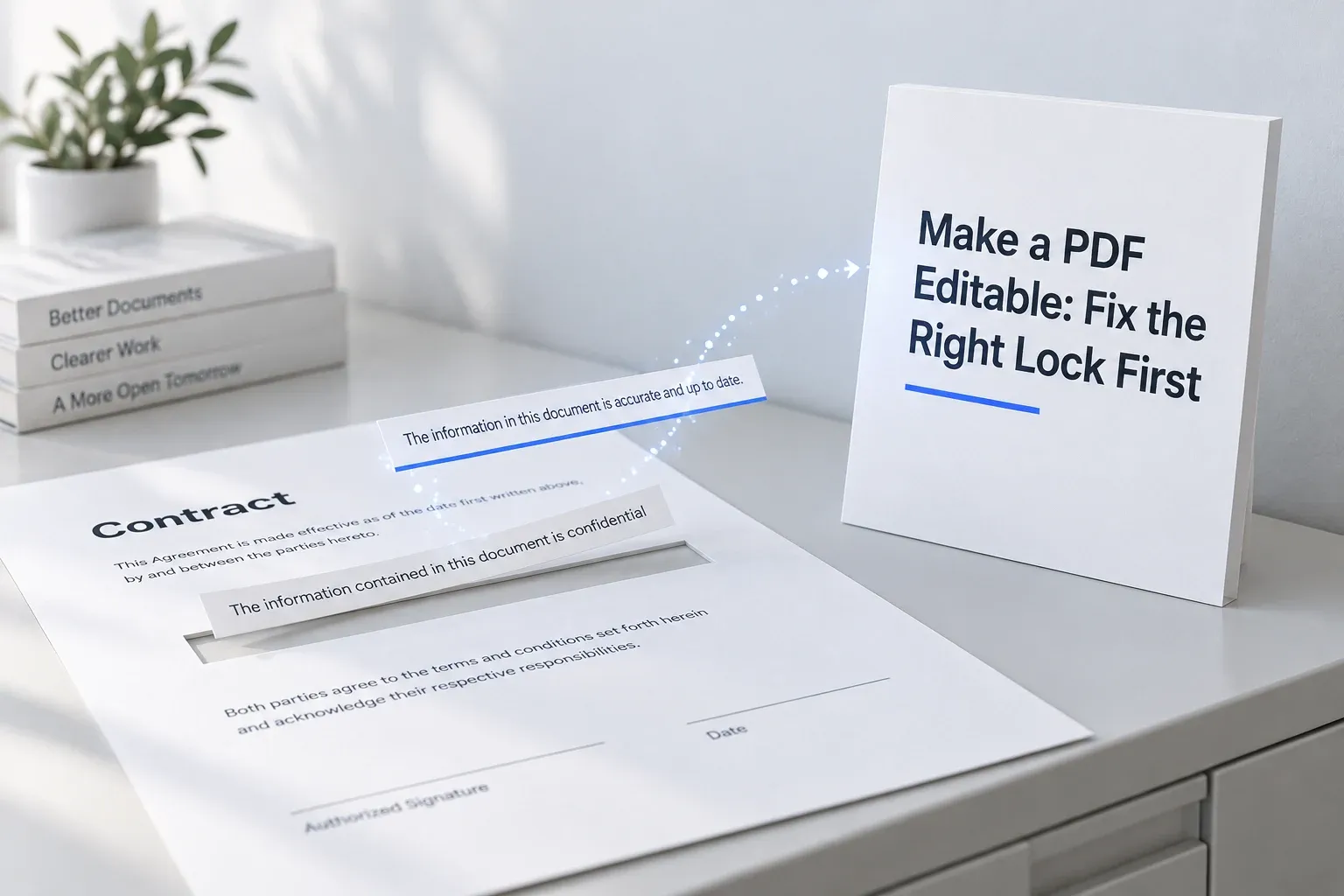
To make your file editable without wrecking its layout, you have to diagnose what is actually blocking you first:
- You want to rewrite existing words on the page (a price on a quote, a date on an agreement, or a typo in a report), and the file has real digital text underneath.
- You want other people to type into blank spaces (a client intake sheet, an HR onboarding packet, or a vendor application) without letting them move your paragraphs around.
- The page is actually a flat photograph from an office scanner or a phone camera, so there are no letters for your cursor to click.
- The file has a permissions lock or a flattened layer applied by whoever exported it, greying out every button on your toolbar.
Pick the wrong fix for your file and you lose twenty minutes watching a converter turn a clean two-column invoice into a soup of overlapping text boxes. Pick the right one and you are done in ninety seconds.
Editable PDF vs Fillable PDF: An editable PDF lets you alter the underlying document structure — changing sentences, swapping fonts, and moving paragraphs. A fillable PDF locks the background text in place and adds interactive form fields (AcroForms) so a recipient can only type inside designated boxes.
How to Tell Which Kind of Uneditable PDF You Have in 10 Seconds
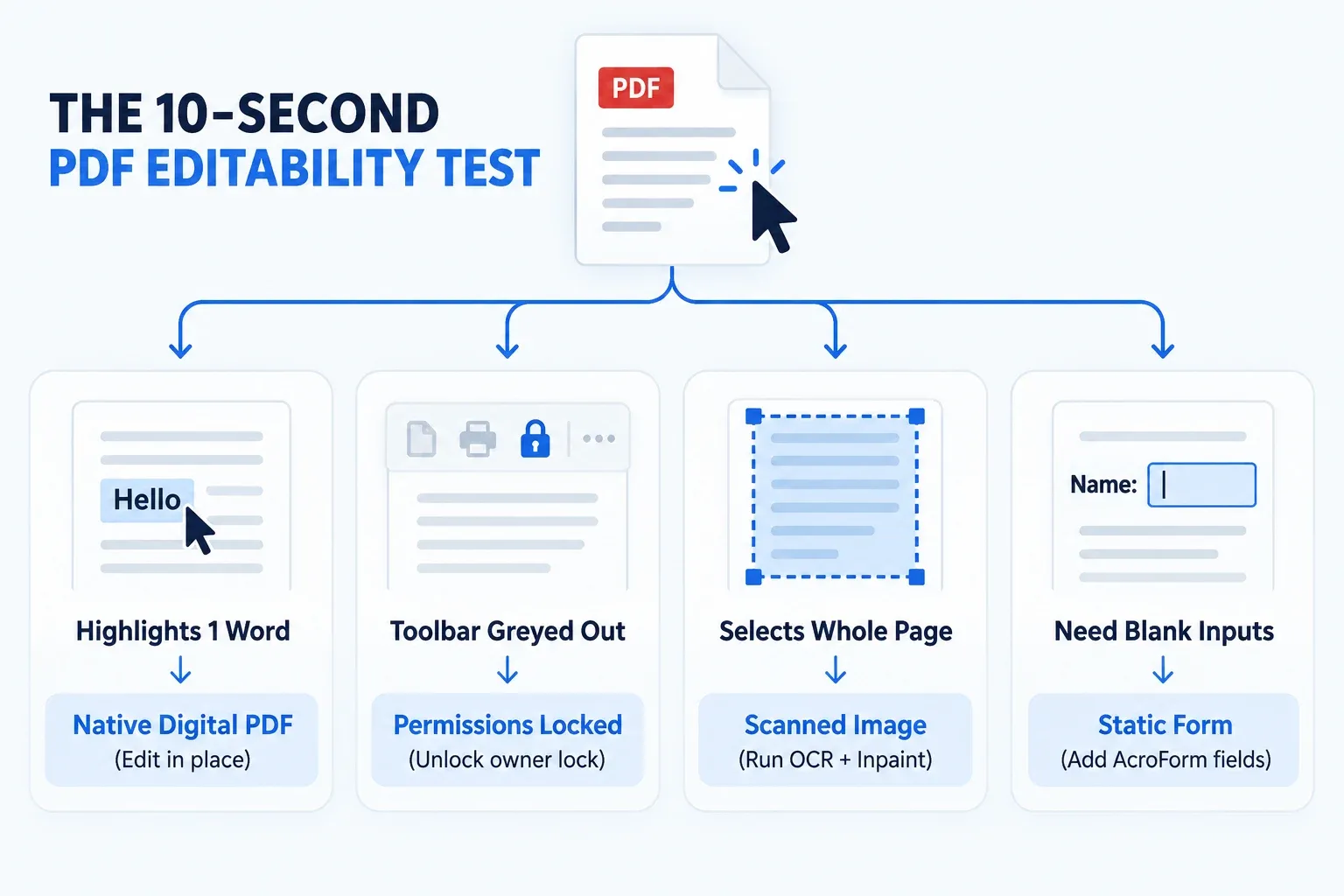
Before you upload your document anywhere or open Microsoft Word, run a ten-second diagnostic right inside your current PDF viewer or web browser. You do not need special software to see what is under the hood of the file.
The Three-Step Cursor and Properties Check
- Try to drag-select a single word in the middle of a paragraph. If your cursor turns into an I-beam and highlights that specific word in blue, the file contains live vector text streams. If clicking selects the entire page as one big blue square — or your cursor stays an arrow — you are looking at a flat image.
- Press
Ctrl+F(Cmd+Fon a Mac) and type a common word you can clearly see on the page. If the search bar reports zero matches even though the word is staring right at you, your scanned PDF is not searchable because it lacks a hidden text layer. - Check the title bar or press
Ctrl+D(Cmd+D) to open Document Properties, then click the Security tab. Look for the phrase “(SECURED)” next to the filename or check whether “Changing the Document” and “Content Copying” are listed as Not Allowed.
| What Your Cursor Does | What Ctrl+F Does | Security Tab Status | What You Actually Have | The Right Fix to Use |
|---|---|---|---|---|
| Highlights individual letters | Finds words instantly | No restrictions | Native Digital PDF | Direct in-place text editor or Word reflow |
| Highlights individual letters | Finds words instantly | Changing: Not Allowed | Permissions-Locked PDF | Strip the owner permissions lock first |
| Selects the whole page as a box | Finds 0 results | No restrictions | Scanned / Image-Only PDF | Run Optical Character Recognition (OCR) |
| Refuses to click inside blank lines | Finds label text | No restrictions | Static Unfillable Form | Add interactive AcroForm fields |
Once you know which of the four states your file is in, you can skip straight to the exact method that solves it without mangling your fonts or spacing.
Problem 1: You Just Need to Change Words or Numbers on the Page
Say a client replies to your proposal approving everything except the project start date and the deposit figure on page three. You do not Have the original InDesign or Word file anymore — only the final Proposal_Final_v3.pdf sitting in your Sent folder.
Most people reach for the brute-force workaround first: they open the PDF inside Microsoft Word, or run it through a basic PDF-to-Word converter, planning to fix the number and save it back out as a PDF. Sometimes that works. Very often, it quietly ruins the document.
Why Converting to Word Breaks Complex Layouts
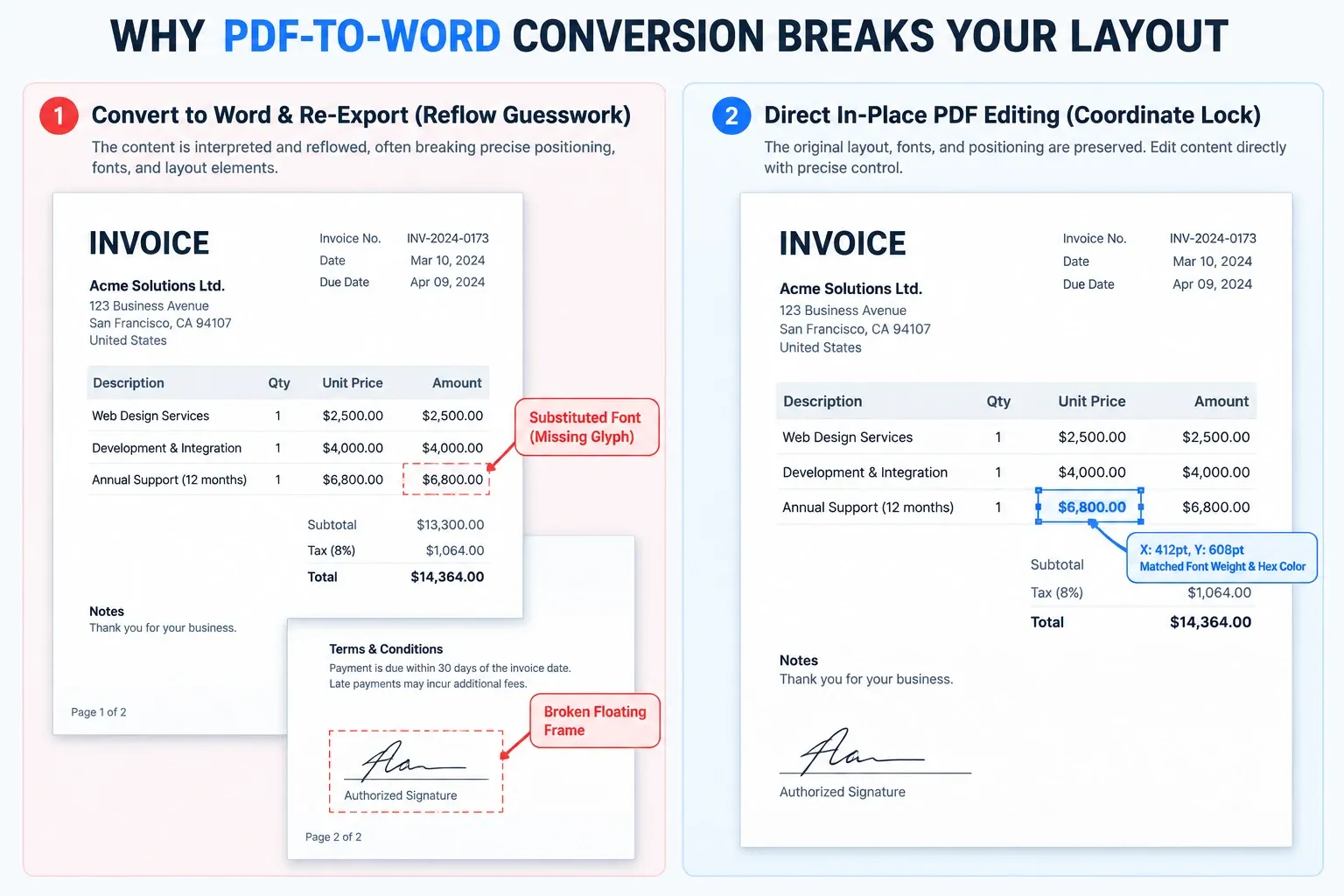
Word processors and PDF files think about pages in opposite ways. Word uses a reflowable stream: paragraphs wrap automatically from line to line, tables push content down when they grow, and margins govern where every sentence begins and ends.
A PDF does none of that. Inside a PDF’s source code, there is no concept of a “paragraph” or a “margin.” Instead, every single line of text — and sometimes every individual character — is pinned to the page using exact X, Y Cartesian coordinates measured in points (1/72 of an inch). A line might literally read: place the string “$4,500.00” at 412.5 points from the left edge and 608.2 points from the bottom edge, using 10.5pt Inter-SemiBold.
When you ask Microsoft Word (whose own support documentation on opening PDFs in Word warns that pages with tables, footnotes, and multi-column frames will not look the same) to reconstruct a flowable document from those raw coordinates, Word has to guess how the original layout was built. Three things almost always go wrong:
- Font subsetting mismatches: When the original PDF was exported, the creator’s computer didn’t embed the entire font family; it embedded a subset containing only the exact characters used in that file. If the original text says “6,800”, the glyph for the number
6or8might not even exist inside that PDF’s embedded font table. Word swaps the whole line to Calibri or Arial, and suddenly one number on your invoice looks conspicuously doctored. - Floating text frames and phantom tables: To keep two columns or a sidebar aligned, converters wrap every block into invisible floating frames or borderless table cells. Delete one sentence and the box beneath it stays bolted in place, leaving an awkward white gap.
- Broken kerning and ligatures: Pairs of letters like
fi,fl, ortiare often stored as a single combined glyph in a PDF. Converting the file back and forth splits or drops them, leaving weird spaces inside words likeof ficialorcon tract.
When to Edit In-Place vs When to Reflow
If you are rewriting three pages of text and adding four new paragraphs, converting to Word is still the sensible move — because you actually need the document to reflow across page breaks.
If you are changing a date, fixing a misspelled name, updating a price table, or tweaking two sentences on a formatted page, never convert the whole file to Word. Edit the PDF in place instead.
A proper in-place editor leaves every coordinate, vector line, and table border untouched. When you click a line to make a PDF editable right on the canvas, the editor inspects the exact pixel weight, x-height, letter width, and hex colour of the surrounding characters, matches the typeface, and updates only that text object.
Never cover up an old price or typo by drawing a white rectangle over it and typing new text on top. Anyone who opens your PDF and presses Ctrl+A to select all text — or copies the table into Excel — will still see the old number sitting right underneath your white box. Always edit or delete the actual underlying text object.
Problem 2: You Want Someone Else to Fill Out a Form Without Breaking It
Sometimes when someone asks how to make a PDF editable, they don’t want to edit the sentences themselves at all. They have a polished PDF — a lease agreement, a new-hire tax questionnaire, a medical intake sheet, or a freelancer onboarding form — and they want a client or employee to type into the blank lines and checkboxes without having to print the file, write on it with a biro, and scan it back.
If you send them a Word doc, their version of Word shifts the margins and turns your two-page form into three pages. If you send them a regular flat PDF, they can’t click the blank lines.
What you actually need here is an interactive AcroForm layer.
How Fillable PDF Fields Actually Work
According to the PDF specification, interactive form fields sit on an annotation layer completely separate from the page’s visual artwork. The lines, boxes, and labels on your page remain frozen in place so the recipient cannot accidentally delete a legal clause, while interactive widgets float directly over the blank spaces.
When you build or convert a static sheet into a fillable form, six specific field settings determine whether the form feels effortless to your client or drives them crazy:
- Auto-sizing vs fixed font size: If you set a single-line address field to a fixed
12ptfont, anyone with a long street name will watch their text cut off at the right border. Setting the font size toAutoforces the viewer to shrink the text smoothly down to8ptor9ptonly when the box gets crowded. - Radio button group names: Checkboxes let a user tick as many options as they like. If you have a “Yes / No” or “Single / Married / Filing Separately” question where only one answer is valid, use radio buttons and give every button in that question the exact same Group Name (for example,
filing_status) with different Export Values (single,married). That way, clicking “Married” automatically unticks “Single.” - Comb fields for fixed-length codes: For Social Security numbers, IBAN bank codes, dates (
DD/MM/YYYY), or postal codes, enable the Comb of X characters property. This divides a single text input into evenly spaced vertical slots so each digit lands squarely inside its printed box as the person types. - Logical tab order: Nothing frustrates someone filling out a form faster than pressing the
Tabkey after typing their First Name and watching the cursor jump to the ZIP Code at the bottom of the page. Always set the tab order to flow by rows (left to right, top to bottom) before saving. - Multi-line and scroll lock: For a “Notes” or “Project Description” box, tick Multi-line so text wraps to the next line, and untick Scroll long text. If scrolling is left on, a user can type three paragraphs into a one-inch box, and when someone prints the PDF later, everything below the second line is invisible.
- Flattening after return: Once your client fills out the form and sends it back, those fields are still live. Anyone who opens the returned file can click into the “Agreed Fee” box and change the number. Always flatten a returned form once it is complete to bake the typed values permanently into the page artwork.
Problem 3: Your PDF Is Actually a Photograph (Scans and Flattened Pages)
If you clicked a paragraph during the ten-second diagnostic test and the entire page lit up blue like a giant sticker, you do not have a document with text in it. You have a container holding a 300 DPI TIFF or JPEG image.
This happens every time a paper contract goes through a photocopier, every time someone snaps a receipt with a phone scanner app, and every time a sender deliberately exports a document as a rasterised image to stop people copying it.
Why Basic OCR Alone Leaves Messy Pages
Every guide on the internet will tell you to “just run OCR” (Optical Character Recognition) to make a scanned PDF editable. That is only half the truth, and it depends entirely on which mode of OCR you run.
There are two very different ways OCR engines handle a scanned page:
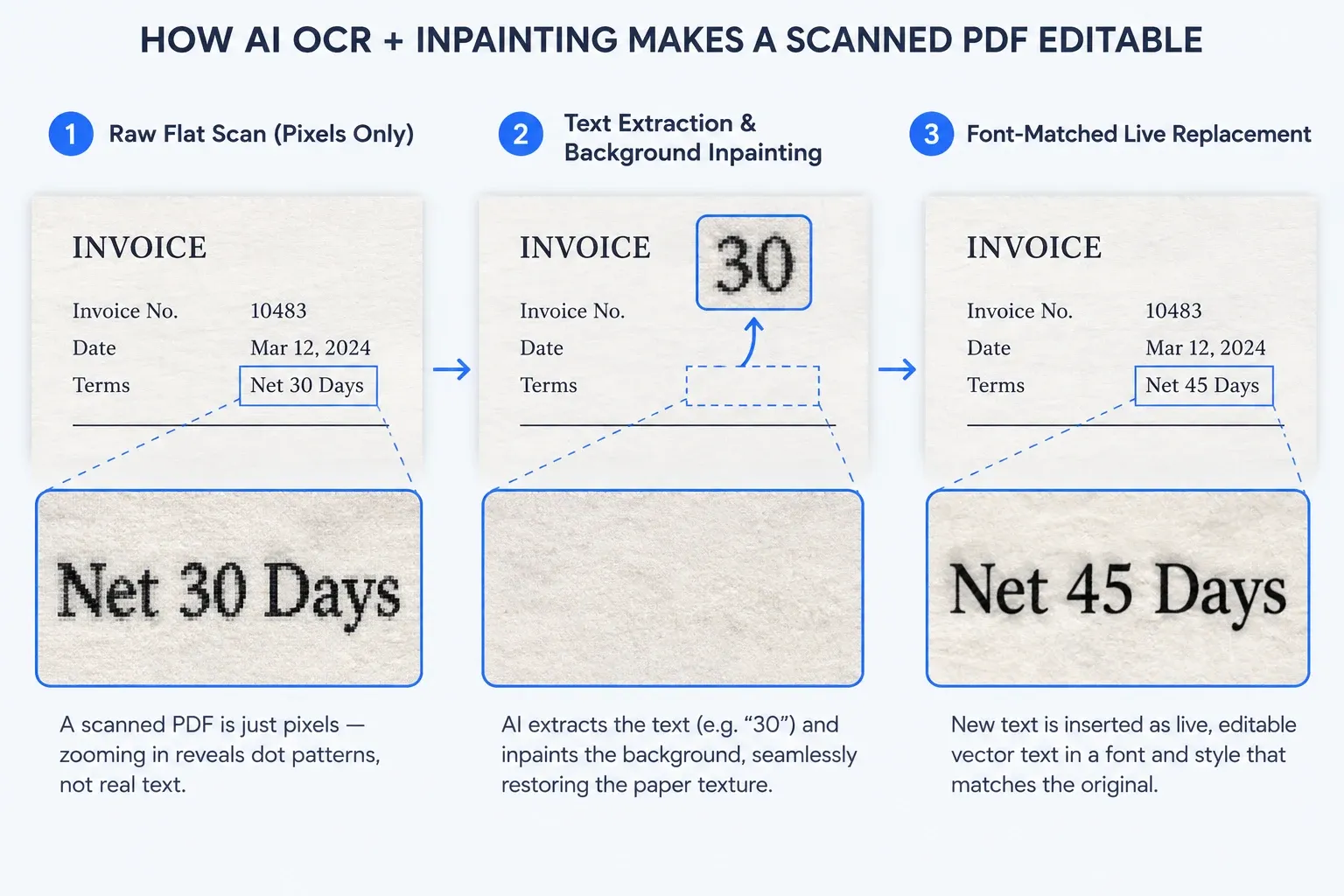
- Searchable Image Mode (Invisible Text Layer): The software recognises the words in the photograph and places an invisible, transparent text layer directly underneath the image. This is brilliant if you only need
Ctrl+Fsearchability or want to copy a paragraph into an email. It is useless for editing the page. Why? Because if you delete or change a word in the invisible layer, the original black pixels of the scanned photograph are still sitting right on top of it. - Editable Text & Background Reconstruction (OCR + Inpainting): To let you actually change a word on a scanned page, the editor has to do three things at once: read the characters via OCR, slice those dark ink pixels out of the background image, inpaint (reconstruct) the paper texture behind the old letters, and synthesize a font that matches the weight and slight ink spread of the rest of the scan.
Notice that third step — background inpainting. A scanned sheet of paper is rarely pure #FFFFFF white. It is usually an off-white #F4F3EF with subtle paper grain, a faint shadow from the scanner lid, or a light grey table tint. If an editor simply erases the old word and fills the hole with a pure white rectangle, your edited scan looks like someone stuck correction tape over it.
Modern browser-based AI editors solve both problems at once. For instance, when you open a scanned contract in MojoPDF, the studio reads the page automatically as it scrolls into view, reconstructs the underlying paper grain where old words are lifted out, and matches the surrounding typeface in place so the corrected line blends straight into the original scan.
Problem 4: The File Is Locked, Signed, or Stuck in Read-Only Mode
What if your cursor highlights individual words smoothly, Ctrl+F works like a charm, and yet every editing tool is greyed out? You are dealing with one of three locks — and two of them take less than thirty seconds to clear once you know what you are looking at.
1. The Owner (Permissions) Lock
PDF encryption has two completely separate password types: a User (Open) password that stops you viewing the file at all, and an Owner (Permissions) password that lets anyone open and read the PDF, but tells the PDF viewer to disable editing, printing, or copying.
Because the PDF viewer already has to decrypt the file’s content streams in memory just to render the pages on your screen, an Owner permissions lock is essentially a polite sign asking your software not to let you edit. If you have the right to modify the document — say, an old company policy manual whose creator left the business two years ago — you first need to know which of the two PDF password locks you are dealing with and strip the permissions restriction before opening it in an editor.
2. Digital Signatures and PDF/A Archival Locks
Look at the top of your screen when you open the file. Do you see a blue banner stating either “This file claims compliance with the PDF/A standard and has been opened read-only” or “Signed and all signatures are valid”?
- PDF/A (ISO 19005): Courts, government agencies, and universities export files in PDF/A format for long-term archiving. By design, viewers lock PDF/A files into read-only mode on open so you don’t accidentally alter an archival record. You don’t need a converter to make a PDF editable when it’s in PDF/A mode — just open your viewer’s Preferences (
Edit > Preferences > Documents) and switch “View documents in PDF/A mode” to Never. - Cryptographic Digital Signatures: When a contract is signed with a certificate-based cryptographic signature (a PAdES or PKCS#7 signature, not just a pasted squiggle of ink), the signature computes a mathematical
SHA-256hash of every single byte in the PDF. If you unlock and edit even one comma on page two, the file’s byte hash changes, and a bright red warning banner will tell every future reader that the signature has been invalidated since signing. If a cryptographically signed contract needs an edit, you must clear the signature field, make the change, and have the parties re-sign.
3. Operating System and Cloud Drive Read-Only Flags
Sometimes the PDF itself isn’t locked at all — your operating system locked the file handle because of where you opened it from:
- Opened directly from an email attachment or
.zipfolder: Windows and macOS place temporary email previews in a protected cache folder. Save a copy to your Desktop or Documents folder first. - Windows Preview Pane lock: In Windows File Explorer, if you have the right-hand Preview Pane turned on (
Alt+P), Windows holds a read lock on the selected PDF to display the preview, refusing to let you save changes back to the same file.
Step-by-Step: How to Make Any PDF Editable Without Ruining the Formatting
Whenever you sit down with a stubborn PDF that needs updating, follow this exact five-step workflow to get in, make the change, and export a clean file on the first try.
- Run the 10-second cursor and
Ctrl+Dcheck. Highlight a single word to verify whether you have live vector text or a flat scan, and glance at the title bar for(SECURED)orPDF/Anotices. - Clear any outer container lock first. If the file was opened directly from Outlook, Apple Mail, or a compressed
.ziparchive, save it to a local folder. If it carries an Owner permissions flag that you are authorised to clear, unlock the permissions layer before attempting any layout edits. - Match your editing mode to the scope of the change.
- Changing 1 to 10 lines, numbers, dates, or typos: Open the file in a direct in-place PDF editor that keeps
X, Ycoordinates locked and matches the embedded font inline. - Rewriting full sections where paragraphs must push onto new pages: Export to
.docxusing reflow mode, turn on invisible formatting marks (Ctrl+Shift+8in Word) to delete any stray section breaks or empty layout frames the converter invented, make your edits, and re-export. - Sending a blank template for someone else to complete: Leave the background text untouched and drop an AcroForm field layer on top.
- Changing 1 to 10 lines, numbers, dates, or typos: Open the file in a direct in-place PDF editor that keeps
- If the page is a scan, run OCR with background inpainting enabled. Do not settle for “Searchable Image” OCR if you need to change words on the page. Ensure the tool extracts the text into editable boxes and heals the paper background underneath.
- Inspect the edited line at
200%zoom before exporting. Check three tiny details that give away a sloppy PDF edit: baseline alignment (does the new number sit on the exact same invisible horizontal line as the text next to it?), ink colour (many professional documents use dark charcoal#1A1A1Aor#222222rather than pure#000000black), and decimal tabular spacing in price columns.
Before editing a number or name in a professional PDF, use an eyedropper or text inspector on the word right next to it. Nine times out of ten, body text in modern invoices and contracts is dark grey (#222222 or #333333), not pure black (#000000). Matching that exact shade is the secret to an edit that looks completely native.
A Real-World Walkthrough: Fixing a 14-Page Vendor Contract Under a Deadline
To see why diagnosing the page before you edit saves so much grief, consider a classic small-business headache.
Imagine an operations manager receives a 14-page Master Services Agreement (MSA_Vendor_2026.pdf) at 4:15 PM on a Friday. It needs to go out for signature before 5:00 PM, and three things are wrong with it:
- Pages 1 to 11 are crisp digital pages exported from Word, but the liability cap on Page 4 says
$50,000instead of the agreed$100,000. - Page 12 (Exhibit A — Rate Card) is a scanned copy of a printed sheet from last year, and the hourly rate on line three needs to change from
$145/hrto$160/hr. - Page 14 has blank lines at the bottom for the vendor’s Billing Contact, Tax ID, and Title, which the vendor wants to type into directly.
If you take that 14-page hybrid PDF and convert the whole thing into Microsoft Word:
- Pages 1 to 11 lose their automatic clause numbering (
Section 4.1.2turns into plain text with weird tab stops). - Page 12 lands in Word as a giant, uneditable picture pasted onto a page.
- Page 14’s underscored lines (
__________) shift onto a new Page 15 the moment the vendor types their name into them.
Now compare what happens when you handle each page inside a unified PDF workspace according to what that page actually is:
- On Page 4, you click the live text string
$50,000in place. The editor keeps the surrounding paragraph coordinates locked, matches the11ptGeorgia font and#1E1E1Eink colour, and updates the string to$100,000without moving a single clause below it. - On Page 12, you trigger OCR with background reconstruction on that single scanned page. The
$145/hrpixel block is lifted out, the slightly off-white scanned paper background is repaired underneath, and$160/hrdrops into the same row in matching type. - On Page 14, you draw three AcroForm text fields over the blank lines, set their font size to
Auto, and save.
Total time: four minutes. Every page stays on the page it started on, and if you later need to reduce the PDF file size before emailing it out, your text remains sharp vector type rather than blurry re-compressed images.
Hybrid PDFs — files that mix native digital pages with one or two scanned attachments or exhibits — make up a huge share of legal, real estate, and procurement paperwork. Treating the whole file as a Word conversion almost always breaks either the digital clauses or the scanned exhibits.
The Privacy Trap When You Make a PDF Editable Online
Think about the documents people actually need to edit in a hurry: employment offer letters, tax forms (W-9, 1099, P60), bank statements, lease agreements, medical referrals, and client contracts. None of those are files you want sitting in an unencrypted /tmp folder on an unknown third-party server.
When you use a legacy server-side converter, your file is uploaded across the internet to a remote machine, queued for a background worker process (often running command-line utilities on a shared cloud instance), converted, and written to a public-facing download link. Even when a site promises to delete your file after an hour, you have still transmitted raw client PII or financial figures outside your device.
Look for tools built on modern client-side browser architecture (using WebAssembly and HTML5 Canvas APIs documented on MDN Web Docs) instead. When rendering, font matching, OCR, and export happen directly inside your own browser’s memory on your own laptop, the document doesn’t have to make a round trip to a remote conversion queue just so you can fix one line of text.
Five Things That Quietly Ruin an Edited PDF (and How to Dodge Them)
Even experienced admin and legal staff get tripped up by five subtle quirks of the PDF format when they finish editing a file:
- Leaving live form fields unflattened after editing: If you use text annotations or form boxes to patch a number on an invoice and forget to flatten the file on export, the recipient can click your new number and drag it across the page — or see the edit history in the Comments pane.
- Forgetting hidden metadata and document history: PDFs store incremental save histories (
%%EOFmarkers appended to the end of the file) and XMP metadata fields. If you delete a sensitive paragraph and save incrementally rather than exporting a clean sanitised file, forensic recovery tools — and sometimes a basic text editor — can still read the old text stream earlier in the file. - Mixing RGB and CMYK blacks on a file meant for print: If you edit a brochure or report that was exported from InDesign in
CMYKcolour space and insert new text in standard screenRGBblack, commercial printers will render the two blacks noticeably differently on paper. - Breaking internal table of contents links: If you convert a 60-page manual to Word just to fix two typos and re-export it, you often strip out the internal bookmark tree or end up with PDF page numbers that don’t match the navigation bar. Editing in place preserves every hyperlink and bookmark target.
- Letting mobile previewers hide your edits: Apple’s built-in iOS Mail previewer and some mobile browsers occasionally fail to render unflattened annotation layers. If you added text via an annotation tool rather than editing the page’s actual content stream, flatten the PDF before emailing it so every phone and tablet displays the exact same page.
- Diagnose your PDF in 10 seconds before choosing a tool: highlight one word, press Ctrl+F, and check the Security tab.
- Edit in place for 1–10 line changes, dates, and numbers so you never break X, Y coordinates or trigger font substitution.
- Convert to Word (.docx) only when you are rewriting whole sections that need paragraphs to reflow across pages.
- For scanned pages, use OCR with background inpainting so replacing a word doesn't leave a stark white rectangle over the paper grain.
- Match the surrounding text's exact hex colour (usually dark charcoal #222222, not pure #000000 black) and flatten your final PDF before sending.

MojoPDF
Taj
A professional SaaS founder offering great value to it's customers.
Frequently Asked Questions
Skip the PDF-to-Word conversion and use a direct in-place PDF editor instead. Because PDFs position every line using exact X, Y coordinates, editing the text object directly on the page keeps all columns, tables, and margins locked in place while only updating the words you clicked.
Most PDFs only embed a subset of the original font containing the exact letters used when the file was created. If you type a character that wasn't in the original file, basic editors swap the entire line to a fallback font like Arial or Calibri; an AI PDF editor inspects and synthesizes matching glyph weights so the new characters blend in.
Yes, provided your editor pairs Optical Character Recognition (OCR) with background inpainting. Standard searchable OCR only places an invisible text layer under the photo for Ctrl+F searching, whereas editable OCR lifts the pixel letters off the page, repairs the paper background underneath, and replaces them with live type.
Making a PDF editable unlocks the actual paragraphs, headings, and numbers on the page so you can rewrite or delete them. Making a PDF fillable leaves the background document locked and adds interactive AcroForm boxes, checkboxes, and signature fields so a client or employee can only type into the blank spaces.
Your file is either opened in PDF/A archival read-only mode, protected by an Owner permissions lock, or sealed with a cryptographic digital signature. Check the top banner of your viewer or press Ctrl+D to inspect the Security tab and see which restriction is active.
Those boxes (often called tofu glyphs) happen when the PDF uses a custom character encoding table (an incomplete ToUnicode CMap) where glyph IDs aren't mapped to standard keyboard letters. Running OCR on that specific page rebuilds a clean Unicode text layer that you can edit normally.
It depends on whether the tool processes files on a remote server or locally inside your browser. For sensitive paperwork like contracts, tax forms, or bank statements, use an editor that runs rendering and text editing client-side on your own device rather than uploading unencrypted copies to a remote queue.
Flatten the document before exporting it. Flattening merges all edited text boxes, form entries, and signatures permanently into the page's base content stream, ensuring nobody can click a field or view previous text layers.
Google Docs can open and convert simple text-heavy PDFs, but it routinely breaks multi-column layouts, bordered tables, footnotes, and background graphics. Use Google Docs only when you want to extract raw paragraphs for a complete rewrite and do not care about preserving the visual page design.
Some mobile email previewers ignore unflattened annotation layers and form overlays, displaying only the original base PDF underneath. Always flatten or commit your changes to the primary page content stream on export so every mobile and desktop viewer renders the updated text identically.
Yes, and that is the smartest way to handle large reports or hybrid contracts that mix digital text with scanned exhibits. Instead of converting all 100 pages and risking layout shifts across the whole book, run in-place editing or single-page OCR only on the exact page that needs fixing.