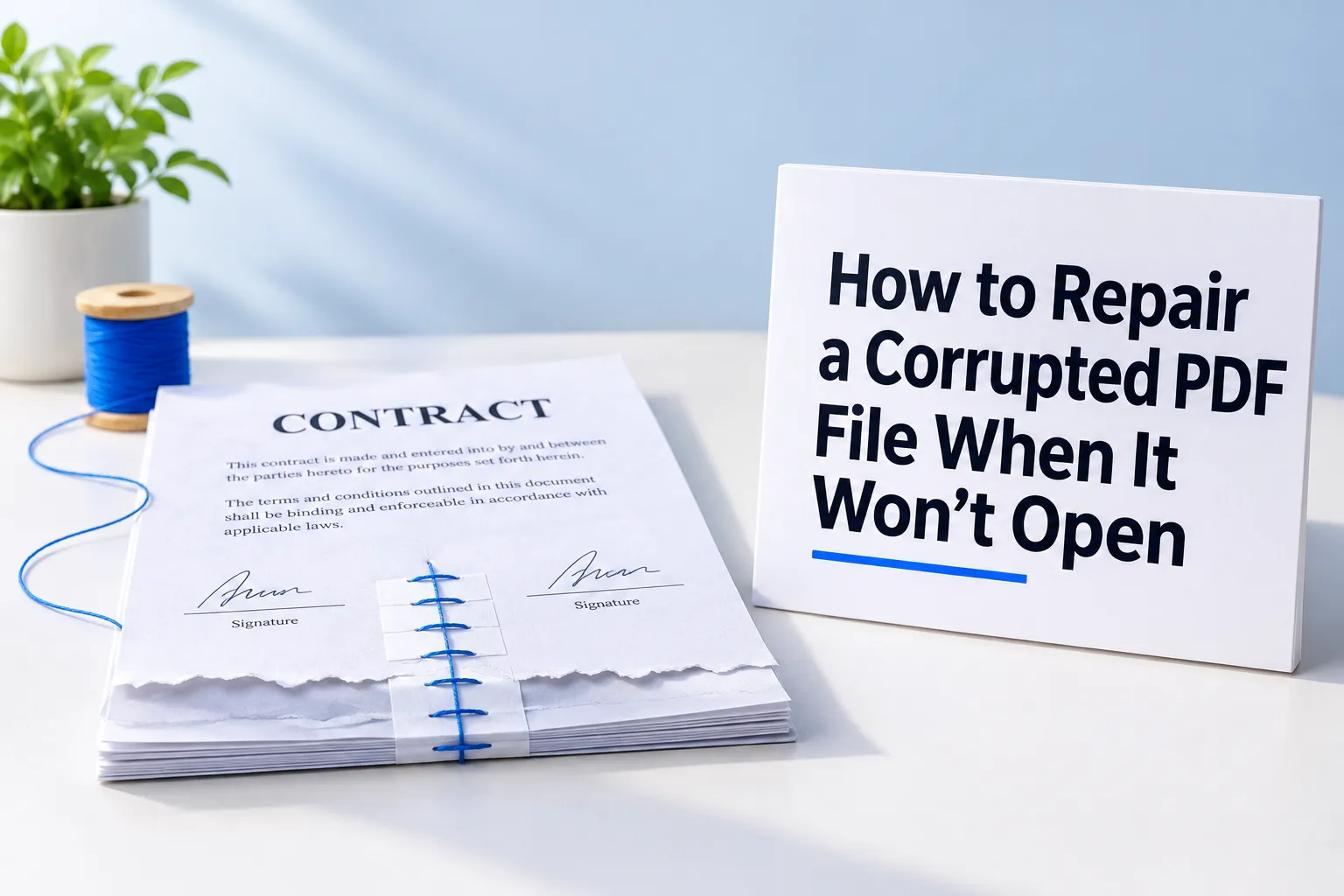
How to Repair a Corrupted PDF File When It Won’t Open
Every valid PDF file depends on two tiny structural markers to open: a %PDF-1.x header in the very first bytes and a cross-reference (xref) table plus %%EOF trailer at the very end. When an interrupted download or dying USB drive truncates those final bytes, Adobe Acrobat throws a “file is damaged and could not be repaired” alert—even when 99% of your pages remain intact inside the body. Knowing how to repair a corrupted PDF file starts with checking the file size, inspecting the raw header in a text editor, and rebuilding the broken xref index on a backup copy.
Most damaged PDFs are completely recoverable in under five minutes—provided you work on a duplicate copy and avoid overwriting the original file with a failed save.
What Actually Breaks Inside a Corrupted PDF
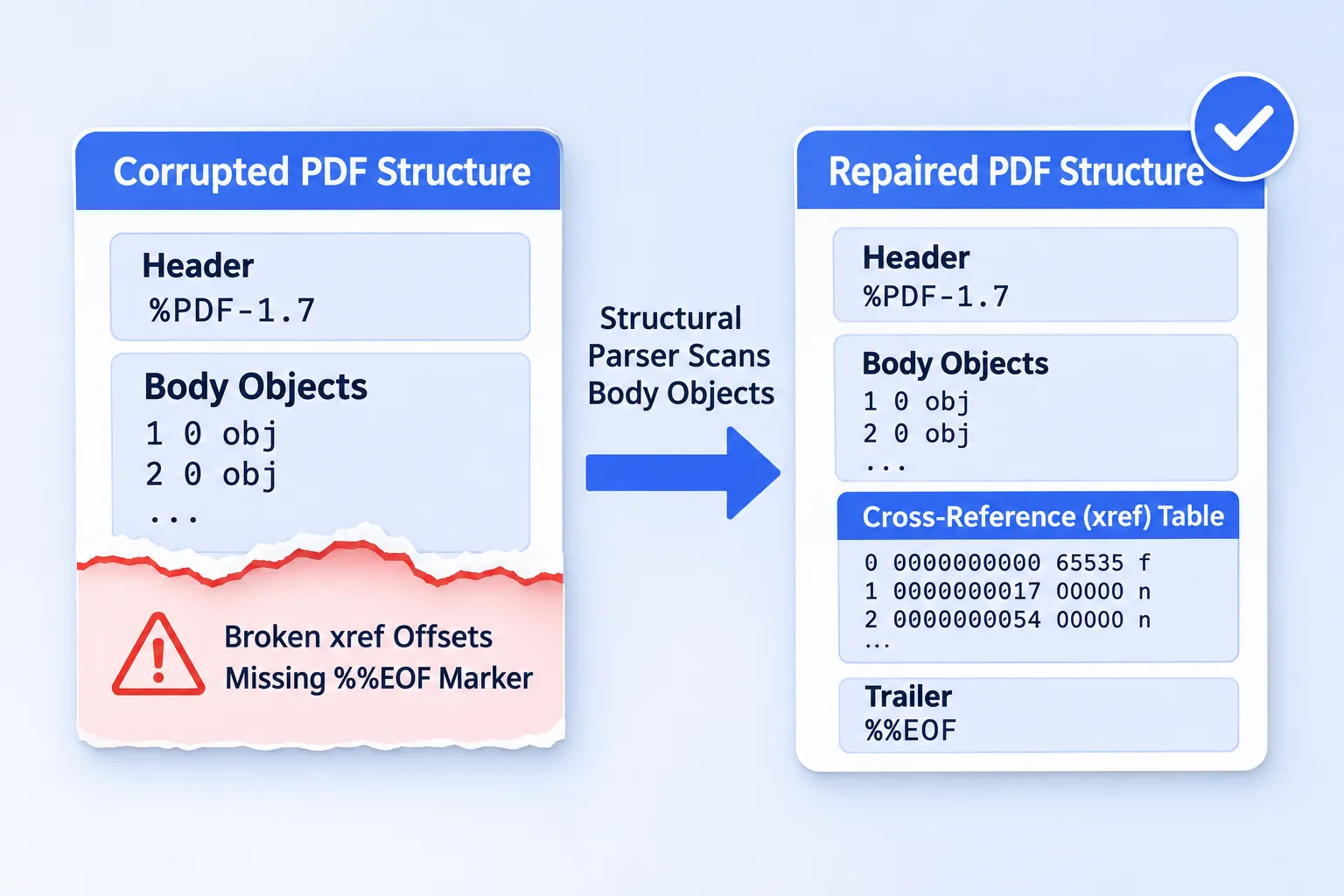
Unlike a plain .txt file that reads sequentially from top to bottom, a PDF is a random-access binary database. According to the ISO 32000-2 PDF 2.0 specification, a PDF consists of four distinct physical sections arranged in strict byte-offset order:
- The File Header (
%PDF-1.7or%PDF-2.0): Occupies the first 8 bytes of the file and identifies the PDF version. - The Body (Indirect Objects): Contains all the actual content—page dictionaries, font subsets, text streams, vector graphics, and compressed JPEG or Flate image streams—each numbered like
14 0 obj ... endobj. - The Cross-Reference Table (
xref): A master byte-offset index near the end of the file that maps every object number to its exact byte position from the start of the file. This is what lets a PDF viewer jump straight to page 240 without reading pages 1 through 239. - The Trailer and End-of-File Marker (
%%EOF): Points the viewer to the root catalog object and the starting byte address of thexreftable.
When a file transfer drops out at 98%, or a laptop loses power while saving over a network share, the body objects are usually intact, but the xref table and %%EOF marker at the tail end are missing or misaligned by a few bytes. Because standard PDF viewers rely blindly on the xref index to locate pages, a single shifted byte offset makes the entire file appear unreadable.
Cross-Reference (`xref`) Table Corruption vs. Stream Corruption: An `xref` table error means the map at the end of the PDF is broken or missing, even though the page objects inside the body are fine—this is 100% repairable. Stream corruption means the compressed binary data inside an image or font object itself was overwritten with zeros or garbage bytes, which requires extracting surviving pages or re-rendering the damaged page.
The Five Most Common Causes of PDF File Damage
Knowing how the file got damaged tells you immediately how much of the document you can expect to get back:
- Interrupted browser downloads or mobile transfers: Saves a partial
.pdffile missing the trailingxrefdictionary and%%EOFfooter. High recovery rate (usually 95%–100% of pages). - ASCII-mode FTP or email gateway mangling: Legacy email servers and misconfigured FTP clients sometimes transfer binary PDFs in text/ASCII mode, converting line endings (
LFtoCRLF) and shifting every byte offset in thexreftable by dozens of bytes. High recovery rate once the index is rebuilt. - Bad sectors on USB flash drives or SD cards: Overwrites blocks of bytes inside the file body with
0x00null characters. Medium recovery rate: intact pages can be extracted, while pages hitting the bad sector may show missing images or garbled characters. - Crashed PDF editors during an incremental save: Many editors append changes to the end of a PDF rather than rewriting the whole file. If the app crashes mid-write, the newly appended trailer points to an incomplete object tree, even though the previous version of the document still sits untouched earlier in the same file.
- Ransomware encryption or zero-byte stubs: If a file is
0 KBor its header bytes have been replaced by random encrypted ciphertext rather than%PDF-, no repair tool can reconstruct the text—you must restore from cloud version history or disk backups.
Never run a repair tool directly on your only copy of a damaged PDF. Always duplicate the file into a separate folder first (for example, `Contract_BROKEN_BACKUP.pdf` and `Contract_REPAIR_WORK.pdf`). Some aggressive recovery utilities strip damaged pages or flatten forms permanently when saving, leaving you worse off if a second tool could have parsed the original file cleanly.
Step 1: Run a 30-Second Triage Before Touching Any Repair Tool
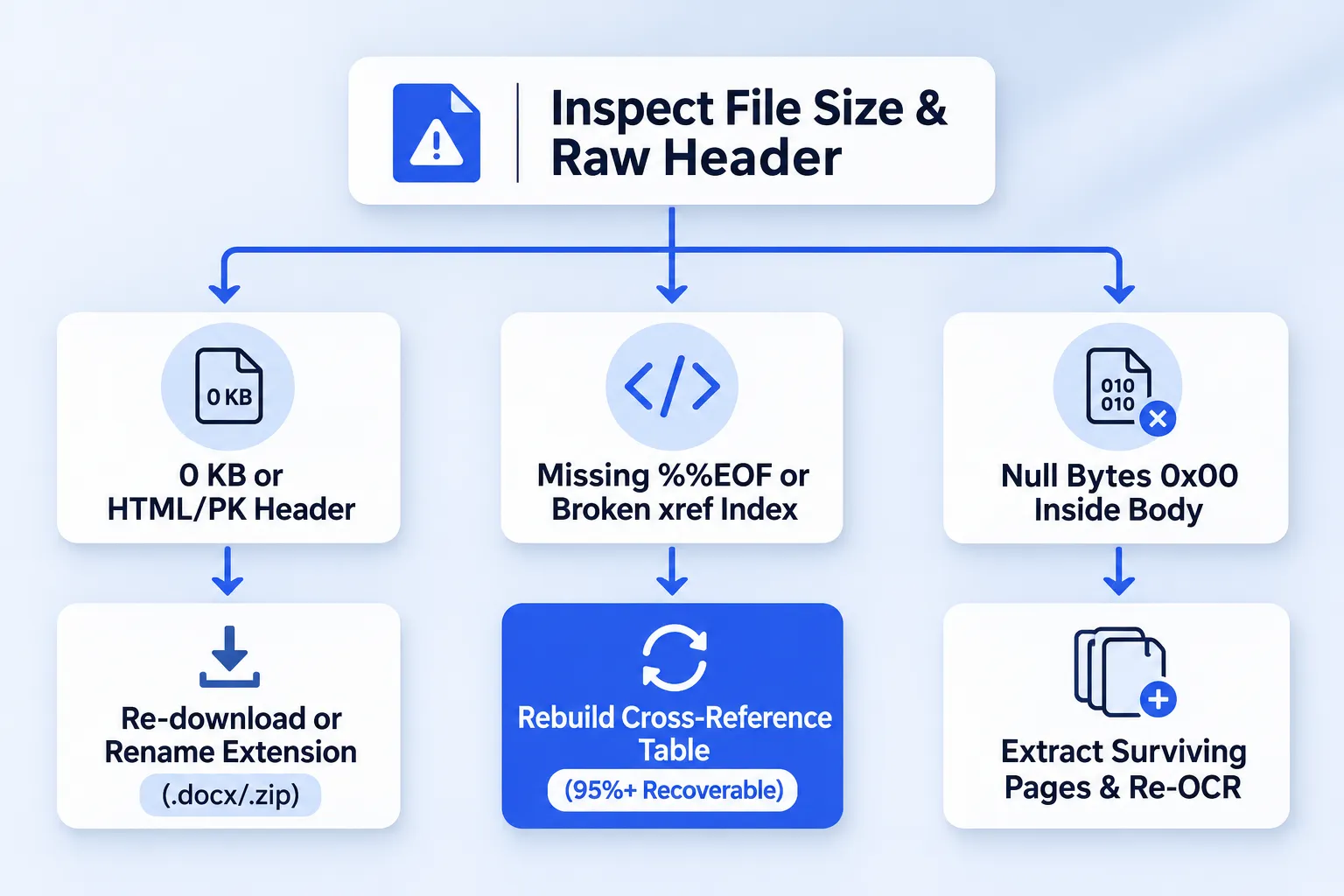
Before you figure out how to repair a corrupted PDF file with command-line utilities or browser tools, run three quick diagnostic checks on your computer. These three tests tell you whether you are dealing with a fixable structural glitch, a misnamed file, or an unrecoverable empty shell.
Check 1: Verify the File Size
Right-click the file and check Properties (Windows) or Get Info (Mac). If the file size reads 0 bytes or 1–2 KB, the download failed before any document content was written. No repair algorithm can generate pages out of zero bytes—check your email attachment again, re-download from the portal, or check your cloud drive’s trash/version history.
Check 2: Test Across Different PDF Engines
Different PDF readers vary wildly in how strictly they enforce the ISO specification:
- Adobe Acrobat Reader is notoriously strict and often refuses to open a PDF if the
xrefbyte offsets are off by even two bytes. - Google Chrome, Microsoft Edge, and Mozilla Firefox use forgiving open-source rendering engines (PDFium and PDF.js) that automatically scan the file body for
objmarkers when thexreftable is broken. - Apple Preview on macOS uses Quartz, which can often render damaged files that crash Windows viewers—and lets you export a freshly indexed copy via File > Export.
Try dragging the broken PDF directly into an empty Chrome or Edge browser tab. If the pages appear on screen, immediately press Ctrl + P (or Cmd + P) and save a fresh copy, or run it through a structural repair pass to restore clean indexing.
Check 3: Inspect the Raw Header and Footer in a Text Editor
Make a copy of the broken file, open Notepad (Windows) or TextEdit (Mac), and drag the copy into the editor window. Ignore the gibberish symbols in the middle—look strictly at the very first line and the very last five lines:
- Look at Line 1: It should start with
%PDF-1.4,%PDF-1.5,%PDF-1.6,%PDF-1.7, or%PDF-2.0. If Line 1 starts withPKfollowed by gibberish, someone renamed a.zipor.docxfile to.pdfby mistake—rename the extension back to.docxor.zipand it will open right away. If Line 1 starts with<!DOCTYPE html>, you downloaded a login webpage instead of the PDF. - Look at the bottom of the file: A complete PDF ends with
startxref, a number, and%%EOF. If the file ends abruptly mid-stream with random symbols and no%%EOF, your file was truncated during transfer and needs its cross-reference table rebuilt.
Five Proven Methods for How to Repair a Corrupted PDF File
Once you have confirmed the file contains real PDF data, pick the recovery method that matches your operating system, technical comfort level, and privacy requirements.
| Recovery Method | How It Repairs the File | Preserves Interactive Forms & Links? | Privacy / Data Location | Best For |
|---|---|---|---|---|
| Browser-Based Structural Repair Workspace | Scans surviving obj markers, reconstructs the xref table, and rewrites a clean trailer | Yes (preserves vector text & structure) | Runs locally in browser memory | Fast recovery of contracts, invoices, and multi-page reports without terminal commands |
| QPDF Command-Line Re-Indexing | Parses the raw object stream tolerantly and writes a normalized xref and object stream | Yes (keeps bookmarks, links, and forms intact) | 100% local offline CLI | Developers, IT admins, and batch repair of broken xref tables |
| Ghostscript Stream Reconstruction | Re-interprets every PostScript/PDF drawing operator from scratch and outputs a brand-new PDF | No (flattens forms and strips some metadata) | 100% local offline CLI | Severely damaged page streams that QPDF cannot parse |
| Chrome / Edge PDFium Re-Print | Uses Google’s tolerant PDFium engine to render readable pages into a new PDF | No (strips form fields and bookmarks) | 100% local in browser | Quick emergency recovery when you only need readable pages fast |
| Previous Version Rollback (Hex / Incremental Trim) | Truncates a crashed incremental update back to the previous valid %%EOF marker | Yes (restores exact prior saved state) | 100% local | Files corrupted mid-save after an editor or network crash |
Method 1: Repairing Structural Index Errors in Your Browser
For most everyday business and academic files—such as a truncated client proposal, a broken bank statement download, or a damaged scanned packet—you do not need to write terminal scripts. A structural repair engine scans the file byte by byte, locates every intact obj block, discards incomplete trailing fragments, and writes a fresh xref table and %%EOF trailer.
When the document contains confidential financials or legal terms, doing that recovery without uploading the file to a remote server matters. An AI PDF editor like MojoPDF runs its repair and rendering pipeline directly in your browser on your own device, rebuilding damaged cross-reference tables and opening the recovered pages straight in the workspace so you can verify missing pages or patch garbled scan sections immediately.
Method 2: Using QPDF to Rebuild a Broken Cross-Reference Table (Windows, Mac, Linux)
If you want an industrial-grade offline command-line tool that preserves bookmarks, hyperlinks, and form fields while fixing structural corruption, QPDF is the gold standard used by digital archivists and backend engineers. Learning how to repair a corrupted PDF file via QPDF takes just two commands:
- Install QPDF via Homebrew on Mac (
brew install qpdf), Winget on Windows (winget install QPDF.QPDF), orapt install qpdfon Linux. - Open your terminal in the folder containing your duplicated broken file.
- Run the structural reconstruction command:
qpdf --replace-input broken_copy.pdf
Or write to a clean output file while inspecting warnings:
qpdf broken_copy.pdf repaired_output.pdf
- Watch the terminal output: QPDF will print specific diagnostics such as
WARNING: broken_copy.pdf: file is damagedfollowed byWARNING: broken_copy.pdf: attempting to recover cross-reference table. Once finished,repaired_output.pdfwill open cleanly in Adobe Acrobat, Preview, and every mobile viewer.
Method 3: Using Ghostscript When Page Content Streams Are Damaged
Sometimes QPDF reports that an internal page content stream or font dictionary is too damaged to copy directly. In that case, Ghostscript takes a more aggressive approach: instead of copying damaged PDF objects, it executes the drawing instructions page by page and writes a brand-new, standards-compliant PDF.
Run this command in your terminal (use gswin64c on Windows or gs on Mac/Linux):
gs -o repaired_gs.pdf -sDEVICE=pdfwrite -dPDFSETTINGS=/prepress broken_copy.pdf
Setting -dPDFSETTINGS=/prepress ensures Ghostscript preserves 300 DPI image resolution and embedded fonts rather than downsampling your document.
If a 120-page PDF fails halfway through Ghostscript because page 64 has a fatally corrupted image object, isolate the good pages around it using `-dFirstPage=1 -dLastPage=63` for the first half and `-dFirstPage=65 -dLastPage=120` for the second half, then merge the two clean halves back together.
Method 4: Rolling Back a Crashed Incremental Save in a Hex Editor
Here is a little-known detail of the PDF architecture that can rescue a file when every automated repair tool fails: PDFs update incrementally. When you edit a PDF and hit Save, most desktop editors do not rewrite the entire file from byte zero—they leave the original file untouched and append the modified objects, a new xref table, and a second %%EOF marker to the bottom.
If your computer crashes or loses its network connection while saving an edit, the appended section at the bottom is half-written and corrupt, but the original version of your document is still sitting completely intact above it. Knowing how to repair a corrupted PDF file by trimming that broken tail can save hours of rework:
- Open a duplicate of the broken PDF in a free hex or large-file text editor (such as HxD on Windows, Hex Fiend on Mac, or VS Code).
- Search backward from the bottom of the file for the string
%%EOF. - Skip the broken/incomplete trailer at the very bottom and find the previous
%%EOFmarker earlier in the file. - Delete every single byte after that earlier
%%EOFline and save the file.
You will lose only the final unsaved edit made right before the crash, while recovering 100% of the prior document with zero formatting loss.
Worked Example: Rescuing an 84-Page Signed Lease Agreement From a Corrupted USB Drive
Let’s trace how these techniques work together on a real-world recovery job. Imagine a property manager trying to open an 84-page commercial lease PDF stored on an older USB flash drive. Adobe Acrobat throws an immediate Expected a dict object error, and dragging the file into Chrome displays blank white pages after page 41.
Step-by-step diagnosis and recovery:
- Copy off the failing drive immediately: The file size is
18.4 MB, proving the bulk of the document is still there. Copying it to an internal SSD prevents further read errors from the failing USB controller. - Test with QPDF: Running
qpdf lease_copy.pdf lease_fixed.pdfsuccessfully rebuilds the cross-reference table for pages 1–41 and pages 43–84, while reportingstream error on object 412 (Page 42)—meaning a bad flash block hit the compressed image stream on page 42. - Extract surviving pages around the damaged sector: Instead of losing an 84-page executed lease because of one bad page, extract pages 1–41 and pages 43–84 into a clean 83-page file. (If you need to rearrange or extract clean page ranges without breaking existing bookmarks, see our guide on how to split PDF pages without wrecking the original.)
- Recover the single damaged page: Check email sent-items for an earlier draft of page 42, or take a clean smartphone scan of the physical paper copy of page 42, run OCR so it stays searchable, and insert it back into position 42.
In less than ten minutes, an “unopenable” 84-page legal contract is back in full working order with every signature and bookmark intact.
What to Check After You Repair a Corrupted PDF
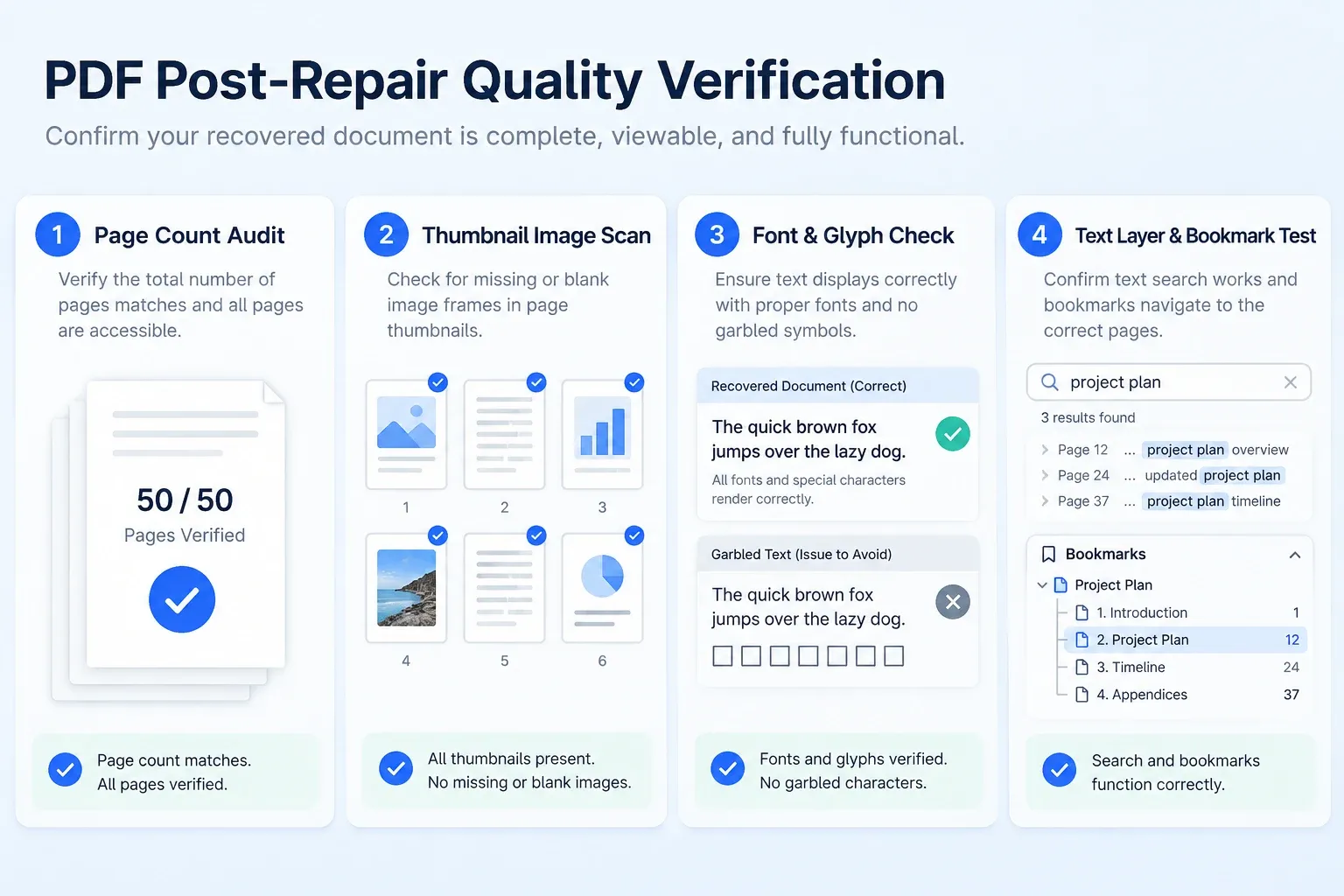
A repaired PDF that opens on screen can still hide silent damage inside individual pages. Whenever you finish walking through how to repair a corrupted PDF file, run this four-point verification check before sending the document to a client, court, or printer:
- Check total page count against the original: If a 50-page report comes back from a repair utility with 47 pages, three pages suffered fatal stream corruption and were silently dropped by the parser. Always compare the page count and check the table of contents.
- Scan thumbnails for missing images or blank boxes: Scroll quickly through the page thumbnail sidebar. When an embedded JPEG or PNG image stream is corrupted, repair tools often replace the damaged image with a blank white box while keeping the surrounding text intact.
- Verify font rendering and special characters: If a damaged font subset dictionary was stripped during recovery, currency symbols (
$,€), mathematical operators, or accented letters may turn into empty rectangles (□) or scrambled glyphs. - Test text searchability (
Ctrl + F): Make sure the repaired file still contains a valid text layer and was not accidentally rasterized into flat page images—if search fails, see our walkthrough on why a scanned PDF is not searchable and how to fix it.
A law firm paralegal recovered a 210-page discovery production PDF after an archive server timeout truncated the file’s `xref` table. Because she checked the recovered page count against the original Bates-stamp log (210 pages vs. 208 recovered pages), she caught that the final two exhibit pages had been truncated during the original upload and requested a fresh transfer before filing.
How to Prevent PDF Corruption Before It Happens
Most PDF corruption is preventable with three small workflow habits:
- Never edit a PDF directly over a network drive or USB stick: Always copy the file to your local hard drive first, make your edits and save locally, and then upload the finished file back to the shared drive or USB stick. Network latency spikes during an incremental save are the number-one cause of broken
xreftrailers. - Use PDF/A for long-term archives: When archiving tax returns, executed contracts, or engineering drawings for years, export them as PDF/A-1b or PDF/A-2b (standardized under ISO 19005). PDF/A requires self-contained font embedding and prohibits external dependencies, making files dramatically easier to parse a decade later.
- Wait for cloud sync icons to turn solid green before moving or emailing: If you save a PDF inside a synced Dropbox, OneDrive, or Google Drive folder and immediately attach it to an email while the sync client still holds a file-write lock, you can attach a half-written temporary file.
If you also need to lock down a freshly repaired form so its fields cannot be accidentally altered later, check our guide on how to flatten a PDF without ruining print quality.
Final Thoughts
Figuring out how to repair a corrupted PDF file is rarely a lost cause. Because PDFs store their master page index at the very end of the file, a broken download or crashed save almost always leaves the actual text and images untouched inside the body—waiting for a structural parser like QPDF, Ghostscript, or a browser repair workspace to rebuild the missing cross-reference table. Always duplicate the damaged file first, verify the surviving page count after recovery, and keep an eye out for missing images on pages touched by bad storage sectors.
- Always duplicate a damaged PDF before running any repair tool so you never overwrite the original byte stream.
- Check file size and raw headers first: a `0 KB` file or a file starting with `<!DOCTYPE html>` cannot be repaired because no PDF data was ever downloaded.
- Most “file is damaged” errors come from a missing `%%EOF` marker or broken `xref` index at the end of the file, which structural parsers can rebuild in seconds.
- Use QPDF (`qpdf broken.pdf fixed.pdf`) to preserve bookmarks and form fields, or Ghostscript (`pdfwrite`) when internal page drawing streams are damaged.
- Always audit total page count, image thumbnails, and `Ctrl + F` searchability after recovery to confirm no single page was silently dropped.

MojoPDF
Taj
A professional SaaS founder offering great value to it's customers.
Frequently Asked Questions
First make a backup copy of the damaged file, then try opening it in Google Chrome or Microsoft Edge, whose forgiving PDFium engine often reads broken cross-reference tables that Acrobat rejects. For a permanent structural fix, run the file through a dedicated PDF repair tool or QPDF (qpdf broken.pdf fixed.pdf) to rebuild the missing xref table and %%EOF trailer.
PDFs store their master page-location index (the xref table) and %%EOF marker at the very end of the file. An interrupted download, a network drop during saving, a failing USB drive, or an email server altering binary line endings truncates or shifts those final bytes, preventing PDF viewers from finding the pages inside.
No. A 0 KB (zero-byte) file contains no header, no page objects, and no compressed streams—it is an empty file pointer created when a download or save failed immediately. To recover the document, you must re-download the original attachment, check your email sent folder, or restore an earlier version from cloud backup.
It is safe only if you use a tool that processes the file locally inside your browser or encrypts transfers and deletes files automatically without storing or training on them. Because contracts, tax forms, and bank statements contain sensitive data, prefer client-side browser repair tools or offline utilities like QPDF and Ghostscript for confidential PDFs.
Open a copy of the file in a plain-text editor like Notepad or TextEdit and look at the first four characters. A real PDF always starts with %PDF-; if it starts with PK, it is a renamed DOCX, XLSX, or ZIP archive, and if it starts with <!DOCTYPE html>, your browser saved a webpage error instead of the document.
QPDF is the best first-line command-line tool because it reconstructs broken cross-reference tables while preserving bookmarks, hyperlinks, and form fields. If QPDF reports damaged internal page drawing streams, use Ghostscript (gs -o fixed.pdf -sDEVICE=pdfwrite broken.pdf) to re-render the surviving content into a clean PDF.
Yes, often with 100% fidelity. Because most PDF editors append incremental saves to the bottom of the file, you can open a copy in a hex editor, find the second-to-last %%EOF marker, and delete all broken bytes appended after it to restore the exact document state prior to the crash.
When physical storage corruption (like a bad USB sector) overwrites compressed stream bytes inside a specific page object, structural repair tools salvage all surrounding intact pages and either skip the unreadable page or render it blank. Compare the recovered page count against the original and replace the single damaged page from a backup or fresh scan.
Try opening the file in Apple’s built-in Preview app or dragging it into Safari or Chrome. If the pages render on screen, click File > Export (in Preview) or Print > Save as PDF (in Chrome) to generate a freshly indexed PDF file with a valid cross-reference table.
No. Standard PDF encryption scrambles the actual text and image streams using AES or RC4 keys, so a repair utility cannot read or reconstruct encrypted objects without the password. You must unlock the PDF with its valid password before repairing structural index errors.