How to Split PDF Pages Without Wrecking the Original
Gmail caps the attachments on a single message at 25 MB, and a scanned 412-page annual report sails past that before you have finished typing the subject line. That is usually the moment someone searches for how to split PDF pages, and the splitting itself takes about ten seconds.
The ten seconds are not where people get hurt. The trouble is what the split quietly does to everything around the pages: bookmarks that point at pages that are no longer there, a document title that still names the full report, a “one chapter” file that somehow weighs 36 MB, or pages you thought you deleted that are still inside the file.
Here is the short answer. Work on a copy. Cut using the page positions the file uses, which are often not the numbers printed on the paper. Pick the split mode that matches what the recipient actually needs, then open every output and check four things: page count, bookmarks, file size and document properties. Do that and the original stays untouched while each piece stands on its own.
The rest of this post explains why each of those steps exists, so you can fix a split that went sideways instead of repeating a recipe and hoping.
Pick the Split Mode Before You Touch Anything
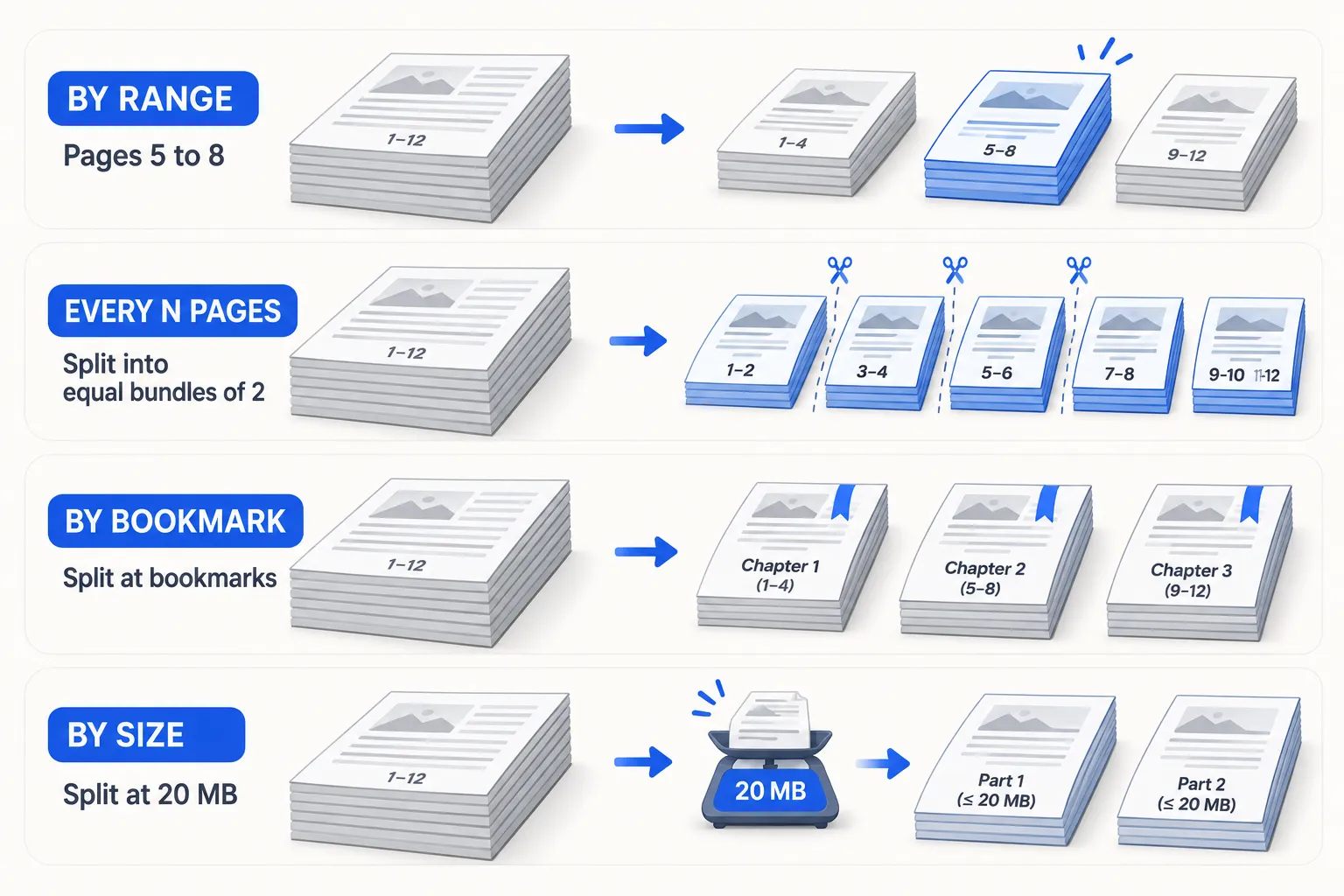
Nearly every tool that lets you split PDF pages offers the same handful of modes, and choosing the wrong one turns a ten-minute job into a forty-minute one. Decide what the pieces are for first, then pick the mode.
| Mode | Best for | Watch out for |
|---|---|---|
| By page range (say 151–179) | One chapter, one exhibit, one section | Printed page numbers that differ from file positions |
| Every N pages | Batch scans of uniform items, such as one receipt per page | An item that straddles a cut |
| By bookmarks or chapters | Long reports, manuals and ebooks with a real outline | Outlines that are missing or inconsistent |
| By file size | Email limits and upload portals with a cap | Cuts that land halfway through a table |
| By blank separator page | A stack scanned in one go with sheets between documents | A sheet that is not quite blank to the tool |
A rule of thumb: if the reader cares about content, cut by range or bookmarks. If a portal or mail server cares about size, cut by size and label the parts clearly. Size-based cuts are the most mechanical and the least kind to readers, because part 3 of 7 starts wherever the byte count ran out, sometimes halfway through a table. When you can, cut at chapter boundaries and accept pieces of uneven weight.
The every-N mode deserves a warning of its own. It is perfect for 200 scanned one-page receipts and treacherous for two-page invoices. N=2 only works if every invoice is exactly two pages. One three-page invoice shifts every later cut by a page, and you will not notice until invoice 47 turns out to contain half of invoice 48.
Blank-separator mode has a similar trap. Scanners add speckle and show-through, so a sheet that looks blank to you may not look blank to the tool, and a sheet with a small stamp in the corner may be treated as a blank one. Run a test on the first twenty pages before you commit to the whole stack.
Why the Page You See Isn’t the Page the File Uses
Open any long PDF and you are looking at two numbers. One sits in the viewer’s page box, something like 151 / 412. The other is printed in the footer of the page itself, say 143. They disagree whenever the document has front matter: a cover, a contents list, a roman-numeral preface.
In our 412-page example, eight pages come before page 1 of the report body, so printed page 143 is file page 151. A splitter asks for file positions. Type 143–171 and it hands you the wrong chapter without a hint of doubt. The fix is dull and reliable: scroll to the first page you want and read the viewer’s counter, never the footer.
Page labels are an optional PDF feature that lets a document show i, ii, iii for front matter and 1, 2, 3 for the body, independent of each page’s physical position in the file. Viewers display the label, while splitting tools usually ask for the position.
The mismatch has a second effect after the cut. Your new chapter file may open with a footer reading 143 on its very first page. That is fine for citing (“see page 143 of the report”) and confusing if you also add fresh numbers on top. If renumbering is the job, the mirror-image problem is covered in why PDF page numbers don’t match.
One habit removes most of the confusion: put the printed range in the file name, as in Annual-Report_ch4_pp143-171.pdf. Six months from now, you will know exactly what the file contains and which pages of the full report to compare it against.
What Survives a Split, and What Quietly Breaks
A PDF is not a stack of pictures. It is a set of objects that point at one another, and a split cuts some of those pointers. Whether the result is tidy depends on how carefully the tool cleans up afterwards.
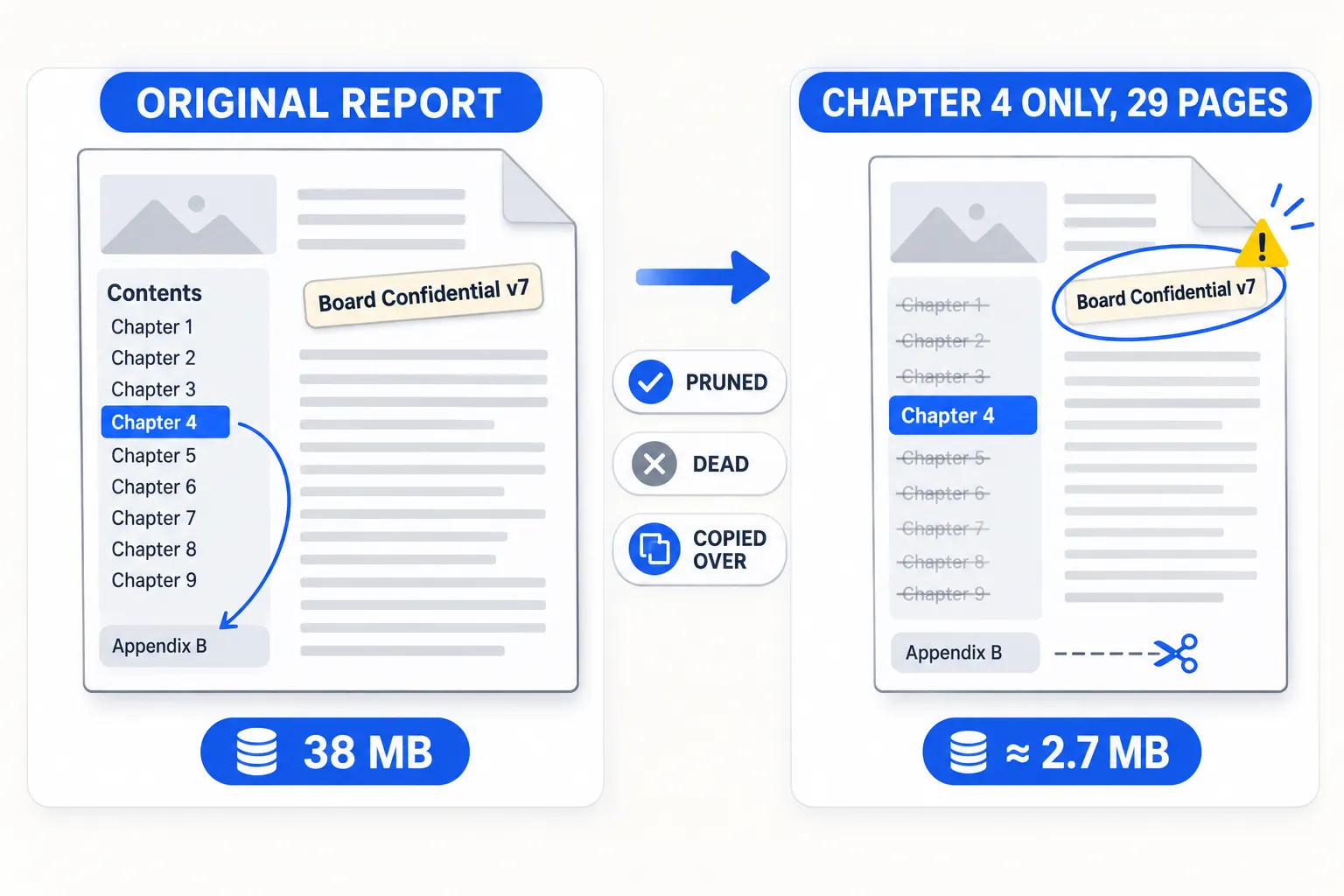
Bookmarks are a tree of entries, each aiming at a destination page. Pull chapter 4 out of a nine-chapter report and the tree still lists chapters 1–3 and 5–9. A careful splitter prunes the tree down to chapter 4’s entries. A careless one drops the outline altogether, or leaves dead entries that do nothing when clicked. The opposite failure is a privacy problem: an unpruned outline can display every chapter title in the report, including the ones you never meant to share.
Internal links behave the same way. A contents line that says Appendix B jumps nowhere once Appendix B is not in the file. Links to outside websites are unaffected.
Document properties are the sneaky one. Title, author, subject and keywords usually get copied into every piece. Your chapter file may open in a browser tab named after the full draft, version number and “Confidential” marking included, and the same string is visible to anyone who opens the Properties dialog.
Form fields keep their names. That is harmless unless you merge the pieces again later, because fields with the same name share a value, so typing in one copy can echo into another.
Attachments are the one people forget. Some PDFs carry embedded files, such as a source spreadsheet, and a split may copy them into each piece.
Here is the whole picture at a glance:
| Element | What usually happens | Quick check |
|---|---|---|
| Bookmarks | Pruned to kept pages, dropped, or left dead | Open the outline panel |
| Internal links | Links to removed pages stop working | Click three contents entries |
| Web links | Survive unchanged | Hover over two or three |
| Document properties | Copied into every piece | Open Properties and read the title |
| Page labels | Often reset or lost | Compare the footer number with the viewer counter |
| Attachments | May be copied along | Look for the paperclip panel |
Why a One-Chapter File Can Weigh as Much as the Whole Report
PDF pages share resources. A font, a logo or a background image is stored once and referenced by every page that uses it. When you pull 29 pages out, a well-built tool copies only the objects those pages reference. A lazy one carries the entire resource pool along and prunes nothing, so a 29-page file arrives at 36 MB when the original was 38 MB. Nothing is corrupt. It is just bloated.
You can predict what the size should be with one line of arithmetic: original size × (pages kept ÷ total pages). For the example that is 38 MB × (29 ÷ 412), which comes to about 2.7 MB. If a piece comes out at ten times that, resources were not pruned. If it comes out at one and a half times that, you probably chose a chapter with more photographs than average, which is normal.
The fixes, in order of effort: re-run the split with a different tool or an optimise option, save a fully rewritten copy instead of an incremental one, or compress the piece afterwards. Compress after splitting, never before. It is faster on 29 pages than on 412, and you only pay the quality cost on the pieces that need it.
If you are splitting to beat a size cap, leave headroom. Email encoding adds overhead, and many corporate mail servers cap attachments well below Gmail’s limit, so aim for parts of around 10 MB when you do not know the recipient’s ceiling. Better a part 4 of 6 that arrives than a part 3 of 4 that bounces.
Delete or Extract? The Mistake That Leaks Pages
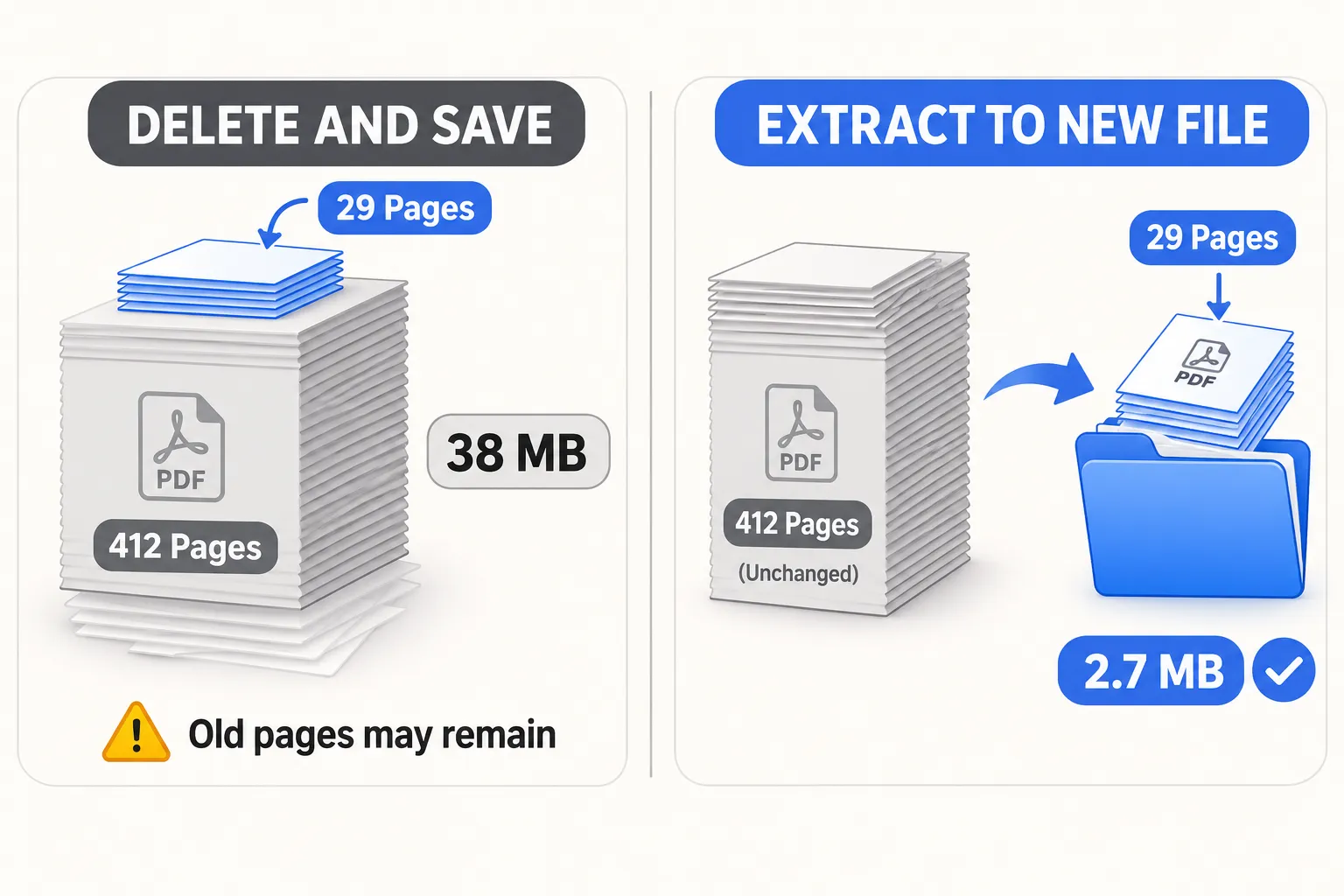
There are two ways to end up with a 29-page file from a 412-page one. You can extract: build a new document from the 29 pages you want. Or you can delete: open the original, remove the other 383 pages and save under a new name. On screen the results look identical. Inside the file they may not be.
The reason is how PDFs get saved. Some editors do an incremental save, which appends the changes to the end of the file instead of rewriting it. The deleted pages vanish from the page list, but their content can remain in the file as unreferenced objects, which tools that read the raw structure can recover. Plenty of editors rewrite the whole file and leave nothing behind, but you cannot tell which kind you have by looking at the screen.
The tell is the file size. A 29-page file that weighs 38 MB, the same as the original, has almost certainly kept the old content. A properly rewritten one lands near the 2.7 MB the arithmetic predicts.
Extraction avoids the question, because excluded pages never enter the new document. So the rule is simple. When you split PDF pages for anyone outside your organisation, extract to a new file. Reserve delete-and-save for tidying your own working copy.
Deleting pages in a viewer and saving over the same file name. If the file size barely changes, the old pages are probably still inside. Extract to a new file, or save a fully rewritten copy, and compare sizes before anything leaves your hands.
The same logic applies to drawing a black rectangle over a sensitive line. A box on top of text hides it from the eye, not from a copy and paste. That is a separate topic, but the principle holds: what you see on the page and what is stored in the file are two different things.
How to Split PDF Pages Step by Step
This is the procedure that sidesteps every problem above. It works the same whichever tool you use.
- Duplicate the file. Copy it and add -working to the name. Never split the only copy you have.
- Find the file positions. Scroll to the first page you want and read the viewer’s counter, then do the same for the last page. In the example, printed pages 143–171 are file pages 151–179.
- Choose the mode. Range for a chapter, bookmarks for a whole outline, every N for uniform scans, size only when a cap forces your hand.
- Choose the output. Decide whether each range becomes its own file or all selected pages land in one new file, and make sure the original is not the save target.
- Run it, then open the result. Ignore the success message. Check the count: last page minus first page plus one, so 179 − 151 + 1 = 29.
- Inspect four things. The outline panel, three contents links, the file size against the formula, and the title in Properties.
- Fix what is off. Rename the title, remove dead bookmarks, re-optimise if the file is bloated.
- Archive the original untouched and send only the piece.
Do steps 5 and 6 on a different device or at least in a different viewer from the one you used to split. A second viewer is less likely to share the first one’s blind spots, and it shows you roughly what the recipient will see.
Steps 5 and 6 take about five minutes and are the ones people skip. They are also the only ones that catch a problem before it reaches someone outside your office.
A Worked Example: One Chapter, 412 Pages, One Auditor
Imagine you handle finance admin at a 40-person company. An auditor asks for the revenue recognition chapter of the annual report and nothing else. The report is 412 pages and 38 MB, and the chapter is printed pages 143–171.
You follow the steps. Eight front-matter pages mean the file range is 151–179, which gives 29 pages. The expected size is about 2.7 MB. The split finishes and the result is 31 MB.
That gap tells you the tool carried the shared resources along. You save an optimised copy and the file drops to 2.9 MB, close enough to the estimate. Next, the outline panel still lists all nine chapters, eight of them dead, including one called Pending Litigation that the auditor was never meant to see named. You delete those entries. Properties still shows the title Board Confidential v7, so you rename it after the chapter.
Last, a footnote on page 3 of your piece points to page 12 of the report, which is not in the file. You add one line to the email: cross-references point to the full report, available on request. The whole job, checks included, takes about fifteen minutes. Without the checks it would take ten seconds and hand an auditor a chapter list that says more than you intended.
Splitting Scans, Locked Files and Other Awkward Cases
The procedure above covers ordinary files. These four behave differently.
Scanned documents
A scan is a stack of page-sized images, so there is little to prune: every page weighs roughly the same. That makes it the one case where cutting by size or every N pages gives pleasantly even results. The catch is the text layer. Whether you can search or copy text in a piece depends on whether the original had one, and a split inherits whatever was there. If your pieces will not search, you have the problem described in why a scanned PDF is not searchable. Running text recognition on just the piece you need means processing 29 pages instead of 412. When you split PDF pages from a batch scan, check the first and last page of every piece, because a mis-fed sheet is easy to miss.
Password-protected files
There are two different locks. An open password stops you viewing the file at all. A permissions password lets you read it but disables things like page extraction and assembly, which is why splitting is greyed out on a file that opens fine. Either way, the person who set the password is the one to ask.
Digitally signed files
A digital signature covers the exact bytes of the document, so a new file made from some of its pages cannot carry a valid signature. The pieces will be unsigned copies. Keep the signed original as the record, and say so when you send a piece. The PDF Association and the ISO 32000-2 standard describe how signatures and page structure work if you want the technical detail.
Very large files
A 2,000-page file can exhaust the memory of a browser-based tool or an older laptop. Cut it into coarse halves or quarters first, then split each of those into the pieces you want. It is quicker than fighting one enormous operation and gives you natural checkpoints to verify.
When Not to Split at All
Splitting is not always the right move. Several situations call for something else.
If the reader only needs to find a section, send the full file and say where to look: file pages 151–179. A bookmarked full report keeps every link and cross-reference working, which no split can promise.
If the file is only slightly over a limit, compress it instead. A 27 MB report with a handful of oversized images often drops well under 20 MB without losing a page, and there is nothing to reassemble.
If you expect to merge the pieces back, remember that a merge builds a new document. The original outline, page labels and links do not magically return. Keep the master and treat the pieces as disposable.
And if the real concern is confidentiality, remember that splitting hides pages from view but does not prove they are gone. For anything sensitive, extract to a fresh file, check the size and read the properties, as above.
The Ten-Second Split and the Five-Minute Check
Cutting the pages is the easy part. What separates a clean split from an embarrassing one is the five minutes afterwards: confirming the page count, opening the outline, comparing the size against the arithmetic and reading the title in Properties. Get in the habit of extracting rather than deleting for anything that leaves your hands, and keep the full original as your record, because a split is never a perfect copy of the whole.
If you remember one thing, make it this: the real question is not how to split PDF pages, it is what you want the recipient to be able to see.
- Work on a copy and never split your only version.
- Use the viewer’s page counter, not the printed footer number, to set the range.
- Pick the mode by purpose: range or bookmarks for content, size only when a cap demands it.
- Expected size is the original size × (pages kept ÷ total pages). A far bigger result means the split carried extra baggage.
- Extract to a new file for anything going outside your organisation, and avoid delete-and-save.
- Check bookmarks, links, file size and Properties on every piece before sending.

MojoPDF
Taj
A professional SaaS founder offering great value to it's customers.
Frequently Asked Questions
Choose a mode that matches the result you want: every page for one file per page, or custom ranges for chapters and sections. The number of output files equals the number of ranges you define. Open each result afterwards and confirm the page count before you delete or send anything.
Yes. Splitting copies the existing page content into new files rather than re-rendering it, so text stays sharp and images keep their original resolution. Quality only drops if you compress a piece afterwards, so compress only when a size limit forces you to.
It depends on where the processing happens. Some services upload your file to a server, while others do the work inside your browser or on your device. For contracts, tax papers or HR files, check the privacy policy, prefer on-device processing, and never use a service you cannot find any information about.
The tool probably copied the whole shared resource pool of fonts and images instead of only what your pages use. Compare the size against original size × (pages kept ÷ total pages). If it is wildly higher, re-split with an optimise option or compress the result.
Not if the tool writes new files and leaves the source alone. The risk is saving over the original after deleting pages in a viewer. Work on a copy and keep the untouched original as your record.
Use a bookmark-based mode, which cuts at the top-level entries in the outline. It only works when the outline is real and consistent, so open the bookmarks panel first. If there is no outline, note each chapter’s first and last file page and split by range instead.
If the file needs a password just to open, you need that password. If it opens but splitting is disabled, a permissions password is restricting page assembly. In both cases, ask the person who protected the document rather than trying to work around it.
Use every-N-pages when the documents are uniform, blank-separator mode when sheets sit between documents, or ranges when you can read the boundaries yourself. Splitting does not add searchable text, so run text recognition on the pieces you need afterwards.
Cut at chapter or section boundaries into parts comfortably under the recipient’s limit, around 10 MB if you do not know it. Number the parts in the file names and say in the message how many to expect. If the pieces are still heavy, compress each one rather than cutting into more fragments.
Bookmarks and links that point to pages you kept will usually still work, particularly if the tool prunes the outline. Anything aimed at a page you removed goes dead or disappears. Open the outline and click a few contents entries before sending.
Extract a range where the first and last page are the same number, for example 151–151. Check the viewer’s page counter first, because the printed number on the page may differ from the file position. The result is a new one-page file and your original is unchanged.
No. A digital signature covers the exact contents of the original file, so a new document built from some of its pages cannot carry a valid signature. Keep the signed original as the record and treat any extracted piece as an unsigned copy.