Hyperlinks Not Working in PDF From Word
You export the report from Word, attach it and hit send. Ten minutes later the client replies: none of the links work. The table of contents doesn't jump anywhere, the web addresses are just blue text, and the “book a call” link does nothing.
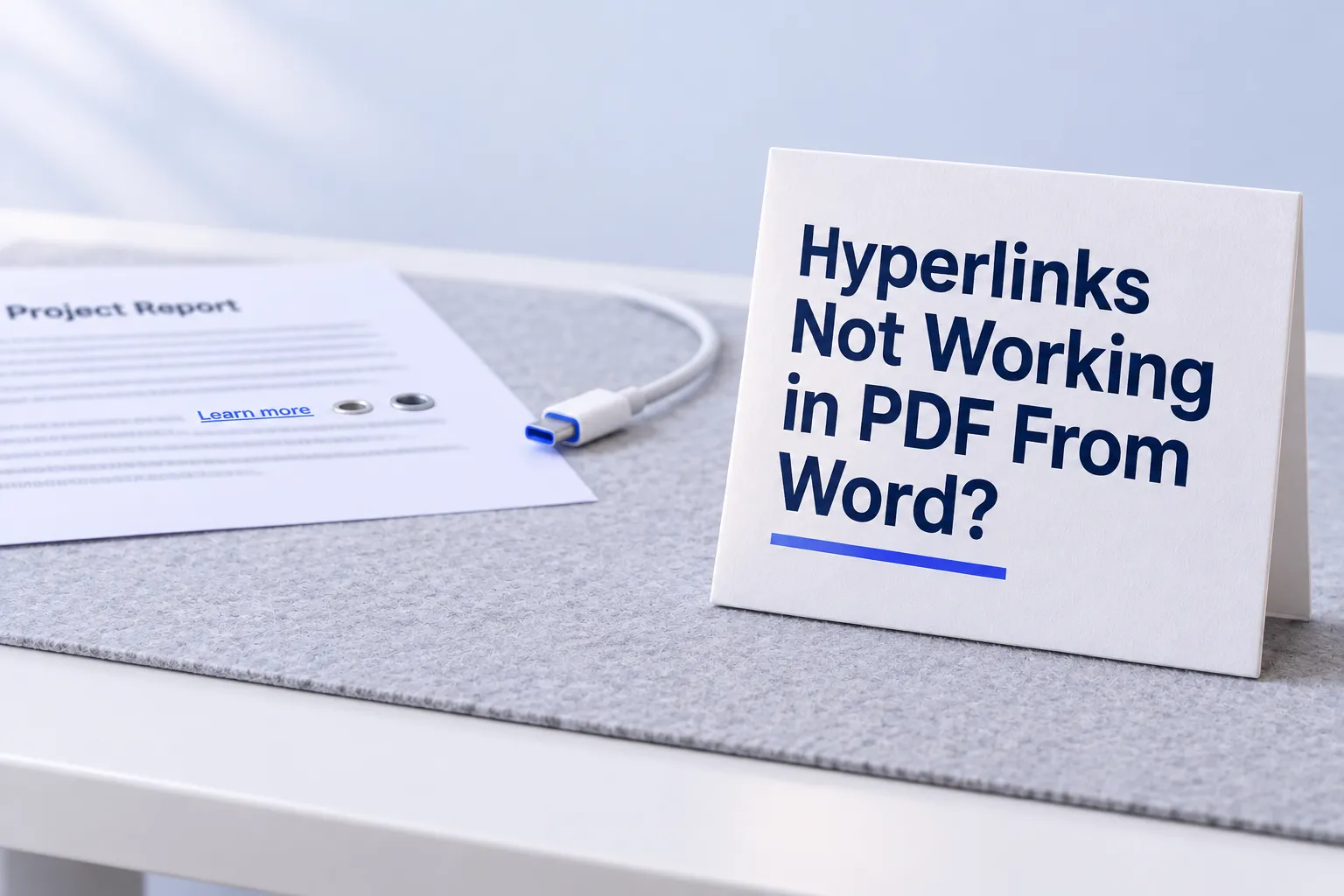
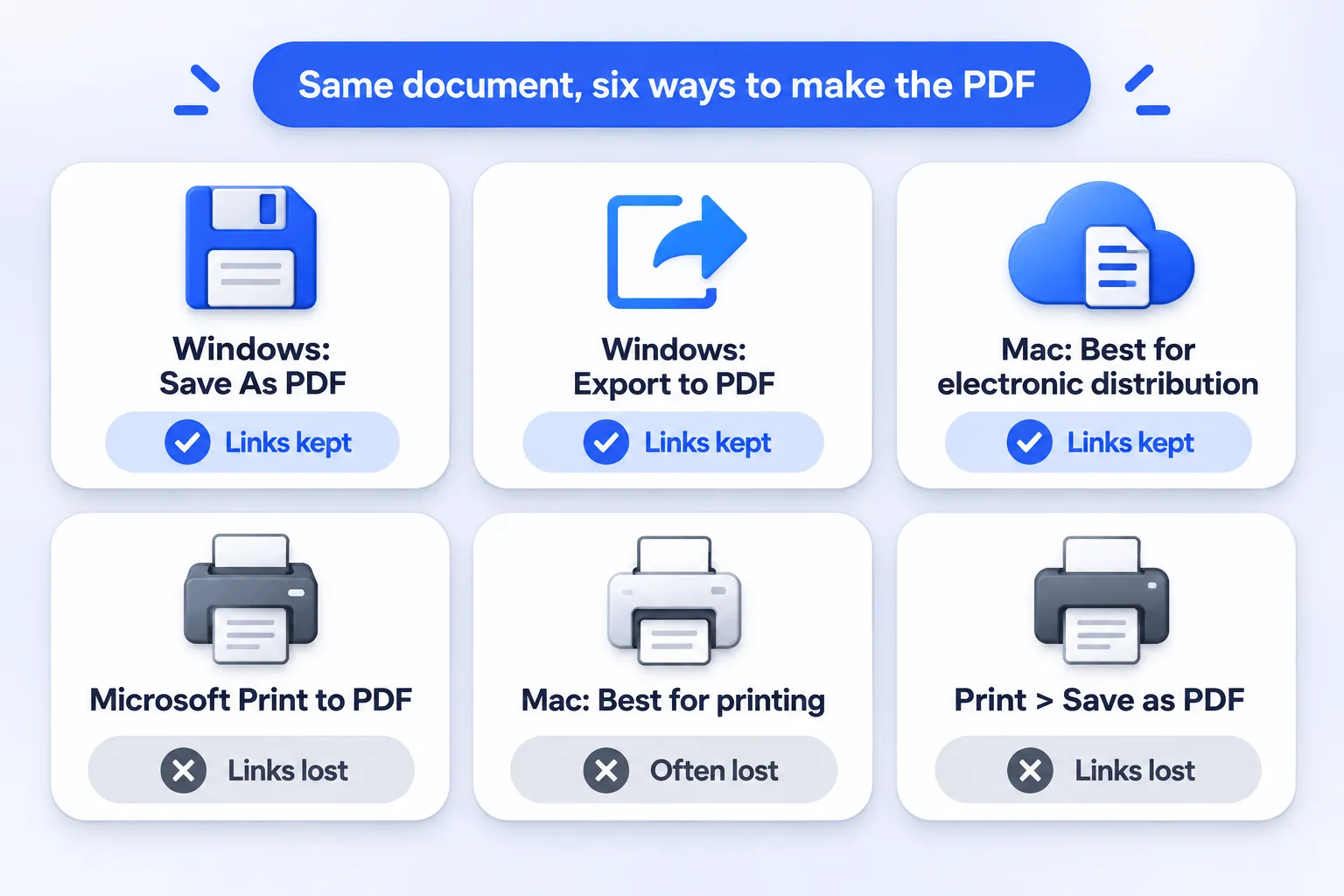
The usual cause of hyperlinks not working in PDF from Word is the method used to make the PDF, not the links themselves. Word's own export writes clickable links into the file: Save As or Export to PDF on Windows, or the “Best for electronic distribution” option on a Mac. Printing to PDF does not. That includes Microsoft Print to PDF, the Mac print dialog and third-party “PDF printers”, all of which produce a picture of the page where the links no longer exist. Export again with the right option and most links come back in under a minute.
The rest of this guide covers what that one fix doesn't solve: links inside text boxes and images, table-of-contents entries that won't jump, links that die after compressing or merging, and how to test the file before it leaves your outbox.
Why Links Disappear: They're Not Part of the Text
In Word, a hyperlink belongs to the text itself. Select the words, add a link, and the link travels with them wherever they go in the document.
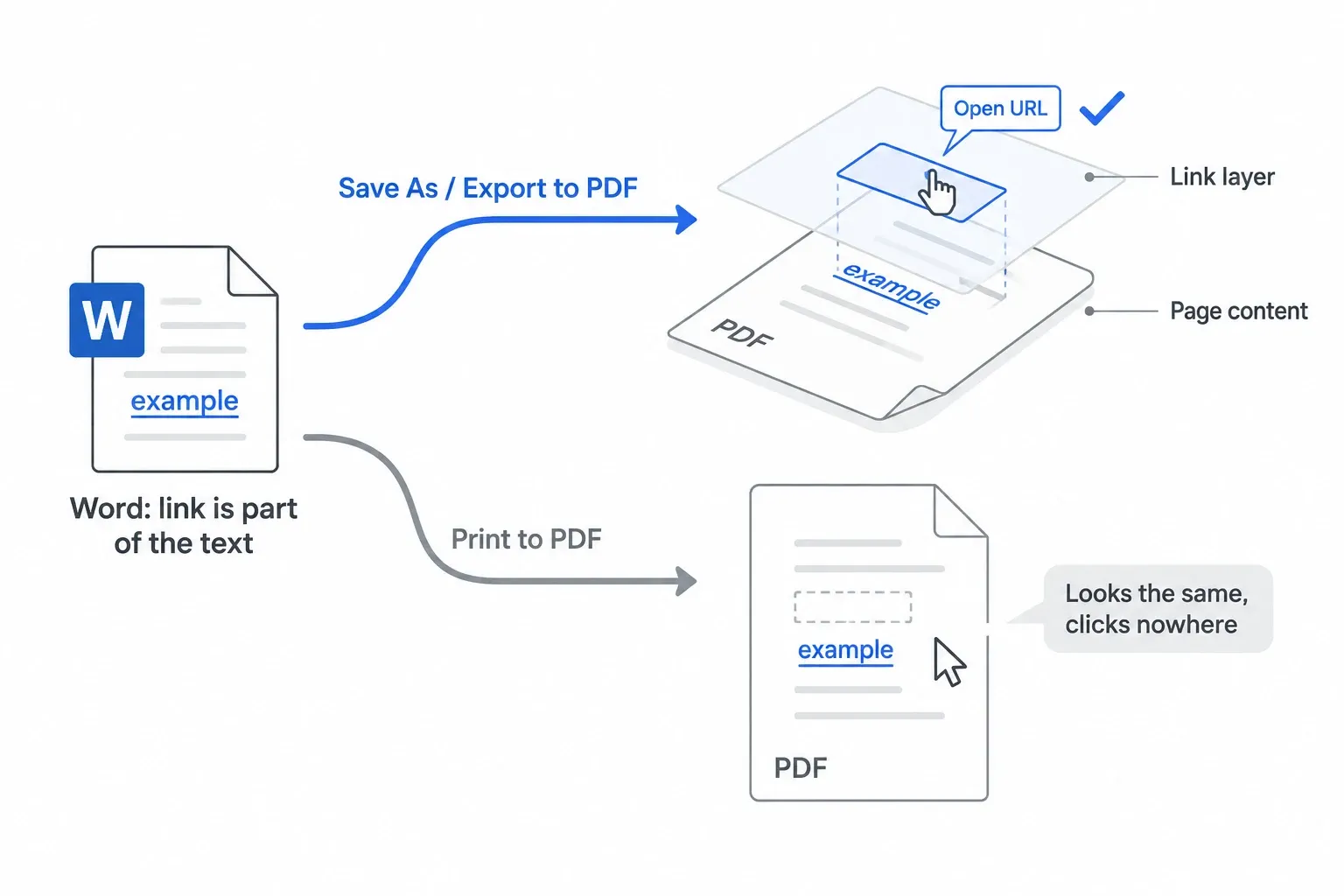
In a PDF, the two are separate. The words you see are drawn onto the page, and the clickable part is a separate object layered on top: a link annotation. It's an invisible rectangle with an instruction attached, such as “open this web address” or “jump to page 7”. The PDF standard, ISO 32000, defines it that way, and every PDF viewer looks for that layer when you click.
So for a link to survive the trip from Word, whatever creates the PDF has to do two jobs: draw the text, and write a link annotation in exactly the same spot. Word's built-in exporter does both. A print driver only does the first. Printing is about what ends up on paper, and paper can't be clicked, so the print pipeline throws away everything that isn't ink.
That explains the most confusing part of the problem: the text is still blue and underlined. The colour and underline are part of the page content, so they come through. The behaviour lived in the layer that never got written.
It also explains why links can vanish later, after a perfectly good export. Anything that rebuilds the page as content only strips the link layer and leaves the blue text behind. That includes printing the PDF to PDF again, flattening it, or turning its pages into images.
Link annotation: an invisible clickable area placed over part of a PDF page, carrying an action such as opening a URL, sending an email or jumping to another page. It sits on top of the text rather than inside it, which is why a PDF can show blue, underlined text that clicks nowhere.
Once you think of links as a separate layer, every fix in this article comes down to one question: what removed that layer, and at which step?
Which Export Method Did You Use?
Most broken-link PDFs come from habit. Ctrl+P is muscle memory, the printer list includes something called “PDF”, and the result looks fine on screen. Here's how the common routes compare:
| Method | Where you find it | Links kept? |
|---|---|---|
| Save As > PDF (Windows) | File > Save As, file type PDF | Yes |
| Export > Create PDF/XPS (Windows) | File > Export | Yes |
| Acrobat ribbon (PDFMaker) | Acrobat tab > Create PDF | Yes, if “Add links” is ticked |
| Microsoft Print to PDF | File > Print, choose that printer | No |
| Save As PDF, “Best for electronic distribution” (Mac) | File > Save As > PDF | Yes |
| Save As PDF, “Best for printing” (Mac) | File > Save As > PDF | Often no |
| Print > Save as PDF (Mac) | File > Print > PDF menu | No |
| Third-party PDF printer drivers | File > Print | Usually no |
If you can't remember how the file was made, the PDF will tell you. In Acrobat Reader, open File > Properties and look at the PDF Producer field on the Description tab. “Microsoft: Print To PDF” means the Windows print driver made it. Anything mentioning “Quartz PDFContext” came from the Mac print system. A producer naming Microsoft Word itself means Word's own exporter, so the problem lies somewhere else in this article.
An Adobe community thread on this exact problem, hyperlinks from Word not working in PDF, has collected hundreds of thousands of views over the years. A large share of the replies end the same way: the person had been printing, switched to exporting, and the links came back.
The 60-Second Fix for Hyperlinks Not Working in PDF From Word
On Windows, this is the export that keeps links reliably:
- Open the original .docx, not an older PDF of it.
- Check that the links are real links. Hover over one: Word shows the web address and “Ctrl+Click to follow link”. If no tooltip appears, the text is only styled to look like a link. Select it and press
Ctrl+Kto add a proper link. - Go to File > Save As, choose a folder, and set the file type to PDF. File > Export > Create PDF/XPS does the same job.
- Click Options. Leave “Document structure tags for accessibility” ticked. If internal links that point to Word bookmarks are the ones failing, set “Create bookmarks using” to Word bookmarks. People on Microsoft's Q&A forum report this fixes exactly that case.
- Choose “Standard (publishing online and printing)” under Optimize for.
- Save, then open the new PDF and click one web link, one table-of-contents entry and one cross-reference.
If you make PDFs through the Acrobat tab instead, open its Preferences first. Make sure Add links is ticked, and on the Word tab, tick the option to convert cross-references and the table of contents to links. With those off, Acrobat produces the same dead text that printing does.
Add Export to Word's Quick Access Toolbar so making a PDF takes one click and never goes through the Print dialog. Once Ctrl+P stops being your PDF route, this problem mostly stops happening.
On a Mac, One Setting Decides Everything
Word for Mac hides the deciding choice in plain sight. Choose File > Save As (or Export), set the format to PDF, and you get two options.
Best for electronic distribution and accessibility sends the document to a Microsoft online service, which builds a PDF with live links and accessibility tags. Best for printing uses the Mac's own PDF engine, which frequently drops web links. On Mac, picking the printing option is the single most common reason for hyperlinks not working in PDF from Word. The File > Print > Save as PDF route behaves the same way: it's a print, so no links.
The electronic option comes with a trade-off worth knowing about: your document leaves your machine to be converted. For a newsletter that doesn't matter. For an employment contract or a medical letter, check your organisation's policy first. LibreOffice's PDF export keeps hyperlinks and runs entirely on your computer. Some AI PDF editors, MojoPDF among them, also do their rendering and export in the browser on your own device rather than on a remote server, which matters when the file is sensitive. Whichever route you use, test the links in the finished file.
One more Mac-specific note: some Word for Mac versions have had bugs where internal links (the table of contents and cross-references) didn't survive even the correct export. If web links work but internal ones don't, update Word before you try anything more complicated.
When Only Some Links Break
If most links work but a handful don't, the problem is usually where those links sit rather than how you exported.
Links in text boxes, shapes and images
Links attached to pictures, logos, shapes and text boxes are the ones people most often report missing after export. Links in headers and footers come up regularly too. The reliable fix is to put the link on ordinary body text, such as a line under the logo, or to add the link in a PDF editor after exporting.
Table of contents and cross-references
A table of contents only becomes clickable if Word built it, through References > Table of Contents. A list of headings typed by hand is just text, however neat it looks. Cross-references need the Insert as hyperlink box ticked when you create them. If a cross-reference was added without it, delete it and insert it again with the box ticked.
URLs typed as plain text
Word turns a typed web address into a link when you press space or Enter after it, but pasted addresses don't always get converted. Here's the twist: some PDF viewers, Acrobat included, detect plain-text URLs and make them clickable anyway. So the file works for you and fails for a recipient whose viewer doesn't do that. Fix the source: make every address a real hyperlink before you export.
What Kills Links After the Export
A PDF can leave Word with every link intact and still arrive broken. The usual causes:
- Printing the PDF to PDF to combine files, shrink them or “clean them up”.
- Flattening. Some tools merge every annotation into the page, and link annotations go with them. Our guide on flattening a PDF without ruining print quality explains what flattening actually removes.
- Aggressive compression that converts pages to images. Ordinary compression only shrinks pictures and keeps links, but “maximum” settings in some tools rebuild whole pages as images. If you need a smaller file, the approach in reducing PDF file size without ruining the print keeps the page structure intact.
- Sanitize and remove-annotation tools, which strip links deliberately as part of their job.
- Merging, which keeps most links but can break links that pointed to a specific page number in a different file, because that page has moved.
Combining a Word export with other documents by printing everything to one new PDF. It feels like a shortcut, but it wipes every link in every file. Use a proper merge, which carries each page's links across, and then test them again.
Then there's the viewer. Email attachment previews and some basic mobile previewers show the page but ignore links entirely. Acrobat may also show a security warning before opening a web address, and if your organisation has set Trust Manager to block internet access from PDFs, links do nothing at all. Before you blame the file, open it in a full viewer.
Navigation problems often come in pairs, too. If the bookmarks panel or page labels are also wrong, fixing PDF navigation when page numbers don't match deals with that side of it.
A Worked Example: The Report With 40 Links
Picture a project coordinator finishing an 18-page grant report in Word for Mac. It has about 40 links: a table of contents, a dozen cross-references to appendix tables, two dozen web citations, and a linked logo in the header pointing to the organisation's website.
They export with “Best for printing”, because the funder might print it, and send it off. The funder's reviewer can't open a single citation. The classic case of hyperlinks not working in PDF from Word, made worse because nobody tested before sending.
The second attempt goes differently. A quick look at File > Properties shows “Quartz PDFContext” as the producer, which confirms the Mac print engine made the file. Re-exporting with “Best for electronic distribution and accessibility” brings back the citations and the table of contents straight away.
Two problems remain. Three cross-references were typed by hand, so they become hyperlinks only after being reinserted through Insert > Cross-reference with Insert as hyperlink ticked. The header logo's link still doesn't survive, so the coordinator adds a short text link with the website address to the footer instead.
Last, the file is 14 MB, too big for the funder's upload portal. After compressing it, the coordinator tests again and finds every link intact, because the compressor only resampled images. The whole fix took about 15 minutes. The original mistake took two days to come to light.
How to Test Links Before You Send
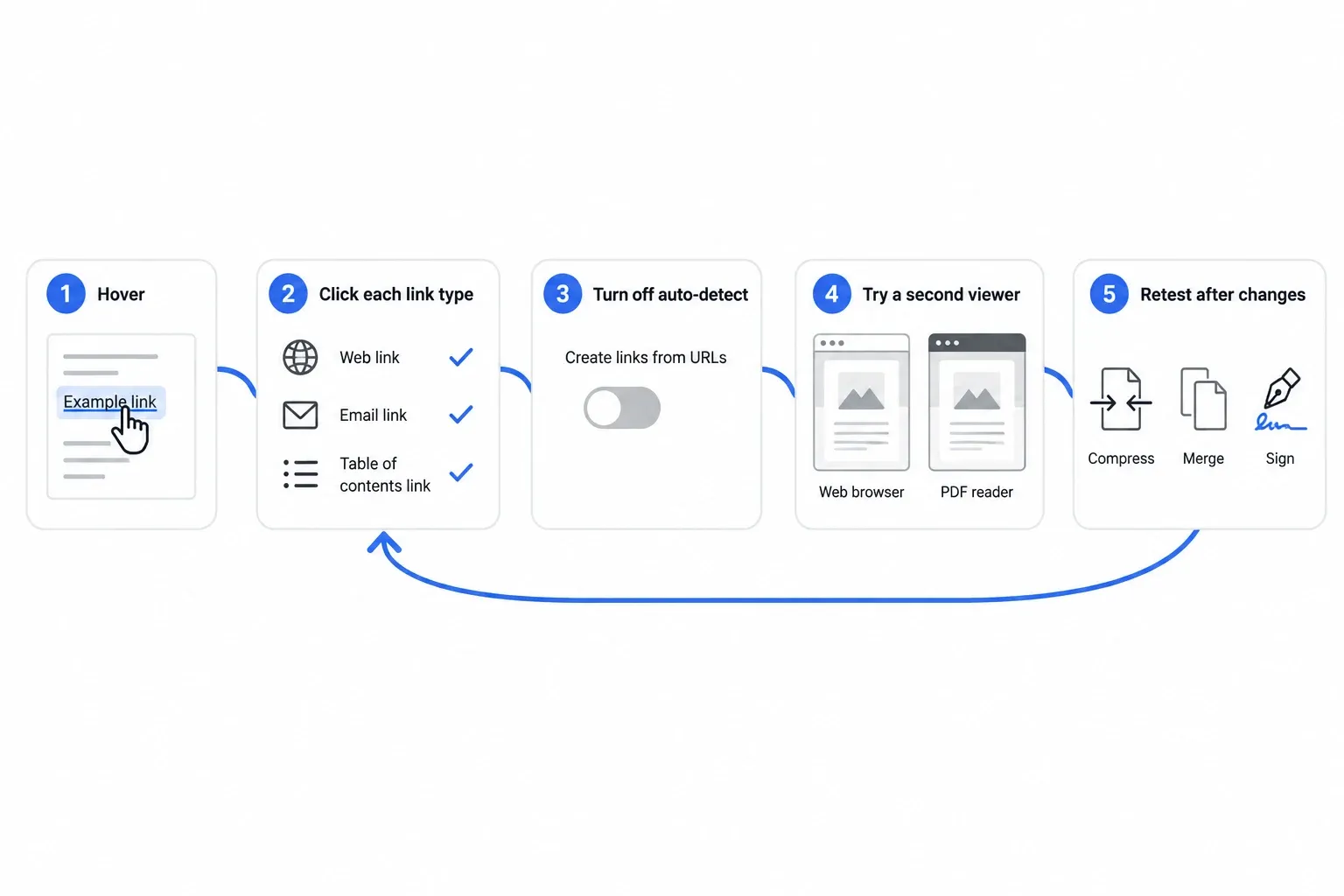
Testing takes two minutes and catches almost everything. Do it on the final file, the one you're actually about to send:
- Hover over a few links. In a desktop viewer, the cursor should change to a pointing hand. A plain arrow over blue text means there's no link there.
- Click one of each type: a web link, an email link, a table-of-contents entry and a cross-reference. Each type is created differently, so one working doesn't prove the others do.
- Turn off automatic URL detection while you test. In Acrobat Reader, go to Edit > Preferences > General and untick “Create links from URLs”. Otherwise Acrobat makes plain-text addresses clickable, and you'll think links work when your recipient's viewer won't agree.
- Open the file in a second viewer, such as Chrome or Edge. If links work in one and not the other, the problem is the viewer or its settings, not the file.
- Test again after every later step. Compressing, merging, signing, adding page numbers or uploading to a portal that rewrites files can all strip links. The export was fine; what matters is the file that arrives.
If the document is mostly read on phones, as newsletters and event packs usually are, open it in your phone's PDF app too, not just the email preview.
If You No Longer Have the Word File
Sometimes the .docx is gone, or the PDF came from someone else. You still have options.
For a few links, add them directly in a PDF editor. In Acrobat Pro, the Edit PDF tools include a Link option: draw a rectangle over the text and choose a web address or a page to jump to. Some editors can also scan the document for plain-text URLs and turn them all into links at once, which suits citation-heavy reports.
For a document full of broken internal links, such as a long manual with a dead table of contents, converting the PDF back to Word, fixing the links and exporting again can be faster. Expect to tidy the layout afterwards, though: conversion rarely brings back columns, tables and spacing exactly. For anything under ten links, adding them in place is the safer route.
The Short Version
Almost every case of hyperlinks not working in PDF from Word comes down to one thing: the link layer was never written, or something removed it later. Export rather than print, choose the electronic option on a Mac, make sure every link in the Word file is a real hyperlink, and test the final file with automatic URL detection turned off.
Do those four things and the next “none of the links work” email never gets sent.
- In a PDF, links are a separate layer on top of the text, so blue underlined text can still click nowhere
- Printing to PDF on Windows or Mac never keeps links; Word's own Save As or Export does
- On a Mac, choose “Best for electronic distribution and accessibility”, not “Best for printing”
- Links on images, text boxes and hand-typed tables of contents are the most likely to fail
- Flattening, image-based compression and print-to-PDF merging strip links after export
- Test the final file in two viewers with “Create links from URLs” turned off

MojoPDF
Taj
A professional SaaS founder offering great value to it's customers.
Frequently Asked Questions
Because the PDF was almost certainly printed rather than exported. Print drivers only draw what would appear on paper, so the clickable link layer is never written, even though the text stays blue and underlined. Re-export with File > Save As > PDF and the links come back.
Use File > Save As, choose PDF, and select “Best for electronic distribution and accessibility”. The “Best for printing” option and the Print > Save as PDF route both use the Mac's print engine, which commonly drops web links.
Yes. A PDF editor with a link tool lets you draw a clickable area over the text and attach a URL or page destination, and some can turn every plain-text address into a link at once. For a few links that's quicker and safer than converting the PDF back to Word.
No. It's a virtual printer, and printing only keeps the visible content of the page. Links, bookmarks and accessibility tags are all lost, so use Word's Save As or Export instead.
Either the table of contents was typed by hand instead of inserted through References > Table of Contents, or the PDF was printed. If you use the Acrobat ribbon, also check that the option to convert the table of contents and cross-references to links is turned on.
Your viewer may be making plain-text URLs clickable automatically, as Acrobat does with “Create links from URLs”. Their viewer may not do that, or they may be using an email preview that ignores links altogether. Turn off auto-detection and test again to see what's really in the file.
Ordinary compression only resamples images and keeps links. Some tools' maximum or “strong” settings rebuild pages as images, though, and that removes every link. Click a couple of links after compressing to be sure.
Usually, yes: a proper merge carries each page's links into the combined file. Links that pointed to a page in a different file can break because page positions change, and merging by printing everything to one PDF removes all links.
It's a security feature that warns you before a PDF opens a website. You can allow the site once or always. If links do nothing at all, your organisation may have blocked internet access from PDFs in Acrobat's Trust Manager settings.
Standard web and page links are allowed in PDF/A, so ordinary hyperlinks should survive. What PDF/A prohibits is JavaScript and some other action types, so links that rely on scripts will stop working in an archival file.
Yes, but the link stores a file path, so it breaks when the files are moved, renamed or emailed separately. For documents you send to other people, combining everything into one PDF with internal links is far more reliable.
Word for the web's own File > Save as > Download as PDF option normally keeps hyperlinks. Printing from the browser to a PDF printer does not, so avoid the browser's print dialog for documents with links.