Reduce PDF File Size Without Ruining the Print
I once spent twenty minutes trying to email an eleven-page scanned lease to a letting agent, watching the same attachment-too-large warning come back four times before I gave up and sent a download link instead. The file was 68 MB. Eleven pages.
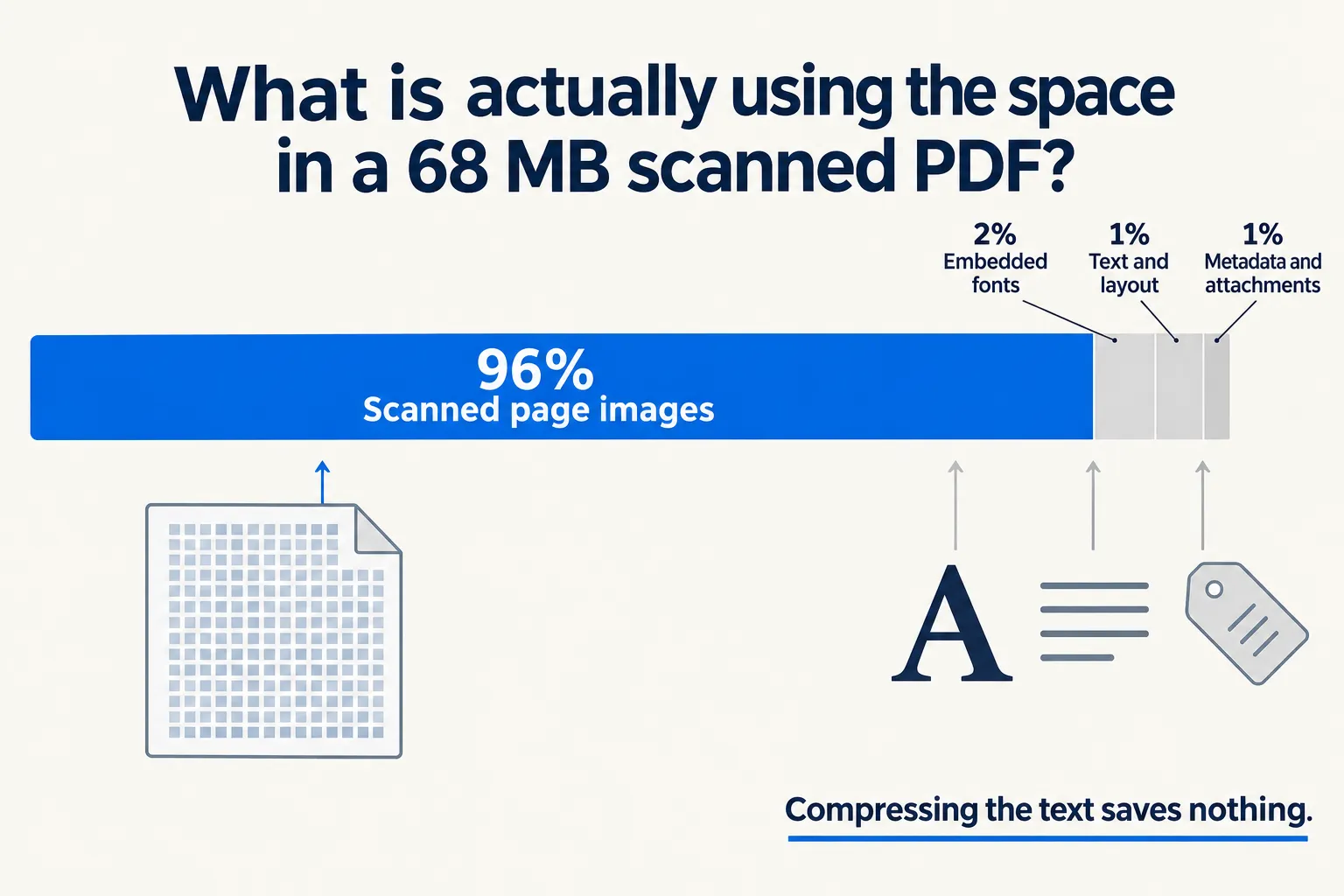
Here is the short version. When you need to reduce pdf file size, you are almost never fighting the text — you are fighting the pictures. In a normal document the words, layout and fonts account for a few hundred kilobytes at most, and the images account for everything else. Shrinking a PDF means lowering the resolution of the images inside it, re-encoding them, or removing things that were never meant to ship with the file. Font subsetting, metadata cleanup and object-stream tidying are rounding errors next to that. Match the image resolution to where the document is actually going, and the size usually takes care of itself.
The rest of this is about doing that without ending up with a document that looks fine on your laptop and falls apart the moment someone prints it.
What Actually Makes a PDF File Big
A PDF is a container, not a picture. Inside it sit text objects, embedded fonts, raster images, vector drawings and a quantity of bookkeeping most people never see — the PDF Association exists largely to document how all of that fits together. The size on disk is just the sum of those parts, and the parts are wildly unequal.
Here is roughly what each one costs in a real document:
| What is inside | Typical weight | What it looks like in the file |
|---|---|---|
| Page text and layout | 2–10 KB per page | invisible; thousands of pages of pure text still fit in a few MB |
| Embedded fonts | 50 KB–2 MB total | a one-off cost, paid once no matter how long the document is |
| A scanned page | 300 KB–8 MB per page | the entire page is one photograph |
| A pasted screenshot | 200 KB–4 MB each | lossless PNG encoding, usually at twice the resolution you need |
| A product photo at capture size | 2–12 MB each | 4000 pixels wide, displayed 600 pixels wide |
| Vector maps, CAD exports, dense charts | 1–40 MB each | millions of individual line segments |
| Leftovers from incremental saves | 10%–300% of the original | every edit appended to the end rather than rewritten |
Two rows in that table explain nearly every oversized PDF anyone has ever had bounced back by a mail server: scanned pages and full-resolution images that nobody resized.
The scanned page problem
A scanner does not produce a document. It produces a photograph of a document, one per page, and then wraps the photographs in a PDF. An A4 page scanned in colour at 400 dpi is a bitmap roughly 3300 by 4700 pixels — about 15 million pixels, before compression. That is a larger image than most phone cameras produce, and the scanner makes one of them for every single page.
This is why page count is such a bad predictor of size. A 300-page contract typed in Word and exported might be 900 KB. An eleven-page scan can be 68 MB. The contract is text; the scan is eleven photographs.
The leftovers problem
The other common surprise is a file that grows every time you touch it. PDF supports incremental saving: when an application adds an annotation or a signature, it can append the change to the end of the file rather than rewriting the whole thing. Do that half a dozen times — sign, comment, stamp, re-sign — and a 4 MB document quietly becomes 11 MB while looking identical.
The fix for that one is not compression at all. It is a clean re-save, which rewrites the file in one pass and drops the appended history.
Downsampling and compression are not the same thing. Downsampling throws away pixels — it turns a 400 dpi page image into a 150 dpi one, permanently. Compression keeps the pixel count and encodes it more efficiently or more lossily. Most of the saving in a PDF comes from downsampling, which is also where most of the damage comes from.
Why You Can’t Reduce PDF File Size Below a Certain Point
Every PDF has a floor, and knowing roughly where it sits saves a lot of pointless clicking.
For a text document, the floor is tiny. Strip it to subset fonts and clean object streams and a 50-page report lands somewhere around 200–600 KB. There is nothing meaningful left to remove, and no compressor will do better without deleting content.
For a scan, the floor is set by arithmetic. A grayscale A4 page at 150 dpi, JPEG-encoded at a sensible quality, lands around 60–120 KB. At 200 dpi it is roughly 120–220 KB. Multiply by your page count and you have the honest minimum. Three hundred scanned pages will not fit in 2 MB at readable quality, no matter what the tool promises — to get there it has to convert the pages to pure black and white at low resolution, which is a different document, not a smaller one.
There is one more hard limit worth knowing: lossy compression does not stack. JPEG, the encoding behind most page images, discards detail by approximating blocks of pixels, and the JPEG committee has documented the generation loss that follows from re-encoding an already-encoded image. Run a scan through a compressor three times and you get three rounds of blocky artefacts around every letter, with the third pass saving almost nothing because the easy detail was already gone.
Running the same compressor repeatedly on a file that refuses to shrink. The first pass does the real work; the second and third mostly add artefacts. If one pass did not get you where you need to be, the answer is a different lever — fewer pages, grayscale instead of colour, a lower dpi target — not the same lever pulled harder.
Find Out What Is Eating the Space First
Five minutes of diagnosis beats an hour of guessing. Work through these in order:
- Divide the megabytes by the page count. Under 100 KB a page means a text document and there is little to win. 100–400 KB a page means images that could be resized. Over 1 MB a page means a scan or full-resolution photos, and that is where the entire saving lives.
- Try to select a sentence with your cursor. If nothing highlights, every page is an image and you are dealing with a scan — which also explains why you cannot search it, a problem covered in why a scanned PDF is not searchable.
- Zoom to 400%. Smooth, sharp letter edges mean real vector text. Fuzzy, pixelated edges mean the page is a bitmap.
- Check the page count against what you expected. Reports exported from design software often carry blank spacer pages, and appendices nobody asked for.
- Look at what is attached. PDFs can carry embedded files, full-page thumbnails and alternate colour profiles. A spreadsheet attached to a quote six months ago is still in there.
- Run one inspection command if you are comfortable at a terminal. The poppler utilities list every image in the file with its real pixel dimensions, which tells you instantly whether you are looking at 150 dpi scans or 600 dpi ones:
pdfimages -list contract.pdf
That list is the whole diagnosis. If the images are 3300 by 4700 pixels and the document is going to be read on a screen, you have found your 90% saving before touching a single setting.
DPI: the One Number That Decides How Small It Gets
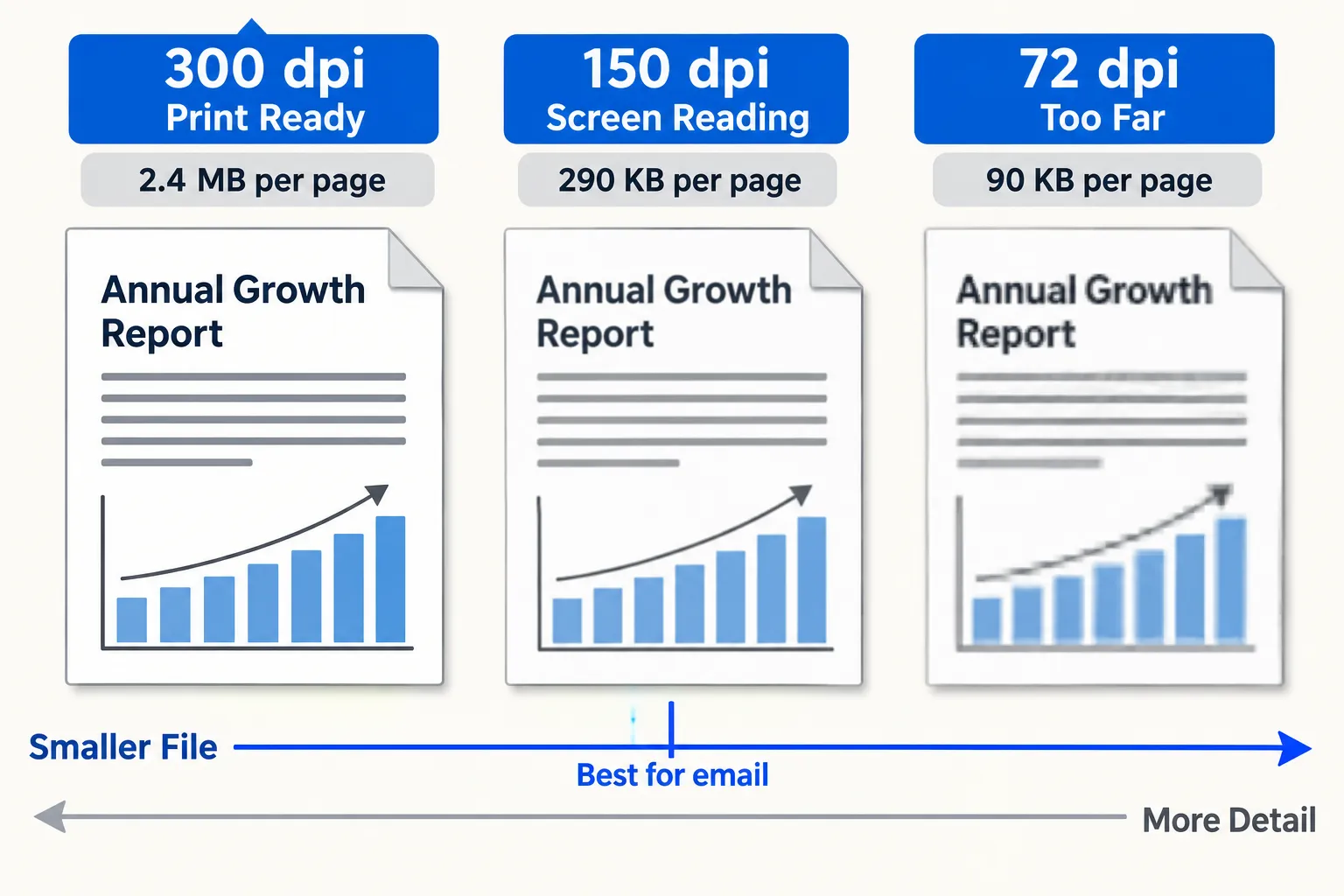
Everything else is detail. Pick the resolution that matches the destination and the size follows automatically.
| Where the document is going | Target resolution | Colour mode | Rough size per scanned page |
|---|---|---|---|
| Read on a screen, emailed, uploaded to a portal | 150 dpi | grayscale | 60–120 KB |
| Printed on an office laser printer | 200–240 dpi | grayscale or colour | 150–400 KB |
| Professional or commercial print | 300 dpi | colour | 1–3 MB |
| Court filing or regulated submission | whatever the rules specify, often 300 dpi | per the rules | 1–3 MB |
| Long-term archive in PDF/A | leave it alone | original | unchanged |
The gap between the first and third rows is a factor of twenty, which is the entire argument. A document that will only ever be read on a laptop and a phone does not need print resolution, and carrying it costs you twenty times the bytes for detail nobody will see.
The trap sits in the middle rows. 150 dpi looks perfect on screen and visibly soft on paper. Screens display at roughly 96 to 220 pixels per inch and then smooth what they show; a laser printer puts real dots on real paper at 600 dpi and makes every missing pixel obvious, especially on small type, thin table rules and signatures. If there is any chance the file gets printed, 200 dpi is the sensible floor.
How to Reduce PDF File Size in the Right Order
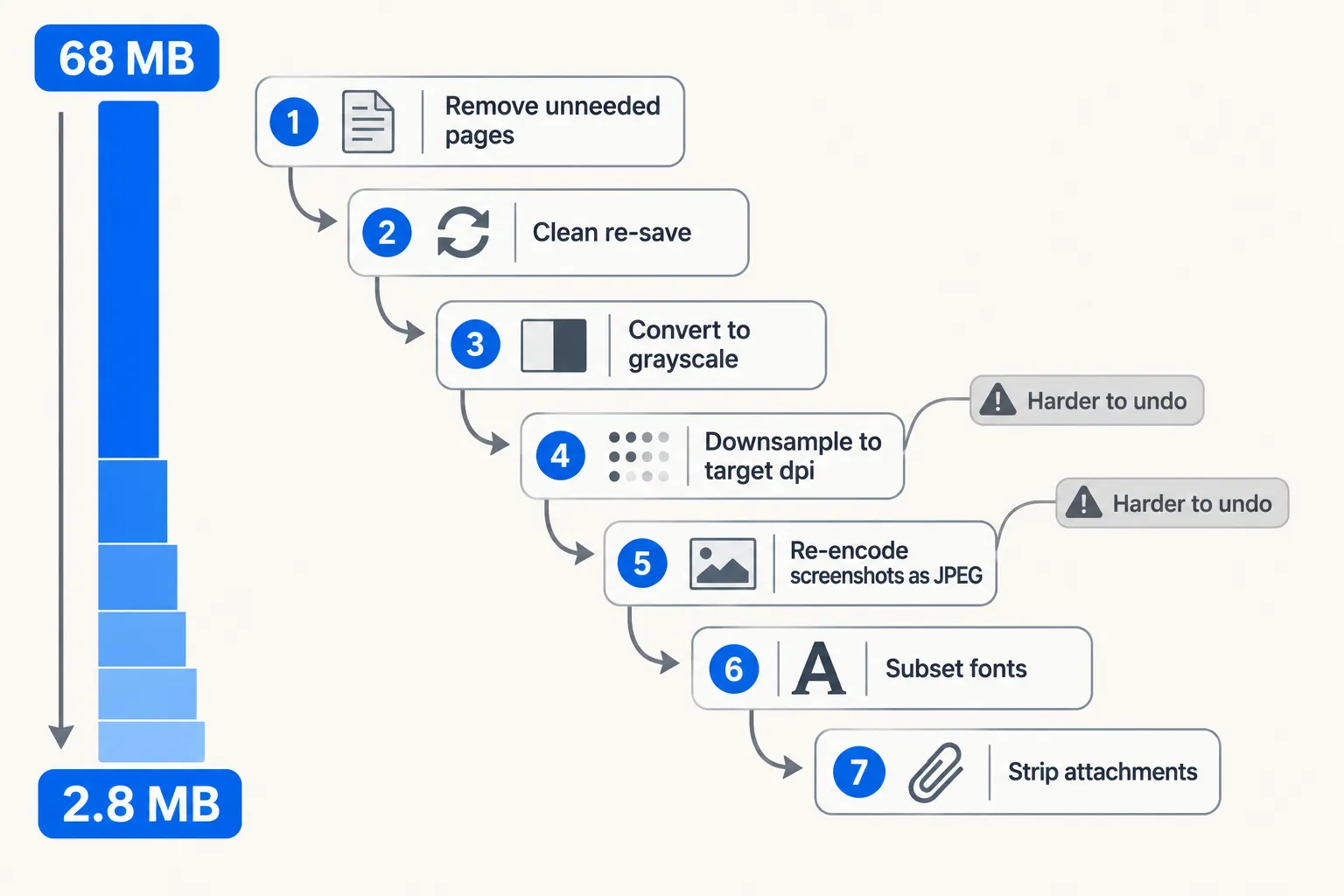
Pull these levers in this sequence. Each one is less reversible than the last, so stop as soon as you are under your limit.
- Remove what does not need to go. The cheapest megabyte is the one you never send. If the recipient needs chapter four, send chapter four — splitting the pages properly costs nothing in quality and often solves the whole problem.
- Do a clean re-save. This drops the appended revision history described earlier. On a heavily edited file it can cut 30–60% with zero visible change.
- Convert colour scans to grayscale. Three channels become one. On a text scan with no colour information worth keeping, expect roughly a 60–70% reduction and almost no perceptible loss.
- Downsample images to your target dpi. This is the big one. Going from 400 dpi to 200 dpi removes three quarters of the pixels.
- Re-encode screenshots and photos as JPEG. PNG is lossless and enormous for photographic content. A 3 MB PNG screenshot often becomes 180 KB as a JPEG at quality 80 with no visible difference on screen.
- Subset or drop embedded fonts. Subsetting keeps only the glyphs actually used. It usually saves tens or hundreds of kilobytes, occasionally a megabyte or two with large font families.
- Strip attachments, embedded thumbnails and unused colour profiles. Small savings, but free ones, and worth doing on anything leaving the building.
Step 4 is where the text layer usually dies. Most compressors treat each scanned page as a flat photograph, which means the recognised text that made the document searchable is thrown away along with the pixels. Working in an AI PDF editor like MojoPDF avoids that particular loss because the scan is read first and the recognised text stays attached to the page, so the smaller file still responds to a search and still copies properly.
Before you compress anything, print one page — the busiest one, with the smallest type and the thinnest table rules — from the compressed version at 100%. Thirty seconds at the office printer tells you more than any preview window, because the screen is smoothing exactly the detail the printer will expose.
What Breaks When You Shrink a PDF Too Hard
Compression is lossy in more ways than people expect, and some of the losses are not visual at all.
The searchable text disappears. A scan that had been through OCR carries an invisible text layer behind the image. Flatten or re-rasterise the page and that layer goes, leaving a document that looks the same and can no longer be searched, copied from, or read aloud by a screen reader.
Form fields get flattened. Interactive fields become painted-on pixels. The document still looks like a form; nobody can fill it in.
Digital signatures stop validating. A cryptographic signature covers the exact bytes it was applied to. Any re-encoding breaks that match, and the signature panel will say so. Compress first, sign second — never the other way round.
Links, bookmarks and tags can vanish. Aggressive flattening strips the internal navigation and the accessibility structure, which matters if the document has to meet accessibility requirements.
Numbers can change. This is the alarming one. In 2013, researcher David Kriesel demonstrated that certain Xerox WorkCentre scanners, using pattern-matching compression that reuses one stored image of a character shape wherever it recognises a match, were substituting digits in scanned documents — a 6 rendered as an 8 in construction drawings. The document looked clean. The figures were wrong. Any compression mode that matches and reuses symbol patterns carries the same theoretical risk, which is a strong argument against the most extreme settings on anything with numbers that matter.
A Worked Example: 68 MB Down to 2.8 MB
Back to that lease. Eleven pages, scanned in colour at 400 dpi, around 6 MB per page, destined for a letting agent who would read it on a screen and keep a copy in a folder.
| Step taken | Resulting size | What changed visibly |
|---|---|---|
| Original colour scan at 400 dpi | 68 MB | — |
| Converted to grayscale | 23 MB | the faint blue of the signature ink went grey |
| Downsampled to 200 dpi | 6.1 MB | nothing at 100% zoom |
| JPEG re-encode at quality 75 | 2.8 MB | slight softening visible only above 300% zoom |
Under 3 MB, comfortably inside the 25 MB attachment ceiling Gmail documents for outgoing mail, still legible on paper at 200 dpi, and still searchable because the recognised text travelled with it. Total time, about four minutes, most of which was the first pass through the pages.
Notice which lever did the heavy lifting: grayscale and downsampling together took it from 68 MB to 6 MB. The JPEG quality setting, the one people reach for first, did the last 3 MB.
When You Should Not Compress At All
Sometimes the right answer to a heavy file is something other than making it lighter.
Regulated filings. Many courts and agencies set both a maximum file size and a minimum scan resolution, and they are not negotiable. Read the rules before you touch the file; some also specify PDF/A, which has its own constraints.
Archival masters. If this is the only remaining copy of a signed original, compress a duplicate and keep the master untouched. You cannot un-downsample a page.
Anything already signed. Covered above — compress before signature, never after.
Documents that are large for a legitimate reason. A 40 MB set of architectural drawings is 40 MB because of the detail in it. Share it as a link, split it by section, or send it on a service built for large transfers. Automation tools such as Ghostscript can batch-process a folder of them to a consistent target, which is a better answer than squeezing each one by hand until something breaks.
The Short Version
The instinct when a file will not send is to hunt for a stronger compressor. The better move is to spend two minutes finding out what the megabytes actually are. Nine times out of ten they are scanned page images at a resolution chosen by a scanner that had no idea where the document was going, and the fix is to pick the resolution yourself.
Decide the destination first, then reduce pdf file size to match it: 150 dpi grayscale for screen, 200 dpi if it might be printed, 300 dpi if it is going to a professional printer or a filing system that demands it. Pull the reversible levers before the irreversible ones. And print one page before you send it, because the screen will forgive what the paper will not.
- Images, not text, are almost always the reason a PDF is heavy — a 300-page text report can be smaller than an eleven-page scan.
- Downsampling to the right dpi delivers most of the saving; colour to grayscale delivers much of the rest.
- Running the same compressor repeatedly adds artefacts and saves almost nothing after the first pass.
- Compression can silently remove searchable text, form fields, bookmarks and signature validity.
- Always compress before signing, and test-print the busiest page before you send the file.

MojoPDF
Taj
A professional SaaS founder offering great value to it's customers.
Frequently Asked Questions
Only if the text is an image. Real vector text is unaffected by compression because it is stored as curves, not pixels, so it stays sharp at any file size. Scanned pages are different — the letters are part of the page photograph, so downsampling softens them, which is why 200 dpi is the sensible floor for anything that might be printed.
PDF supports incremental saving, where edits are appended to the end of the file instead of rewriting it. Sign, annotate and re-save a few times and the appended history can double the size with no visible change. A clean re-save through a tool that rewrites the whole file removes the leftovers.
Aim for under 10 MB. Gmail and Outlook both allow about 20–25 MB, but encoding overhead inflates attachments in transit and corporate mail gateways often enforce stricter caps than the mail provider does. Under 10 MB clears almost every server you will meet.
Yes, and phones are often the cause of the problem too — a document photographed with a 48-megapixel camera and saved as a PDF can be 15 MB per page. Scanning apps that output at 150–200 dpi grayscale produce files a fraction of that size, so choosing the right capture setting beats compressing afterwards.
It depends entirely on whether the file leaves your device. Many services upload the document to a server, process it there and delete it on a schedule you have to take on trust. For contracts, medical records or anything with personal data, check what the service says about where processing happens before you upload.
Lossy compression does not stack usefully. The first pass removes the detail that compresses easily; the second pass finds little left to remove but still re-encodes everything, adding fresh artefacts around letters and edges. If one pass was not enough, change a different variable — page count, colour mode or target dpi.
Substantially, yes. Grayscale typically cuts a colour scan by 60–70%, and pure bitonal black and white can cut it by 90%. Bitonal is only appropriate for clean printed text, though — on anything with photographs, shading, highlighter marks or pencil annotations it destroys the content.
Yes. A digital signature covers the exact bytes of the document it was applied to, so any re-encoding breaks the match and the signature will show as invalid. Compress first, then sign. A scanned image of a handwritten signature is unaffected, since that is just part of the page.
Use a tool that treats the text layer separately from the page image rather than flattening the whole page to a bitmap. If you only have a flattening compressor, run OCR again after compressing — the recognition will be slightly less accurate at the lower resolution, but the document will be searchable again.
300 dpi for images and 1200 dpi equivalent for line art is the standard request from commercial printers, and most will reject lower. Ask the printer before you compress anything destined for them, because their preflight check will catch downsampled images and the job will come back to you.
Barely. Encryption adds a small amount of overhead but does not meaningfully change the size, because it scrambles the existing content rather than adding to it. What it does change is compressibility — an encrypted file cannot be compressed further by a zip archive or by most PDF optimisers.
Check whether the text is really text by trying to select it. If it will not highlight, the pages are images. If it does highlight, the usual culprits are embedded fonts that were not subset, a leftover revision history from repeated saves, or an invisible full-page background image placed by a template.