PDF to Excel AI: Where It Quietly Fails
You convert a six-page supplier statement, drop the result into a pivot table, and the total is $328 higher than the PDF says. Nothing looks wrong. The headers are tidy, the columns line up, and every row has a date. The culprit is two refunds that quietly turned from negative to positive, and you only find out when the account doesn’t reconcile.
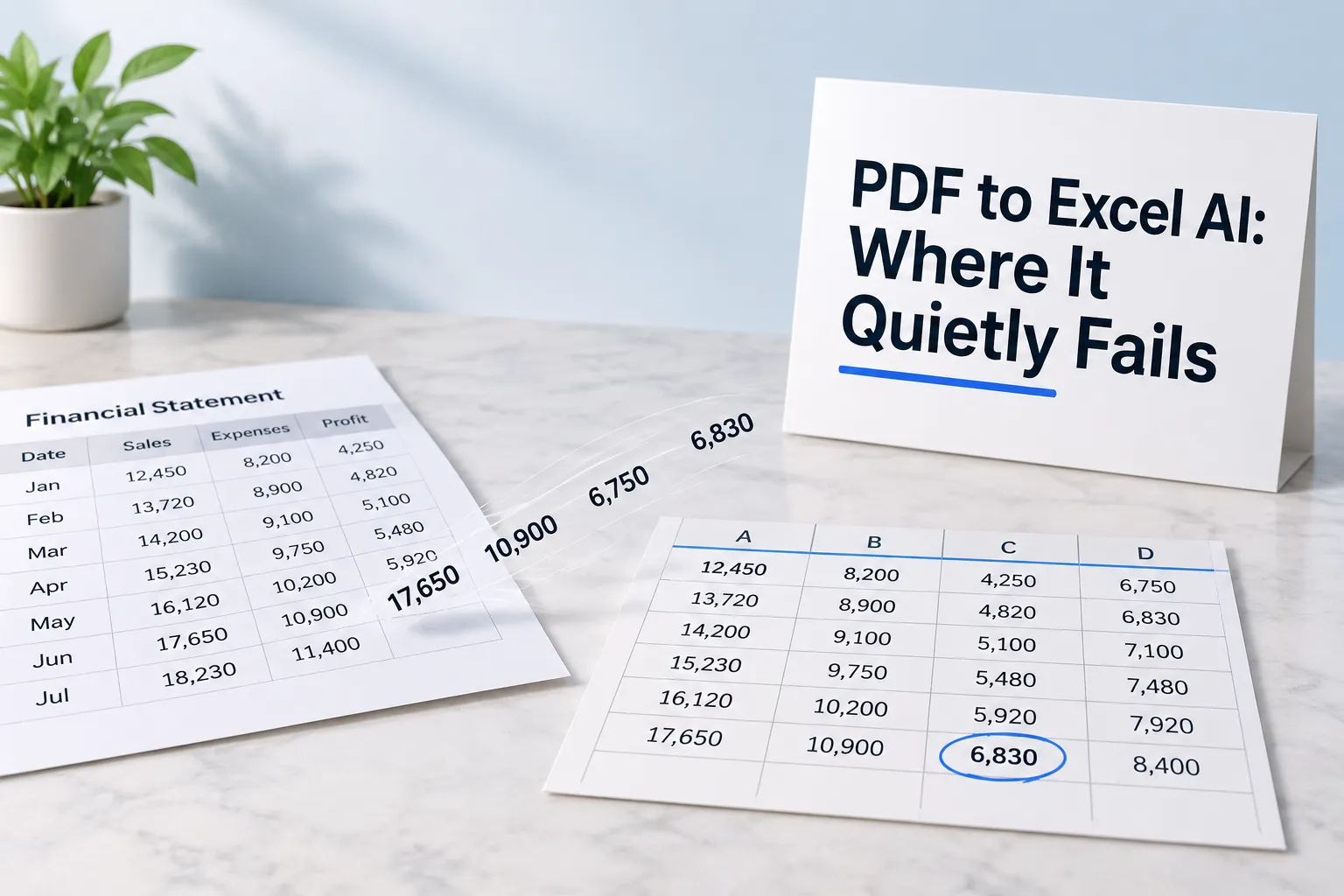
Here is the straight answer. PDF to Excel AI is genuinely better than older converters at finding tables on messy pages, rebuilding rows and columns, and reading scans. What it can’t do is tell you when it got a number wrong, so treat every result as a draft and run a five-minute check on row counts, totals and number formats before the data goes anywhere that matters.
Why a PDF Is Not a Spreadsheet in Disguise
A table in a PDF isn’t really a table. Most PDFs store text as small fragments, each one placed at a position on the page: this word, at these coordinates, in this font. There is no row object and no column object, and nothing that records that two numbers share a cell. A format with real structure does exist (tagged PDF, described in ISO 32000-2), but the statements, invoices and scans that land in your inbox rarely carry those tags.
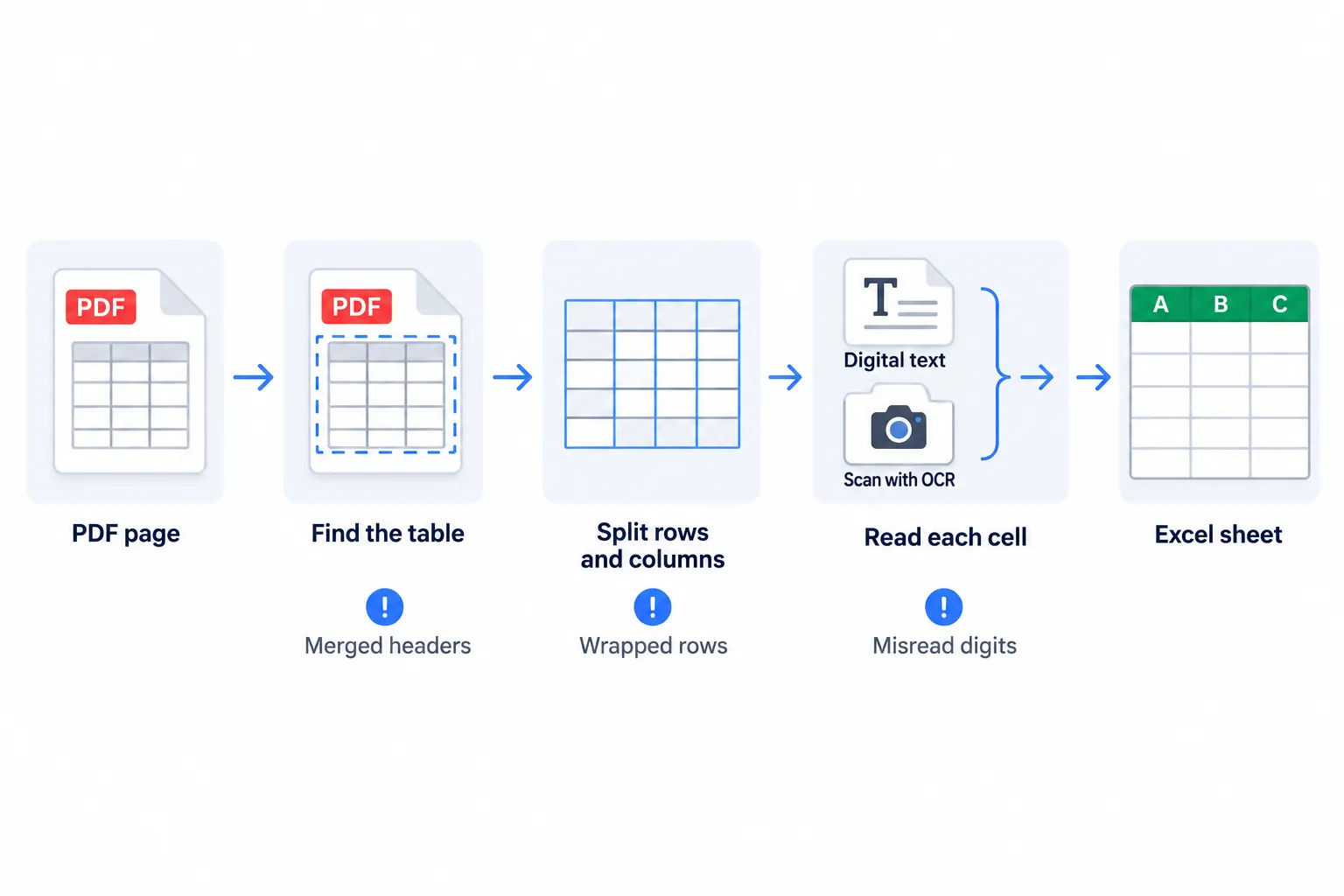
So every converter has to reconstruct the table by inference: which fragments line up, where one column stops, whether a line of text that wraps belongs to the row above. That reconstruction is the whole job, and it is why two tools can turn the same PDF into two very different sheets.
What PDF to Excel AI Does Differently
Older converters mostly worked from rules. They looked for ruling lines, gaps between words and consistent alignment, then drew a grid from what they found. Open-source tools such as Tabula and Camelot still work this way, and on a clean, consistent layout they are hard to beat, because they never invent anything. They cut up text that exists.
An AI-based converter adds a learned layer on top. A layout model looks at the page roughly the way you do, spotting table regions that have no ruling lines, header rows, indented sub-rows and totals. For scans, an OCR step reads the pixels into characters first. Some newer tools skip the grid-guessing entirely and ask a language or vision model to read the page and write the table out.
Each approach has its own failure signature:
| Approach | How it works | Strong at | Typically fails at |
|---|---|---|---|
| Rule-based extraction | Finds ruling lines and text alignment | Clean digital tables with a stable layout | Borderless tables, merged cells, scans |
| OCR plus layout model | Reads pixels, then detects table regions | Scans, photographed pages, borderless tables | Misread characters such as 0 and O, or 1 and l |
| Language or vision model | Reads the page and writes the table out | Irregular layouts, invoices with fields in odd places | Smoothing over a smudged or missing value instead of flagging it |
That last row deserves more attention than it usually gets. A rule-based tool that can’t read a cell leaves it blank or garbled, and you notice. A model that writes the table out can produce a value that looks entirely plausible and is wrong. Some developer-facing services, Amazon Textract among them, return a confidence score for each cell, which is exactly the signal most consumer converters hide from you.
Table structure recognition decides which text belongs to which row and column. OCR (optical character recognition) is a separate step that only turns the picture of a character into a character. A tool can be strong at one and weak at the other, which is why a perfect-looking grid can still hold misread digits.
Which Kind of PDF Do You Have?
The biggest single factor in accuracy isn’t the tool. It’s whether your file contains real text or only a picture of text.
A native (digital) PDF was exported from software: an accounting system, a bank portal, Word, a reporting tool. The digits are stored as actual characters, so an extractor copies them exactly. Errors here are almost always structural: the wrong cell, the wrong row, the wrong sign.
A scanned PDF is a photograph of paper. Nothing on the page is text until OCR guesses at it, so the errors are also about characters: an 8 read as a 3, a comma read as a full stop.
A hybrid is the sneaky one: a scan with a hidden text layer added by the scanner or an earlier OCR pass. Many tools trust that hidden layer, which means the scanner’s misreading becomes your data, delivered with full confidence.
To find out which you have, open the file, try to select a single number with your cursor, then search for it with Ctrl+F (Cmd+F on a Mac). If you can’t select it, the page is an image. If you can select it but the highlight box often sits slightly off the visible digit, it’s probably a hybrid. The scanned case has its own causes and fixes, covered in why a scanned PDF isn’t searchable.
Where AI Gets It Right
Be fair to the technology: it solves problems that used to cost hours.
- Borderless tables. Statements that separate columns only with whitespace defeat rule-based tools that look for lines. Layout models handle them far better.
- Several tables on one page. Many tools split these into separate sheets or regions instead of fusing them into one.
- Invoices with fields in odd places. Model-based extractors can pull an invoice number, date and line items even when every supplier uses a different template.
- Long documents. A 400-page report converts in minutes. Retyping it would take days.
- Repeated headers and totals. Good tools recognise a header that repeats on each page and a total row that isn’t data, though not every time, as the next section shows.
On a clean native PDF, an AI converter will usually give you something you can sort and pivot after a few minutes of tidying. The trouble is the other few percent, and the fact that it doesn’t look any different from the rest.
Where PDF to Excel AI Quietly Fails
The failures that cost money are the silent ones, where the sheet looks finished. These are the ones to hunt for.
Numbers that aren’t numbers
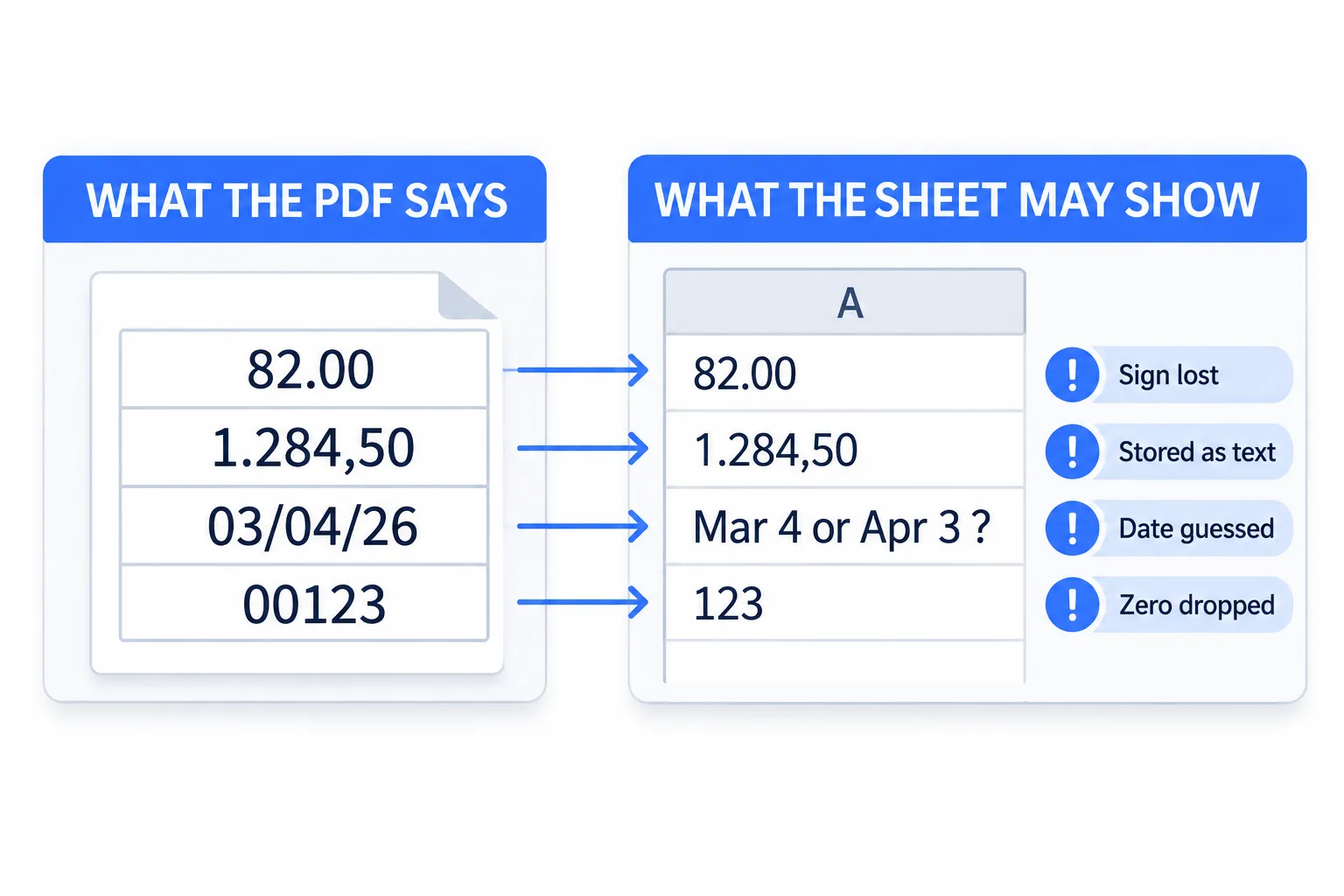
A value can look right and still be text. A figure printed as 1.284,50 (common in Germany, Spain and Brazil) arrives as text in an Excel set to a US locale. Spaces used as thousands separators, non-breaking spaces and stray currency symbols do the same. The giveaway is a left-aligned column of amounts, and the danger is that SUM skips text without any warning, so your total is simply too low.
Lost signs and credits
Accounting documents mark negatives in many ways: parentheses like (82.00), a trailing minus, a CR or DR suffix, or red type with no sign at all. A converter that drops the parentheses or ignores the colour turns a refund into a charge. The error is doubled, because a figure that should be -82 becomes +82, a swing of 164.
Dates and IDs that Excel rewrites
The date 03/04/26 is 3 April in most of the world and 4 March in the US, and Excel decides using its own locale. Account numbers, ZIP codes and invoice numbers with leading zeros lose them (00123 becomes 123). Long digit strings turn into scientific notation such as 1.23457E+15, and that can’t be undone, because Excel keeps only 15 significant digits.
Merged headers and wrapped rows
Two-level headers, such as Q1 sitting above Jan, Feb and Mar, get flattened or shifted a column. A description that wraps onto a second line becomes a second row with no amount. Subtotals sit among the transactions as if they were data, so any SUM counts them twice.
Page breaks and footnotes
A table that spans six pages often drags its header row in six times as if it were data. Footers such as Page 3 of 6 can land inside a cell. A superscript footnote marker next to 1,250 can be read as an extra digit, producing 1,2501.
Values a model smooths over
Rule-based tools fail loudly. A model that writes the table out can quietly repair what it takes for a typo, copy a blank cell from the row above, or normalise a smudged 6 to a 5 because the neighbouring rows suggest it. That isn’t malice; it is what language models do. The remedy is a check against the page, not a cleverer instruction.
Checking the sheet against its own total row. If the converter read the printed total correctly but misread a row, the two only disagree when you add the rows yourself. Recalculate the column and compare it with the figure printed on the PDF, never with a total the converter copied across.
How to Check an AI PDF to Excel Result in Five Minutes
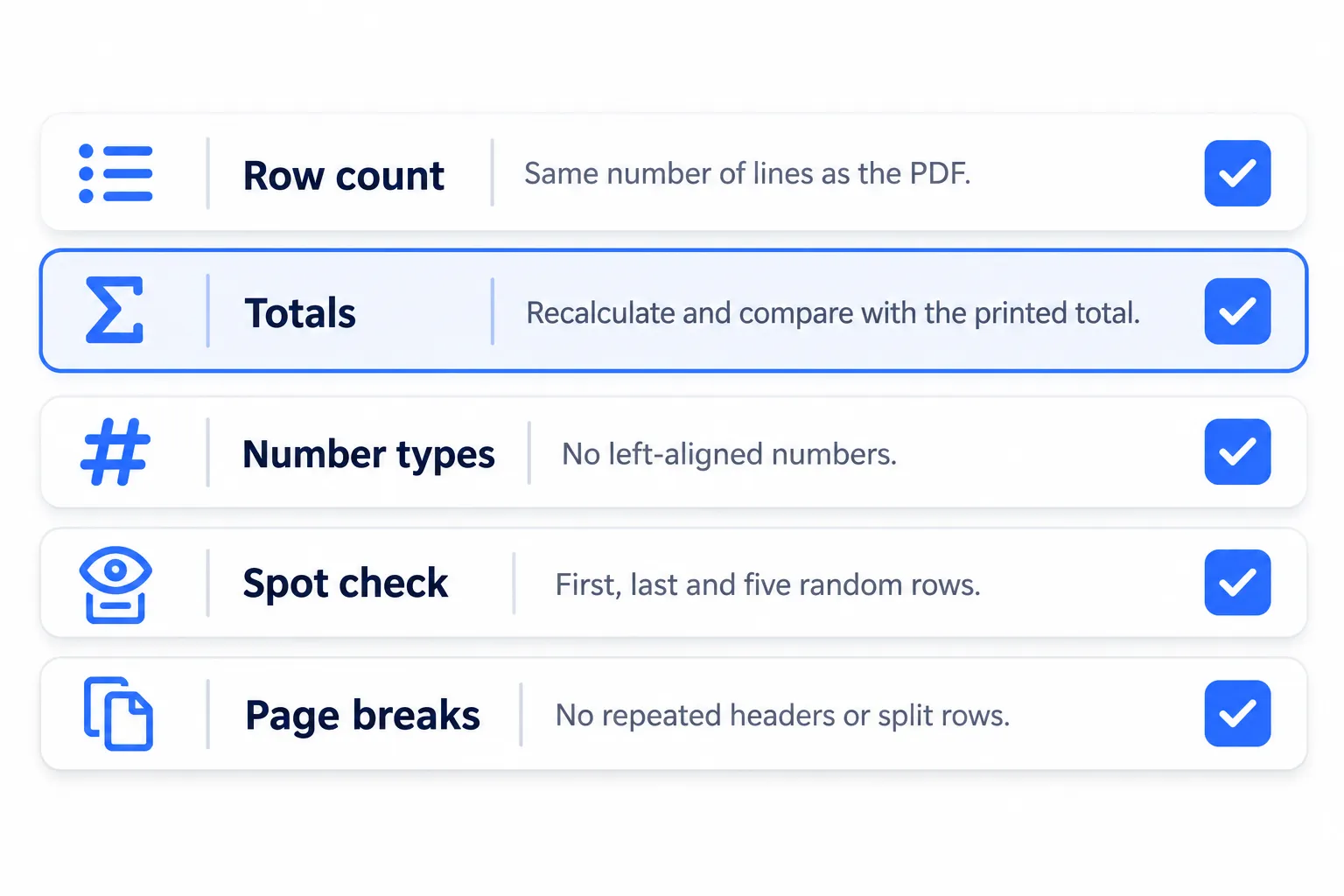
You don’t need to re-read the whole sheet. These checks catch most of the damage, in this order:
- Count the rows. Count the line items in the PDF (statements often print the count, otherwise note the number on the last page) and compare it with the sheet. More rows usually means repeated headers or wrapped lines. Fewer means rows swallowed at page breaks.
- Recalculate the totals. Add the numeric columns yourself and compare the result with the total printed on the PDF. Never use a total row the converter copied across.
- Find numbers stored as text. If the amounts are in column C, the two formulas below give you the total to compare and a count of cells that hold something but aren’t numbers. Any count above zero means text.
- Spot check the page edges. Compare the first and last row of every page, plus five random rows, against the PDF. Structural errors cluster at page edges.
- Look at the joins between pages. Hunt for repeated headers, rows split across a break and page footers sitting in cells.
- Chase the difference. If a total is off, read the gap. Exactly twice a transaction’s amount is a flipped sign. Exactly one amount is a missing or duplicated row. A gap divisible by 9 points to two swapped digits.
=SUM(C2:C500)
=COUNTA(C2:C500)-COUNT(C2:C500)
Keep the PDF open beside the sheet and filter the amount column for blanks, then for the column’s own header word. Those two filters find wrapped rows and repeated headers in seconds, which are the two most common structural errors.
A Worked Example: Six Pages, 212 Transactions
Imagine a bookkeeper who receives a client’s card statement: six pages, 212 transactions and a printed total of $2,468.15 for the period. She runs it through an AI converter and gets a clean-looking sheet. Then she runs the checks.
The row count comes back as 220, not 212. Filtering the Amount column for the word Amount finds five rows: the header, repeated at the top of pages 2 to 6. Filtering for blanks finds three more, each a merchant name that wrapped onto a second line. She deletes the five header rows and merges the three wrapped lines back into the rows above them. That’s 212.
The total is next. SUM gives 2,468.15, a gap of 82.00, and a flipped sign shows up as twice the amount, so she looks for 82.00 in the sheet. On the PDF they are printed as (82.00): refunds. The converter had stripped the parentheses. She multiplies those two cells by -1 and the sum matches to the cent.
Total time: about twelve minutes. The alternative is finding a $328 discrepancy in a reconciliation a week later with nothing to go on but a feeling that something is off. The AI did most of the work here, and the point isn’t that it was bad. The point is that its two mistakes were the kind that don’t announce themselves.
Prepare the PDF Before You Convert It
A few minutes of prep before you run any PDF to Excel AI tool removes whole classes of error, because every converter reads less noise when there is less noise to read.
- Cut the file down to the pages that matter. Cover pages, terms and conditions and marketing inserts give a model more chances to find tables that aren’t tables.
- Rotate pages upright. A landscape table sitting sideways on a portrait page reads badly.
- Unlock the file. Many converters can’t process an encrypted file, and the error they show is usually vague. If you know the open password, remove it from a working copy first.
- Fix scans at the source. Scan flat and straight at around 300 dpi. A phone photo with a curved page and a shadow across it produces curved, misread columns.
- Work on a copy. Always, and name it so you can tell it from the original.
If the page is a scan and a digit is clearly misread, correct it before extracting rather than hunting for it in the sheet afterwards. An AI PDF editor like MojoPDF reads the scan first and lets you edit that figure in place, in the original font, so the PDF you extract from is already right.
Is It Safe to Upload Financial PDFs?
Statements, invoices and payroll files carry account numbers, names and addresses, so the question of where the file goes matters as much as the accuracy. Before you upload anything, ask:
- Where is it processed? Some tools work in your browser or on your computer. Others upload the file to a server and may pass it on to a third-party AI provider.
- How long is it kept, and can you delete it yourself? A specific retention period is a good sign. Silence is not.
- Is it used to train models? A responsible tool says so in plain words.
- Who is behind it? Look for an identifiable company and a privacy policy that says something concrete.
- Are you allowed to? Client confidentiality terms or data-protection rules may limit where the data can go.
Then reduce what you share. Remove pages and columns you don’t need, redact account numbers if the layout allows it, and try the tool on a harmless sample first. For the most sensitive files, a route that stays on your machine, such as Tabula or Camelot, or the PDF import built into recent versions of Excel, removes the question altogether.
When to Skip AI and Use Something Simpler
AI is the right tool for variable layouts and scans, not for every job.
| Situation | Better route | Why |
|---|---|---|
| The source system can export CSV or XLSX | Export it directly | Nothing is reconstructed, so nothing can be misread |
| The same layout arrives every month from one supplier | Rule-based extraction, or Excel’s Get Data from PDF under Data, From File | Repeatable, stays on your machine, never invents values |
| Dozens of suppliers with different invoice templates | AI extraction, with the checks above on every file | Layouts vary too much for fixed rules |
| Scans or phone photos | OCR plus AI, with a human check on every figure | Characters are guesses until someone confirms them |
| A table of about twenty cells | Retype or copy it | Faster than verifying converter output |
Make the Check Permanent
The most useful habit isn’t choosing a converter. It’s treating the PDF as the source of truth and the sheet as a copy. Add one cell to every converted sheet that subtracts the printed total, typed in by hand, from your SUM of the rows, and label it Check. When it isn’t zero, the sheet tells you before your client does.
For jobs that repeat monthly, add the COUNTA minus COUNT cell as well, and the file will flag its own damage the first time a supplier changes their layout. Converters will keep improving, but the principle holds: the faster the tool, the more you need a cheap way to prove its output.
- A PDF has no real table structure, so every converter reconstructs one by inference.
- PDF to Excel AI handles borderless tables, mixed layouts and scans far better than older tools, but it flags none of its own mistakes.
- The silent failures are numbers stored as text, lost minus signs, rewritten dates and IDs, wrapped rows, repeated headers and values a model smoothed over.
- Check row counts, recalculated totals, number types, page edges and page joins, and read the size of any gap.
- Prepare the file first: trim pages, rotate, unlock and fix scans at the source.
- Ask where the file is processed and kept before uploading anything financial.
- If the source can export CSV or XLSX, skip the conversion entirely.

MojoPDF
Taj
A professional SaaS founder offering great value to it's customers.
Frequently Asked Questions
On a clean digital PDF it can be very accurate, because the digits are copied from the file rather than guessed. The errors that matter are structural, such as lost signs, shifted columns and numbers stored as text, so reconcile row counts and totals before the data reaches your books. On scans, accuracy depends on the OCR and the quality of the scan.
Yes, by running OCR first and then detecting the table. Results depend on resolution and straightness, so aim for roughly 300 dpi, flat pages and even light. Check every figure, because a misread 8 or 3 produces a number that looks plausible and is wrong.
That depends on where the file is processed and how long it is kept. Look for a clear statement on retention, deletion and whether uploads are used to train models, and consider removing account numbers first. For the most sensitive files, a tool that runs on your own machine is the lowest-risk option.
Usually the decimal or thousands separator doesn’t match your Excel region settings, or there is a hidden space or symbol in the cell. Select the column and use Data, Text to Columns, and open the Advanced options to set the separators. Multiplying the column by 1 with Paste Special also forces a conversion once the stray characters are gone.
Format the destination column as Text before the data arrives, or import through Data, Get Data and set that column’s type to Text. If the zeros are already gone and every code has the same length, the TEXT function with a format of five zeros restores a five-digit code.
For short documents it often can: you upload the PDF and ask for the table as CSV or XLSX. Long documents are where it breaks, because the model may skip rows or stop early without saying so. Compare the row count and totals with the original every time.
It varies by tool, and many cap file size or page count. If rows are missing from the end of the sheet, the file may have been truncated. Split long documents into sections of a few dozen pages and join the sheets afterwards.
No. A PDF stores the displayed result, so every number arrives as a plain value rather than a formula, and fonts, colours and column widths are rebuilt from scratch. If you need the calculations, rebuild them in Excel or ask the author for the original workbook.
Most tools can’t read an encrypted file, so unlock a working copy first, which requires the password. Open it with the password, save a copy without security, convert that copy, then delete it once you are done.
To unmerge, select the range and toggle off Merge and Center. To fill blanks from the cell above, select the range, press F5, choose Special, then Blanks, type an equals sign, press the up arrow and finish with Ctrl+Enter. Merge wrapped description lines back into their rows by hand, so no amounts are lost.
Yes, field extraction is one of the strengths of model-based tools: you name the fields and it looks for them wherever they appear on the page. Treat each field as unverified until you have compared the total with the invoice and confirmed the date was read in the right format.