AI for PDFs: What It Does Well and Where It Fails
Imagine you’re the person in the office everyone forwards PDFs to. Monday brings a 140-page vendor contract, Tuesday a folder of scanned receipts, and Wednesday a 60-page research report due Thursday. Someone says, “Just use AI,” so you drop the file into a chat window and get back a tidy, confident summary in about eleven seconds.

So is AI for PDFs worth using? Yes for the first pass: summarising, searching, translating and pulling out fields. No as a replacement for checking. An AI PDF assistant is quick at reading and unreliable at the last mile. It can skip a clause, merge two table columns, or read a 7 as a 1 on a scan, and it sounds exactly as sure when it’s wrong as when it’s right.
This isn’t an argument against the technology. It’s a map of which jobs are safe to hand over, which need a second pair of eyes, and how to work so that mistakes get caught before they reach a client, a regulator or your boss.
Why PDFs Are Harder for AI Than They Look
A Word document knows what a heading is. A PDF mostly doesn’t. The format, defined in ISO 32000, is a page description language: underneath, it is a set of instructions like “draw these characters at these coordinates in this font.” There is no built-in notion of a paragraph, a table or a reading order unless the file was deliberately tagged, and most files in the wild aren’t. The PDF Association publishes plenty on tagged PDFs if you want the long version.
That one design fact explains most of what goes wrong when you point AI at a PDF. Before a language model can reason about a page, something has to turn those positioned characters (or, for a scan, a grid of pixels) back into text in a sensible order. The assistant is only ever as good as that first step.
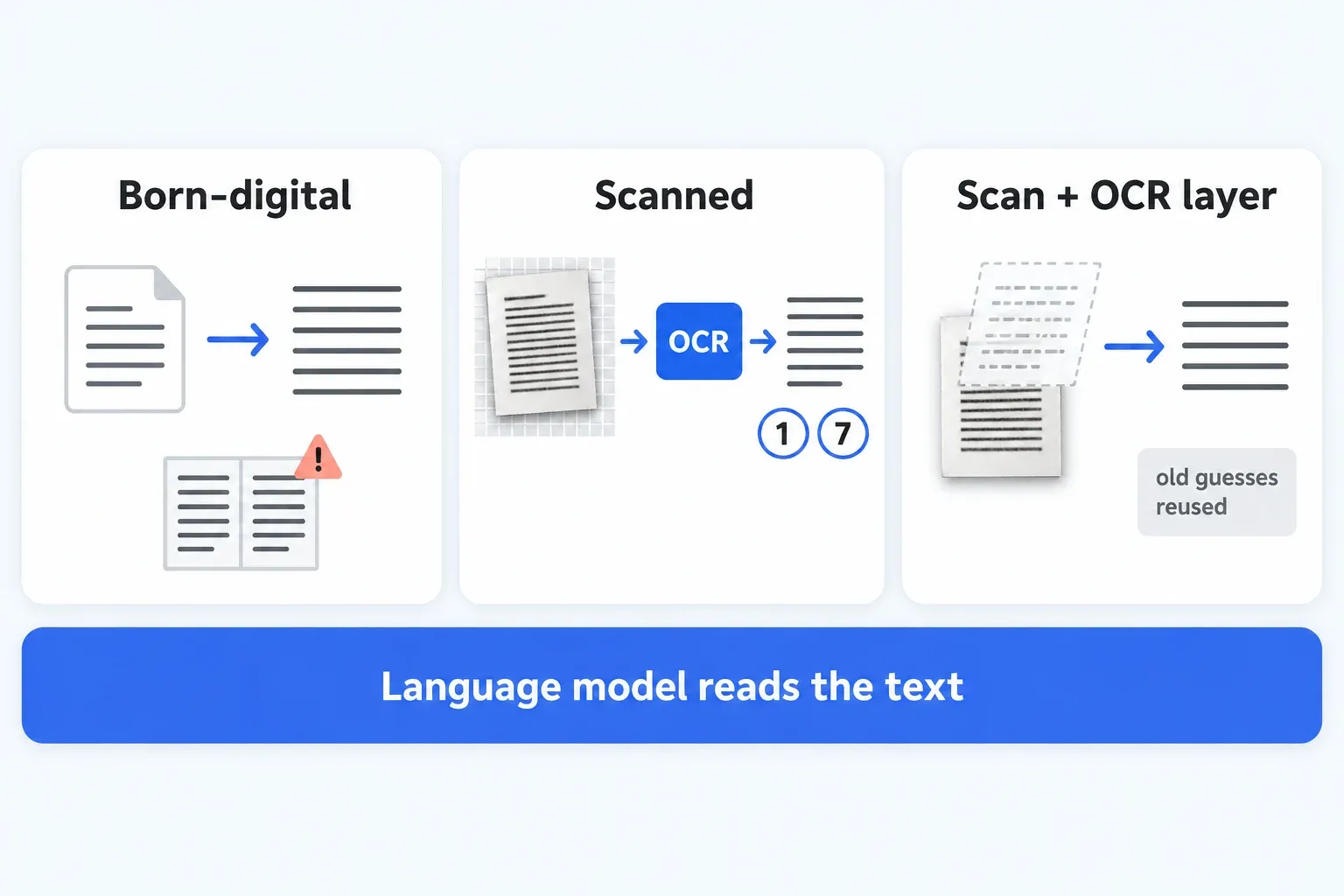
Three kinds of file behave very differently:
| Kind of PDF | What’s inside | What the AI has to do first | Typical failure |
|---|---|---|---|
| Born-digital (exported from Word or a billing system) | Real text with coordinates | Rebuild order and structure from positions | Columns interleaved, footnotes landing mid-sentence |
| Scanned or photographed | Page-sized pictures, no text at all | Run OCR to guess the characters | Misread digits, dropped lines, skewed pages |
| Scan with a hidden OCR layer | A picture plus an invisible text guess | Trust, or redo, an earlier guess | Old OCR errors repeated with confidence |
The practical consequence is that the same assistant can be excellent on one file and poor on the next, and nothing on screen tells you which you have. A ten-second test helps: try to select a single sentence with your cursor. If it highlights, there’s a text layer. If you drag and nothing happens, you’re holding an image, and everything the AI says has passed through character recognition first. We unpack why that happens, and how to fix it, in scanned PDF not searchable: why it happens and the fix.
What AI for PDFs Does Well
Used on the right job, AI for PDFs saves real hours. The jobs that work share one trait: a wrong answer is cheap to spot.
Getting oriented in a long file
A 90-page report is hard to skim and easy to summarise. Ask for a section-by-section outline with page numbers and you get a reading map. You now know the methodology sits on pages 14 to 22 and the figures you care about are in an appendix. The summary isn’t the real product here; the map is, and you verify it by turning to the page.
Pulling out specific facts
Parties, effective dates, invoice numbers, renewal terms, totals: when documents follow a consistent layout, extraction is where an AI PDF assistant earns its keep. Run the same five questions across thirty invoices and you’ve replaced an afternoon of copy and paste. It works best on text-based files with simple structure, and it gets shakier the moment a table appears, which is covered below and in more depth in why PDF to Excel conversion with AI quietly fails.
Translating and rewriting
Translation preserves enough meaning for you to understand a document in another language, and a plain-language rewrite of a dense policy or lease can show you what a paragraph is really saying. Treat both as understanding aids. Neither is a certified translation or legal advice, and anything you’ll sign or submit still needs a qualified human.
Answering questions with a pointer
Asking “what’s the notice period for ending this agreement, and where does it say so?” beats reading 90 pages for one sentence. The key is the second half of that question. An answer with a page number and the quoted sentence takes ten seconds to confirm. An answer without one asks you to take it on faith.
Ask for the page number and the exact sentence every single time. An answer you can’t trace to the page is an answer you can’t trust, and an assistant that can’t point to its source is often filling a gap rather than reading one.
Where AI for PDFs Quietly Fails
The dangerous failures aren’t the obvious ones. A garbled output gets noticed. A smooth, plausible, slightly wrong answer gets forwarded.
Numbers, tables and units
Tables are the classic trap. A PDF stores a table as scattered text at coordinates, so the assistant has to guess which number belongs to which column. Merged cells, a total row that wraps onto the next page, or a currency symbol sitting in its own cell can shift a value one column sideways with no visible sign. Totals, percentages and anything involving units (thousands versus millions, gross versus net) deserve a recalculation by you or a spreadsheet, never a nod.
Reading order
Two-column layouts, sidebars, pull quotes and footnotes make the text order ambiguous. If extraction reads straight across both columns, sentences from different paragraphs blend into one, and a summary built on that blend can attribute a claim to the wrong party. Headers and footers repeated on every page add noise to each chunk.
Long documents and the thin middle
A long file is either squeezed into the model’s context window or split into chunks and searched. Both have costs. A research paper from Stanford and collaborators, Lost in the Middle, found that language models tend to use information at the start and end of a long input better than information buried in the middle. In practice, the clause on page 61 of 120 is the one most likely to be glossed over. Ask about specific sections instead of the whole file, and ask again in different words when the stakes are high.
Scans and characters that look alike
On an image-only page, everything depends on OCR. The classic confusions are 0 and O, 1 and l, 5 and S, and a faint decimal point vanishing so that 12.50 becomes 1250. Skewed photos, coffee rings, stamps over text and handwriting make it worse. The assistant then reasons confidently from the wrong characters, and the error arrives dressed as a fact.
Hidden text and planted instructions
A PDF can contain text a human never sees: white type on a white background, or tiny print tucked into a margin. People use that to stuff keywords into a resume or to plant instructions aimed at an AI reader, and some assistants will treat those instructions as part of your request. The defence is to treat the file’s contents as data to analyse, never as orders, and to be suspicious when a summary mentions something you can’t find on the page.
Treating a fluent answer as a verified one. Models write the correct answer and the wrong answer in the same calm tone, so confidence in the wording tells you nothing about accuracy. Check numbers, dates and names against the page before they leave your desk.

Is It Safe to Put a Confidential PDF Into an AI Tool?
The accuracy question gets most of the attention. The privacy question is the one that can end a contract. Before a confidential file goes into any AI PDF tool, get three answers.
Where is the file processed? Some tools send your document to a remote server to be read; others do much of the work inside your browser or on your device. Neither is automatically right or wrong, but you should know which one you’re using, because it decides who could ever see the file.
How long is it kept? A document you uploaded for a ten-second question may sit in storage, logs or backups far longer than you expect. Look for a stated retention period and a way to delete.
Could it be used to train a model? Consumer and business tiers of the same product often have different rules. Read the terms for the tier you’re actually on, not the one in the marketing.
If the document is covered by an NDA, holds client data, or contains HR, medical or tax information, this isn’t only your call. Your organisation may already have rules, and a client contract may name approved processors. The NIST AI Risk Management Framework is a good neutral reference if you need to put a policy together, and it frames the questions above as ordinary risk management instead of a mystery.
A simple habit also helps: remove what the task doesn’t need. If you only want a summary of a lease’s clauses, there’s no reason to include the tenant’s bank details on the last page.
Can AI Edit a PDF, or Only Read It?
Most people use AI for PDFs as readers: you ask, it answers in a chat bubble, and the file itself never changes. That is a different job from editing, and mixing the two up causes confusion.
Editing means changing what’s on the page: a figure, a name, a date, a paragraph. For a text-based PDF that is possible but fiddly, because the text isn’t laid out as flowing paragraphs, so a longer replacement has to be re-wrapped by hand. For a scan it’s harder still, because there is no text to edit until OCR has produced some, and removing a word leaves a hole in the background that needs repairing. We walk through the four different problems hiding behind “I need to edit this PDF” in make a PDF editable: which of the 4 problems have you got.
When an AI is allowed to rewrite text inside a document, the risk changes from “it misread something” to “it changed something.” A PDF has no tracked changes, so a silently altered clause looks identical to the original. Three rules keep this safe:
- Work on a copy and keep the original untouched.
- Limit the change to one named span, such as “change the due date on page 3 to 30 June,” instead of “tidy up this section.”
- Compare before and after, either side by side or with a document comparison tool, so every difference is something you chose.
A Five-Step Routine for Using AI on Any PDF
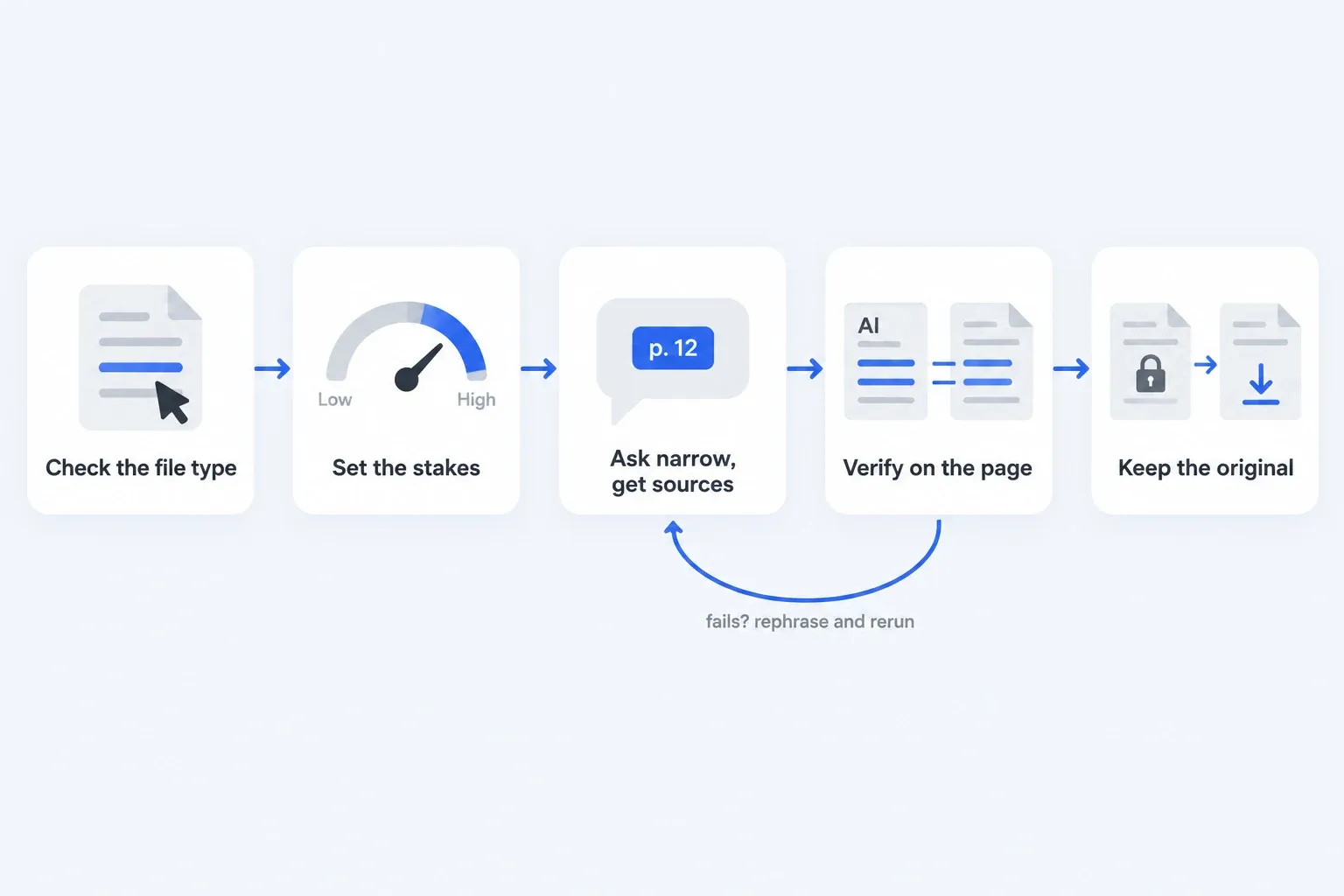
This routine takes about two minutes of setup and catches most of the failures above.
- Find out what kind of file you have. Try selecting a sentence. If you can, it’s text-based; if not, it’s an image and OCR quality matters. If it’s a scan, glance at the page for skew, stamps over text or handwriting.
- Decide the stakes before you ask. A summary for your own reading is low stakes. Figures that go into a payment, a filing, a contract or a message to a client are high stakes. The higher the stakes, the more you verify.
- Ask narrow questions and demand a source. One task per question, with the output shape specified: “Give me a table of termination terms with the page number and the exact sentence for each.” Narrow questions also dodge the thin-middle problem.
- Verify against the page. Spot-check at least three items for low stakes. For high stakes, check every number, date and name, and recalculate totals yourself. Whenever an answer isn’t on the page you’re pointed to, treat the whole output as suspect and rerun it.
- Keep the original and log what AI touched. Save results as a separate file, name it so it can’t be mistaken for the source, and note in a line which parts came from AI and which you confirmed.
None of this slows you down much. It only moves your effort from reading everything to checking the handful of places where mistakes would hurt.
A Worked Example: Checking a 90-Page Supplier Contract
To see the routine in action, take a hypothetical case. You manage purchasing for a small company, and a supplier has sent a 90-page agreement with a pricing schedule attached at the back. You need the termination terms, renewal notice period, liability cap and payment terms by this afternoon.
Step one: the file lets you select text, so it’s born-digital. Step two: this is a high-stakes document, so everything gets verified. Step three: instead of asking for “a summary,” you ask for a four-row table with the page number and the exact sentence for each item. The assistant returns it in seconds, and every row looks reasonable.
Checking the table against the pages, you find the renewal notice period is listed as 60 days, taken from the main body on page 12. But the amended schedule on page 84 changes it to 90 days and states that the schedule overrides the main terms. The assistant read the clause it found first, not the clause that governs. You caught it only because you asked for page numbers and opened page 84.
The lesson isn’t that the assistant was careless; it simply has no idea which part of a contract outranks another unless the text says so loudly. Documents with amendments, schedules, side letters and defined terms are exactly where a fast first pass needs a human second pass. A good follow-up question for any contract is: “Does anything later in the document change, override or limit this clause? Quote it with the page.” It won’t always catch everything, but it often surfaces the contradiction you’d otherwise find too late.
Choosing an AI PDF Tool: Four Questions That Beat the Feature List
You’ll meet three broad kinds of tool, and each fits a different job.
| Approach | Good at | Weak at |
|---|---|---|
| General chatbot with a file attached | One-off questions on short, text-based files | Scans, long files, tables, anything that must change the document |
| Dedicated PDF assistant (chat, summary, extraction) | Repeated questions across many files, page references | Editing the file itself |
| PDF editor with AI built in | Changing real text, handling scans, ending with a finished file | Open-ended analysis if the editor is mostly manual |
Whichever you consider, four questions matter more than the length of the feature list:
- Does it handle scans properly? Ask what it does with an image-only page, and test with one of your own.
- Does it show its sources? Page references and quoted lines make checking possible.
- Where does the file go? Server, browser or device, and what is kept afterwards.
- Does it change the document, or only talk about it? If you need a corrected file as the end result, a chat window won’t get you there.
Test candidates on a file you already understand well, so you can see exactly where they go wrong.
So, Should You Use AI for PDFs?
Yes, with one rule: use it where you can see wrong answers, and check it where you can’t. Summaries that point you to pages, fields you can compare against the source, translations you’re reading for understanding: all good. Totals, clause interpretations, edits to a contract and anything extracted from a scan: verify before you rely on them.
The tool will keep improving, but the structural facts won’t change. PDFs describe pages rather than meaning, scans are pictures, and confident prose is cheap. People who get lasting value from AI aren’t the ones who trust it most; they’re the ones who built a quick, boring habit of checking the three or four things that matter.
- A PDF stores positioned characters, not paragraphs or tables, so AI has to rebuild structure first, and that is where most errors begin.
- Use AI for orientation, extraction, translation and sourced answers; verify numbers, tables, scans and long-file details yourself.
- Always request page numbers and exact quotes so every claim can be traced in seconds.
- Ask where a file is processed, how long it’s kept and whether it can be used for training before uploading anything confidential.
- Reading and editing are different jobs: work on a copy, limit changes to a named span, and compare before and after.

MojoPDF
Taj
A professional SaaS founder offering great value to it's customers.
Frequently Asked Questions
It depends on the tool, not on AI in general. Find out whether the file is processed on a remote server or on your device, how long it’s retained, and whether it can be used for training, and check that against any NDA or company policy before uploading.
Yes, but only after OCR turns the page image into text, so accuracy depends on scan quality. Clean, straight, printed pages usually work well; skewed photos, stamps over text and handwriting produce more misread characters.
Ask about specific sections or topics instead of the whole document, and request page numbers with quoted sentences. Models can handle information in the middle of long inputs less reliably, so rephrase and rerun important questions.
A table in a PDF is just text placed at coordinates, so the assistant has to infer which figure belongs to which column. Merged cells, wrapped rows and units like thousands versus millions make that inference fail without any visible warning.
Chat-style assistants usually only read and answer. Changing the actual file needs an editor that works with the real text on the page and, for scans, OCR plus background repair. Whichever you use, keep the original and compare the result.
Use it to find where the important clauses are, not to decide what they mean. Amendments, schedules and defined terms can override the main text, and a summary may miss that. Anything you’ll sign needs a read by you or a qualified professional.
Not reliably. Many tools translate the extracted text and give it back as plain text, and some rebuild the page, with text lengths changing and breaking the layout. Check headings, tables and signature blocks after any translated PDF is produced.
Try selecting a sentence with your cursor or searching for a word you can see. If nothing highlights or matches, the page is an image. Some scans carry a hidden OCR layer, so spot-check that the searchable text matches what’s printed.
Yes. A file can contain white-on-white or tiny text that people never see but an AI reads. Treat file contents as data, not commands, and be wary if an output mentions things you can’t find on the visible page.
Language models generate answers with some randomness, and different wording of a question can steer different parts of a long file into view. For important facts, ask twice in different words and confirm the answer on the page itself.
That depends on your employer, client, school or regulator, and rules differ widely. Check the relevant policy, and when in doubt keep a short note of which parts AI produced and which you verified yourself.