Merge PDF With Different Page Sizes Without the Mess
You merge a signed lease, two bank statements and six phone scans into one file, scroll down to check it, and the pages lurch: a full-width sheet, then a sliver, then a page that seems to be the size of a billboard. Nothing is corrupted. The file is doing exactly what you told it to do.
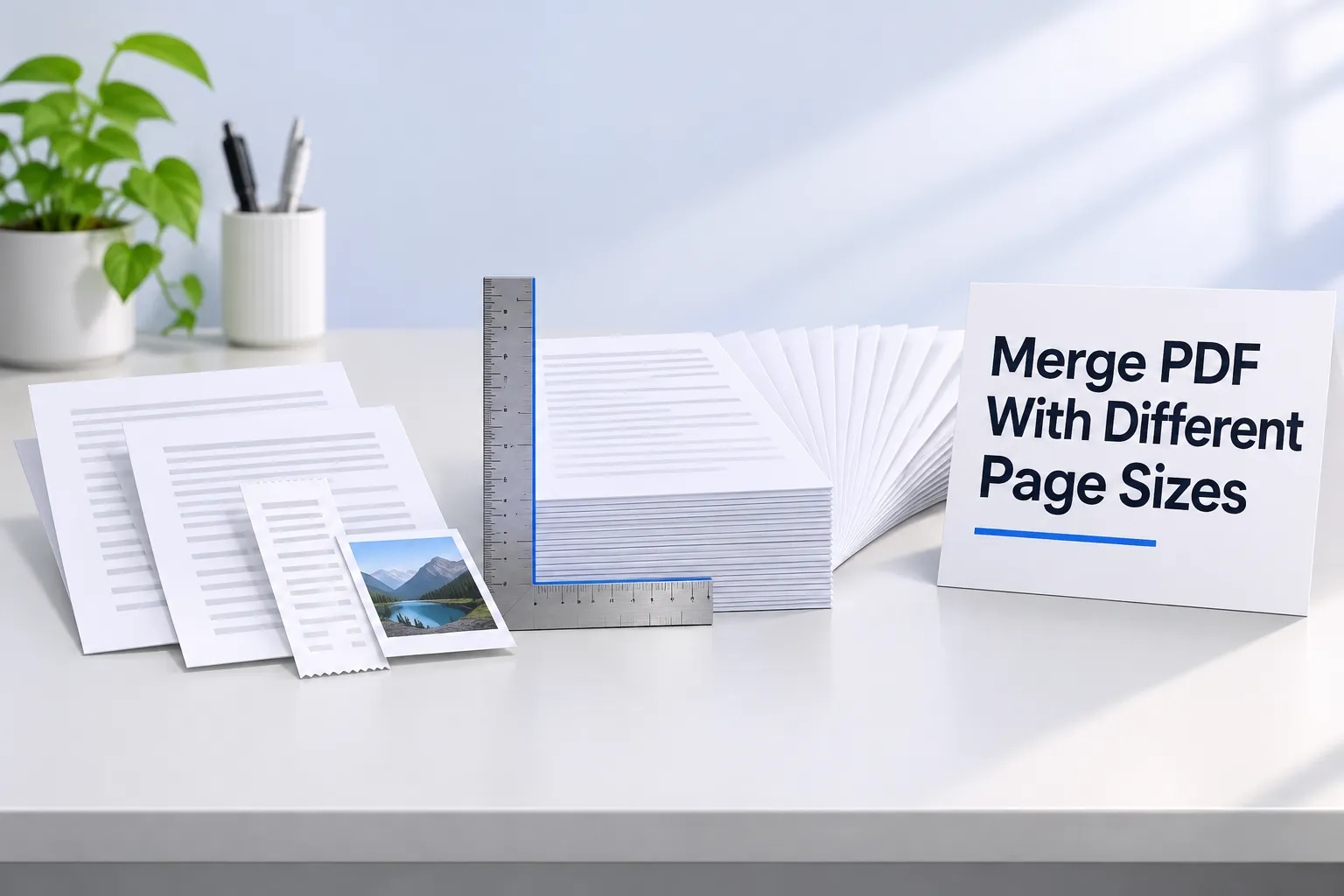
To merge PDF with different page sizes cleanly, pick one target size first, fix rotation and stray borders, scale or pad every odd page to that target, and only then combine the files. Merging first and fixing afterwards also works, but you have to know what each resize does to your text, links and numbering. This guide covers why the sizes clash, how to choose the target, and what breaks when you fix it carelessly.
Merge PDF With Different Page Sizes and Every Page Keeps Its Own Size
A PDF has no single paper size for the whole document. Each page carries its own MediaBox, a rectangle measured in points, where one point is 1/72 of an inch unless the page says otherwise. A US Letter page is 612 × 792 points. An A4 page is about 595 × 842. The PDF specification defines geometry at page level, so a merge routine that copies pages from three files into one has no reason to alter them. It copies each page along with its dimensions, and the result is a perfectly valid file with three sizes inside.
That is why the problem feels slippery. There is no error message, because nothing failed. The symptom only appears when someone looks at the file, and every viewer copes in its own way. In a fit-to-width view, a narrow receipt scan is blown up to the same width as everything else, while a wide spreadsheet printout looks small by comparison. Some viewers treat page size as a document-wide property: a 2012 mailing-list post describes Apple Preview splitting a mixed-size PDF into one window per size. Current versions may behave differently, so test in whatever viewer your reader will actually use.
MediaBox and CropBox: the MediaBox is the full sheet a page is defined on. The CropBox is the visible window that viewers and printers actually show, and it defaults to the MediaBox when none is set. Two pages can share a MediaBox and still look different in size if one of them has been cropped.
Where Mixed Page Sizes Come From
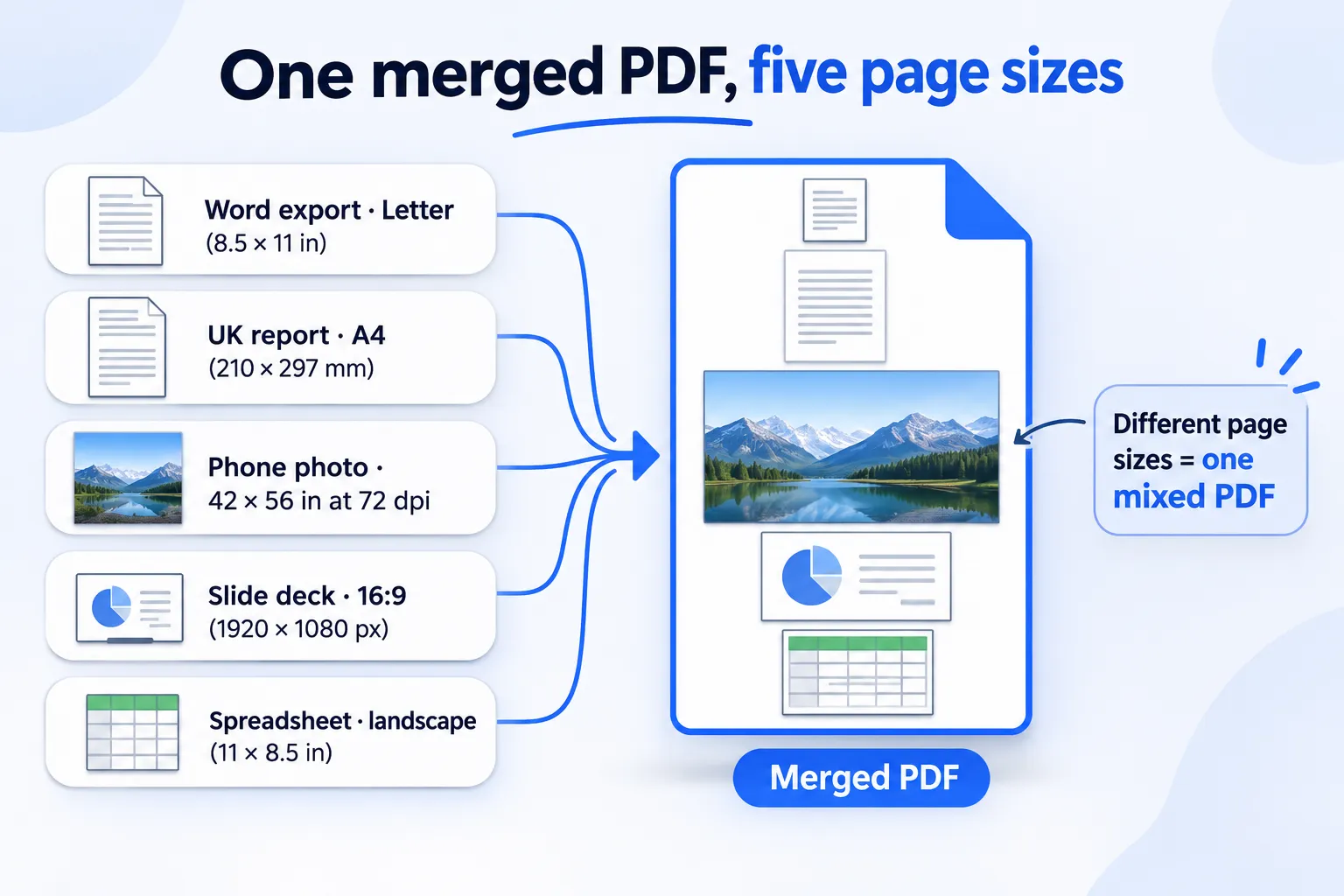
Almost nobody chooses mixed sizes on purpose. They arrive because every source file keeps the page setup of the program that made it: a Word document, a spreadsheet, a scan, an image and a slide deck each carry their own, and combining them preserves all of it. Here is what that looks like in practice.
| Source | Typical page size | What goes wrong |
|---|---|---|
| Word or Google Docs export, US | Letter, 8.5 × 11 in | Fine alone; usually the baseline |
| Word export, UK or EU | A4, 210 × 297 mm | Slightly narrower and taller than Letter |
| Scanner with auto-detect | Varies by a few points per page | Pages that are nearly, but not exactly, the same size |
| Phone photo turned into a PDF | Pixels divided by 72 or 300 | Billboard-sized or postage-stamp pages |
| PowerPoint export | 13.33 × 7.5 in widescreen | Landscape pages with empty bars when scaled |
| Spreadsheet printout | Often landscape Letter, Legal or Tabloid | Landscape pages inside a portrait document |
| Legal and county forms | Legal, 8.5 × 14 in | Taller than everything around them |
Three of these deserve a closer look.
Near misses. A scanner with auto-detect switched on can produce pages that differ by a few points from one sheet to the next. A fraction of a point is invisible, but ten or twenty points make the page jitter sideways as you flip through, and they defeat any tool that expects every page to match.
Orientation. A landscape spreadsheet inside a portrait document is not just a different shape; it is a different problem. It forces a choice between shrinking it to roughly 77 percent, rotating it, or leaving it alone.
Images treated as pages. A photo has pixels, not inches, so whatever converted it to a PDF had to invent a physical size. That decision is the single most common cause of the billboard page, and it gets its own section below.
How to Check Every Page Size Before You Merge
Do not judge from the first page. Document properties in most viewers report the size of one page, usually the first or the one on screen, which is exactly the page most likely to be normal. You need the whole list.
Three quick ways to get it:
- Thumbnails. Open the page thumbnail strip and scan for pages whose proportions differ. This catches the obvious ones, such as a landscape page or a tiny receipt, and misses near misses.
- A size listing. Poppler’s
pdfinfoprints a size and rotation line for every page in a range:
pdfinfo -f 1 -l 50 merged.pdf
- Your editor’s document-info panel, if it lists sizes per page. If it only shows one number, treat that number with suspicion.
Read the output as a set rather than page by page. If it shows three distinct sizes, you know what to fix. If it shows thirty nearly identical ones, you have a scanner problem, and the answer is bulk resizing rather than page-by-page repair.
Run the size check on each source file before you merge, not only on the result. Finding the odd file up front means you resize one input instead of hunting for pages inside a combined file.
Pick the Target Size Before You Touch Anything
The target is a decision, not a default. Four things settle it, roughly in this order:
- Rules from the recipient. A court portal, a visa office or a university may specify Letter or A4. If a rule exists, it wins.
- Where it will be printed. Printers in the US are loaded with Letter, most of the rest of the world with A4.
- The majority. If eleven of fourteen pages are already Letter, that is your target, because every page that already matches is a page you never touch, and an untouched page cannot get worse.
- Screen only. If nobody will print it, any consistent size works. Pick the one that needs the least scaling.
Then do the arithmetic before you commit. Scaling to fit is proportional, so the smaller of the width ratio and the height ratio wins. Here is what common conversions do to 11-point body text:
| Conversion | Scale | 11 pt text becomes |
|---|---|---|
| A4 to Letter | 94% | about 10.3 pt |
| Letter to A4 | 97% | about 10.7 pt |
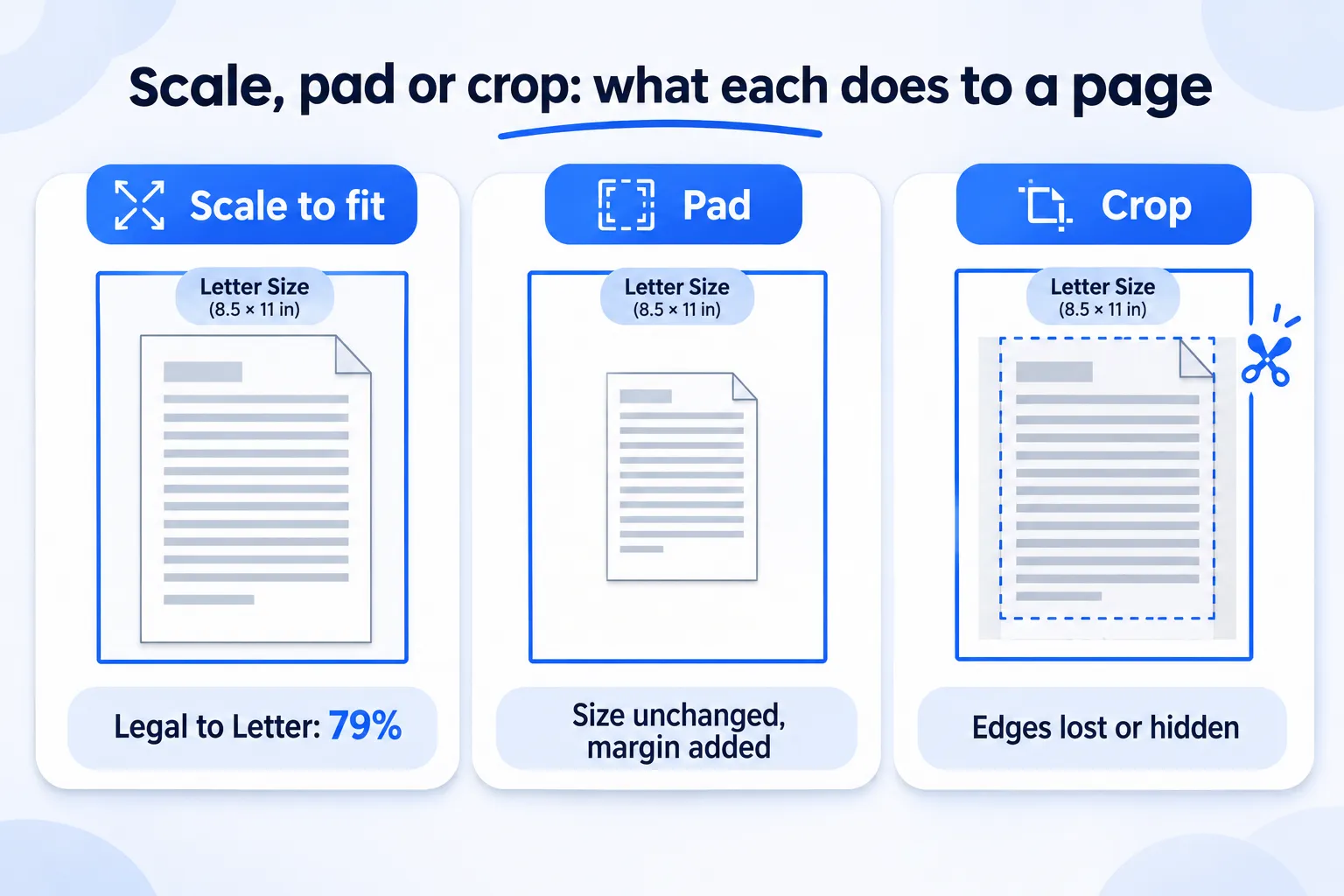
| Legal to Letter | 79% | about 8.6 pt |
| Widescreen slide to landscape Letter | 83% | about 9.1 pt |
| Landscape Letter to portrait Letter | 77% | about 8.5 pt |
| Landscape Tabloid (17 × 11 in) to portrait Letter | 50% | 5.5 pt |
The Legal row is the one that surprises people. A form with 7-point fine print drops to about 5.5 points, which is unreadable on paper. If a source page would land below roughly 8 to 9 points of body text, scaling is the wrong tool for it: rotate it, split it, pad it, keep it at its own size, or re-export it from the source at the right paper size.
The A-series paper family has a ratio of 1 to the square root of 2, about 1.414, which is why folding an A4 sheet in half gives an A5 sheet with the same proportions. US Letter’s ratio is about 1.294, so there is no clean halving trick, and every cross-scale between the two leaves a margin along one pair of edges.
Scale, Pad or Crop: Three Ways to Resize a Page
Once you know the target, each odd page gets one of three treatments. They are not interchangeable.
| Method | What it does | Text size | Main risk | Best for |
|---|---|---|---|---|
| Scale to fit | Enlarges or shrinks the whole page proportionally | Changes | Tiny text on big pages; bars on the sides or top | Pages slightly larger than the target, such as A4 into Letter |
| Pad | Places the page at its real size on a bigger sheet | Unchanged | Pages bigger than the target cannot be padded; content can look lost in white space | Small pages such as receipts, ID cards and A5 sheets |
| Crop | Trims the page to a smaller area | Unchanged | Anything outside the trim is lost, or merely hidden | Scans with dark borders or blank margins |
A mixed approach is usually right: shrink the pages that are too large, pad the pages that are too small, and leave matching pages alone. Adobe’s printing options draw the same line. Its Shrink oversized pages setting reduces large pages to fit the paper but does not enlarge small ones, while plain Fit does both. Enlarging a small page is rarely what you want, because a 3-inch receipt blown up to fill a Letter sheet looks absurd and magnifies every scan imperfection.
Cropping deserves one warning. In many editors, crop changes the visible window (the CropBox) and leaves the original content in the file. For layout work that is fine. If you were hoping to remove something sensitive from the edge of a scan, it has not been removed, only moved out of sight, and a different viewer or a little file-level digging can bring it back.
A Clean Way to Combine PDFs of Different Sizes
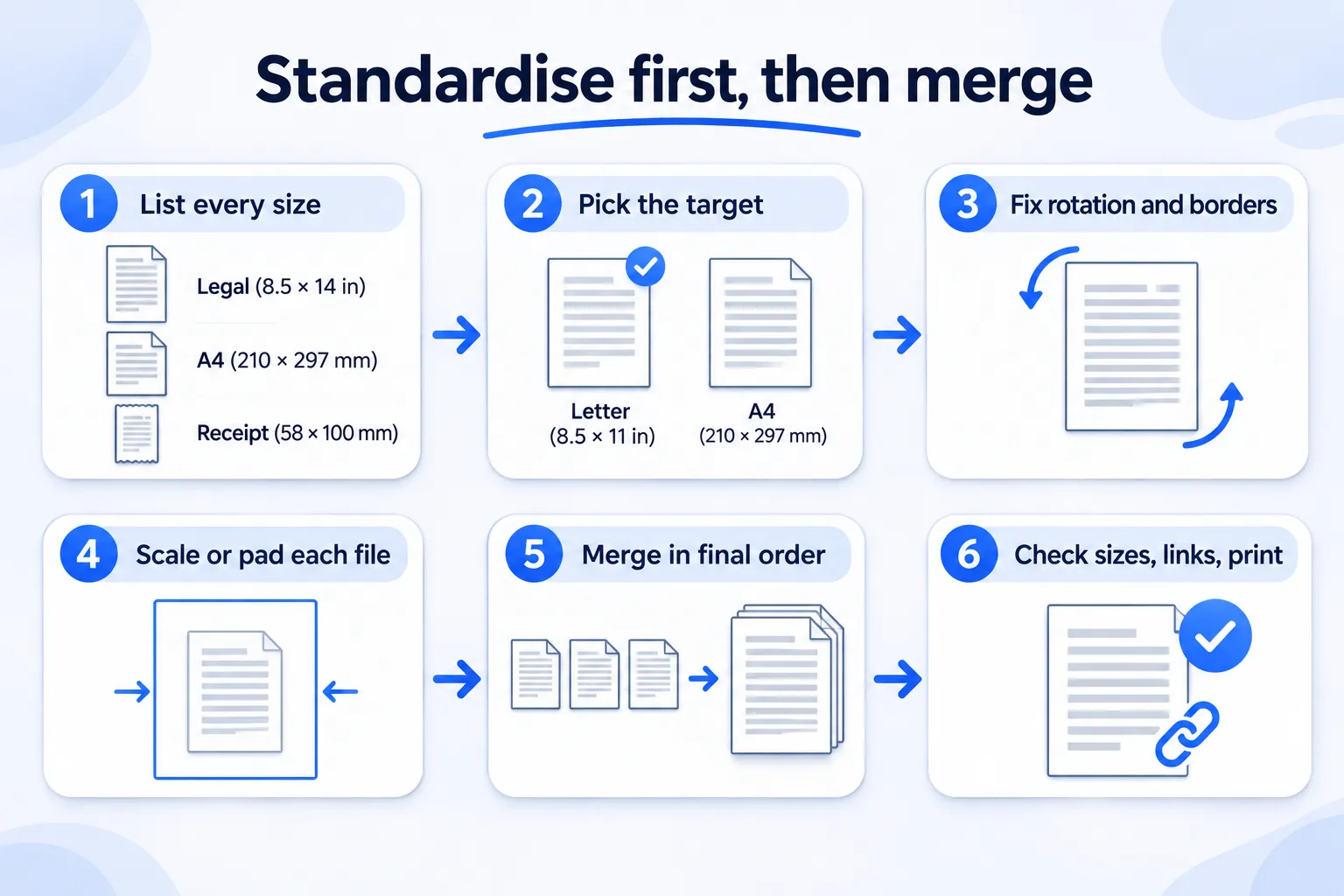
This is the order that causes the least damage when you have to merge PDF with different page sizes from several sources. Work on copies throughout.
- Copy the originals and note the page count of each, so you can check later that nothing went missing.
- List the page sizes of every source file using the checks above.
- Choose the target using the rules in the previous section.
- Fix rotation first. If a page is stored sideways with a rotate flag, correct that before any scaling, because the maths depends on the shape you actually see.
- Resize each source file on its own, not the merged result. A reply in an Adobe community thread makes the point that Acrobat’s combine feature has no page-size editor, so it is cleaner to adjust sizes in the originating application and combine afterwards.
- Re-export instead of scaling whenever you still have the source. A Word file switched from A4 to Letter and exported again reflows its text at full size, so nothing is shrunk. It is the only option that fixes the size without changing the type size.
- Merge in the final order, then add page numbers or Bates numbers, never before.
- Verify. Re-run the size list, flip through at 100 percent zoom rather than fit-to-width, click one link, test one form field, and print one page from the middle.
Command-line tools such as Ghostscript can force a paper size too, but the result depends on each page’s CropBox and rotation, so inspect the output before you trust it.
The Phone Photo Problem: Why One Page Is 56 Inches Tall
Say your phone takes portrait photos of 3,024 × 4,032 pixels, a typical 12-megapixel shot. A converter that assumes 72 pixels per inch turns that into a page 42 inches wide and 56 inches tall. Assume 300 instead and you get roughly 10 by 13.4 inches. Neither is Letter, and neither reflects anything you meant.
Some converters fit the image to a standard page for you. Others keep the image at the size implied by its resolution, and the giant page survives the merge untouched. The symptoms are the ones from the opening: a page that dwarfs its neighbours, text that looks tiny when you fit the page to the window, and a print job where the photo either gets chopped or shrinks to a smudge.
The fix is to place each photo on a standard sheet before it ever meets the other files. Fit the image inside the printable area with a margin. A 3,024-pixel-wide photo across a 7.5-inch printable width works out to about 400 pixels per inch, comfortably above the 300 most print workflows ask for. Photos placed at full resolution still make a heavy merged file, so see our guide to reducing PDF file size without ruining the print for what to compress and what to leave alone.
Judging the merged file in fit-to-width view. That mode zooms every page to the same screen width, so a 42-inch page and an 8.5-inch page look identical and the problem hides. Check page sizes in a list, or at 100 percent zoom, instead.
Rotation, Crop Boxes and Pages That Only Look Different
Two pages can report the same size and look different, or report different sizes and look the same. Three details account for most of the confusion.
The rotate flag. A page stored as landscape can be displayed upright by a rotate value of 90 degrees. The viewer shows you a portrait page, but any tool that reads only the underlying box sees a landscape one and scales it as such. That mismatch between what you see and what the tool computes is the classic cause of output that is half empty or cut off. Check rotation in the size listing and normalise it first.
The CropBox. If a page’s CropBox is smaller than its MediaBox, viewers show the smaller window. A tool that resizes the MediaBox but ignores the CropBox, or the reverse, leaves you with a page that is the right size on the inside of the file and the wrong size on screen.
Scanner borders and tilt. Scans often include a dark band or a few millimetres of blank margin, so the content is smaller than the sheet. Trim before scaling, or the scaling shrinks the margin along with the text. A scan that was fed crooked and then placed straight onto a page also leaves a wedge of white at one edge. On screen a slight tilt is fine; if the file is going to a printer, straighten the page first.
What Breaks After You Resize: Links, Forms, Signatures and Numbers
Resizing looks cosmetic, but a PDF page is full of things pinned to coordinates. After any resize, check these.
- Links and annotations. Clickable areas and comments are stored at fixed positions on the page. A tool that scales the artwork has to scale them too, and some do not; others rebuild the page and drop them. Click a link from every source file.
- Form fields. Fields have their own rectangles. If the page is scaled but the fields are not, they float away from their labels. When the forms are finished, flattening them first turns everything into one layer and avoids the mismatch.
- Digital signatures. Any change to a signed file, including a resize or a merge, invalidates the signature. Attach the signed original separately, or sign after you finish.
- Bookmarks. A bookmark can store a page plus a position and zoom. After scaling, an old fixed position can land beside a heading rather than on it. Test the ones that matter.
- Stamped numbers. Page numbers, headers and Bates numbers sit at a fixed distance from the edge, in a fixed size. Number the merged, normalised file, as covered in our guide to adding Bates numbering without cropping text. Number first and scale later, and every number shrinks along with the page.
- Searchable text. Scaling a text page keeps the text. Rebuilding pages as images does not, so a resize that quietly rasterises your PDF costs you search and copy. Search for a word on a changed page to be sure.
The last test is the unglamorous one: open the finished file on a different device before you send it.
Printing a Mixed-Size PDF Without Surprises
Printing is where size mismatches finally cost money. The print dialog decides what happens to a page that does not match the paper, and the options behave very differently. In Acrobat, Fit rescales every page to the paper, Actual size leaves pages alone and crops whatever overhangs, Shrink oversized pages reduces big pages only, and a paper-source option picks trays by page size.
Opinions differ on how bad this is by default. A community expert in an Adobe forum once told a user that mixed sizes print fine by default, while other guides describe printers shifting scale, margins and trays at every change in page size. Both can be true, because the outcome depends on the driver and the settings. That is exactly why a normalised file is safer than a clever print setup.
For anything going to a print shop, an e-filing portal or an application system, normalise first. Many portals specify a page size, and a file that only works because a human noticed is a file that fails on a busy day. If the printer rather than the portal is your problem, our guide to why a PDF prints differently than it looks on screen walks through the other causes.
A Worked Example: A Loan Application Pack
Imagine a café owner assembling a loan application. The pack holds a one-page cover letter and a two-page budget from Word, both Letter; a two-page county tax form on Legal; a one-page landscape Letter spreadsheet printout; a one-page A4 letter from a UK supplier; and six portrait phone photos of bank statements, each 3,024 × 4,032 pixels and converted at 72 pixels per inch, so each lands as a 42 × 56 inch page. That is thirteen pages and four distinct page sizes, plus the photos’ monster dimensions.
The lender wants Letter portrait, so that is the target, and the Word pages are already right. The others are handled one at a time.
- A4 letter: scaled to 94 percent. Body text drops from 11 to about 10.3 points, which nobody will notice.
- Legal tax form: scaled to 79 percent. The filled-in boxes stay readable and the boilerplate footnotes get small, so the owner prints one page to check and keeps the original Legal file alongside.
- Landscape spreadsheet: rotated 90 degrees so it fills a portrait sheet at 100 percent, instead of shrinking to 77 percent to sit sideways. The reader tilts their head or their screen, and the numbers stay full size.
- Phone photos: each placed on a Letter sheet inside a half-inch margin. At 7.5 inches wide, a 3,024-pixel photo is roughly 400 pixels per inch, so the statements stay sharp.
The files are merged in the order the lender asked for, and the size listing now shows thirteen lines of 612 × 792 points. Page numbers go on last. Five of the six source types needed a change, but only a handful of pages were scaled at all, and none of them dropped below a readable size.
When Keeping Mixed Sizes Is the Right Call
Normalising is the right default for anything people read, email or upload. It is the wrong default in three situations.
Drawings and plans. A set that mixes A1 or Tabloid sheets with Letter specification pages is mixed on purpose. Shrinking a drawing to Letter makes dimensions hard to read and changes its printed scale, which is the one thing a drawing set must not do.
Exhibits. A legal bundle or a research appendix often needs the original pages untouched, for evidentiary or citation reasons. Altering the size changes the document, even when the words stay the same.
Print production. A print shop handling a booklet with a fold-out wants the true sizes and will use the right paper for each. Hand it a normalised file and you have shrunk the fold-out.
In those cases, keep the sizes, label the oversize pages in a cover note or a bookmark, and use the print option that chooses a paper source by page size so each sheet lands on the right stock. The aim of this guide is to make page size a decision, not to turn every file into Letter.
The Short Version
To merge PDF with different page sizes without ugly surprises, treat size as something you decide before you combine anything. List every page size, choose a target using the recipient’s rules and the pages you already have, then scale the oversized pages, pad the small ones, rotate instead of shrinking where you can, and re-export from the original program when it exists.
Fix photos before they join the file, because a converter’s guess at their physical size is what creates the billboard page. Resize each source on its own, merge in the final order, and number the pages last. Then check sizes, links, fields and one printed page before you send it. A file that looks consistent in every viewer and on paper is worth the extra ten minutes.
- A merged PDF keeps each page’s own size, so mixed sizes appear unless you fix them.
- Pick one target size from the recipient’s rules or the majority of your pages.
- Scale pages that are too large, pad pages that are too small, and avoid enlarging.
- Place phone photos on a standard sheet before merging, or one may become a 56-inch page.
- Check links, forms, signatures and numbering after any resize, and number last.

MojoPDF
Taj
A professional SaaS founder offering great value to it's customers.
Frequently Asked Questions
Yes. Merging copies each page with its own dimensions, so the combined file simply holds several sizes. The catch is how it behaves afterwards: viewers zoom unevenly and printers may scale or crop pages, which is why many people standardise first.
The image was converted at a physical size implied by its resolution, such as 72 pixels per inch, and the merge preserves that. Place the photo on a Letter or A4 sheet before merging, or use a converter option that fits images to the page.
Before, on each source file, is cleaner. You fix one file at a time and can re-export from the original program when you still have it. Resizing after the merge is fine for a one-off, as long as you check links, fields and numbering afterwards.
Use whichever your recipient or printer expects, and if nothing is specified, whichever size most of your pages already have. Converting between the two changes scale by only 3 to 6 percent, so text stays readable either way.
There is no hard rule, but many people struggle with body text below about 8 to 9 points on paper, and fine print under 6 points is hard for almost anyone. If a page would fall below that, rotate it, pad it, split it or keep it at its original size.
Page size itself does not add weight; what is on the page does. A 56-inch page holding a 12-megapixel photo costs about the same as that photo on a Letter sheet. Heavy merged files usually come from full-resolution images and repeated fonts, not from the mix of sizes.
Yes, and many professional packages do. Keep them at their own size, tell the reader which pages they are, and use the print option that chooses the paper source by page size if the file will be printed.
The print dialog probably scaled each page to the paper using Fit or Shrink oversized pages, so a large page was reduced more than a small one. Choose Actual size for no scaling, or standardise the pages before you print.
Usually, if the tool scales annotations along with the page, but not always. Click a link from each source file and fill one field in each form. If anything drifts, resize from the original files instead, or flatten finished forms first.
The MediaBox is the page’s full defined area, while the CropBox is the visible window that viewers and printers show. When no CropBox is set it defaults to the MediaBox, and a smaller CropBox makes a page look smaller than its MediaBox says.
In most cases, yes. Any change to a signed file after signing, including adding pages or resizing them, makes the signature report as modified or invalid. Merge and resize first, then sign the finished file.