PDF Text Overlapping After Editing: How to Fix It
A PDF has no paragraphs. Under the surface, a page is a list of drawing instructions, and for text each instruction says, roughly, put these characters in this font at this exact spot. When the file was made, a word processor or layout program worked out where every line should break, recorded the result, and threw away the wrapping logic.
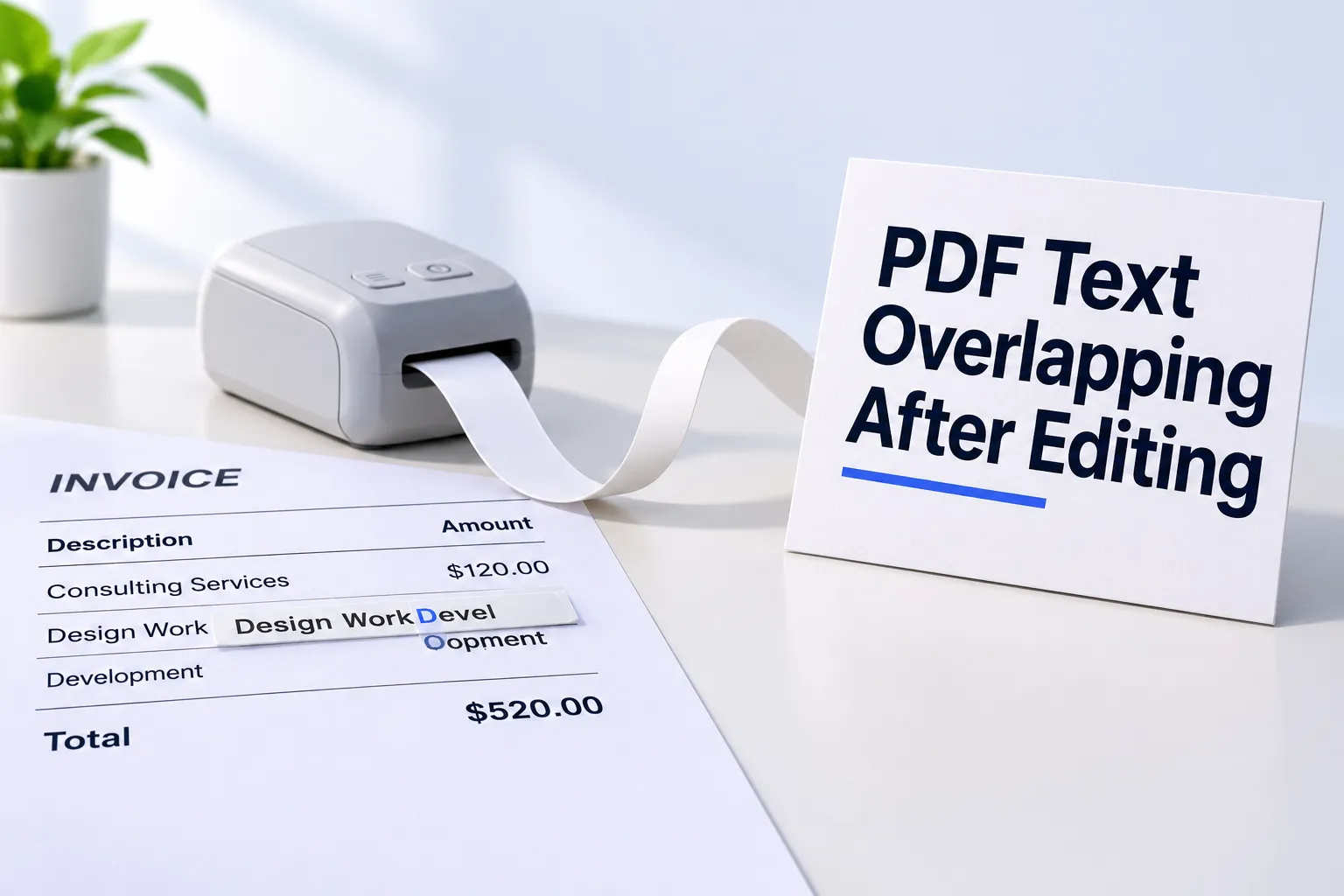
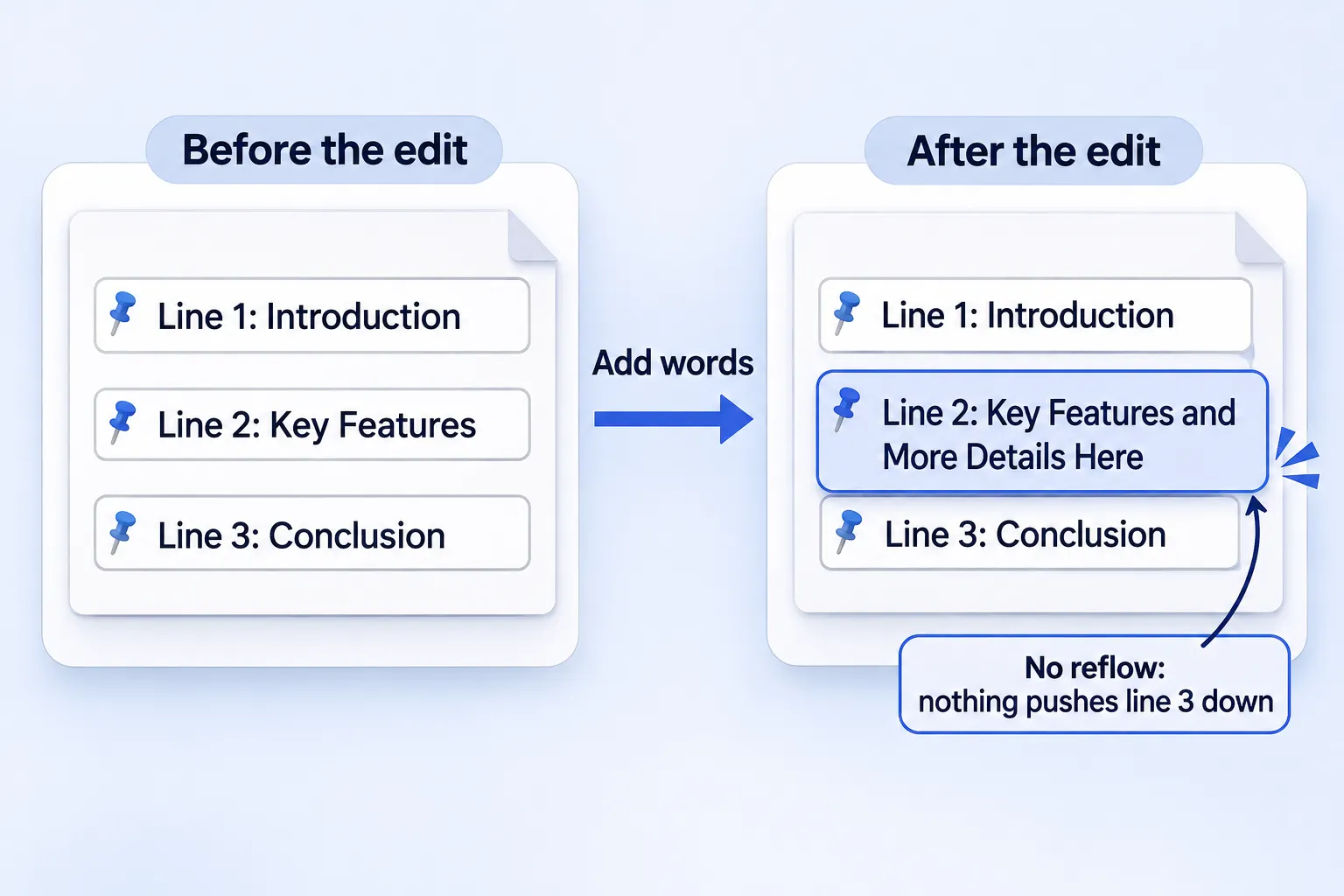
That single fact explains PDF text overlapping after editing. You lengthen a line, nothing in the file tells the lines below to move down, and your new words land on top of whatever was already there. The same collision happens when old text is covered rather than removed, when a missing font is swapped for a wider one, or when a scan hides a second layer of text under the picture. The fix is to work out which of those you have, then repair the page in the right order.
This guide covers the six usual causes, a quick way to tell them apart, a repair procedure you can follow line by line, and the point at which it is smarter to stop editing the PDF at all.
Why PDF Text Overlapping After Editing Keeps Happening
The format is described in ISO 32000, and its model of text is deliberately low-level: text is placed, not flowed. A line such as “Invoice total: 1,240.00” is stored as one or more strings, each set in a named font at a size, starting at a coordinate on the page. The next line has its own coordinate. Nothing connects the two, which is why PDF is so dependable for printing and so awkward for editing.
Editors paper over this by guessing. When you click a line, the program looks at the pieces nearby, decides they probably belong together and builds a temporary text box so you can type. Adobe’s own help page says that each text box is independent: the paragraph reflows inside its own box, but inserting text in one block does not push down an adjacent block or carry over to the next page. That is how the tool is designed, and it is the root of most collisions.
There is a second wrinkle in how the file was exported. One visual line is often stored as several separate pieces, a word or a run of letters each, especially in files from design tools, justified columns and anything with tight tracking. The editor has to stitch them back together by guesswork, and odd letter-spacing can defeat it. When the guess is wrong, one half of the line moves and the other half stays put.
Text run: one continuous chunk of text in a PDF that shares a font, size and starting position. A single printed line can be made of many runs, and a paragraph is just a stack of lines that happen to sit near each other.
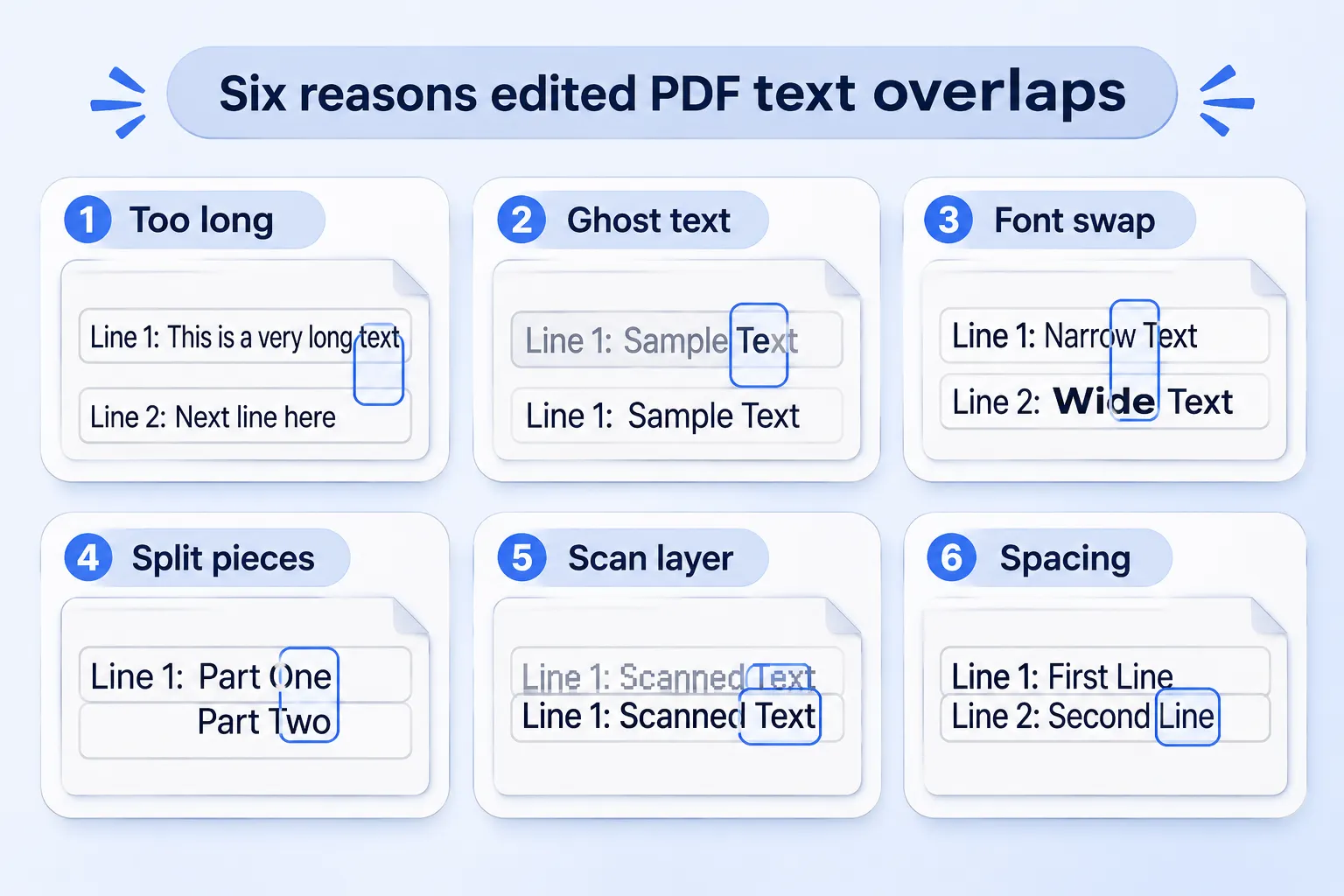
Six Ways Edited Text Ends Up on Top of Other Text
Work through these in order. They are listed by how often they cause trouble, and more than one can apply to the same page.
1. The new text is longer than the space it was given
This is the plain version. You change “Design consultation” to “Design consultation and brand review (revised scope)”, the line wraps inside its box, and the second line drops straight into the row below, because the table around it was drawn at fixed positions. Page numbers, footers and the next column are all victims of the same thing.
The editor is not malfunctioning. It has no idea that the row beneath matters. The fix is to make the text fit the space first (shorter wording, then a slightly smaller size in half-point steps), and only then move the neighbouring blocks down by hand.
2. The old text is still underneath
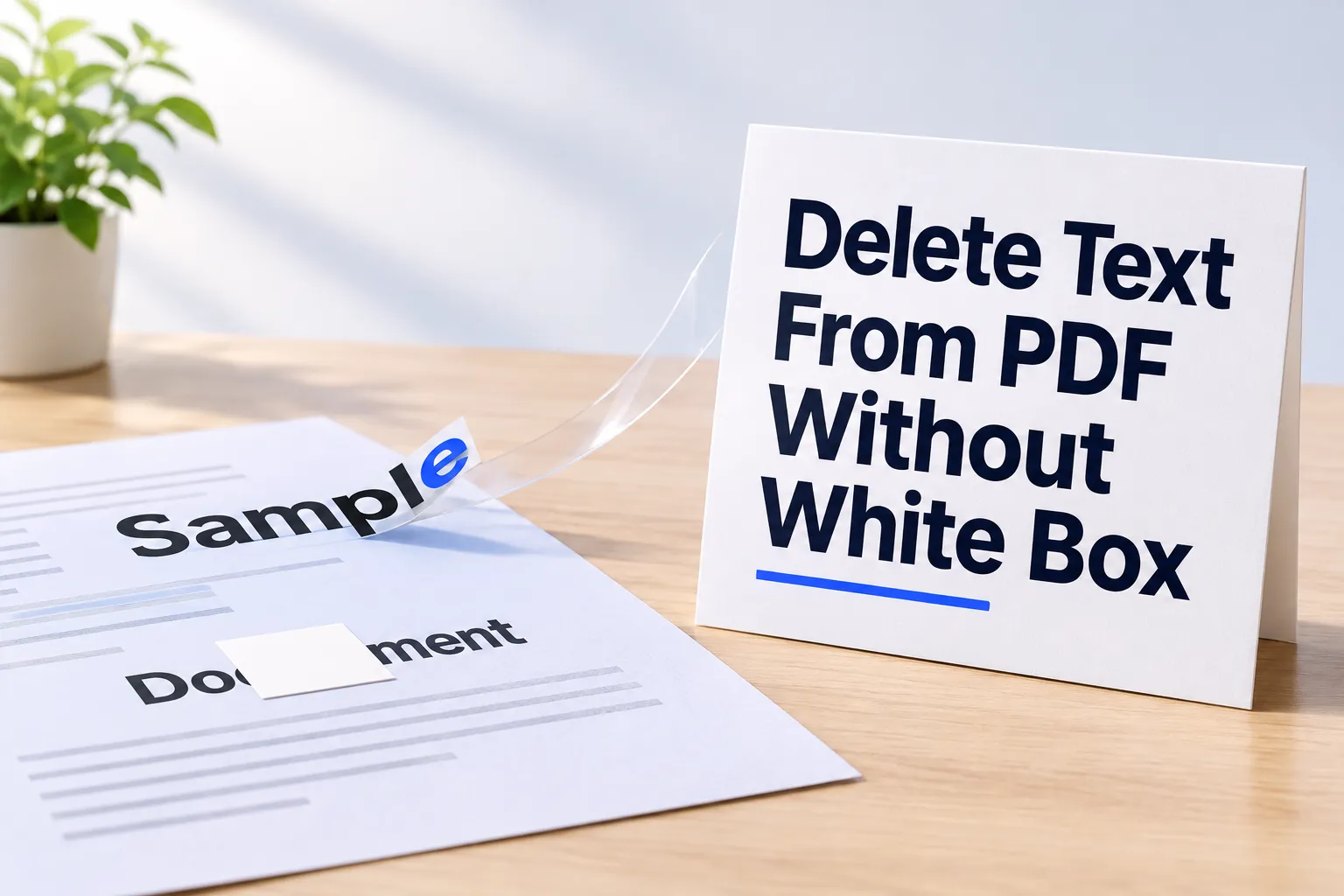
Many quick edits are cover-ups rather than replacements: a white rectangle goes over the old words, and new text is typed on top. To the eye it looks clean. In the file, both strings exist. The overlap shows up later, when someone selects all, searches for the old word, opens the file in a different viewer, or prints with a setting that handles the white box differently.
Test it by searching for the word you thought you deleted. If the search finds it, it is still there. The fix is to delete the original text object, not hide it. And if the hidden words were sensitive, covering them is not removing them, and the file needs properly flattened or redacted output before it goes anywhere.
Whiting out a number and typing a new one over it. The old figure stays in the file, can be copied out in seconds, and often reappears as a ghost when the document is printed or converted. Delete the original text or redact it, then add the new text.
3. A substituted font changes every width
To edit text, Acrobat needs the font installed on your computer. If the font in the PDF is only embedded, which is normal, it warns you and falls back to a substitute; for Roman-script text the default fallback is Minion Pro, as the Adobe help page on fallback fonts explains. A different font means different character widths, so words you did not touch can now be a few percent wider, and a justified line that fitted exactly now wraps early.
Check what you are dealing with in File > Properties > Fonts. “Embedded Subset” means only the characters the original used were saved, which is why you cannot just type a new letter in that font. The fix is to install the original font or choose the closest match, and apply it to the whole block rather than a single edited line. The font-matching problem is covered in more detail in replacing text without losing the font.
4. One visual line was really many pieces
Open the same file in a design tool and you may find a single line of text split into several objects. In one Adobe forum thread, an expert described how Acrobat guesses how to recombine such pieces and how a substituted font with different metrics makes the leftover fragments either overlap or spread apart. Their advice for the worst cases was blunt: change the original document and export again.
You can often avoid that. Click into each word to see whether it belongs to the same box. If it does not, retype the whole line in one go so the program writes it as a single run, then set the font once for the entire block.
5. A scan carries a hidden text layer
A scanned page is a picture. OCR adds an invisible text layer on top, aligned with the words in the image, so the page becomes searchable. When you edit text on a scan, Acrobat runs OCR automatically if it has not already, and the live text it creates can sit right on top of the pixels that still show the old words. Change a word and you see both: the original from the picture, the new one from the text layer.
The fix is to remove the old words from the image itself, by repainting that area to match the paper, and not just to type over them. If the page is not searchable to begin with, start with why a scanned PDF is not searchable, because the same OCR step decides how well the edit behaves.
6. Spacing and scaling settings were carried along
Text carries more than a font and a size. Line spacing, character spacing, word spacing and horizontal scaling are all stored with it. Paste text from another document and those settings travel too, sometimes compressing lines until they touch. One Adobe forum poster described a form where, as soon as they typed, all the lines jumped into a single-spaced stack and became unreadable.
Reset the block explicitly: line spacing around 120 percent of the font size, character spacing at zero and horizontal scale at 100 percent. Then look again.
How to Tell Which Cause You Have
Do not guess; each cause leaves a different fingerprint, and a thirty-second test tells them apart.
| What you see | Likely cause | Quick test |
|---|---|---|
| New words crash into the lines below | Longer text, no reflow | Do the collisions start exactly below the edited block? |
| Doubled, slightly offset letters | Old text still underneath | Search for the old word; select all and look for stray boxes |
| Wider letters, odd gaps, early wrapping | Font substitution | File > Properties > Fonts, then compare with the untouched text nearby |
| Half a line moved, half stayed | Split text runs | Click each word and see whether it sits in the same box |
| Old words look like a picture, new ones sit on top | Scan layer | Zoom to 400 percent: pixels versus crisp edges |
| Lines squashed into a tight stack | Spacing settings | Check line spacing and character spacing in the format panel |
Switch to edit mode and press Ctrl+A (Cmd+A on a Mac). Every text box on the page gets outlined, which exposes hidden duplicates, tiny stray boxes and pieces of a line that do not belong together. It takes five seconds and saves a lot of guessing.
How to Repair Overlapping Text Without Starting Over
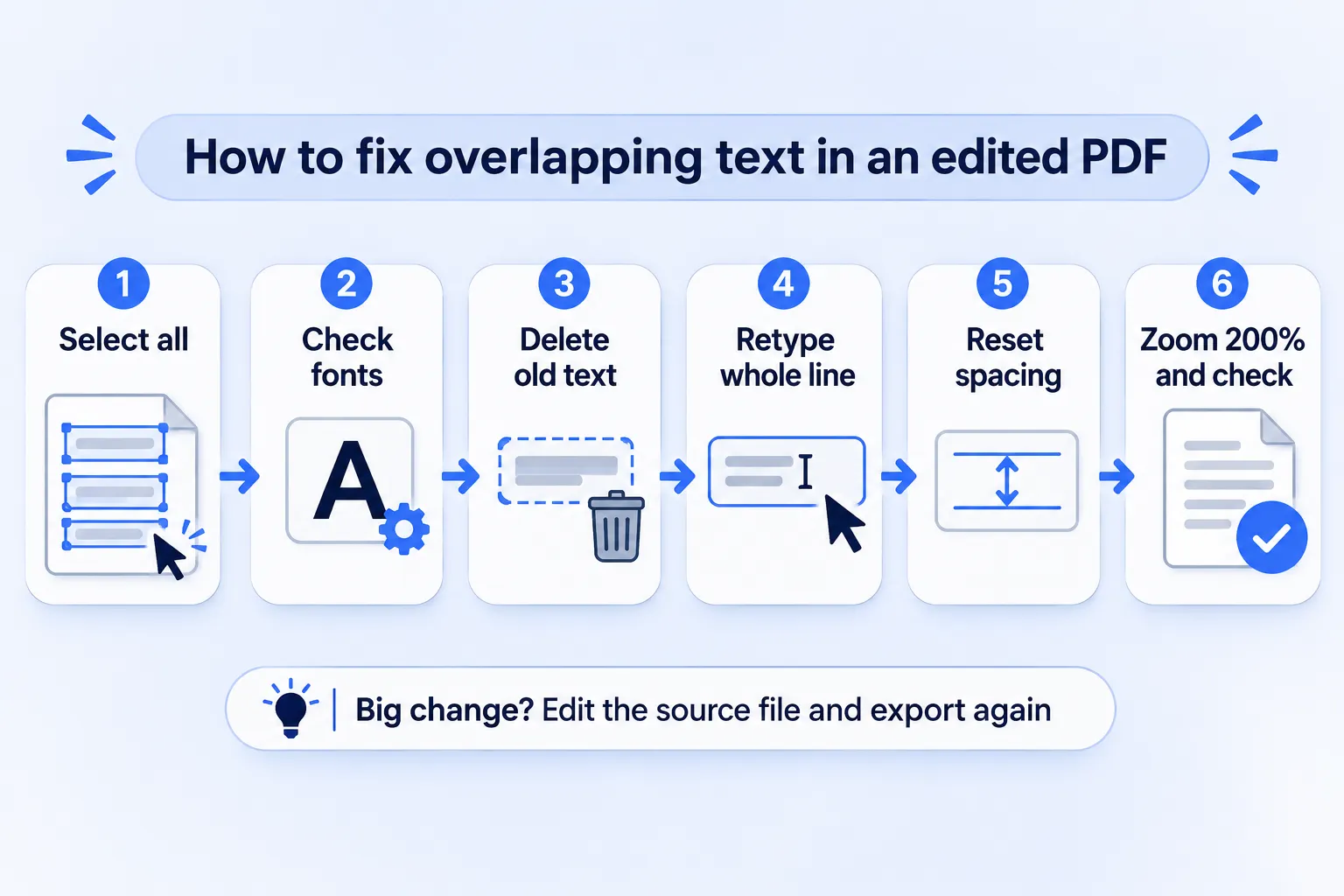
When PDF text overlapping after editing turns up on a page, follow this order. Skipping to the font or the spacing before you have removed ghost text is how people end up fixing the same page three times.
- Work on a copy. Keep the original untouched so you can compare and start again.
- Reveal everything. Select all text in edit mode and search for the old wording. Note every stray box and anything that should have been deleted.
- Check the fonts. Open File > Properties > Fonts and note what is embedded, subset or missing. Decide whether you can install the original or must pick a match.
- Delete the old text itself. Remove the real text objects, not just the visible ones. For a scan, repaint the area behind the words so no pixels remain.
- Retype the whole line. Replace the entire line rather than inserting mid-line, so the editor writes one clean run instead of stitching fragments.
- Apply one font to the whole block. Match the neighbouring text, not only the part you edited, so widths stay consistent.
- Reset the spacing. Set line spacing, character spacing to zero and horizontal scale to 100 percent. Make room: shorten the wording first, reduce size in half-point steps, then move the following blocks down together.
- Check at 200 percent zoom and in print preview, search again for the old wording, and only then save or flatten.
If you need a refresher on how fixed layouts shift between screen and paper, the same checks that catch overlaps also catch clipped edges; why a PDF prints differently than it looks covers that side.
Tables, Columns and Long Documents: The Second Problem You Will Hit
The single-line case is the easy one. The collisions that really cost time happen in structure. A table in a PDF is not a table; it is text and ruled lines drawn at coordinates, so a cell that grows does not make its row taller. The same goes for a two-column layout, where a longer paragraph in the left column keeps going down the page until it meets a footnote, a pull quote or a caption that sits at a fixed height.
Long documents add a third trap. If an edit makes a page overflow, nothing pushes the surplus onto the next page, because the next page is a separate set of instructions. In a 40-page report you can end up with a footer, a page number or the last line of a section colliding with each other, and you will not notice until someone prints it. Check the bottom margin of every page you touched, not just the line you changed.
Two habits help. First, edit with slack in mind: if a replacement is longer, make room by trimming elsewhere in the same block before you type it, not after. Second, make all of your changes first and review the whole document once at the end, so you are not re-checking the same page after every edit. A pass at 200 percent zoom through the touched pages takes a few minutes and catches nearly everything.
A Worked Example: One Invoice Line That Broke a Table
Imagine a freelance designer fixing an invoice that has already been sent. The line reads “Design consultation”, and the client wants it changed to “Design consultation and brand review (revised scope)”. The invoice came from a template saved as PDF, in a font the designer’s laptop does not have.
The designer clicks the line and types. Two things go wrong at once. The editor substitutes its fallback font, so the whole line is slightly wider than before, and the longer wording wraps to a second line that lands on the row for “Hosting”. This is PDF text overlapping after editing in its most common form: one cause hidden inside another.
The repair follows the procedure. The designer undoes the edit, checks File > Properties > Fonts and sees the invoice font is an embedded subset. They choose the closest installed match, apply it to the entire description column, and shorten the wording to “Design and brand review (revised scope)”. The text now fits on one line at 9.5 point instead of 10. They search for “consultation” to confirm no ghost text remains, zoom to 200 percent, and save. Nothing was moved, and nothing was covered; the cell content was simply made to fit the cell.
When to Edit the PDF and When to Go Back to the Source
If you still have the Word, InDesign or spreadsheet file the PDF came from, change it there and export again. That is always the cleanest result, because the layout program can reflow every line, table and page break properly, and nothing is guessed. Edit the PDF directly only when the source is gone, belongs to someone else, or the change is small enough that you can verify it by eye.
For those small changes, a tool that works on the live text in place helps a lot. An AI PDF editor like MojoPDF edits the real text in the original font where it can be matched, and repairs the background of a scan when you remove words, so you are not typing a new line on top of an old picture. Because you direct an AI assistant on the page in front of you, you can also ask it to tighten a line or shift the block below down, instead of nudging each piece by hand.
Where the change is large, such as a rewritten paragraph or several new rows, the trade-off tips back toward the source file. Heavy edits multiply the number of places a guess can go wrong, so overlaps become far more likely, and a clean re-export is faster than repairing six collisions in a row. Once the edits are final and no one else needs to change them, flattening the file locks the result in so a different viewer cannot reshuffle it.
How to Stop It Happening Next Time
Prevention is mostly about the file you start from. If you create the PDF yourself, export it with fonts embedded and keep the source document so a rewrite is one export away. If a PDF arrives from someone else, ask for the source before you start editing, and check File > Properties > Fonts before you type a single character. A missing or subsetted font is the earliest warning that edits will shift widths.
Keep replacement text close to the original length, leave a few spare characters of room in tight cells, and apply font and spacing changes to the whole block in one go. And always edit a copy: a collision that appears in step four is far easier to undo when the untouched original is one click away. If several people touch the same file, agree on one font for new text up front, because mixed fonts inside a single block are a quiet source of width mismatches that only show up when the page is printed.
The Short Version
Overlapping text after an edit is almost never random. It is one of six things: new text with no room to grow, old text left underneath, a substituted font, a line stored in fragments, a scan’s hidden layer, or spacing settings that came along for the ride. Reveal everything with select-all, check the fonts, delete rather than cover, retype whole lines, reset the spacing, then verify at 200 percent. If the change is large and you have the source, edit there instead.
- PDF stores text at fixed positions, so edited lines do not push neighbouring lines down.
- Check for ghost text, font substitution, split text runs, scan layers and spacing settings, in that kind of order.
- Delete old text; never cover it with a white box.
- Retype whole lines and apply one font to the entire block.
- For big changes, edit the source file and export again.

MojoPDF
Taj
A professional SaaS founder offering great value to it's customers.
Frequently Asked Questions
A PDF stores each line at a fixed position and keeps no wrapping rules, so a longer line has nothing to push the lines below down. Acrobat also treats each text box as independent, and it may swap in a fallback font that is wider than the original. Check the fonts and the line length first.
Retype the whole line instead of inserting mid-line, apply one font to the entire block, and keep the new wording about as long as the old. If it still collides, reduce the size in half-point steps and move the lines below down together.
Browsers draw the stored positions as they are, while Acrobat’s edit mode rebuilds text boxes and may substitute fonts. Forum threads also report overlaps that appeared only after an Acrobat update. Reopen the file in a second viewer and compare, and check File > Properties > Fonts.
Yes, for most small edits. Delete the old text, retype the line in one piece, match the font and reset the spacing. For a large rewrite, recreating the document from the source file is usually quicker and cleaner.
The old text was probably covered, not removed. Search for the old wording; if it is found, delete that text object. On a scanned page, the old words are part of the image and need to be repainted out.
Often, yes. Acrobat needs the font installed to edit text in it, and an embedded subset is not enough. With the real font active, widths match the untouched text and justified lines stop wrapping early.
Usually not. A corrupted file tends to fail to open, show missing pages or throw errors, while overlap after an edit is a layout and font problem. Run the select-all and font checks before suspecting damage.
The field’s properties are the first suspect: font size set to auto, a multi-line setting turned off, or odd line spacing. Some users have reported all lines jumping into one stack after typing. Recreating the field or retyping the text in a new one often clears it.
In Acrobat, choose File > Properties and open the Fonts tab. It lists each font and whether it is embedded or an embedded subset. A name you do not recognise beside the edited text usually means substitution.
Flatten it once the edits are final and nobody else needs to change them. It bakes the text into the page so another viewer cannot rearrange it. Keep an unflattened copy in case you need to change the wording later.
Yes, but the old words are pixels, so they must be repainted out of the image before new live text is placed. Run OCR first so the page has a proper text layer, then edit, then check at 400 percent zoom for leftover traces.