Compare Two Documents Without Missing the Quiet Change
When Word compares two documents, it first offers to accept every tracked change in the files, and if you agree it compares the cleaned-up text, as Microsoft’s own instructions explain. The result lands in a brand-new third file, with both originals left alone. That small detail says a lot: a comparison is a fresh judgement about two files, not a replay of what someone chose to track. A “clean” version that comes back from the other side can carry a change nobody marked, and only a comparison will find it.
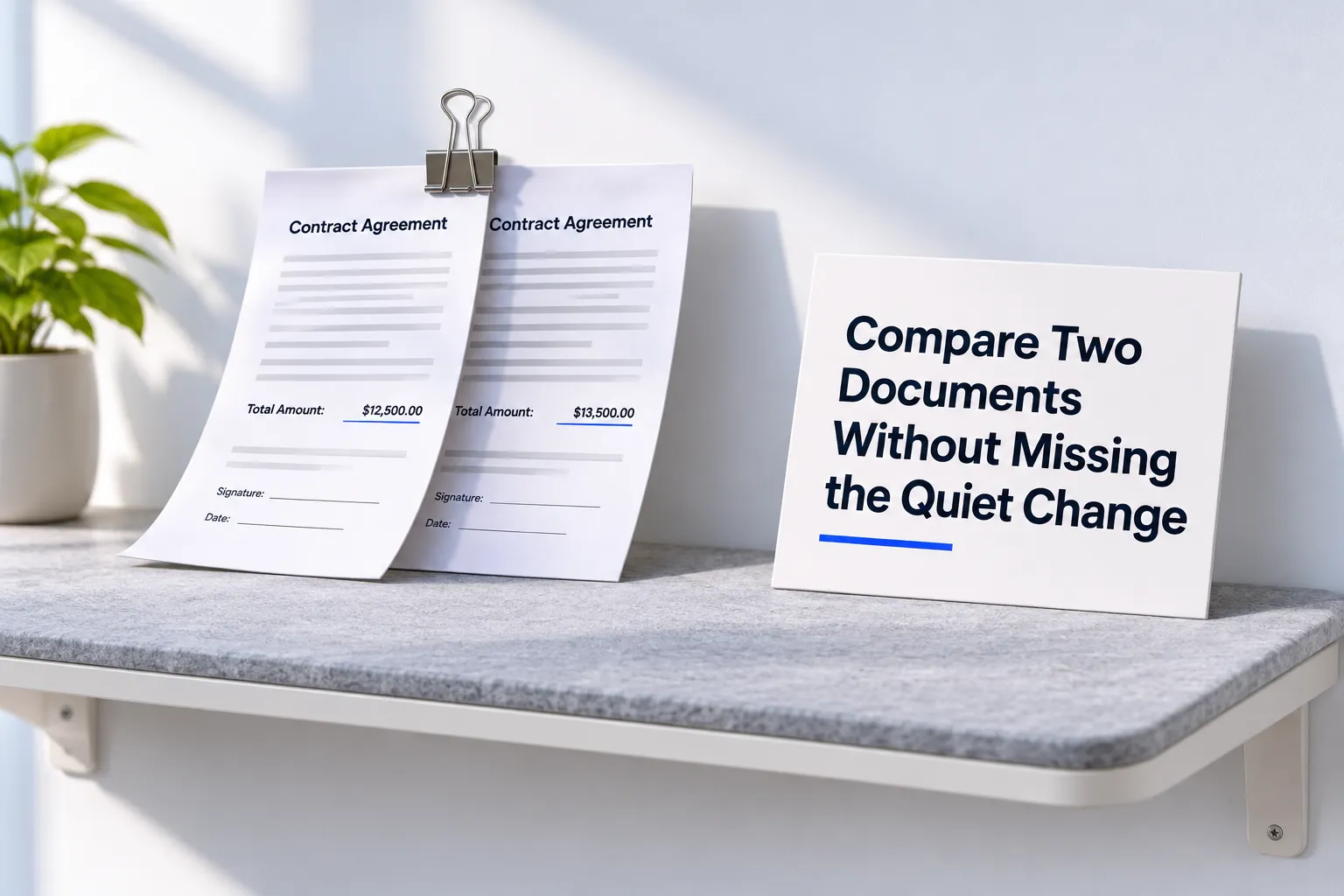
To compare two documents reliably, match the method to how the files were made: a text comparison for two digital files in the same format, a conversion step first if the formats differ, OCR before anything touches a scan, and a hand check of the numbers and small words whatever the software reports. This guide explains why comparisons produce noise, why they sometimes produce silence, and the order of checks that catches the quiet change.
Compare Two Documents: Pick the Method Before the Tool
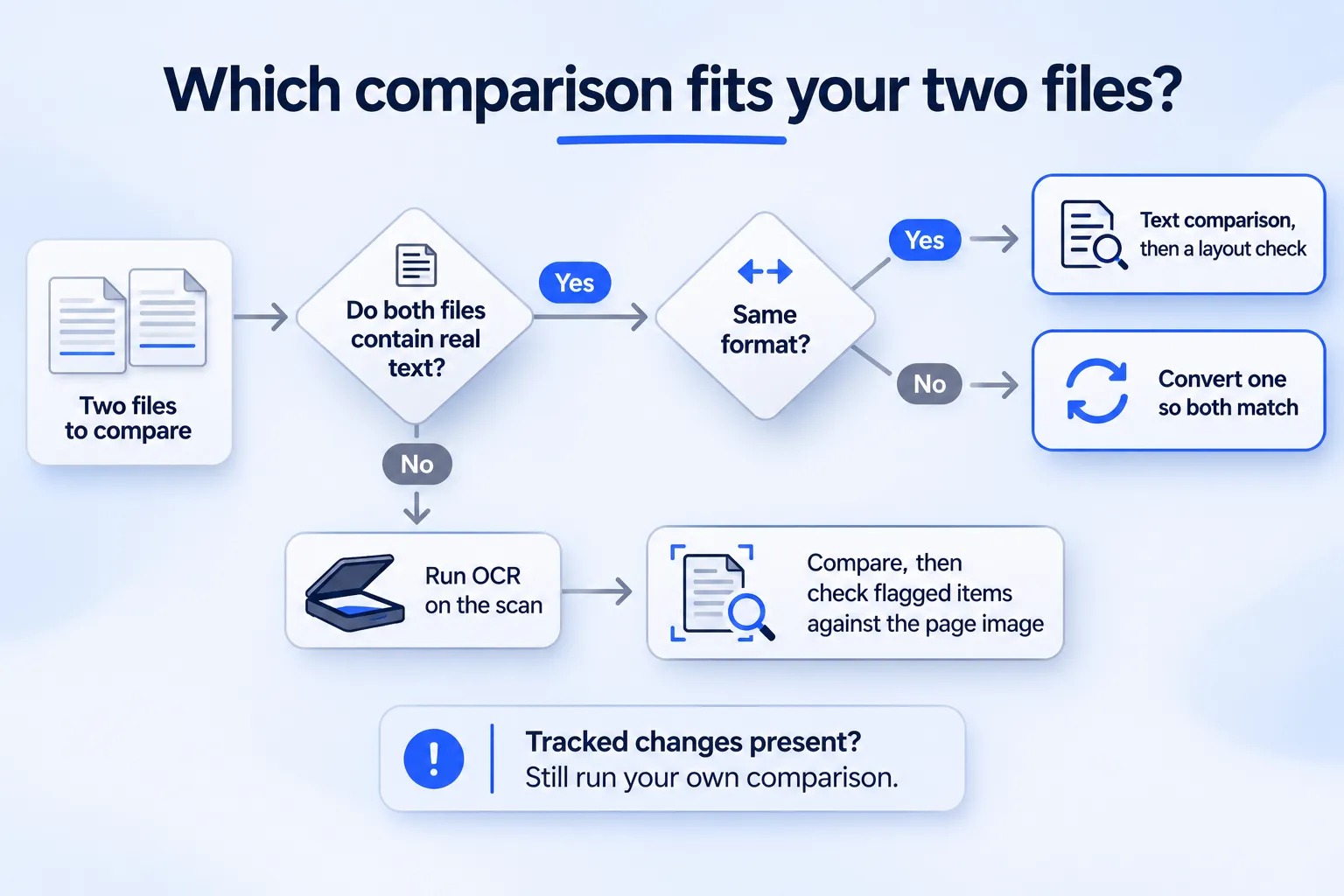
Searching for a way to put two files side by side usually ends at a tool page, but the tool is the second decision. The first is what kind of files you are holding, because that decides what a comparison can actually see.
| What you have | Method that fits | Why | Main risk |
|---|---|---|---|
| Two Word files | Legal blackline comparison in Word | Compares words directly and builds a marked-up third file | Formatting-only edits add noise |
| Two PDFs exported from the same source | Text comparison, then a layout check | Same fonts and structure keep false flags low | A re-export with different settings can split text differently |
| One Word file and one PDF | Convert one to match the other, then compare text | The two formats store text in different ways | Page numbers, headers and line breaks differ |
| A scan and a digital original | OCR the scan, compare, then check numbers by eye | A scan has no text until OCR creates it | Misread characters look like edits |
| Two scans | OCR both, or compare them as images | Image comparison catches layout, not meaning | Skew and shadows read as changes |
| Tables inside PDFs | Compare the source data, not the PDF | PDF tables are positioned text, not cells | Rows shift without any real change |
Two things in that table deserve underlining. First, a comparison can only compare what it can read. A scan with no text layer is a picture, and a picture set against text is not a comparison. Second, the further apart the two files are in how they were produced, the more noise you should expect, and the more you should trust your own reading over the count of flagged items.
Blackline and redline: a redline shows tracked edits inside one working draft, recording who changed what. A blackline compares two saved versions and shows every difference between them, whether or not anyone tracked it. Many lawyers use the words interchangeably, but only the blackline protects you from a change that was never tracked.
Why Two Near-Identical Documents Show Hundreds of Differences
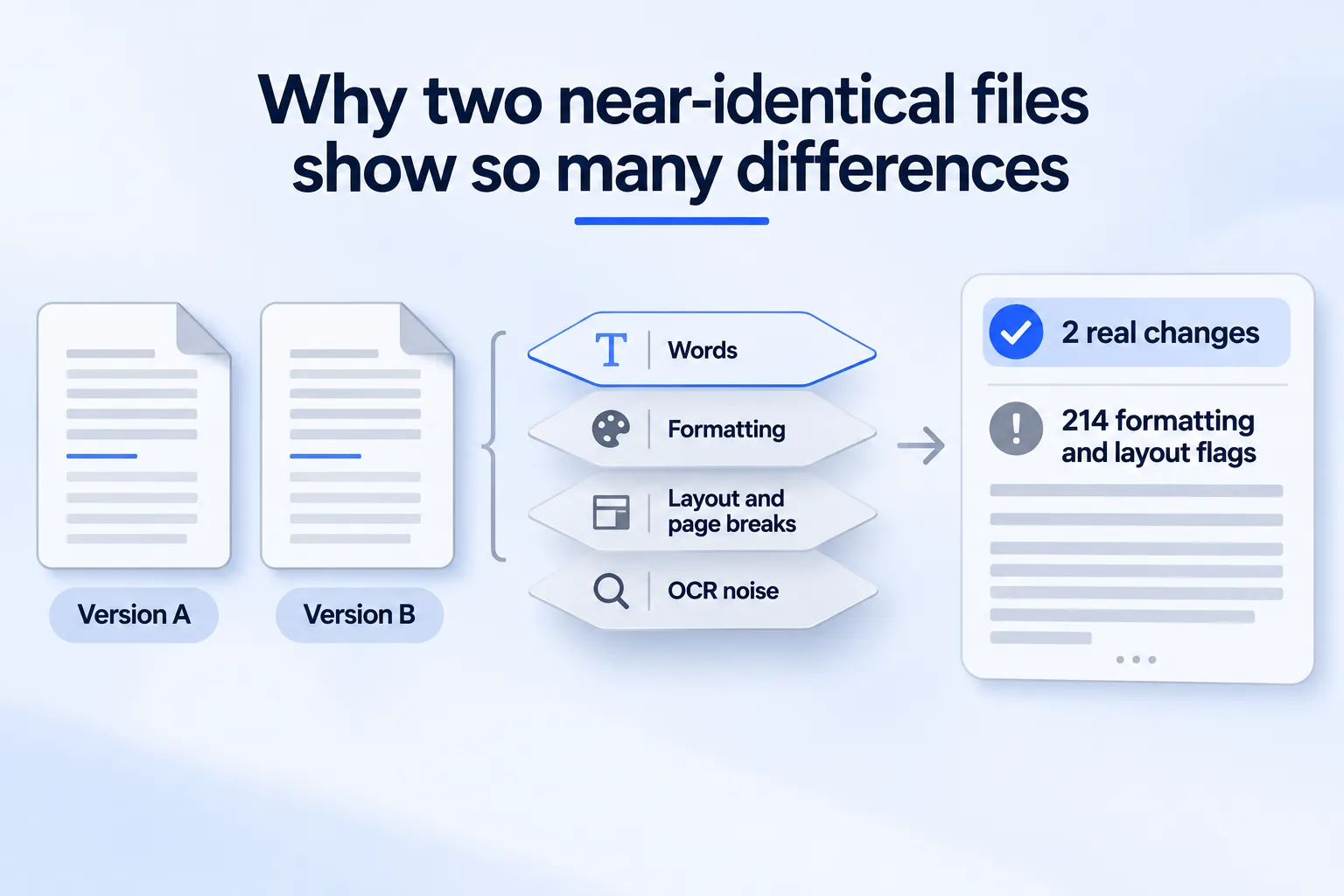
A comparison engine does not read the way a person does. It breaks each file into words, spaces and formatting runs, lines them up, and flags every place they disagree. Anything that is not the meaning of the sentence can still disagree. The usual sources of noise are these.
Formatting. A font changing from ArialMT to Arial, a size from 11 to 10, a colour shift. One Adobe community thread describes exactly this: the same text reported as both deleted and inserted, with no visible change in the words. The reply explains that a font or size change is enough for the engine to treat the old text run as deleted and the new one as inserted, and that the results filter can separate text, formatting, images and annotations. So when the deleted and inserted strings are identical, you are almost certainly looking at a formatting-only entry.
Layout and page breaks. A paragraph that slips onto the next page, a header or footer that now reads differently, line breaks that fall in new places. None of it changes what the document says.
Export differences. Two PDFs made from the same Word file on different machines, or with different export settings, can split their text into different runs even though they look identical on screen.
OCR noise. If either file is a scan, every misread character is a phantom edit. That gets its own section below.
The consequence is that the count of differences tells you almost nothing. A comparison that flags 214 items, 212 of them formatting, is a good result. One that flags four and quietly misses a fifth is a bad one, however tidy it looks.
The Worse Failure: Differences That Never Show Up
Noise is annoying. Silence is dangerous. Users of Acrobat’s compare feature report “no differences found” for documents that are visibly different, and several of those threads involve scans. An Adobe blog post on comparing scanned documents traced one such case to files that were scanned in different modes, one in black and white and the other in greyscale, and then run through OCR. When a scanned PDF holds no text at all, Acrobat warns that it will do an image-to-image comparison only, as one community thread about a signed lease shows, with every page reported as deleted or inserted. That is a very different thing from reading the words.
A comparison can go quiet in other ways too.
- The wrong pair. File names like final_v3_REAL.pdf invite comparing the wrong versions. Check dates and a line or two of content before you trust any result.
- Text inside images. A table pasted as a screenshot, a stamped date, a logo line. Text comparison cannot see any of it.
- Moved content. A clause moved from section 8 to section 2 may show as a deletion in one place and an insertion in another, and some tools do not mark a paragraph as moved if it was also edited.
- Settings that hide the answer. A strikethrough is formatting, so with formatting ignored a struck-through clause can look unchanged. Ignoring headers and footers hides a changed footer. A text-only mode hides annotations.
Treating “no differences found” as proof that the files match. If either file is a scan with no text layer, the message means the tool had nothing to compare. Confirm you can select and search text in both files, then run it again.
Why Tracked Changes Are Not Proof
Track Changes records edits made while tracking was on. It cannot record the edit someone made with tracking off, the paragraph pasted in from another file, or the clean copy exported afterwards. That is why a returned document with a tidy list of tracked edits is still not evidence that those are the only edits.
Word’s own legal blackline option is built for this gap. It compares two documents and shows what changed in a third new document, leaving both originals untouched. Microsoft adds a caution: if you want to compare changes from several reviewers, choose the combine option instead, because a comparison is for two versions, not many.
Legal-software writers say the same thing. Clio’s guide to redlining in Word recommends Compare, not Track Changes, when you receive a clean version, reconcile drafts or verify final differences, and Harvey’s piece on contract redlining lists changes that arrive untracked as one of the main ways edits get missed. The baseline matters as much as the method: compare against the exact file you sent, not the one you remember sending.
Side by Side, Inline or Overlay: Which View Fits
Once a comparison runs, you still choose how to look at it. However you compare two documents, each view hides something different.
| View | What it shows | Best for | Weakness |
|---|---|---|---|
| Side by side, scrolling together | Both files in columns | Context and short documents; Word offers this as View Side by Side with Synchronous Scrolling | Your eyes do the comparing, and the columns drift when lengths differ |
| Inline redline | One document with insertions and deletions marked | Contracts and other text-heavy files | Moved text and tables are hard to follow |
| Overlay | Pages stacked, with differences highlighted | Drawings, layouts, forms | Sees appearance, not meaning, and fails on skewed scans |
| Change report | A list of changes with page references | Audit trails and handing work to a colleague | Loses surrounding context |
The pairing that works best for text is an inline redline for the words and a side-by-side view for context on anything the redline flags. Use an overlay only when appearance is the point.
Run a quick word count on a short list of risky terms in both files: not, except, unless, shall, may, terminate. If “not” appears 41 times in one file and 40 in the other, you have found a deleted “not” without reading a single page.
A Seven-Step Check That Catches the Quiet Change
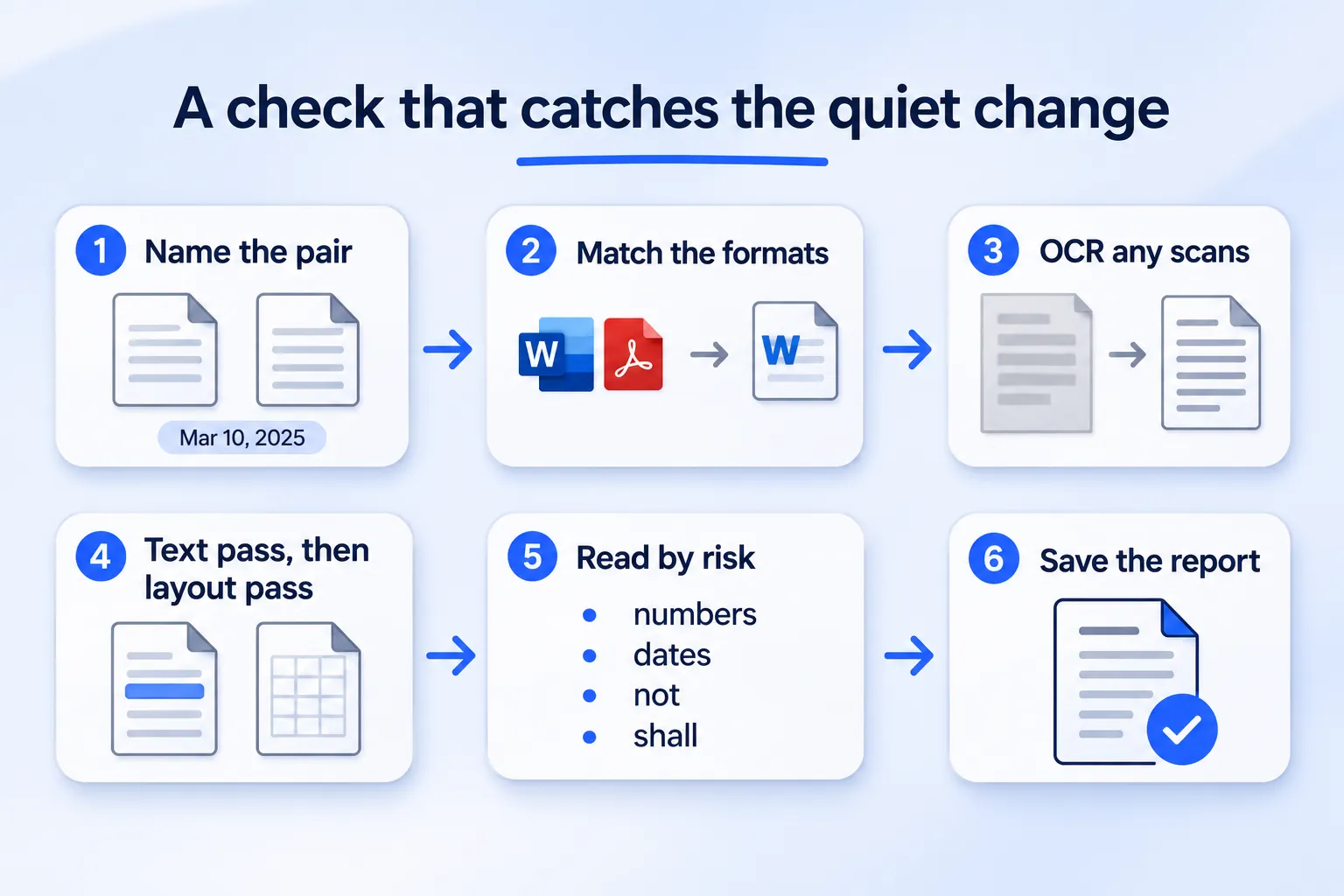
This is the order to follow when you need to compare two documents and cannot afford to miss one.
- Name the pair. Copy both files, put the version and date in the file names, and make sure the baseline is the file you actually sent.
- Match the formats. Compare Word with Word or PDF with PDF. If you only have a PDF from the other side and your own Word file, export yours to PDF, or convert theirs, and expect layout noise.
- Fix the scans. Run OCR on any scan, then confirm you can select and search the text. Our guide to why a scanned PDF is not searchable covers what to do when it is not.
- Run a text comparison first, ignoring formatting and layout, so the result is a short list of word-level changes.
- Run a second pass for formatting and layout, on purpose, because strikethroughs, hidden text and moved blocks can live there.
- Read the changes by risk, not by page. Numbers, dates, deadlines, defined terms, negatives and party names come first.
- Save the report with both files, so that if a dispute comes later you can show what you compared and when.
Step 6 is where most reviews go wrong. The software lists changes in page order, which treats a comma and a payment term as equals. You are the one who knows which is which.
Numbers, Dates and Small Words: What to Read by Hand
A comparison finds changed characters. It cannot tell you which changed characters matter. These are the places where a tiny edit carries a large consequence, and where you should read the original and the revision aloud, side by side.
- Numbers and units. Thirty days becoming forty-five. A 5 percent fee becoming 15. Digits swapped inside a price, or a currency symbol changed.
- Small words. Shall and may. And and or. The disappearance of a single “not”, “except” or “unless”.
- Defined terms. A capitalised term quietly redefined while every clause that uses it stays as it was.
- Cross-references. After a clause moves, “see Section 7” may now point at nothing, or at the wrong thing.
- Tables and footnotes. Cells that changed value, and footnotes where the exceptions tend to live.
Once the word-level pass is done, the harder question is what each change means for you. For the clause-level read, see our guide to reviewing a contract with AI without missing hidden traps.
Comparing a Scan Against a Digital Original
A scan has no words until OCR reads it, and OCR is a good guesser, not a perfect reader. It confuses 1 with l, 0 with O, and 5 with S. Every guess that lands wrong shows up in the comparison as a change that never happened, and a guess that lands the same way on both sides can hide one that did.
When you compare two documents where one is a scan, three habits keep the result manageable. Scan both versions the same way, at the same resolution and in the same colour mode, because mismatched scans were behind the Adobe case above. Straighten and trim before comparing, so skew does not become a hundred false flags. And check every flagged number against the page image instead of the recognised text. An AI PDF editor like MojoPDF reads scanned pages with OCR as they come into view, which is the step that makes a scan behave like text for any later comparison; the flagged differences still deserve a look against the page itself.
Where the page contains a stamp, a handwritten initial or a signature, no text comparison will help. Those are image content, and the only honest comparison is by eye, with both pages at the same zoom.
A Worked Example: A Supplier Agreement That Came Back Clean
Imagine you run a small catering business. You send a 14-page supplier agreement as a Word file. It comes back as a PDF with a note saying only “minor formatting tweaks”, and no tracked changes.
You export your sent version to PDF so both files are the same format, confirm that the text is selectable in each, and compare two documents with a text-only comparison first. The raw result flags more than two hundred items, nearly all of them formatting. After you filter to text changes, three are left.
The first: a payment term moved from 30 to 45 days. The second: a clause that said prices may not increase more than once a year now says prices may increase more than once a year, with the single word “not” gone. The third: the renewal notice period dropped from 60 to 30 days. Page 9, the initials page, is a scan with no text, so the comparison reports nothing there, and you check it against your sent copy by eye.
You reply with the three changes quoted, and ask for each to be explained or restored. Nobody has been accused of anything. You simply never signed a file you had not read, and the whole check took less time than an argument about it later would have.
Word Against PDF: Comparing Different Formats
Sooner or later you will need to compare two documents that are not the same type: your Word draft against the PDF that came back. The formats store text differently. Word keeps flowing paragraphs and styles, while a PDF keeps text positioned on a page, so the two disagree about line breaks, hyphenation, page numbers and headers even when every word matches.
Two routes work. The first is to export your Word file to PDF, so both files are PDFs made from the same words. The second is to convert the PDF back to Word, which can introduce its own errors, so treat that route as the weaker one. Either way, switch on the text-only or ignore-formatting option for the first pass, and expect hyphenation to produce false flags: a word split across two lines in one file and not the other looks like a change to a comparison engine, as an Adobe forum reply on false positives points out.
If the PDF came from a scan, go back to the OCR step before anything else. A comparison that reads recognised text inherits every recognition error, and no setting fixes that afterwards. Your own hand check of the numbers is the only reliable cleanup, so keep it in the process even when the software looks confident.
Privacy: Think Before You Upload Contracts to Compare
Many online comparison pages ask you to upload both files. For a menu or a meeting agenda that is harmless. For a contract, a salary schedule or a client price list, it is worth pausing before you compare two documents on a website you have not checked. Ask where the files are processed, how long they are kept, and whether the terms let the service use your content.
Desktop options such as Word’s Compare keep everything on your own machine, which settles the question for sensitive material. If you do use an online service, remove anything you do not need to share first, such as hidden comments and author details; our guide to removing metadata from a PDF before sharing it walks through it.
One more privacy point is easy to miss. The comparison report itself is a new document that quotes both versions, often including the bits your side would rather keep private, such as an earlier price or a rejected clause. Before you forward a report to the other party, check that it shows only what you mean to show.
Habits That Make Every Comparison Faster
Most of the time spent on a comparison goes on cleaning up after it. A few habits cut that down to almost nothing.
- Keep one baseline file. Name the exact version you sent, and never overwrite it. Every later comparison starts from that file.
- Ask for Word, not only PDF. A Word file from the other side gives you a far cleaner comparison than a PDF printout of one.
- Agree the tracking rules. If the other side uses Track Changes, ask them to say so when they also make untracked edits, and run your own check anyway.
- Save your settings. Keep a note of which options you used, such as text only or ignore headers, so a repeat run gives the same result.
- Review in two sittings. Do the word-level pass today and the layout pass tomorrow, because errors hide when you are tired.
None of this is clever. It is the kind of routine that means the next time you need to compare two documents you already know where the files are, what the baseline is, and which settings to use.
When a Comparison Is Not Enough
A comparison tells you which words changed. It does not tell you which changes alter the deal. A short screen helps for each flagged item: does it change an obligation, does it shift risk between the parties, or does it depart from your normal terms? Anything that does none of the three can wait.
AI can help with that second stage, by classifying and summarising changes, but it works best sitting on top of an exact comparison, not instead of one. Ask it to quote the clause it is describing, and check the quote against the file. Our guide to where AI helps with PDFs and where it fails explains why.
The Short Version
To compare two documents without missing the quiet change, match the method to the files: Word with Word, PDF with PDF, OCR before any scan, and a text pass before a layout pass. Treat a long list of differences as mostly noise and a message saying nothing changed as a prompt to check that both files contain real text.
Do not let tracked changes stand in for a comparison, because they only record what was tracked. Compare against the file you actually sent, read the numbers and small words by hand, and save the result with the two files. That habit costs about ten minutes a document and turns a quiet change from a surprise into a line in a report.
- Choose the comparison method by how the files were made, not by which tool is open.
- A long list of differences is usually formatting noise; filter to text first, then check layout.
- “No differences found” on a scan usually means there was no text to compare.
- Tracked changes only record tracked edits, so run your own comparison against the file you sent.
- Read numbers, dates and small words such as “not” by hand, then save the report with both files.

MojoPDF
Taj
A professional SaaS founder offering great value to it's customers.
Frequently Asked Questions
Yes, but expect extra noise. Convert one file so both match, ideally by exporting your Word file to PDF or the reverse, then run a text-only comparison. Page numbers, headers and line breaks will differ, so read flagged items in context.
It depends on where the processing happens. Many online comparers upload your files to a server, so read the privacy terms, check how long files are kept, and prefer a tool that works on your own device for contracts, medical records and anything sensitive.
The usual cause is a scan with no text layer, so the tool had nothing to compare, or a mode that ignores the kind of change you made. Check that you can select text in both files, run OCR if you cannot, and check the comparison settings.
A redline shows tracked edits inside one working draft. A blackline compares two saved versions and shows every difference, tracked or not, which is why it is the safer check on a file that came back from someone else.
Yes. Tracked changes only record edits made while tracking was on, so anything changed with tracking off, pasted in or exported later will not appear. Compare their returned file against the version you sent.
Use the text-only or ignore-formatting option, or filter results by type. If an item shows the same string as both deleted and inserted, it is a formatting change. Run a separate layout pass afterwards, since a strikethrough counts as formatting.
Yes, with limits. Run OCR on both and compare the text, or compare them as images for layout and drawings. Scan both the same way, straighten them first, and check every flagged number against the page image.
The count is a poor guide, because the heaviest markup is often the most harmless. Sort by type, review numbers, dates and negatives first, and treat a long list of formatting flags as a reason to change the settings, not a reason to give up.
A properly run comparison does not. Word’s legal blackline, for example, leaves both source files untouched and shows the changes in a new third document. Save the comparison report next to the two originals.
Compare the source data when you can. A PDF table is positioned text rather than cells, so rows can shift without anything changing. If you only have the PDF, convert the tables to a spreadsheet and compare the values instead.
AI is good at summarising and classifying changes, but it can miss or invent edits. Use it on top of an exact text comparison, ask it to quote the clause it describes, and verify the quote against the file before relying on it.