PDF Form Not Saving Filled Data: 6 Causes and Fixes
You fill in all forty-odd fields, press Save, close the window and email the file. Your colleague opens it and finds a blank form. Or you reopen it yourself the next morning and every box you typed into is empty, as if the last twenty minutes never happened.
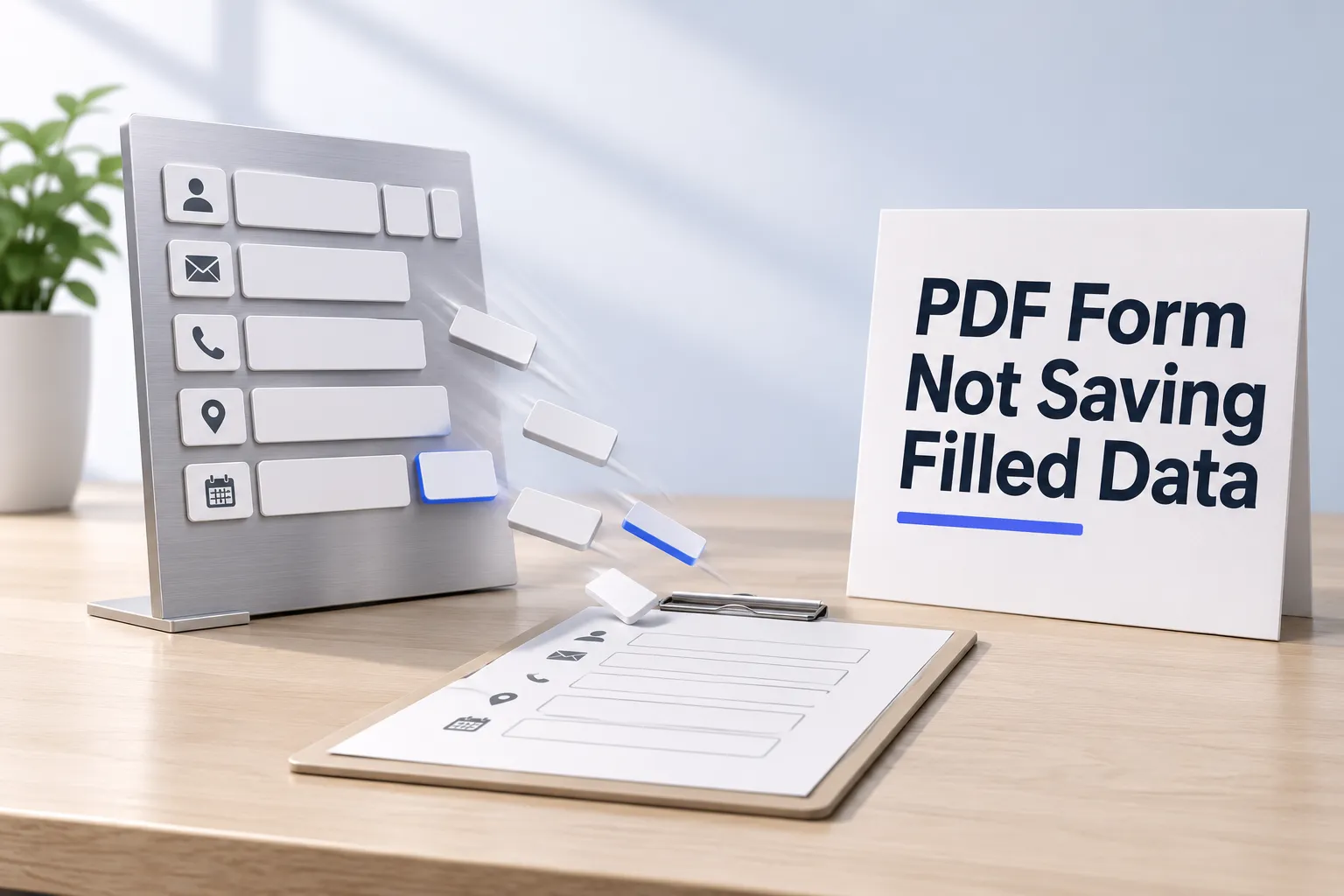
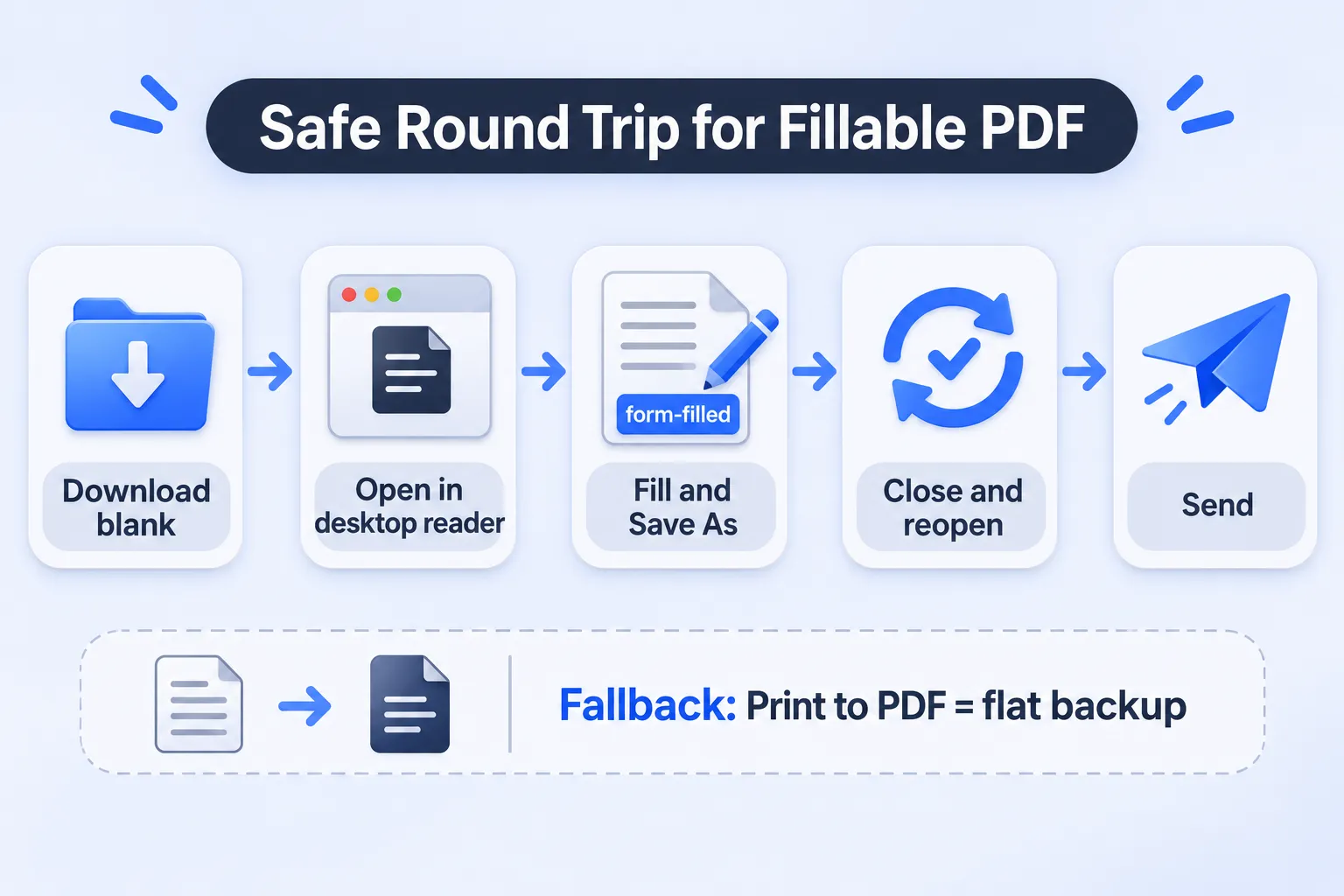
A PDF form not saving filled data almost always means the program you typed into showed your entries on screen but never wrote them into the file’s form-field layer. The usual suspects are a browser tab, Apple Preview, an email or cloud-storage preview, or a file locked by a signature or a permission setting. The quickest fix: download the blank original, open it in a desktop reader such as Adobe Acrobat Reader, fill it in there, and use Save As to give the result a new name.
The rest of this guide explains why each viewer behaves the way it does, how to rescue entries you have already typed, and how to send a form that survives the round trip.
Why a PDF Form Not Saving Filled Data Is Rarely a Save Problem
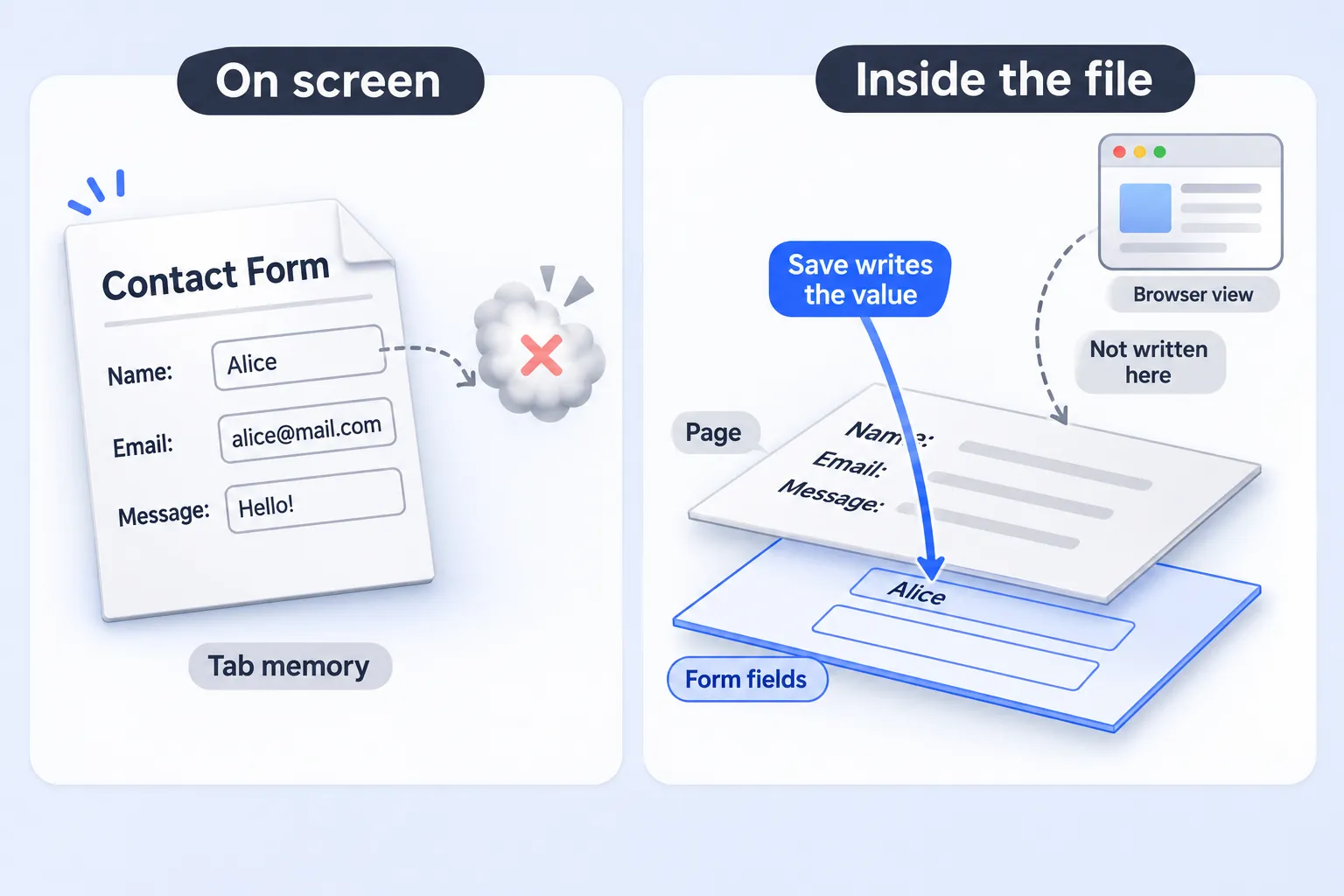
A fillable PDF is really two things sharing one file. The first is the page itself: the printed text, lines and logos. The second is a layer of interactive fields, a structure usually called an AcroForm, in which every text box, checkbox and drop-down has its own entry holding a name, a type and, once someone fills it in, a value. The format is defined in ISO 32000, and the rule that matters here is simple: typing into a field only counts when the viewer writes that value back into the field’s entry and redraws the field’s appearance on save.
Many viewers cut corners. A browser can paint your text over the page so it looks filled in, hold it in the tab’s memory, and lose it the moment you close the tab or open the file somewhere else. Others store the value but skip the appearance data that other software uses to draw the field, so the next program shows an empty box even though a value is technically there. That is why the same file can look complete in one app and blank in another, and why people honestly report that the form “saved fine” and “came back empty” about the very same file.
There is a third wrinkle. Older forms built in Adobe LiveCycle Designer use XFA, an XML-based form technology that only Adobe’s own desktop products render properly. Open one in a browser or a phone app and you typically get a placeholder page telling you to wait or to use a newer viewer. Nothing typed there can be saved, because the viewer is not really showing the form at all. If page one is a near-empty page with a message like that, you are looking at an XFA form in the wrong program.
AcroForm field: an interactive element stored inside the PDF, separate from the printed page. It has a name, a type (text, checkbox, radio button, drop-down, signature) and a value. If the value is never written into the file, the entry exists only on your screen.
Six Reasons Your Entries Vanish After Saving
These are listed roughly in order of how often they cause trouble. Work down the list and stop at the first one that matches how you filled the form.
1. You filled it in a browser tab
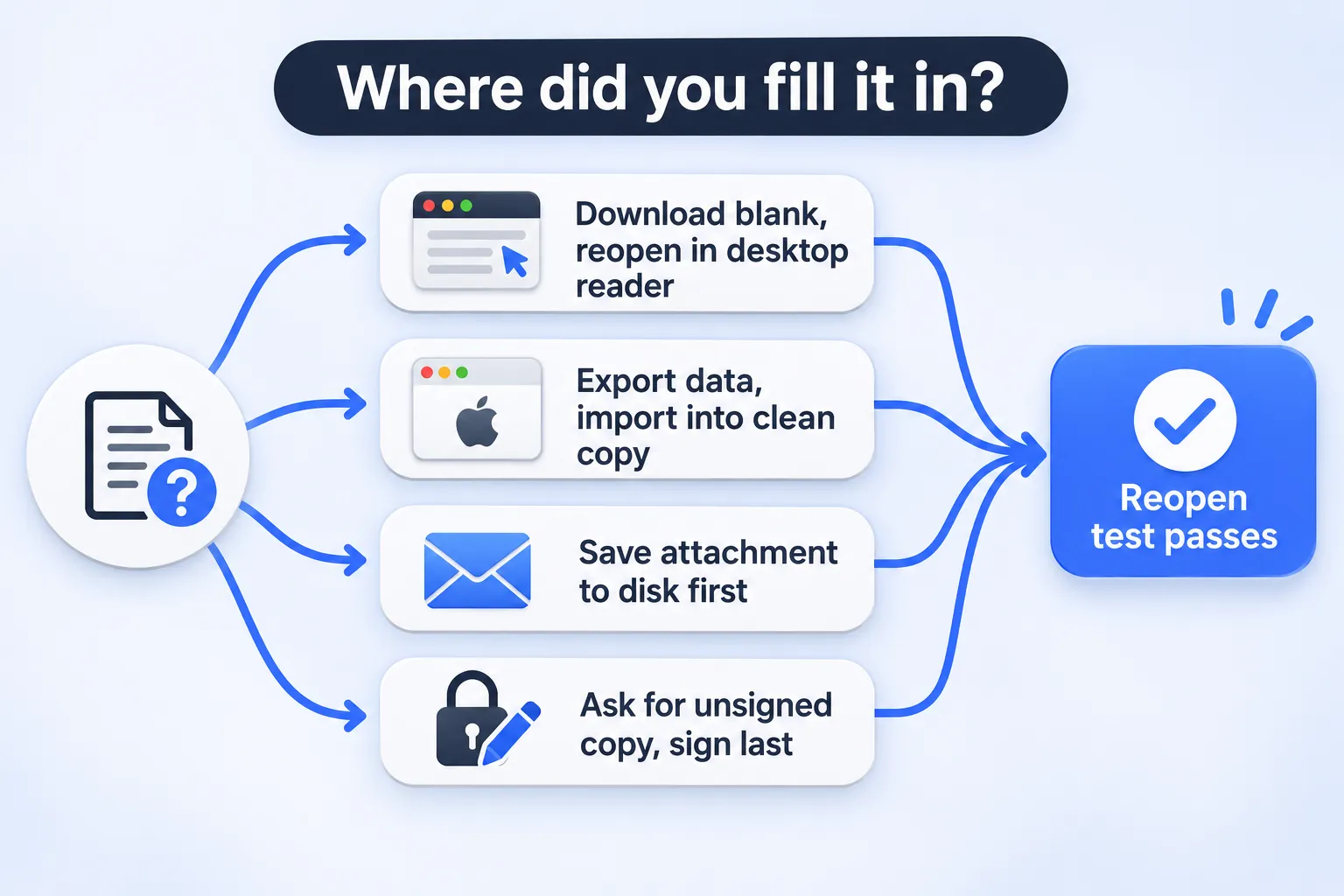
Chrome, Edge, Firefox and Safari all open PDFs in a built-in viewer, and all of them let you type into form fields. What differs is what happens next. Some versions write your entries into the downloaded copy when you use the viewer’s own save or download button. Others keep them only while the tab is open, or write them in a form that desktop readers do not read back. The behaviour changes between versions, so treat it as unreliable for anything you cannot cheaply retype.
The classic trap is an attachment opened straight from a webmail preview. You type, then click the preview’s download arrow, which fetches the original attachment (the blank one) rather than your edited copy. Printing has a similar catch: the print dialog captures what is visible but does not give you a fillable file.
The fix is to download the blank file to a folder first and open it from there in a desktop reader. If you have to use the browser, save with the viewer’s own button, then close everything, reopen the saved copy from disk and check every field before you send it.
2. Apple Preview or a phone preview app touched the file
Apple Preview is the most-cited reason for a PDF form not saving filled data when a file travels between a Mac and a Windows machine. Experts on Adobe’s support forums have repeated for years that Preview handles form fields badly, and in one long-running thread the advice was blunt: if the file was ever opened and saved in Preview, assume it is already damaged. Preview happily reads back what Preview wrote. The trouble shows up when someone else opens the file in Acrobat or another reader.
Markup tools in Mail, Files and Messages on iPhone and iPad can behave similarly, adding a visual layer that looks like filled-in fields without touching the real field values.
The fix depends on what you have. With Acrobat Pro you can export the form’s data and import it into a clean copy of the blank form, which is the workaround another Adobe forum answer suggests for forms that look empty until you click them. Without it, use the rescue procedure further down.
3. A signature locked the fields before you finished
A digital signature field can carry a lock action that turns the listed fields read-only the moment someone signs. If you sign first and then notice an unfilled box, the field may refuse input, or your edit may invalidate the signature. On forms certified by their author, only specific kinds of change are permitted at all.
The order that avoids all of this: fill every field, save a copy as a draft, and sign last. If the file is already signed and locked, you need a fresh unsigned copy from whoever sent it; forcing the lock is the wrong move. For what a typed or drawn signature is worth once the form is complete, see what counts as a legal electronic signature.
4. The file’s permissions block form filling
In Acrobat, File > Properties > Security shows what the document allows. Next to “Filling in form fields” you may find “Not Allowed”, which means the author set a permissions password that blocks it. That is a different lock from the one that stops you opening the file, a distinction covered in which of the two PDF locks you have. If you are not the owner, ask the sender for an unrestricted copy.
Two quieter variants are worth knowing. Acrobat opens some email attachments in Protected View, where editing and saving are switched off until you click Enable All Features. And very old forms depended on Reader extensions to let free readers save at all; modern versions are far more forgiving, but a form that still shows a warning bar about saving is telling you the truth.
5. A cloud viewer or sync folder swallowed the save
SharePoint, OneDrive, Dropbox and Google Drive all have web previews. Typing into one of those previews and pressing Save may write nothing back to the original file, or write a copy without field values. Sync folders add their own twist: if the file is open in two places, you can end up with a “conflicted copy” and keep editing the wrong one.
Work locally instead. Download the file, fill it in on your own disk, use Save As, and upload the finished copy afterwards. Treat the cloud folder as storage, not as the place you edit.
6. The form’s own scripts or settings misbehave
Some forms carry JavaScript that recalculates totals, validates dates or resets fields. A badly written script can overwrite your entry with an empty value on save or on open. One forum reply described disappearing entries stopping once the border stroke was removed from the fields, which shows how odd the triggers can be. If a particular form fails in every viewer, the form itself is the suspect, and the fix belongs with whoever built it. Ask for an updated version, and tell them the exact viewer and steps that failed.
Saving over the blank original. Once your filled copy replaces the master, you have no clean file to start again from and nothing to import data into. Always use Save As with a new name, such as form-yourname-filled.pdf, before you type a single character.
Which Viewer Actually Saves Form Data?
There is no single rule, because versions change, but the pattern is stable enough to plan around.
| Where you filled it in | Shows your entries | Writes them into the file | Safe to send back as is? |
|---|---|---|---|
| Desktop Acrobat Reader or Acrobat | Yes | Yes, including XFA forms | Yes, after Save As and a reopen test |
| Chrome, Edge, Firefox or Safari viewer | Yes | Depends on version and on which button you use | Only after you reopen the saved copy from disk |
| Apple Preview | Yes | Yes for Preview itself, often unreliable in other readers | Risky if the recipient uses Windows or Acrobat |
| Email or chat preview pane | Sometimes | Usually not | No |
| Cloud-storage web viewer | Sometimes | Varies, and may save a separate copy | Download first, then work locally |
Two points about that table. First, “shows your entries” is not evidence of anything: every row can display typed text while writing nothing. The only proof is the reopen test, which is the second point. Close the program completely, open the saved file from its folder in a different viewer if you can, and check that the data is still there. Thirty seconds of testing beats a blank form arriving at the other end.
Open the saved file in two different programs before sending it, ideally a desktop reader and a browser. If both show every entry, the values and the appearance data are both in the file, and nearly any recipient will see the same thing.
How to Recover Filled-In PDF Form Data Before You Close the Tab
If you are staring at a PDF form not saving filled data while the window is still open, do not close it. The entries exist in memory right now, and this order of steps gets them out.
- Leave the tab, window or preview open. Closing it is the one step you cannot undo.
- Print to PDF. Press Ctrl+P (Cmd+P on a Mac) and choose Save as PDF as the destination. This captures every visible entry as ordinary page text.
- Name it plainly, for example form-filled-flat.pdf, and open that new file. Scroll through and check that no long entry is clipped and every checkbox shows its state.
- Try the viewer’s own save or download button as a separate attempt and save under a different name. Close it, reopen it from disk, and see whether the fields are still live and still filled.
- If the recipient needs a fillable file, download the blank original, open it in a desktop reader and retype from your flat copy. The flat copy contains real text, so you can copy and paste instead of retyping.
- Click into a few fields and tab through the rest. Confirm that dates, dropdowns and checkboxes accepted your values rather than reverting.
- Save As with a new name, close the reader completely, and reopen the file.
- Send it to yourself first and open the attachment on another device. Only then send it on.
The flat copy from step 2 is not fillable, and that is the trade-off: it keeps your data safe but turns it into part of the page. For a form going to a portal, an archive or a clerk who only needs to read it, that is usually exactly what you want. For a form the other person still has to complete, use step 5.
A Worked Example: 14 New Hires, Nine Blank Forms
Imagine a three-person HR team that emails a 38-field onboarding form to 14 new starters. Nine of the forms come back empty, and everyone insists they filled them in.
The team asks one question: where did you open it? Six people opened the attachment in the Mail app on an iPhone and used its markup tool, which put text on top of the page without changing the real field values. Three opened it in a webmail preview and downloaded it, which handed back the blank original. The five forms that survived were all filled in a desktop reader or in a browser tab using the viewer’s own save button.
The fix costs almost nothing. The next batch goes out with a four-line instruction at the top of the email: download the file first, open it in Adobe Acrobat Reader on a computer, use Save As, and send that file back. Because a PDF form not saving filled data is so often a viewer habit rather than a file fault, the team also attaches a one-page flat copy, with instructions to print the filled version to PDF if the fillable one gives any trouble. Fourteen of fourteen come back complete. Nothing about the form changed; only the route it travelled.
This example is hypothetical, but the pattern is exactly what shows up in support threads: the file is rarely broken, the route is.
When the Entries Must Stick: Flatten or Send the Data Separately
Sometimes the right answer is to stop depending on the fields at all. Flattening merges the field values into the page itself, so the entries become printed text that no viewer can lose. The cost is that the form stops being fillable. For a tax portal upload, a signed archive copy or anything a recipient only needs to read, that is a good trade. How to flatten a PDF without ruining print quality covers the pitfalls, including fields that vanish at the moment of flattening.
If the saved copy you have is already half-broken, a fresh pass in an editor is often quicker than another round of retyping. An AI PDF editor like MojoPDF can open the saved copy, let you correct the text where it is visible on the page, and export a flattened version from the same workspace, so you are not bouncing the file between a browser, a reader and a printer driver.
The other option is to send the data rather than the form. If you collect forms from many people, Acrobat can export field values as FDF, XFDF or a spreadsheet-friendly file, and the sender can import them into a clean blank. That is also the cleanest repair when an old file has been mangled by a previous viewer.
How to Send a Form That Survives the Trip
If you are the one creating or distributing the form, most of the prevention is yours. A form that works only in the author’s own software is a form that will come back blank.
- Say which software works, in the email and on the first page. “Open in Adobe Acrobat Reader on a computer, not in the browser or a phone app” prevents most failures.
- Test the round trip in three viewers before sending: desktop Acrobat Reader, a browser, and Preview if your recipients use Macs. Fill, save, close, reopen.
- Keep scripts and formatting simple. Every calculation and custom format is another place a viewer can disagree.
- Do not lock what people still need to edit. Certify or sign only at the very end of the process.
- Keep a blank master in a separate folder and give each recipient a copy with a version number in the file name.
- Offer a fallback: a flat copy and one sentence on how to print the filled version to PDF.
The Short Version
A form that looks filled in has not necessarily been saved. Fill it in a desktop reader, use Save As, close the file and reopen it, and trust only what survives that test. If entries still disappear, work down the six causes above, from browser and Preview habits to locks, permissions, cloud previews and the form’s own scripts, and rescue what you have typed with a print to PDF before you close anything.
- The values live in a separate field layer, and many viewers show your typing without writing it there.
- Browsers, Apple Preview, email previews and cloud viewers are the usual culprits.
- Sign last, never save over the blank original, and check Security and Protected View.
- Run the reopen test in a second program before you send.
- Print to PDF rescues what is on screen; flattening makes entries permanent.

MojoPDF
Taj
A professional SaaS founder offering great value to it's customers.
Frequently Asked Questions
Most often the program you typed into displayed your entries without writing them into the file’s form fields. Browser viewers, Apple Preview and email previews are the usual causes. Download the blank file, fill it in a desktop reader, use Save As, then close and reopen it to confirm.
Stop using Preview for that form and open it in Adobe Acrobat Reader instead. If the file has already been saved in Preview, export the data in Acrobat Pro and import it into a clean copy, or print the filled version to PDF as a flat backup. Keep the blank original untouched for the next attempt.
You may have sent the original attachment rather than your edited copy, which happens when a file is opened and downloaded from a mail or webmail preview. Save the file to your own disk first, fill it there, and attach the saved copy. Open the attachment from your sent folder to check it.
If the tab or window is still open, yes: print to PDF with Ctrl+P or Cmd+P and the visible entries are captured as flat text. Once the viewer is closed, entries kept only in memory are normally gone. Check your Downloads folder for any copy you saved earlier.
Chrome may have drawn the entries without storing them as field values, or stored them without the appearance data Acrobat uses to draw the field. Reopen the saved copy in Acrobat to see which it is. If the data is missing there, retype it into the original in Acrobat or print the Chrome view to PDF.
No. A desktop reader such as Adobe Acrobat Reader can save most filled forms under a new name. Pro is for creating or editing fields and for tasks such as exporting form data, and it does not change the basic rule about using a proper desktop viewer.
Check the file’s security settings for “Filling in form fields”, look for an Acrobat Protected View bar asking you to enable editing, and see whether a signature has locked the fields. An XFA form opened in a browser or phone app will not accept input either. Each has a different fix, and the sender may need to supply a new copy.
Signing can trigger a lock action that makes fields read-only, and any later change may invalidate the signature. Fill every field first, keep a draft copy, and sign last. If the signed file is already locked, ask for a fresh unsigned version.
It is a reliable way to capture what is visible, because the entries become ordinary page text. The result is flat, so the recipient cannot edit the fields afterwards. Open the new file and check that long entries are not clipped before you send it.
Flatten it when nobody else needs to edit it, such as for a portal upload or an archive copy. Do not flatten while the form is still being completed, because the fields stop working. Keep an unflattened copy so you can fix a mistake later.
Tell them which software to use, ask them to download the file before filling it and to use Save As, and test the form in a desktop reader, a browser and Preview before you send it. Include a flat fallback and one line explaining how to print the filled version to PDF.