Convert Bank Statement PDF to Excel Without Broken Rows
A PDF does not actually contain a table. Under the hood, the PDF format stores individual text characters alongside exact X and Y page coordinates, ruling lines, and font metrics—with zero awareness of rows, columns, or cells. That is the entire reason trying to convert bank statement PDF to Excel so often turns a neat five-column ledger into a scrambled mess of merged cells, wrapped merchant names, and numbers stored as text.
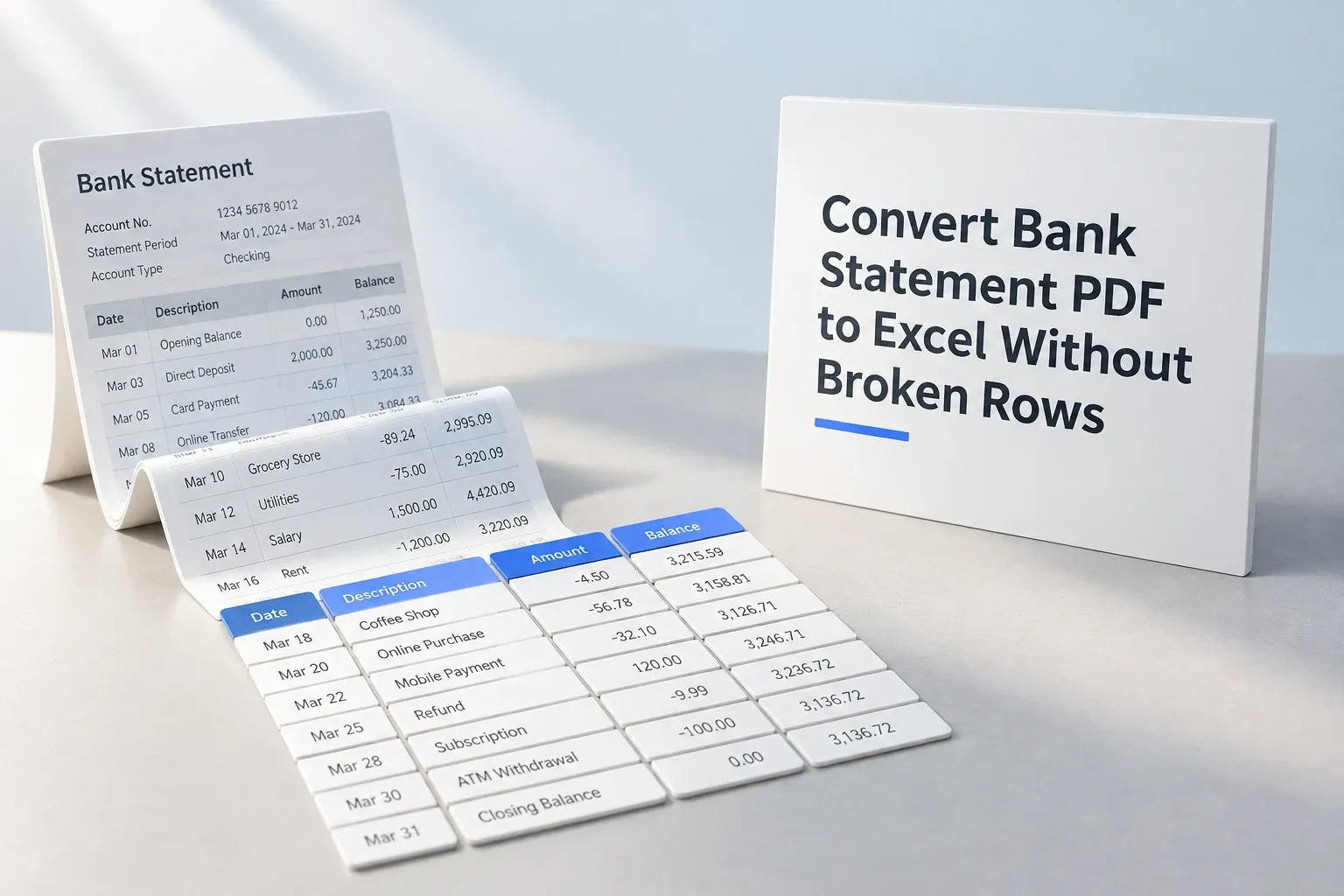
To convert bank statement PDF to Excel cleanly, you have to match the extraction method to the PDF type: use Excel’s built-in Power Query PDF connector for native multi-page digital statements, run layout-aware OCR first if the statement is a flat scan, and always audit opening and closing balances with a SUM formula before importing the sheet into accounting software. Skipping any of those three steps is how silent rounding and row-shift errors sneak into tax filings and month-end reconciliations.
Why Bank Statements Break Worse Than Normal PDF Tables
If you have ever converted a simple product price list from PDF to a spreadsheet, you might wonder why a bank statement behaves so much worse. A price list has uniform row heights and clean borders. A bank statement is designed by core banking software for human eyes and paper envelopes, not machine parsing.
Five structural quirks cause 90% of conversion failures:
- Multi-line merchant descriptions: A card purchase or ACH wire rarely fits on one line. The date, debit amount, and running balance sit on line one, while the merchant city, reference number, and card digits spill onto lines two and three. Naive converters treat lines two and three as brand-new blank transactions, shifting every column below them.
- Repeated page headers and footers: On a 14-page business checking statement, the bank repeats your account number, branch address, legal disclaimers, and column headers at the top and bottom of every single page. If the parser fails to strip those blocks, they land right in the middle of your transaction list.
- Parentheses and CR/DR suffixes instead of minus signs: Many banks print outflows as
(425.00)or425.00 DRrather than-425.00. Excel frequently misreads trailingDRorCRmarkers as plain text strings, which meansSUM()quietly ignores those rows. - Separate debit and credit columns vs. single signed columns: Some institutions split money in and money out into two columns; others put both in one column and rely on a tiny
+or-glyph. When column boundaries shift by a few millimeters across page breaks, credits land in the debit column. - Scanned or rasterized image PDFs: Older statements, mailed paper statements scanned at an office multifunction printer, and certain legacy credit union downloads contain no text layer at all—only a compressed bitmap image.
Never copy and paste transaction rows directly from a PDF viewer into Excel. Most PDF viewers read text in the order it was written to the file stream rather than visual left-to-right order, which routinely pastes dates in one column, skips blank cells, and collapses multi-line descriptions into a single unparseable block.
Understanding which flaw your file has before you touch a tool saves more time than any post-conversion cleanup macro. As we covered in our breakdown of where PDF to Excel AI quietly fails, even modern parsers struggle when visual alignment and underlying PDF coordinates disagree.
Digital vs. Scanned Bank Statements: Check Your File Type First
Before choosing a workflow to convert bank statement PDF to Excel, spend five seconds testing how the PDF was built. The conversion path for a native digital PDF is completely different from the path for a scanned image.
Open the file in any desktop PDF reader or browser tab and try to drag your cursor across a single merchant name:
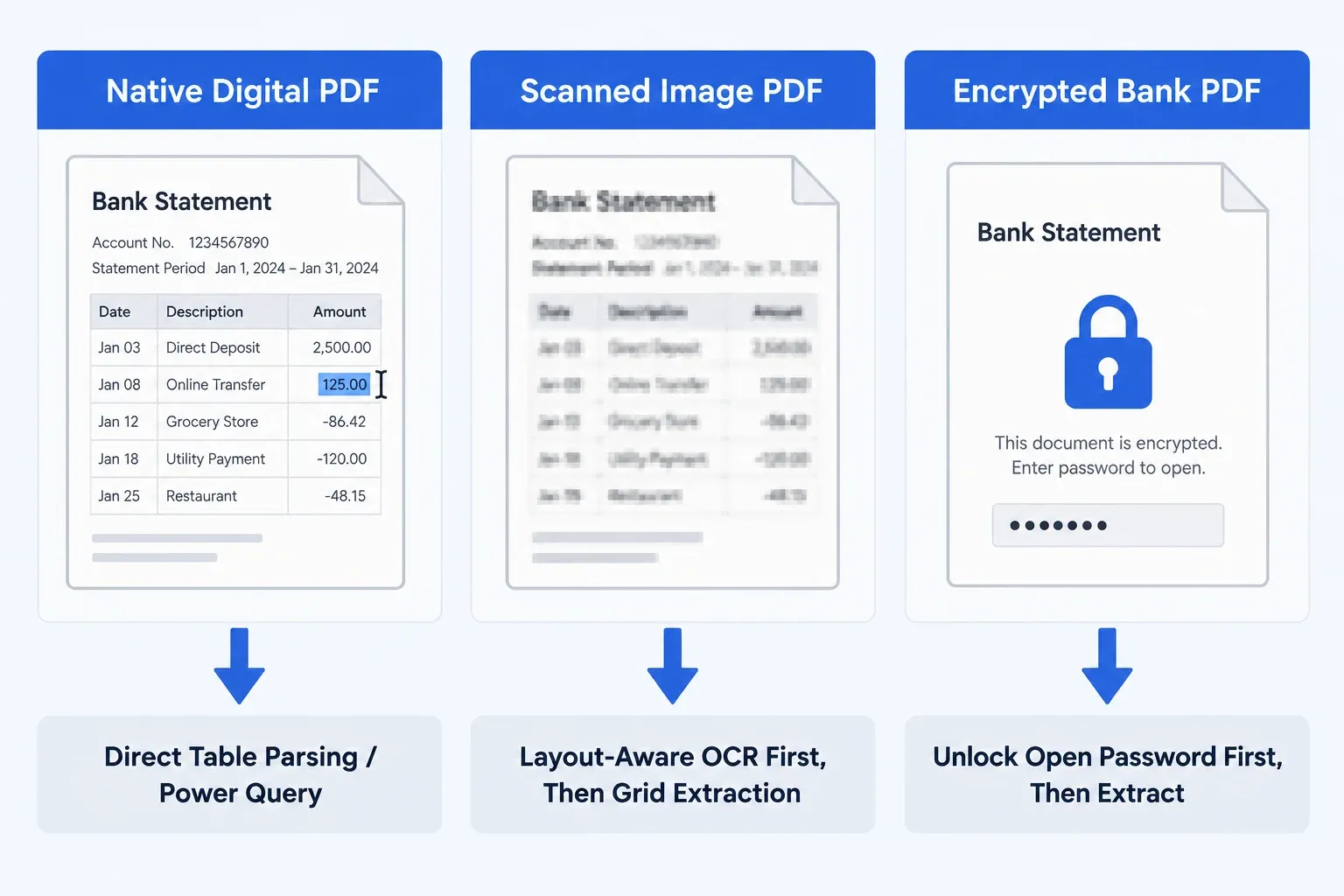
- Native digital PDF (selectable text): Your cursor highlights individual letters and numbers cleanly. Almost every statement downloaded directly from an online banking portal falls here. These files contain real character data, so the challenge is purely column boundary detection and multi-line row grouping.
- Scanned or flattened image PDF (no selectable text): Dragging your cursor either does nothing or draws a blue selection box around the entire page like a photograph. This happens when someone printed a statement and scanned it back in, or when a bank’s legacy archive system exported pages as rasterized TIFF-inside-PDF wrappers.
- Password-protected PDF: Many banks encrypt monthly statement downloads using a formula such as your customer ID plus date of birth. Most automated spreadsheet importers—including Excel’s native Power Query connector—will throw an unreadable file error until the open password is removed.
If you are dealing with an encrypted download, our guide on how to remove a password from a PDF explains the difference between an open password and a permissions lock so you can unlock your own statement legally before importing it. And if your drag-test reveals an image-only scan, read our walkthrough on why a scanned PDF is not searchable and how to fix it so you apply proper optical character recognition (OCR) before attempting any spreadsheet extraction.
Four Ways to Convert Bank Statement PDF to Excel (Compared)
There is no single tool that handles every bank layout on earth equally well. A workflow that extracts a 3-page Chase checking statement in ten seconds can choke on a 60-page multi-currency commercial ledger or a crooked 200 DPI scan.
Here is how the four main conversion methods compare across accuracy, privacy, multi-page handling, and cleanup effort:
| Method | Best For | Multi-Page Handling | Scanned PDF Support | Privacy / Data Location | Typical Cleanup Time |
|---|---|---|---|---|---|
| Excel Power Query (Get Data > From PDF) | Windows Microsoft 365 & Excel 2021/2024 users with native digital PDFs | Strong (via Append Queries or multi-page table detection) | None (requires OCR first) | 100% local on your PC | 5–10 minutes to build reusable query |
| AI-Assisted PDF Workspace | Complex multi-line descriptions, mixed scans, or recurring monthly statements | High (reads visual layout across page breaks) | Built-in vision OCR | Runs in browser / encrypted session | 1–3 minutes of balance verification |
| Dedicated Bank Statement Parsers | High-volume bookkeeping firms importing directly to QuickBooks or Xero | Very high (bank-specific templates) | Varies by vendor | Cloud upload required | Minimal if bank template is supported |
| Manual Copy-Paste / Word Workaround | One-off 1-page statements with fewer than 15 rows | Poor (breaks across every page header) | None | 100% local | 15–30 minutes of manual column fixing |
When to Pick Which Method
If you work on a Windows PC with Microsoft 365 and reconcile the exact same bank account every month, Power Query is hard to beat because you build the cleanup rules once and click Refresh next month. However, as Microsoft’s official Power Query PDF connector documentation notes, the native PDF connector is not available in Excel for Mac or Excel for the web, and it cannot read scanned pages.
When you are on a Mac, working with a scanned paper statement, or dealing with a bank layout where merchant descriptions wrap across three or four lines, a browser-based workspace handles the layout geometry much more reliably. For example, an AI PDF editor like MojoPDF runs the heavy lifting right in your browser, reads scanned or native statement layouts in place, and lets you convert bank statement PDF to Excel without sending sensitive account numbers to an unknown third-party server.
Step-by-Step: Convert Bank Statement PDF to Excel Using Power Query
If you have Excel for Windows (Microsoft 365, Excel 2021, or Excel 2024) and a native digital statement, Power Query gives you a repeatable, auditable pipeline. Follow these seven steps:
- Open a blank workbook and launch the PDF connector: Go to the Data tab on the ribbon, select Get Data > From File > From PDF, browse to your statement, and click Import.
- Inspect the Navigator tree carefully: Excel will display a folder icon containing every detected
TableandPagein the PDF. Click through them to see the preview on the right. Multi-page statements often split transactions intoTable001 (Page 1),Table002 (Page 2), and so on. - Select multiple tables at once: Check the Select multiple items box at the top of the Navigator window, tick every transaction table across all pages (skipping the summary boxes and fee disclosures), and click Transform Data rather than Load.
- Append the page tables into one master ledger: Inside the Power Query Editor, select the first page’s query in the left pane, click Home > Append Queries > Append Queries as New, choose Three or more tables, add the remaining page queries, and click OK.
- Promote headers and filter out repeated page banners: Click Use First Row as Headers. Then click the filter dropdown on your Date column and uncheck
null,Date, and any repeated header strings that came from pages 2 through 10. - Fix wrapped merchant descriptions: If a wrapped description created a row where the Date and Amount cells are
nullbut the Description cell has text, select the Date column, go to Transform > Fill > Down, and then use Transform > Group By on Date and Amount (combining Description text withText.Combine) to merge split lines back into single rows. - Enforce data types and load: Set the Date column to Date (using Using Locale if your bank uses
DD/MM/YYYYon a US system), set Debit/Credit/Balance to Currency or Decimal Number, and click Close & Load.
If your bank statement puts withdrawals in parentheses like `(120.50)` and Power Query throws a `DataFormat.Error` when converting to Decimal Number, right-click the column header, choose **Replace Values**, replace `(` with `-`, replace `)` with nothing, and then change the data type to Decimal Number.
Worked Example: Cleaning a 6-Page Business Statement With Wrapped Rows
Theory is helpful, so let’s walk through a real-world reconciliation scenario. Imagine a freelance designer downloading a 6-page Q3 business checking statement containing 148 transactions, an opening balance of $14,280.50, and a closing balance of $19,612.15.
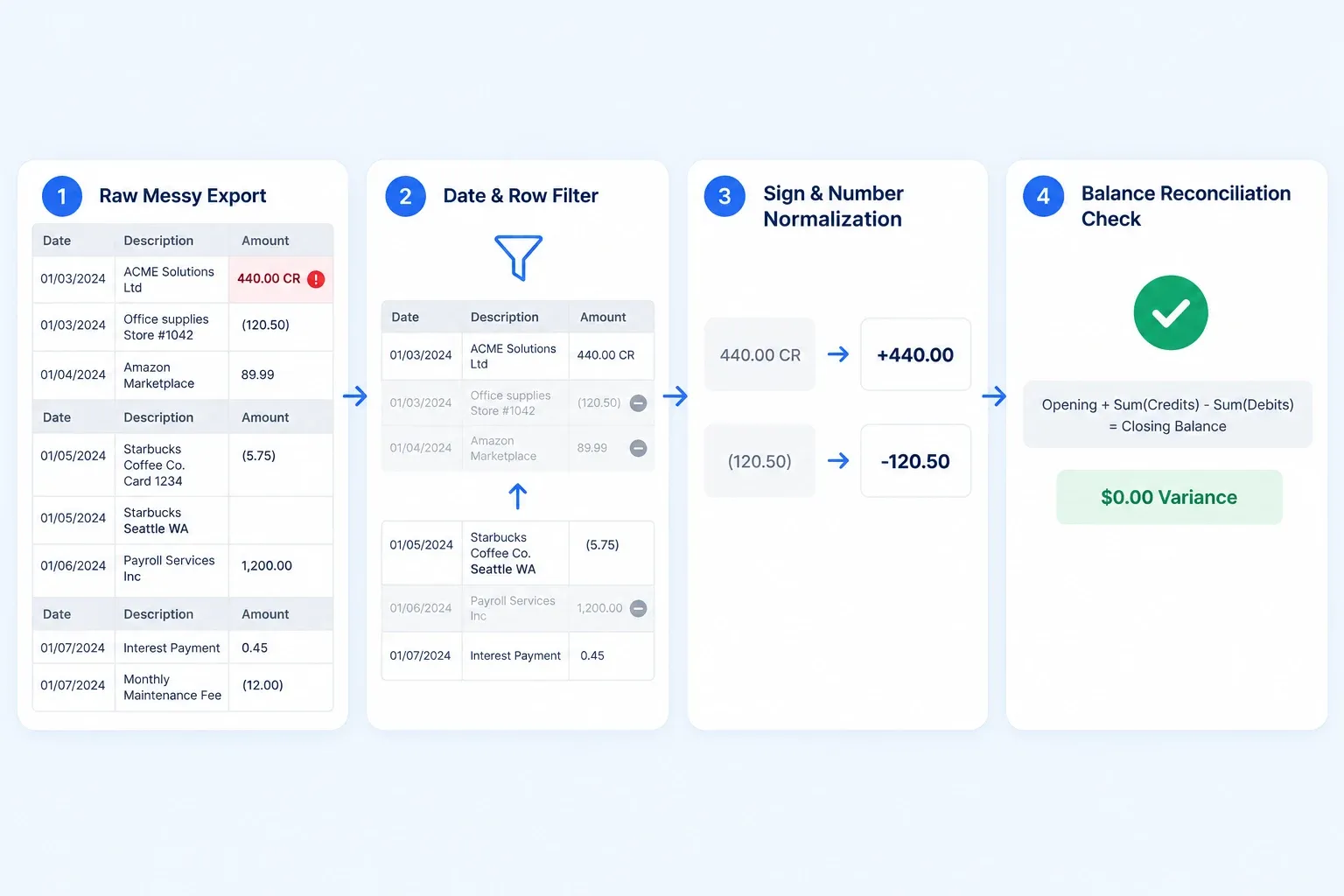
After running an initial extraction into Excel, the raw sheet has 214 rows instead of 148, and SUM on the net amount column shows a net change of $4,891.65 instead of the true $5,331.65—a $440.00 discrepancy.
Here is how to diagnose and fix that exact $440.00 gap in under four minutes:
- Check the reconciliation equation first: Subtract Opening Balance (
$14,280.50) from Closing Balance ($19,612.15). The true net cash movement is+$5,331.65. Every spreadsheet conversion must hit this exact penny before you categorize a single expense. - Isolate the extra 66 rows: Add a temporary helper column called
Row Checkwith the formula=ISNUMBER(A2)(assuming column A holds the transaction date). Filter forFALSE. Immediately, 54 rows appear: 5 repeated page header blocks and 49 second-line merchant city/reference fragments likeSAN FRANCISCO CA 94107. - Find the missing
$440.00: Filter for rows where the Description is populated (<>"") and both Debit and Credit appear blank. There it is: row 112 (ACH WIRE INBOUND - CLIENT RETAINER) has440.00 CRstored as a text string because of theCRsuffix, so Excel excluded it fromSUM(). - Strip text suffixes cleanly: Run a formula in a clean Amount column:
=IF(RIGHT(TRIM(D2),2)="CR", VALUE(SUBSTITUTE(D2,"CR","")), IF(RIGHT(TRIM(D2),2)="DR", -VALUE(SUBSTITUTE(D2,"DR","")), VALUE(D2))). Instantly, the$440.00credit converts into a true positive number, and the sheet total snaps to$5,331.65. - Merge the 49 wrapped description lines: Use
=IF(A3="", B2 & " " & B3, B2)to append orphaned description lines onto the parent transaction row above them, paste values, and delete the rows where column A is blank.
You now have exactly 148 clean rows, zero blank gaps, and a mathematical proof that not a single cent was lost or duplicated during conversion.
How to Handle Scanned Bank Statements Without Manual Retyping
When you have to convert bank statement PDF to Excel from a paper scan—common during tax audits, mortgage underwriting, or older business records—no standard table extractor will see anything until the image goes through OCR.
Standard OCR engines read a page like a novel: left to right, top to bottom. On a dense bank statement, that often scrambles columns because slight paper skew makes the OCR engine jump from the date on row four to the merchant name on row three. To get clean columns from a scanned PDF, follow three preparation rules:
- Scan at 300 DPI in grayscale, not color or 150 DPI: At 150 DPI, the digits
3,8, and5blur together on thermal paper receipts and dot-matrix statements, and1frequently turns intolorI. Scanning at 300 DPI gives vision-based OCR crisp character edges without creating bloated 80 MB files. - Deskew crooked pages before running OCR: Even a 2-degree tilt on a flatbed scanner causes horizontal row drift across an 8.5-inch page width. Straighten the page geometry first so every date sits on the exact same horizontal baseline as its corresponding balance.
- Verify the running balance column, not just the totals: OCR errors on scanned statements rarely drop an entire row; instead, they misread a single digit (
$1,850.00becomes$1,350.00). Add a running-balance check column in Excel using=Previous_Balance + Credit - Debitand compare it against the bank’s printedBalancecolumn (=ROUND(Calculated_Balance - Printed_Balance, 2)). Any non-zero cell pinpoints the exact row where OCR misread a digit.
A bookkeeper preparing three years of historical statements for a small restaurant audit used a running-balance check column (`=ROUND(E3-F3,2)`) after OCR conversion and caught four separate single-digit misreads—including an `$8,400.00` supplier payment that OCR had read as `$3,400.00`—in less than two minutes, avoiding a `$5,000` reconciliation variance.
Privacy and Security Risks When Uploading Bank Statements Online
A bank statement is one of the highest-risk documents you own. A single PDF contains your full legal name, home or business address, full bank account number, routing or IBAN details, payroll deposits, vendor relationships, and recurring subscription patterns.
Before uploading a statement to any web-based converter, check three security realities:
- Client-side browser processing vs. server uploads: Many free web converters upload your PDF to a remote cloud server, run a server-side script, and store the file in temporary cloud buckets for hours or days. Client-side tools process the PDF directly inside your local browser’s memory so the raw financial document never leaves your machine.
- Data retention and AI model training policies: According to the Federal Trade Commission’s guidance on safeguarding customer financial information, financial records require strict access controls and disposal policies. Always verify that any cloud tool you use explicitly states that uploaded documents are encrypted in transit (TLS 1.2 or higher), deleted immediately after conversion, and never used to train machine learning models.
- Redacting account numbers before sharing: If you are converting a bank statement to Excel to send to an external accountant, loan officer, or business partner who does not need your full account number, redact the account number on the PDF first—or delete that header row in Excel before emailing the workbook.
If you also need to send a clean PDF copy of that statement alongside your spreadsheet, check our guide on how to sign electronically in PDF and keep it legally valid when lenders ask for signed verification statements.
Preparing Your Converted Excel Sheet for QuickBooks, Xero, or Tax Filing
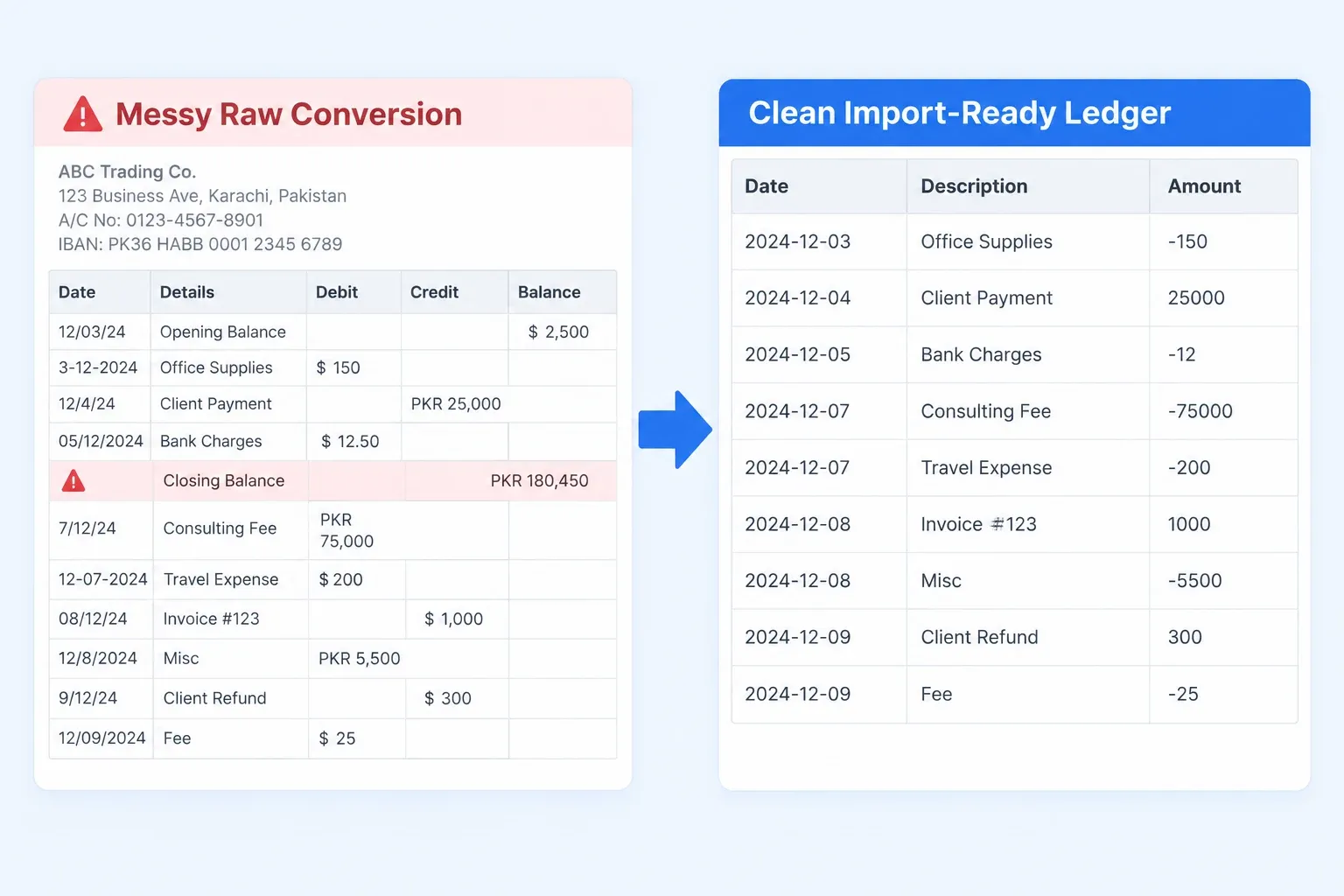
Once you convert bank statement PDF to Excel, your final step is formatting the spreadsheet so accounting software or your CPA can ingest it without throwing import errors. Accounting platforms like QuickBooks Online and Xero are notoriously strict about CSV and XLSX structure.
Run through this pre-import checklist before saving your final file:
- Strip everything above the column header row: Delete your bank’s logo text, account summary box, customer address block, and statement period banner so Row 1 contains only clean column headers (
Date,Description,Amount, orDate,Description,Debit,Credit). - Remove all subtotal, total, and opening/closing balance rows: Accounting software treats every row as a transaction. If you leave a
Closing Balance: $19,612.15row at the bottom of the sheet, QuickBooks will import it as a$19,612.15deposit and double your balance. - Standardize dates to ISO (
YYYY-MM-DD) or US (MM/DD/YYYY): Mixed date formats—such as03/04/2026where half the software reads March 4 and half reads April 3—cause silent chronological scrambling. Format the entire Date column explicitly before exporting to CSV. - Remove currency symbols and thousands commas: Plain numbers (
-1240.50instead of-$1,240.50) import cleanly across every regional version of Excel, Google Sheets, Xero, and QuickBooks. - Save both
.xlsxand.csvversions: Keep an.xlsxmaster file containing your reconciliation formulas (Opening + Credits - Debits = Closing) for your audit trail, and export a flat, formula-free.csv(UTF-8) file for software uploads.
Common Mistakes That Corrupt Converted Bank Spreadsheets
Even experienced bookkeepers occasionally get burned by subtle spreadsheet behaviors after converting a PDF ledger. Watch out for these four traps:
- Letting Excel auto-convert long reference numbers into scientific notation: Bank wire IDs and check numbers with 12 to 16 digits automatically turn into
1.23457E+14when opened in Excel, permanently truncating the final digits if you save the file as a CSV. Always format reference ID columns as Text before saving. - Sorting by Amount before merging multi-line descriptions: If you sort a freshly converted sheet by Amount while wrapped description lines still have blank Date cells, those second-line merchant details detach from their parent transactions forever. Always merge wrapped rows first, add an
Original_Row_Orderindex column (1, 2, 3…), and only sort after the table is normalized. - Trusting PDF table borders blindly: Some banks use invisible whitespace rather than visible gridlines to separate the Description column from the Debit column. When a merchant name is unusually long, it encroaches into the Debit column’s X-coordinate space, causing converters to push the dollar figure one column to the right.
- Forgetting to check page-break boundary rows: The last transaction at the bottom of Page 1 and the first transaction at the top of Page 2 are the most likely rows in the entire document to be dropped or split across a footer. Always spot-check every page transition.
Final Thoughts
Learning how to convert bank statement PDF to Excel reliably comes down to treating the PDF as a coordinate map rather than a native spreadsheet. Match the extraction method to whether your file is digital or scanned, clean wrapped descriptions and CR/DR text suffixes before sorting, and never trust a converted file until Opening Balance + Credits - Debits matches your statement’s printed closing balance to the exact cent.
- Check whether your bank statement is a native digital PDF or a scanned image before picking a conversion tool.
- Use Excel’s Power Query (`Data > Get Data > From PDF`) for recurring native digital statements on Windows, or a browser-based AI PDF workspace for complex layouts and scans.
- Always merge wrapped multi-line merchant descriptions and convert `CR/DR` or parenthetical numbers into signed numeric values before sorting.
- Prove accuracy with one formula: `Opening Balance + Total Credits - Total Debits = Closing Balance` with zero variance.
- Strip bank headers, addresses, and subtotal rows from Row 1 and the bottom of the sheet before importing into QuickBooks or Xero.

MojoPDF
Taj
A professional SaaS founder offering great value to it's customers.
Frequently Asked Questions
Use a layout-aware extractor such as Excel’s Power Query PDF connector (for native digital PDFs on Windows) or an AI table parser that groups multi-line merchant descriptions by row coordinates. After extraction, verify that dates, debits, credits, and running balances sit in dedicated columns and reconcile your closing balance with a SUM formula before doing any sorting.
It is safe only if you use a tool that processes files locally in your browser or encrypts uploads over TLS and deletes them immediately without storing or training on your data. Because bank statements expose your account number, routing details, and address, avoid free ad-supported sites with vague privacy policies, and redact your account number if sharing the sheet externally.
Microsoft’s native PDF connector is only included in Microsoft 365, Excel 2021, and Excel 2024 on Windows desktop. It is not available in Excel for Mac, Excel for the web, or perpetual Excel 2019 licenses, so Mac and web users need to convert the PDF to XLSX or CSV in a dedicated converter first.
Yes, but you must run optical character recognition (OCR) on the scanned pages first because a scan is just a flat image without selectable text. Scan at 300 DPI in grayscale for crisp digits, run layout-preserving OCR, and add a running-balance check column in Excel to catch any single-digit misreads like an 8 mistaken for a 3.
Most spreadsheet importers will reject an encrypted PDF until you unlock it using the password provided by your bank (often a combination of your customer ID and birth date). Open the statement with your password, save an unlocked copy locally, convert it to Excel, and delete the unencrypted copy once your bookkeeping is done.
Banks frequently format outflows in parentheses like (250.00) or attach text suffixes like 250.00 DR and 500.00 CR, which Excel imports as plain text strings rather than numbers. Use Find & Replace or a formula to strip DR/CR labels and convert parentheses into standard negative signs so Excel treats every cell as a true number.
Save a clean, formula-free CSV (UTF-8) file for importing into QuickBooks Online, Xero, or Wave, while keeping an XLSX version for your own reconciliation formulas. Make sure Row 1 contains only simple column headers like Date, Description, and Amount, with all bank summary boxes and closing balance rows removed.
In Excel, you can concatenate orphaned description lines onto the row above using a helper formula like =IF(A3="", B2 & " " & B3, B2), paste the results as values, and then filter and delete all rows where the Date cell is blank. In Power Query, use Fill Down on the Date and Amount columns followed by Group By with Text.Combine.
Yes. In Excel for Windows, place all monthly PDFs in a single folder and use Data > Get Data > From File > From Folder combined with the Pdf.Tables function in Power Query to append all 12 months into a single master ledger automatically.
Take the statement’s printed Opening Balance, add the SUM of all extracted credits, and subtract the SUM of all extracted debits. If the result equals the statement’s printed Closing Balance to the exact cent, every transaction amount was captured accurately; if there is a variance, a running-balance check column will pinpoint the exact row where the discrepancy begins.